JX-350_EPU使用说明书.pdf - 第20页
EPU Instructi on Manual Chapter 2 Inst allation 2- 14 ③ W indow s V ista displays the user accoun t control dial og. Select [Continue]. ④ Go to DPI Scaling and s elect [Default scale (96 DPI) - f it mor e i nf orm at ion…
EPU Instruction Manual Chapter 2 Installation
2-13
2.3.2 Making other settings (Windows Vista / Windows 7 / Windows10 only)
When operating EPU on Windows Vista / Windows 7 / Windows10, it is necessary to set up
the operation environment suitable for EPU.
(1) Setting scaling
To display the screen suitable for EPU, you need to check the scale setting.
When operating in a [large scale] environment, the following developments may occur. Set
to standard [default scale] and use.
• Displayed characters are cut off
• Display is indented 2 spaces
• Items are not fully displayed
• Tab headings are stretched sideways
How to set scaling is shown below.
<Windows Vista>
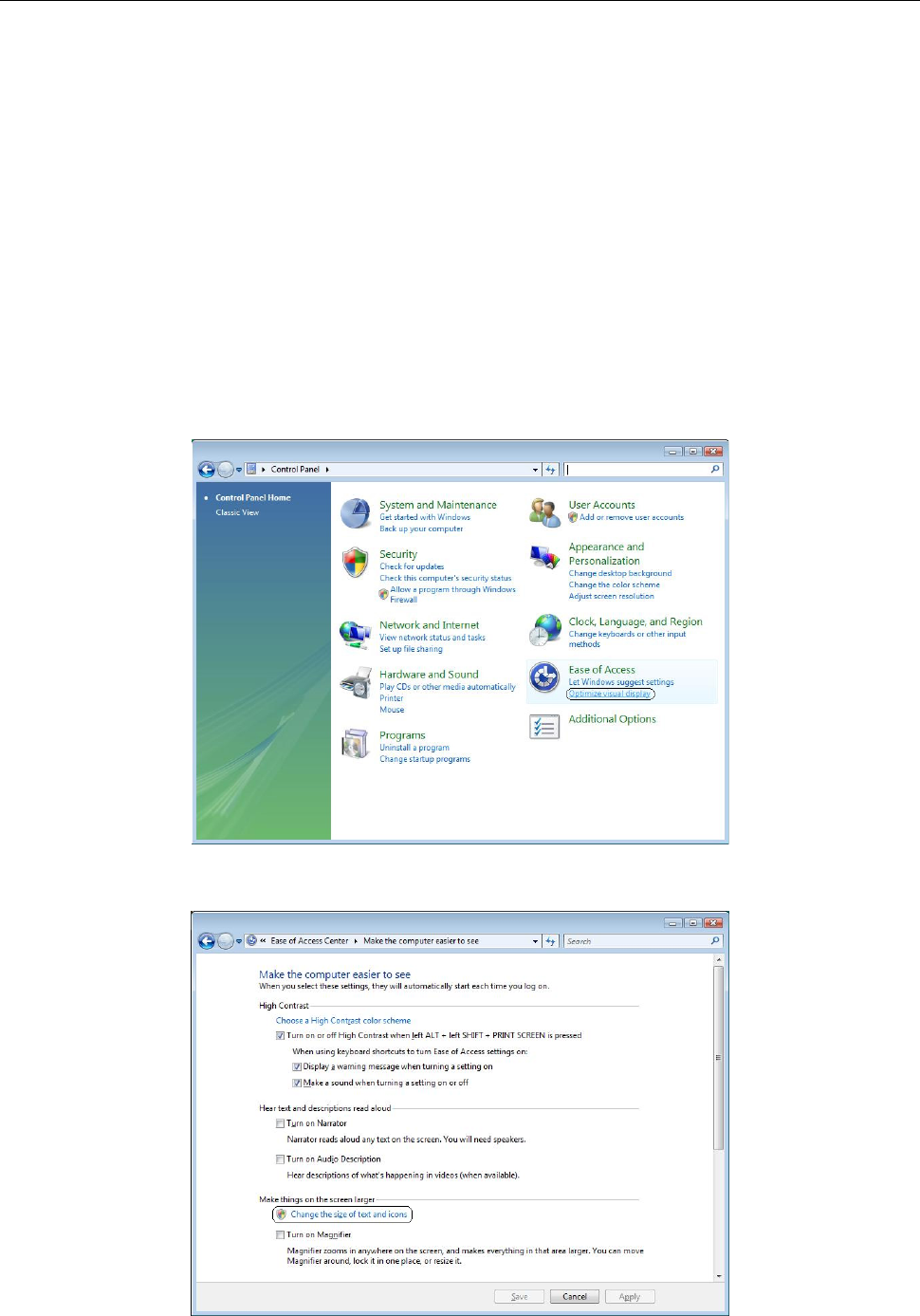
① From the control panel select [Ease of Access] - [Optimize visual display].
② Select [Making things on the screen larger] - [Change the size of text and icons].
EPU Instruction Manual Chapter 2 Installation
2-14
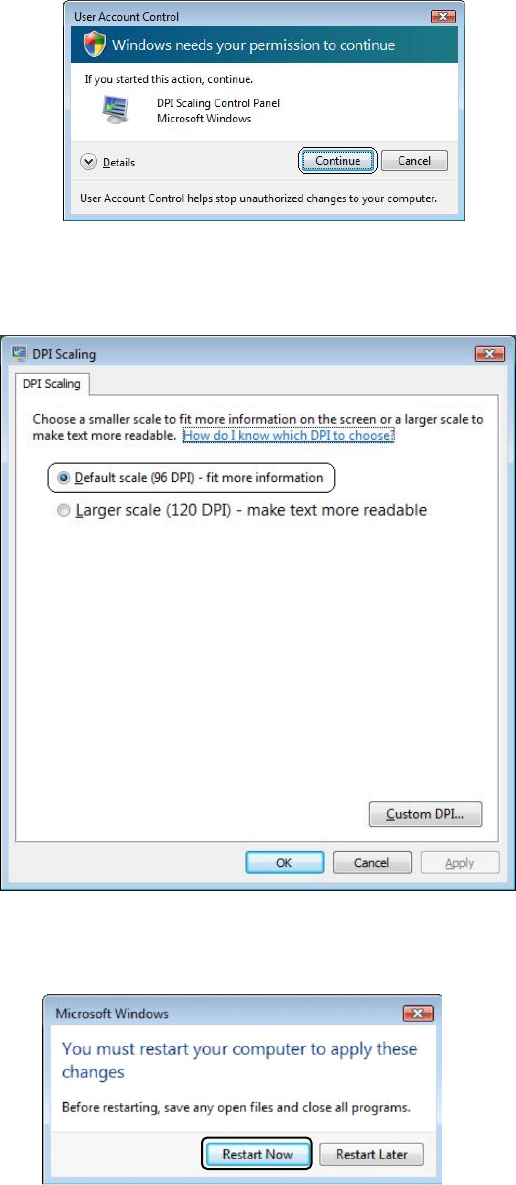
③ Windows Vista displays the user account control dialog. Select [Continue].
④ Go to DPI Scaling and select [Default scale (96 DPI) - fit more information], then
select [OK].
⑤
When a dialog appears recommending you restart, restart Windows Vista.
EPU Instruction Manual Chapter 2 Installation
2-15
<Windows 7/Windows 10>
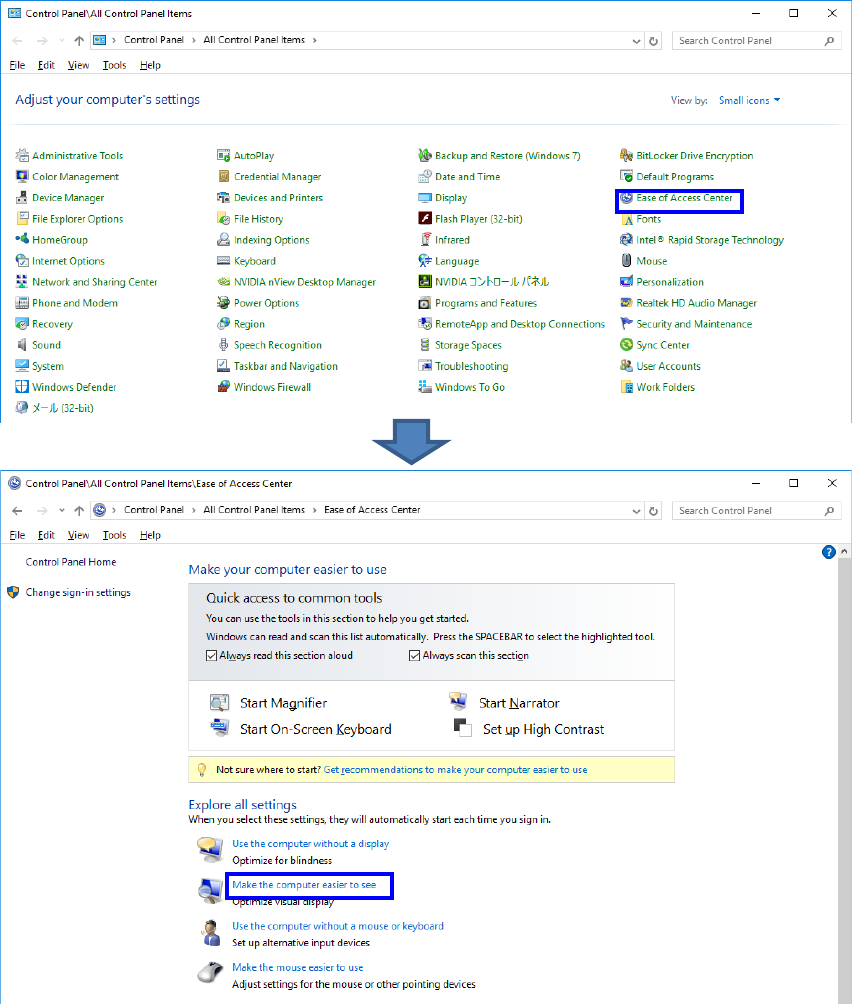
① In the Control Panel, select “Ease of Access Center” - “Make the computer easier to see”.