JX-350_EPU使用说明书.pdf - 第27页
EPU Instructi on Manual Chapter 3 E PU setup 3-1 Chapt er 3 EPU Setup 3.1 Ove rvi ew Set up the EPU env ironment. This module allows y ou to set the EPU environment: unit sta tus of each station, da tabase file name and …
EPU Instruction Manual Chapter 2 Installation
2-20
2.3.3.1 Setting the language
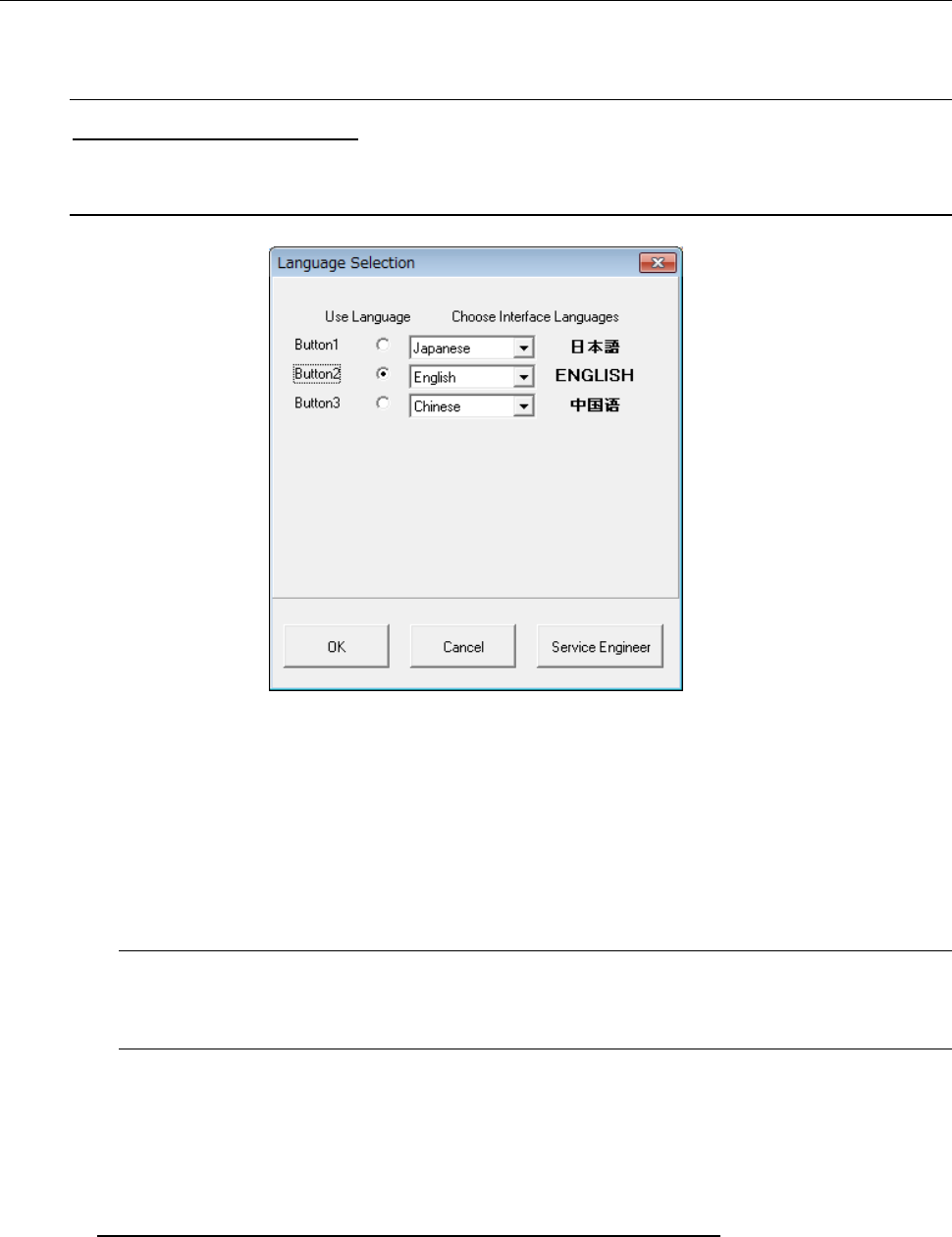
When you click the [Lang. Available] button on the “EPU Launcher” screen, the following
“Language Selection” dialog box appears on the screen.
Note on the English version
The English version JX-350 EPU displays the following dialog box and allows you to
operate it, but you cannot use the language switching function.
(1) Select the language you want to assign to the [Lang Available] button from the combo
box.
The selected language appears in the selected language itself on the right side of the
combo box.
(2) The radio button is used to select the language you want to use after quitting the
“Language Selection” dialog box.
Note: When you select a blank from the combo box, no language is assigned to the
button, and the button disappears from the screen. In this case, you cannot
specify the radio button.
(3) When you press the <OK> button, the language switching button for the selected
language appears on the “Launcher” screen, and the language displayed on the
screen is switched to the one specified on this dialog box.
When you press the <Cancel> button, the setting you made is discarded.
(Note) < Service Engineer > button is protected by the password.
EPU Instruction Manual Chapter 3 EPU setup
3-1
Chapter 3 EPU Setup
3.1 Overview
Set up the EPU environment.
This module allows you to set the EPU environment: unit status of each station, database
file name and unit system common to the entire EPU.
3.2 Start Up
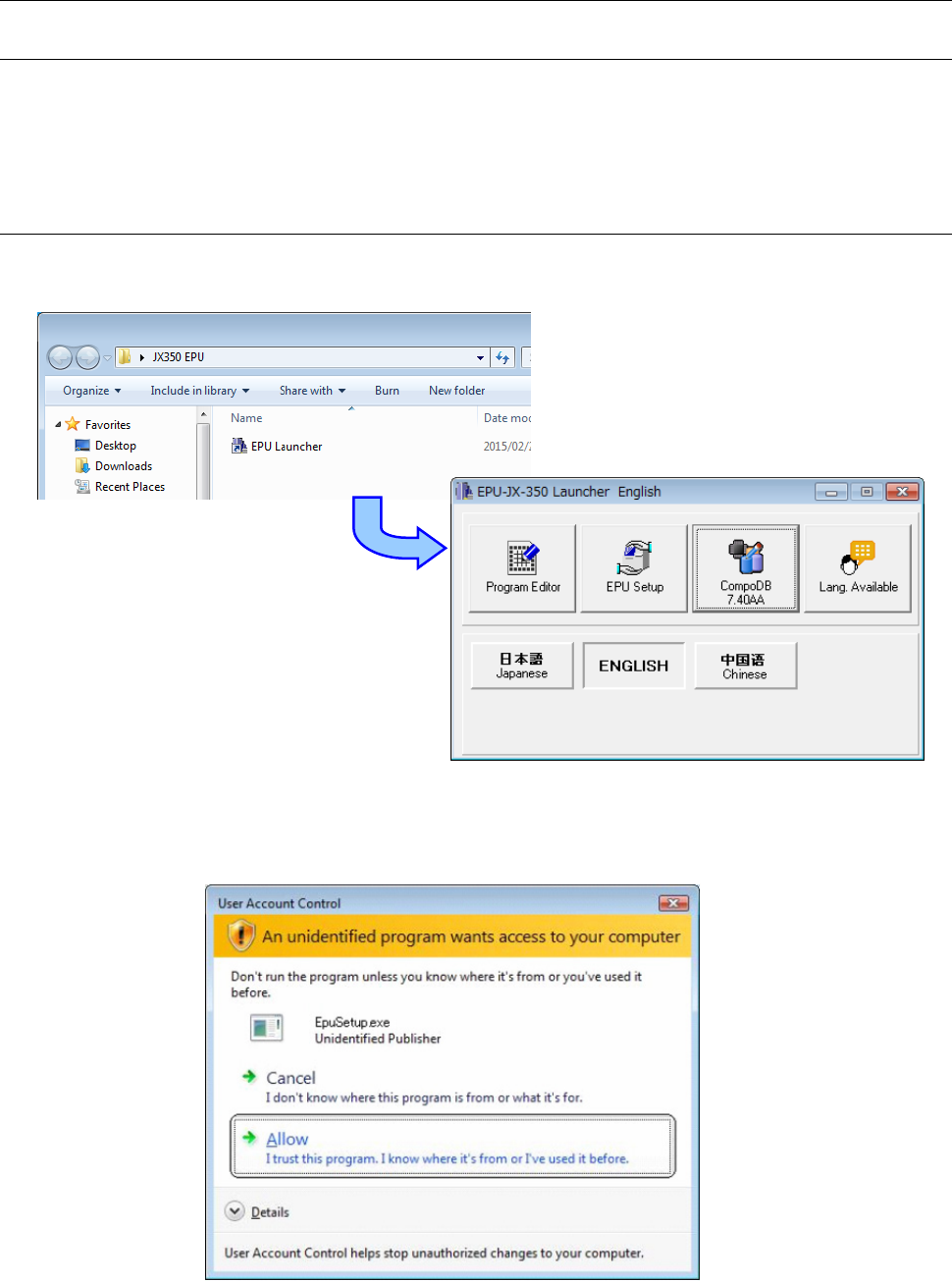
Double-click the [EPU Launcher] icon of the JX-350 EPU to start up the EPU, and click the
<EPU Setup> button to start up the EPU Setup utility.
When you start up the EPU Setup utility on Windows Vista / Winidows 7 / Windows 10, the
following screen appears by the user account control. Selecting [Allow (A)] will start up the
EPU Setup utility.
Conversely, selecting [Cancel] will not start up the EPU Setup utility.
EPU Instruction Manual Chapter 3 EPU setup
3-2
To start up the “Program Edit” module, you have to set the “active profile.”
(See Section 3.4.1 “Main window” for details.)
♦ You cannot perform multiple start-up of the EPU Setup module.
You cannot start up the EPU Setup module either when the Program Editor is started up.
You can start up the EPU Setup module via the EPU Launcher only.
♦ When you start up the EPU Setup utility for the first time, first set a “Station profile.”
See Section 3.7 “Setting a Station Profile” for details.
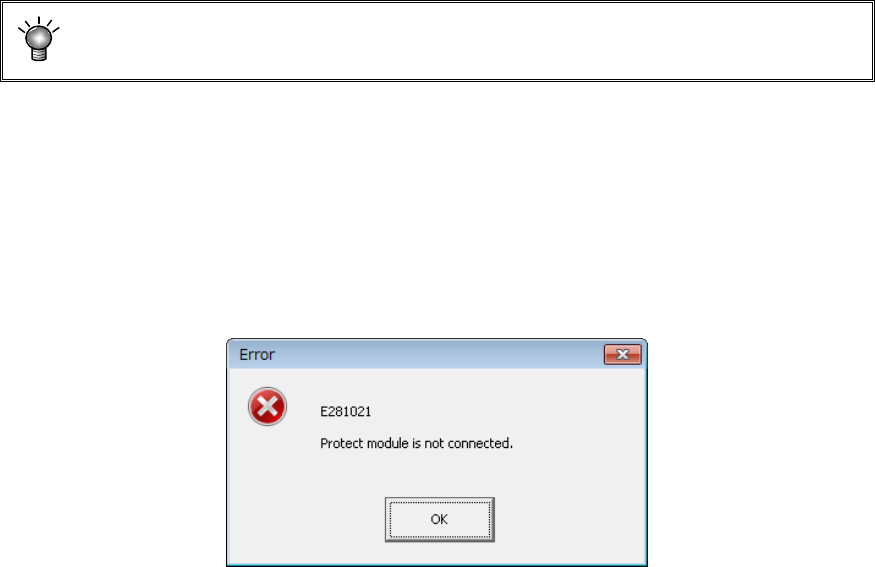
♦ At start-up, EPU checks the protect module.
When EPU does not find any protect module connected, the following message box
appears on the screen, and the EPU Setup module cannot start up.