88192277-01-19 - Micron Technical Reference V9 Volume 4.pdf - 第100页
DIAGNOSTI CS SQUEEGEE 39.14 Technical Reference Manual Chapter Issue 4, Aug 14 Drive Rear Squeegee Using Jog Buttons Selecting this diagnostic function enabl es the rear squeegee to be driven up and down using the jog bu…
DIAGNOSTICS
SQUEEGEE
Chapter Issue 4, Aug 14 Technical Reference Manual 39.13
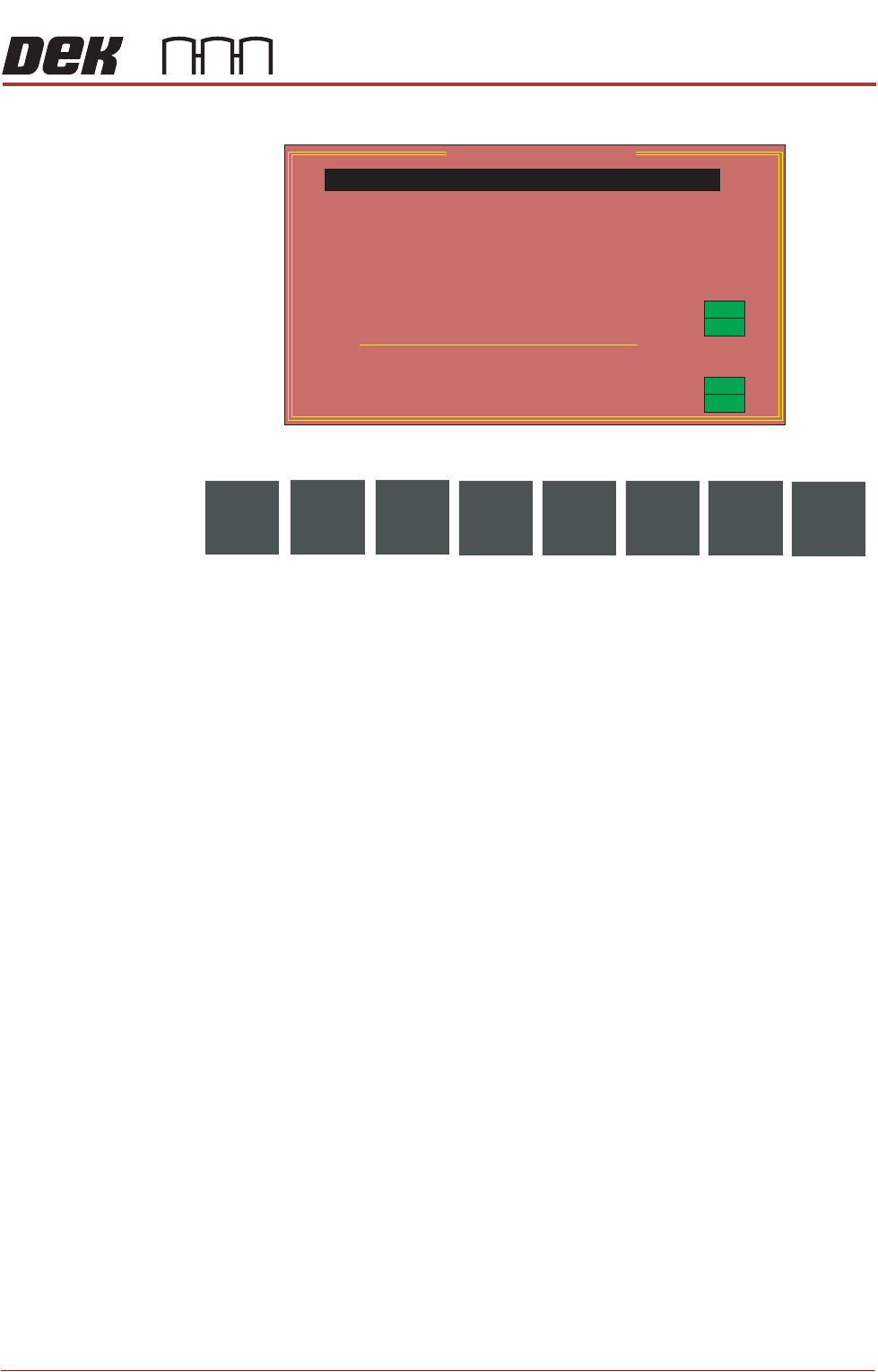
SQUEEGEE Selecting this diagnostics module opens the following window:
The following icons are displayed:
Next/Previous moves the highlight bar up and down the list of selectable
diagnostic functions.
Run Diagnost activates the diagnostic function, as selected by the highlight
bar.
Exit returns operation to the module diagnostics page.
Home Front
Squeegee
Selecting this diagnostic function drives the front squeegee upwards to its home
position, as detected by its home sensor.
Home Rear
Squeegee
Selecting this diagnostic function drives the rear squeegee upwards to its home
position, as detected by its home sensor.
Front Squeegee to
Dwell Height
Selecting this diagnostic function drives the front squeegee to a position clear
of the top of the stencil (default is 30mm).
Rear Squeegee to
Dwell Height
Selecting this diagnostic function drives the rear squeegee to a position clear of
the top of the stencil (default is 30mm).
Rear Squeegee to
Flood Height
Selecting this diagnostic function drives the rear squeegee to the height set by
the flood reference height parameter.
Drive Front
Squeegee Using
Jog Buttons
Selecting this diagnostic function enables the front squeegee to be driven up
and down using the jog buttons. The right jog button drives the squeegee down
and the left jog button drives it up, stopping immediately the button is released.
‘Use the Left Jog Button to move the Squeegee upwards, and the Right
jog Button to move it downwards.’ is displayed in the message prompt box.
Squeegee Diagnostics
Pressure Reading
Roll Height Monitor Laser Receiver
Auto Drip Tray Retracted
22.356 kg
Home Front Squeegee
Home Rear Squeegee
Front Squeegee To Dwell Height
Rear Squeegee To Dwell Height
Rear Squeegee To Flood Height
Drive Front Squeegee Using Jog Buttons
Drive Rear Squeegee Using Jog Buttons
Toggle Roll Height Monitor Laser
Toggle Auto Drip Tray
ON
ON
ON
ON
Run
Diagnost
Next
Previous
Exit

DIAGNOSTICS
SQUEEGEE
39.14 Technical Reference Manual Chapter Issue 4, Aug 14
Drive Rear
Squeegee Using
Jog Buttons
Selecting this diagnostic function enables the rear squeegee to be driven up
and down using the jog buttons. The right jog button drives the squeegee down
and the left jog button drives it up, stopping immediately the button is released.
‘Use the Left Jog Button to move the Squeegee upwards, and the Right
jog Button to move it downwards.’ is displayed in the prompt box.
Toggle Roll Height
Monitor Laser
Selecting this diagnostic function alternately switches the laser between trans-
mit and off. Reads Not Fitted when feature is not installed.
Toggle Auto Drip
Tray
Selecting this diagnostic function alternately energizes and de-energizes the
auto drip tray, displaying On when extended and Off when retracted. Reads Not
Fitted when feature is not installed.
Pressure Reading This diagnostic function is a live display showing the actual pressure being
applied to the squeegee. With no squeegees fitted the figure displayed varies
from printer to printer.
Roll Height Monitor
Laser Receiver
This diagnostic function continuously displays the status of the roll height
monitor laser receiver sensor. Reads Not Fitted when feature is not installed.
Auto Drip Tray
Retracted
This diagnostic function continuously displays the status of the auto drip tray
retracted sensor. Reads Not Fitted when feature is not installed.
DIAGNOSTICS
CAMERA AXES
Chapter Issue 4, Aug 14 Technical Reference Manual 39.15
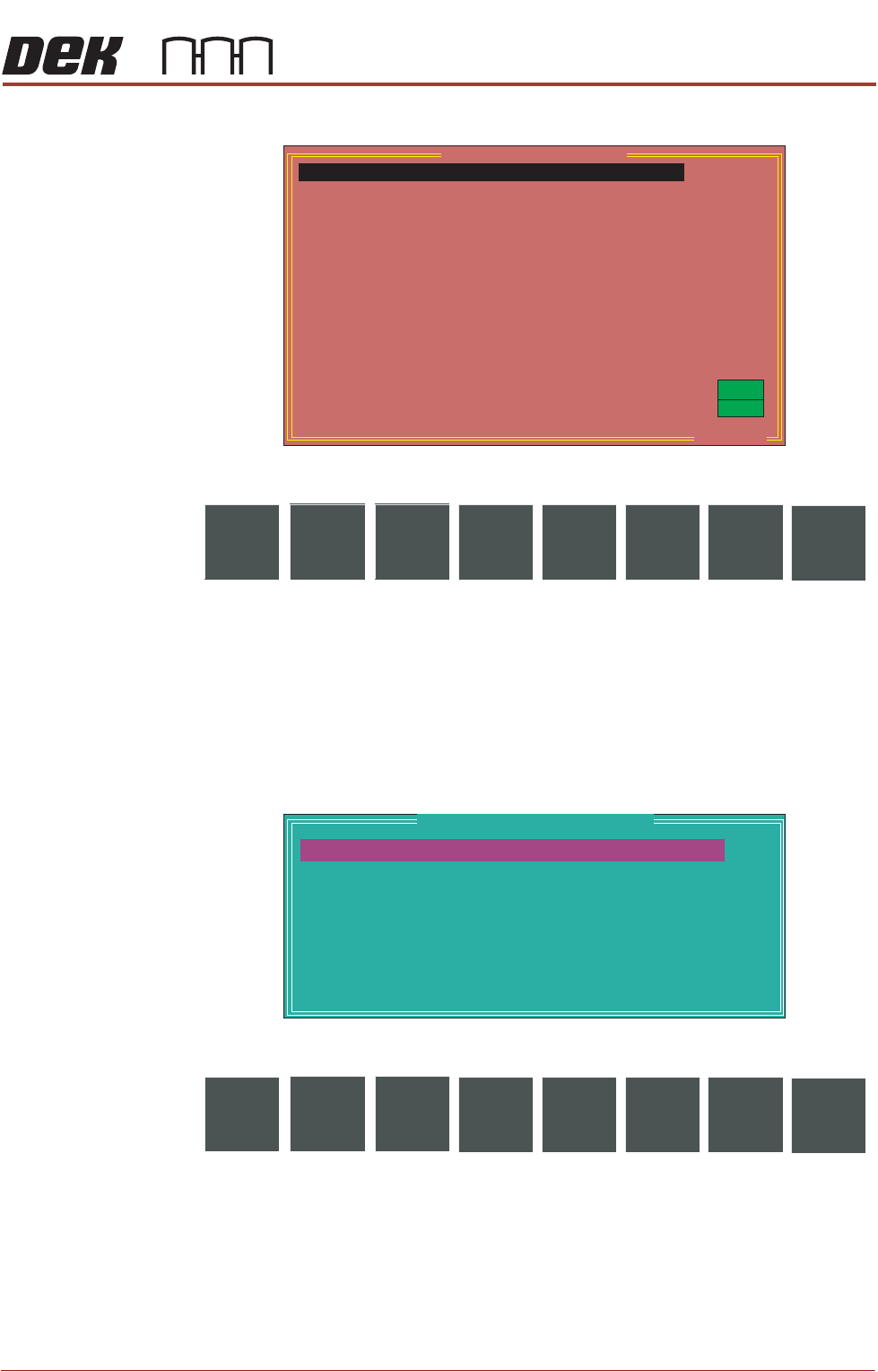
CAMERA AXES Selecting this diagnostics module opens the following window:
The following icons are displayed:
Next/Previous moves the highlight bar up and down the list of selectable
diagnostic functions.
Run Diagnost activates the diagnostic function, as selected by the highlight
bar.
Exit returns operation to the module diagnostics page.
Fiducial Setup enables stencil fiducials to be located.
Adjust opens the following window:
The following icons are displayed:
Next/Previous moves the highlight bar up and down the list of diagnostic
parameters.
Incr./Decr. changes the value of the selected diagnostic parameter.
Exit returns operation to the camera diagnostics page.
NOTE
These parameters are used in diagnostics only and have no affect on the
product board file.
ON
ON
.. more
Home Camera X Axis
Home Camera Y Axis
Camera Axis To Fiducial 1 Position
Camera Axis To Fiducial 2 Position
Camera Axis To Fiducial 3 Position
Drive to Board Stop Position
Restore Default Reference Position
Drive to Reference Position
Set Reference Position
Move Camera X Axis Using Jog Buttons
Move Camera Y Axis Using Jog Buttons
Initialise Vision System
Fiducial Lighting
Inspection Lighting
Camera Diagnostics
Run
Diagnost
Fiducial
Setup
NextAdjustAdjust
Previous
Exit
FIDUCIAL 1 X
FIDUCIAL 1 Y
FIDUCIAL 2 X
FIDUCIAL 2 Y
FIDUCIAL 3 X
FIDUCIAL 3 Y
BOARD STOP X
BOARD STOP Y
CYCLE COUNT
Camera Cycle Test Parameters
243.0
241.1
7.3
8.8
0.0
0.0
125.0
165.0
50.0
mm
mm
mm
mm
mm
mm
mm
mm
Cycles
Next Incr. Decr.
Previous
Exit