88192277-01-19 - Micron Technical Reference V9 Volume 4.pdf - 第288页
TRANSPORTATION - POWER UP MACHINE POWER UP SEQUENCE 43.14 Technical Reference Manual Chapter Issue 3, Nov 19 2. Gain access to the 4 port USB hub behind the fro nt panel. 3. Connect the handheld barcode reader to a spare…
TRANSPORTATION - POWER UP
MACHINE POWER UP SEQUENCE
Chapter Issue 3, Nov 19 Technical Reference Manual 43.13
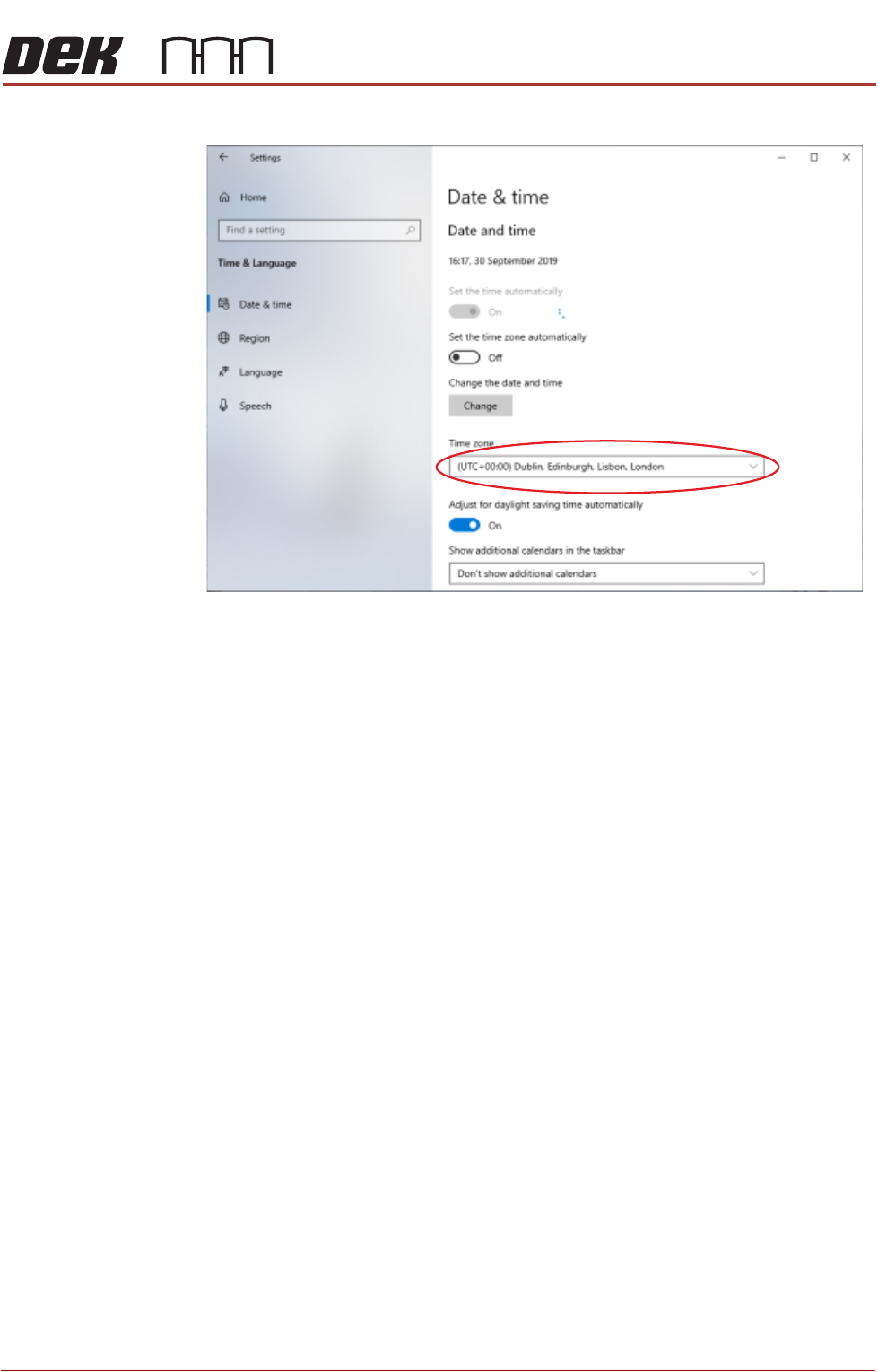
6. Using the drop down box, select the appropriate time zone.
7. Select X (close).
8. Select Start on the taskbar.
NOTE
Return the Windows login to the Operator account.
9. Select DEK Printer Software.
10. Press the System button.
E Stop Loop
Operation
Carry out the following procedure for E Stop loop operation check:
1. Press the E Stop button. The Restore Power window is displayed.
2. Reset the E Stop by turning the E Stop button clockwise until it unlatches.
3. Press the System button when prompted.
4. Open the front printhead cover. The Machine Operation Suspended -
Cover Open window is displayed.
5. Close the front printhead cover and press the System button when
prompted.
Fitting the
Handheld Barcode
Reader
1. Select Shut Down and switch the mains isolator to OFF.
TRANSPORTATION - POWER UP
MACHINE POWER UP SEQUENCE
43.14 Technical Reference Manual Chapter Issue 3, Nov 19
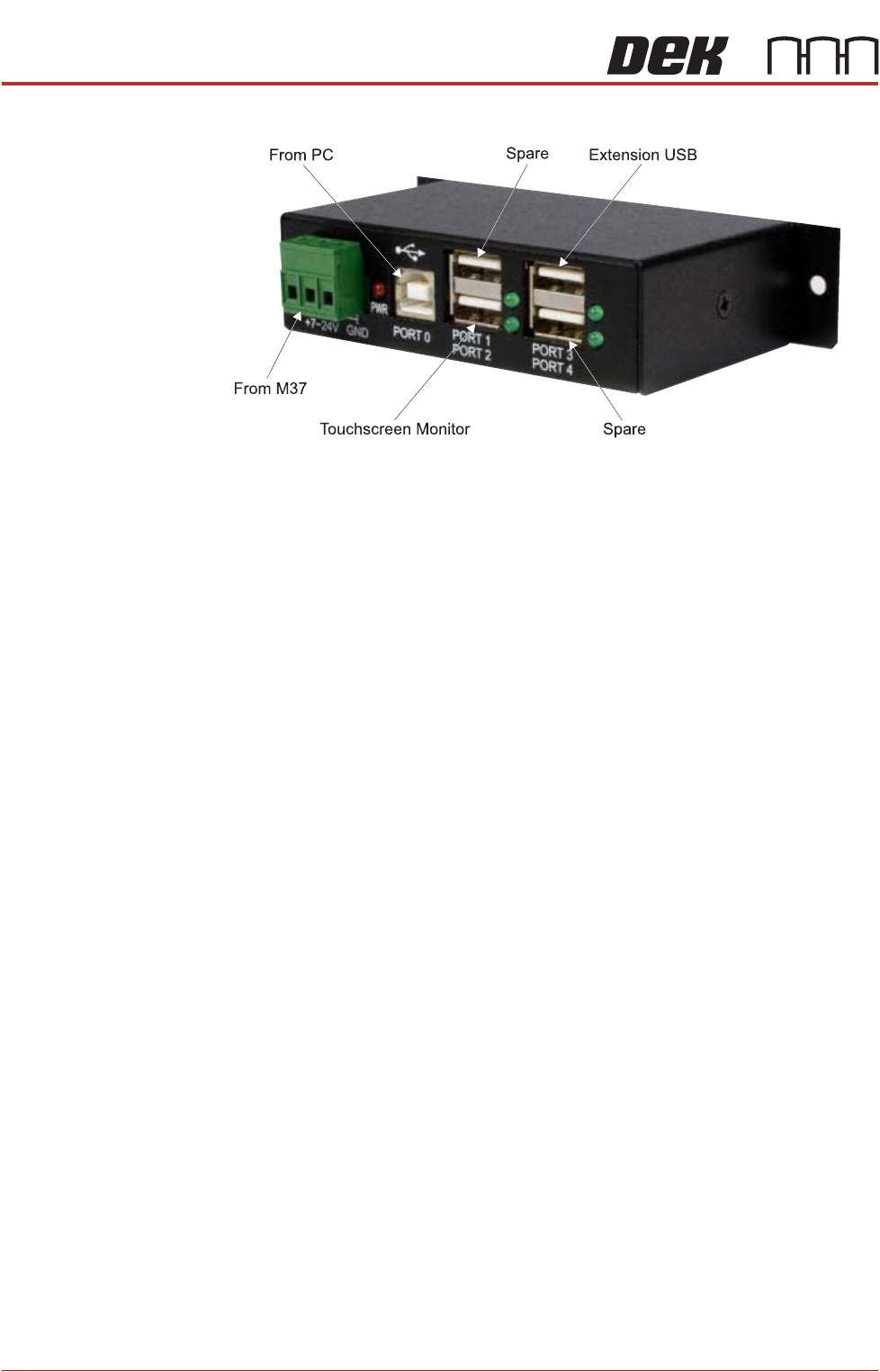
2. Gain access to the 4 port USB hub behind the front panel.
3. Connect the handheld barcode reader to a spare USB port on the hub.
4. Refit the front cover ensuring that the cable is routed between the MMI
monitor bracket and the front cover.
5. Power up the machine.
6. Select Maintenance.
7. Select Machine Setup.
8. Select Barcodes.
9. Select Handheld Barcode HW.
10. Select Fitted.
11. Select Accept.
12. Select Start Character.
13. Set the start character for the barcode (see barcode label below).
14. Select Accept.
15. Select Name Length.
16. Set the name length for the barcode.
TRANSPORTATION - POWER UP
MACHINE POWER UP SEQUENCE
Chapter Issue 3, Nov 19 Technical Reference Manual 43.15
17. Select Accept.
NOTE
The barcode set up is shown in code format. The code format for a barcode
of length 14 starting at character 4 would be:
###PPPPPPPPPPPPPP###
18. Select Back.
19. Select Back.
20. Select Back.
21. Use the documentation supplied with the reader to setup the language,
keyboard format and barcode symbology.
Stencil Cleaner Function Check
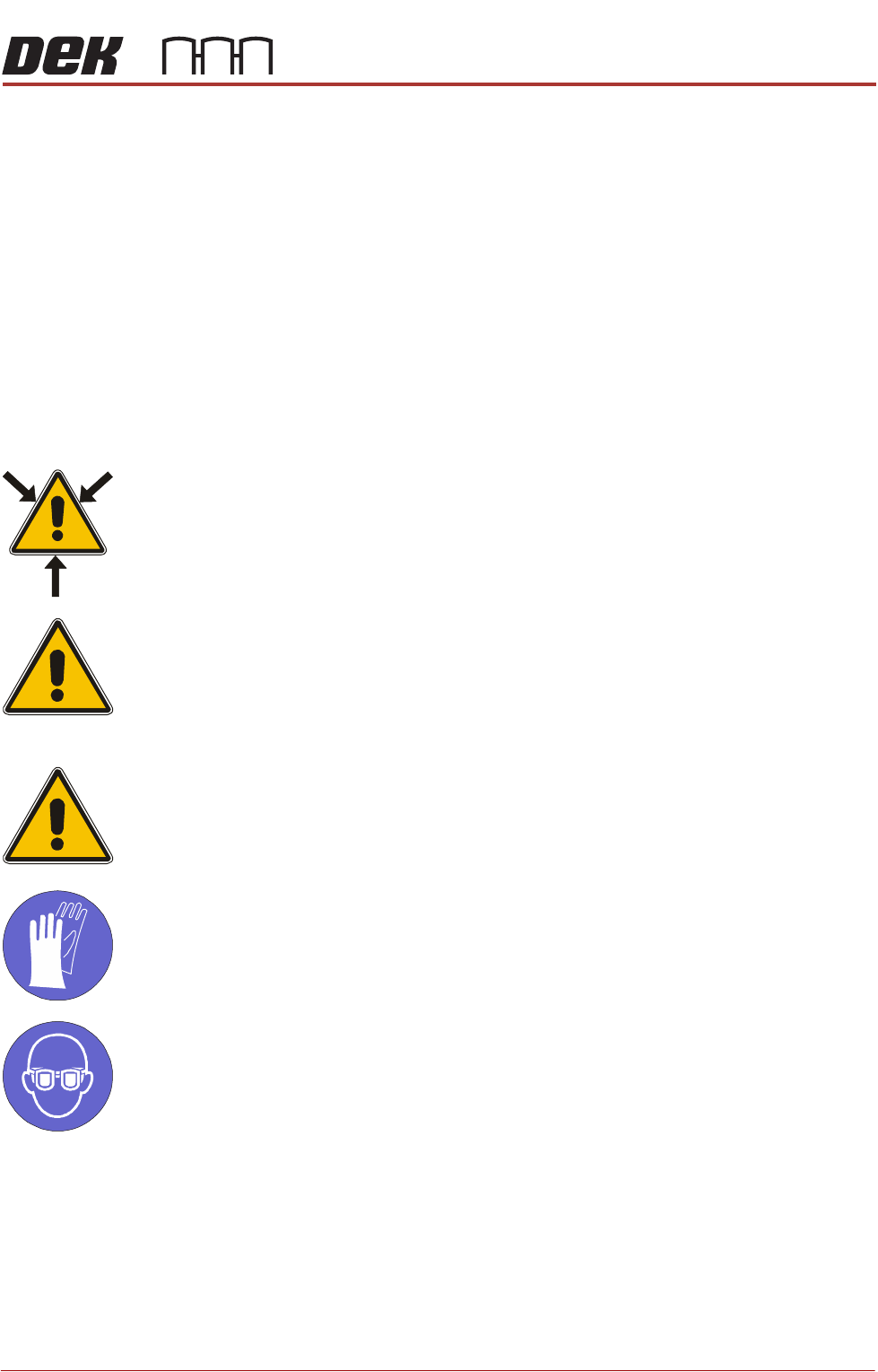
WARNING
SOLVENT SPRAY. THE UNDER STENCIL CLEANER SPRAYS A FINE JET OF
SOLVENT SOLUTION ON TO THE CLEANER. APPROVED PROTECTIVE
CLOTHING SHOULD BE WORN.
CAUTION
RECOMMENDED SOLVENTS. ANY SOLVENTS USED MUST COMPLY WITH
LOCAL ENVIRONMENTAL GUIDELINES. ASM RECOMMEND USING SOLVENTS
THAT ARE ENVIRONMENTALLY FRIENDLY, IE CFC FREE AND WATER BASED.
SOLVENTS USED MUST HAVE FAST EVAPORATION RATES AND FLASHPOINT
SPECIFICATIONS GREATER THAN 39ºC.
CAUTION
PRINT MEDIUM AND SOLVENTS. WHEN USING OR HANDLING ANY PRINT
MEDIUM OR SOLVENT FORMULATION THE MANUFACTURERS’ SAFETY DATA
SHEETS MUST BE STRICTLY ADHERED TO.
MANDATORY
TOXIC CHEMICALS MAY BE PRESENT. SAFETY GLOVES MUST BE WORN.
MANDATORY
TOXIC CHEMICALS MAY BE PRESENT. EYE PROTECTION MUST BE WORN.
NOTE
If the Under Stencil Cleaner has not been used for lengthy periods, refer to
Technical Bulletin TB 329 to complete the cleaning regime for the spray bar.
To setup the under stencil cleaner carry out the following:
1. Ensure that the external solvent tank is fitted with an empty 5 litre container.
2. Select Maintenance.
3. Select Calibrations.