88192277-01-19 - Micron Technical Reference V9 Volume 4.pdf - 第75页
STINGER CALIBRATIONS Chapter Issue 4, Nov 19 Technical Reference Manual 38.33 Stinger laser of fsets allow the user to set the calibrated distance be tween the laser and the dispenser nozzle in the X and Y axes. Before t…

38.32 Technical Reference Manual Chapter Issue 4, Nov 19
STINGER
CALIBRATIONS
Setting Idle Height Idle height is the position to which the nozzle tip is set, between dispensing
actions. The dispenser moves to its dispense site, after dispensing it is moved
to the idle position; before moving on to the next dispense location. This height
must be set so that as the nozzle is moved between locations, it is able to clear
any surface irregularities or obstructions (pads/tracks/connectors etc.)
NOTE
The following procedure is continued from the ‘Contact Height’ procedure.
29. Check that Stinger Jog Mode is set to Coarse (1 step = 0.5mm).
30. Select Step Up to move the nozzle into position above the surface of any
obstructions.
31. Select Save Idle.
32. Close the printhead cover.
33. Press the System button to restore system power.
34. Select Back.
35. Select Auto Board.
36. Select Back.
37. Select Save.
38. Select Back.
Setting the Height
Automatically
This procedure relates to units that have the automatic calibration option.
1. Select Product Changeover.
2. Select Stinger Dispenser.
3. Select Auto Calibrate.
The camera axis is driven to the calibration location and automatically jogs
down until the nozzle reaches the top surface of the product. At this point the
laser does not register a change in reading and the correct contact height is set.
Because the idle height is set in a parameter Setup Product\Options\Stinger
Dispenser, there is no need to set the idle height as this difference (between
contact height and the set value for idle height) is maintained by the laser
tracking the surface of the product during printing.
NOTE
Laser range checks are only carried out after setting contact height in manual
mode. If auto-calibration fails, performing a manual calibration resets the laser
range.
Manual Offset Setup
Procedure
This section describes the manual set up procedure that is to be employed if
the Stinger unit:
• Is being set up for the first time
• Has been replaced
• Is to be set up for a product changeover
Manual setup gives the user confidence that the unit is not going to drive directly
into the stencil, based on the software settings, when automatic height calibra-
tions are performed. It also improves the initial quality of the dispense process.
STINGER
CALIBRATIONS
Chapter Issue 4, Nov 19 Technical Reference Manual 38.33
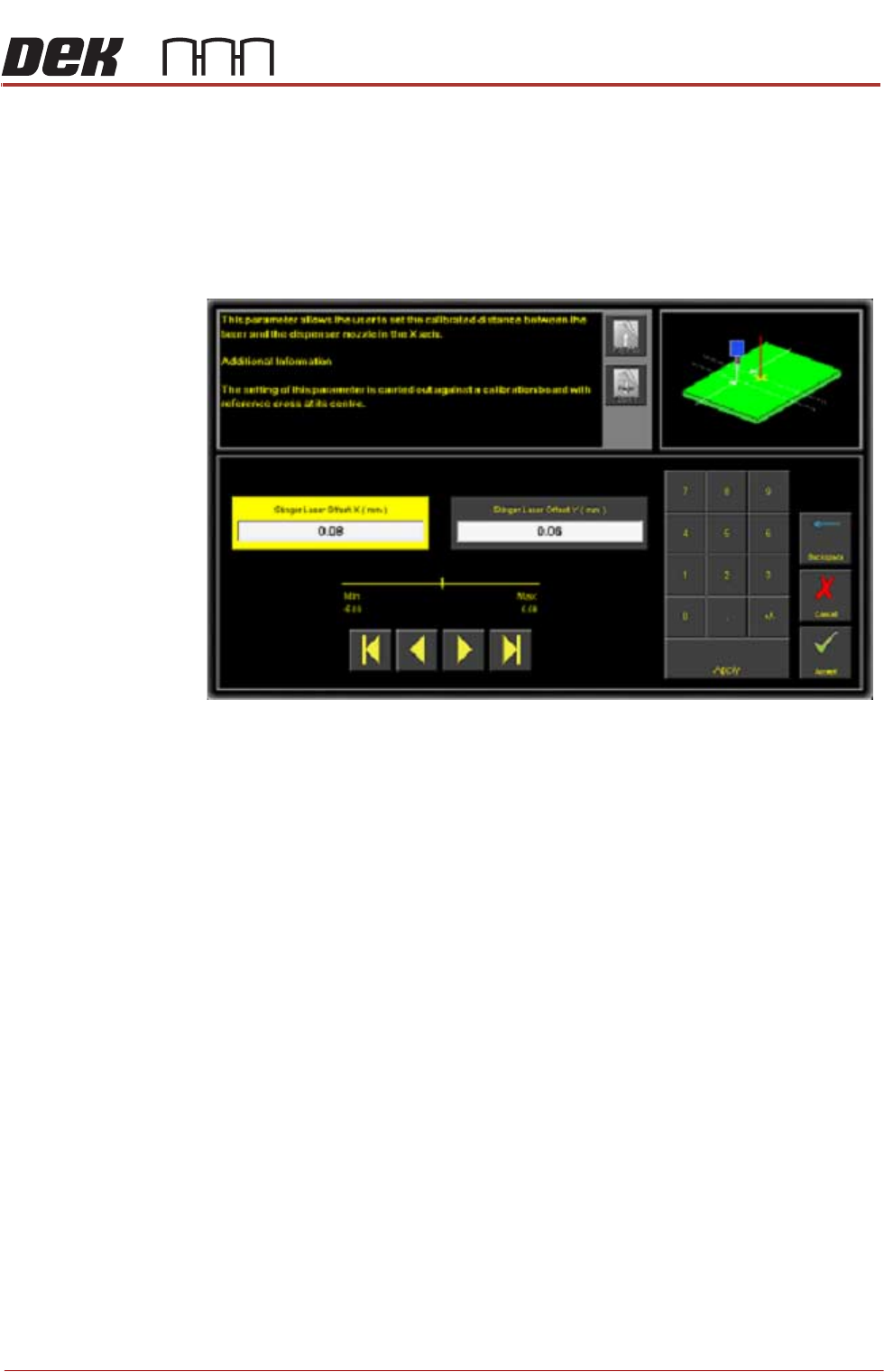
Stinger laser offsets allow the user to set the calibrated distance between the
laser and the dispenser nozzle in the X and Y axes. Before this functionality is
used, the camera reference point must be calibrated. A calibration board, with
a reference cross in its centre, is loaded into the printer. The target location is
measured and programmed from the centre of the wiper target cross, to the
centre of the camera reference dot on the front rail.
1. Select Stinger Laser Offset X (mm).
2. Measure, using a Steel Rule and an Engineers Square and modify the
parameters in the X axis.
3. Select Stinger Laser Offset Y (mm).
4. Measure, using a Steel Rule and an Engineers Square and modify the
parameters in the Y axis.
5. Select Accept.
38.34 Technical Reference Manual Chapter Issue 4, Nov 19
STINGER
CALIBRATIONS
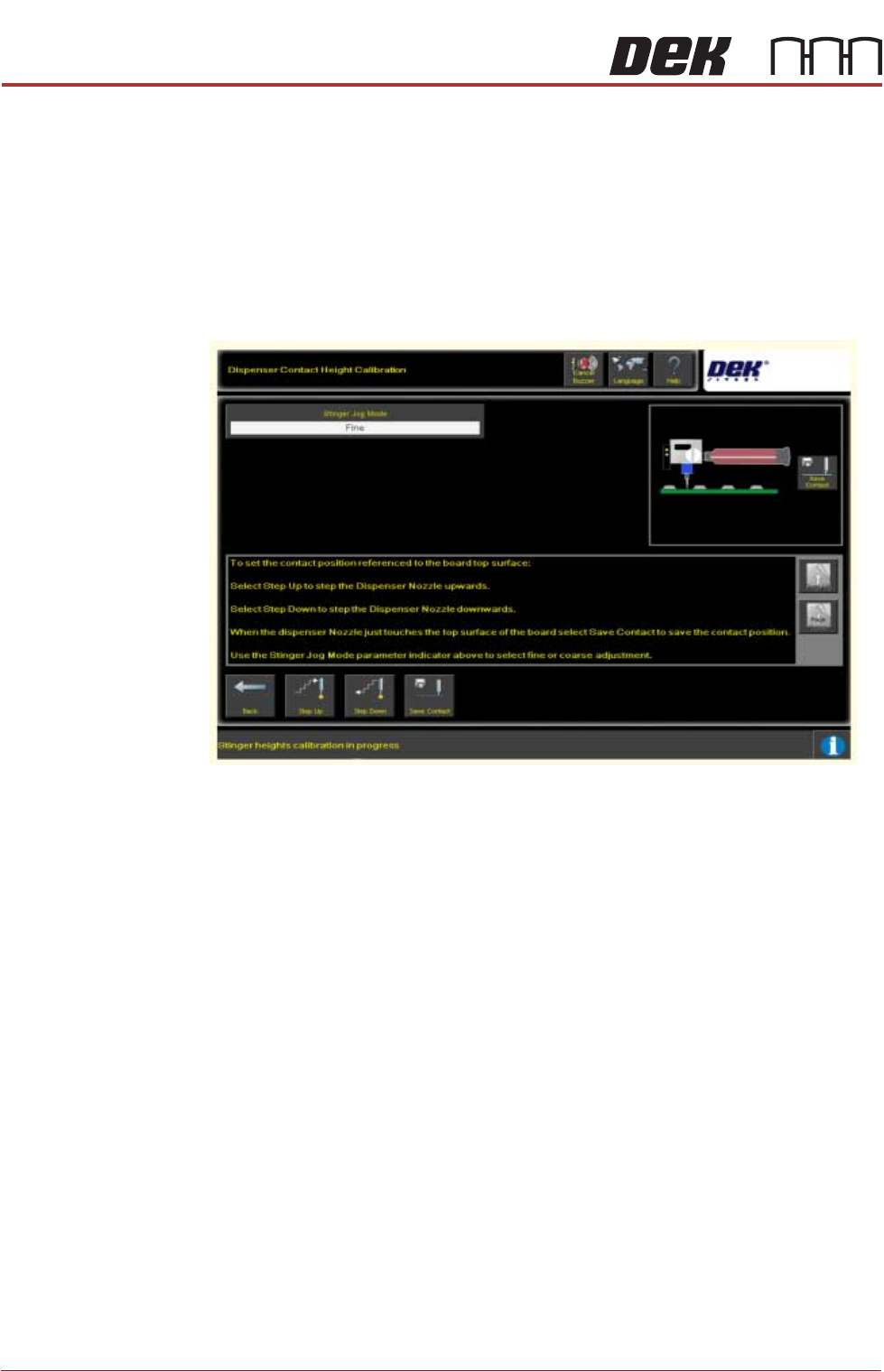
Calibrating Stinger
Heights (Manual)
The height calibrations are a reference for all programmed deposits. For non-
automatic calibration units, two heights are set: Contact Height and Idle Height.
Idle height tracks the contact height automatically; as determined by the idle
height parameter.
The Z-Axis contact position, for any product, must be within (+/-1mm left
screen above and +/-1.5mm right screen above) of the calibrated contact
position. If the contact position cannot be guaranteed to be within these limits,
there is a likelihood that a variation in dot size may occur and deposit quality
degraded. An error page is displayed.