88192277-01-19 - Micron Technical Reference V9 Volume 4.pdf - 第78页
38.36 Technical Reference Manual Chapter Issue 4, Nov 19 STINGER CALIBRATIONS 8. Select Stinger Jog Mode and initially set the mode to Coarse ( 1 step = 0.5mm ). 9. Open the printhead cover . 10. Select Step Up or Step D…
STINGER
CALIBRATIONS
Chapter Issue 4, Nov 19 Technical Reference Manual 38.35
Setting Contact
Height (Manual)
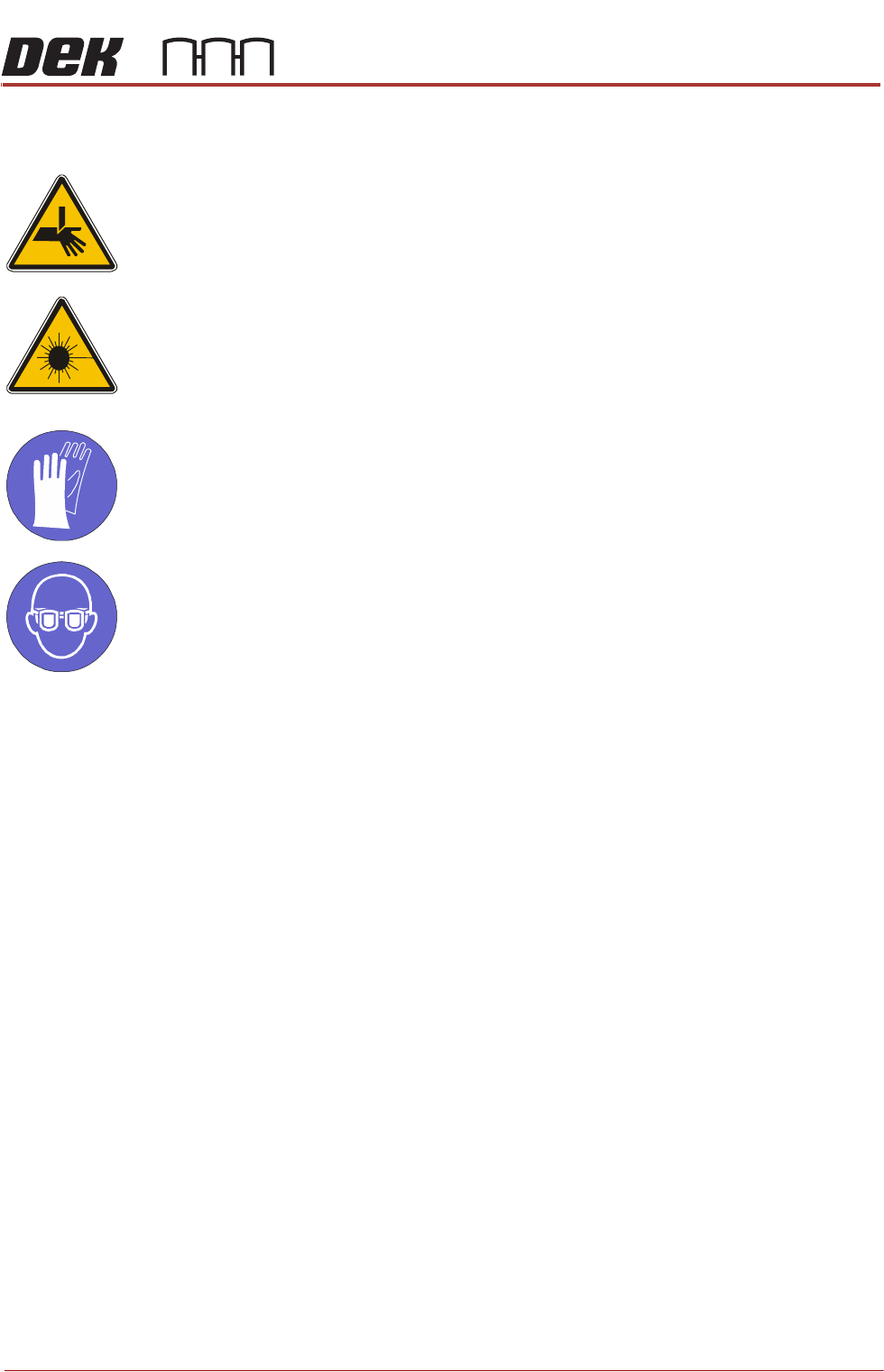
WARNING
BOARD CLAMPS. EXTREME CARE MUST BE EXERCISED WHEN WORKING IN
THE TOOLING AREA OF THE MACHINE TO AVOID INJURY. THE FOILS ON THE
FRONT AND REAR BOARD CLAMPS ARE VERY SHARP.
CAUTION
LASER CONTROLS AND ADJUSTMENTS. USE OF CONTROLS OR
ADJUSTMENTS OR PERFORMANCE OF PROCEDURES OTHER THAN THOSE
SPECIFIED HEREIN MAY RESULT IN HAZARDOUS RADIATION EXPOSURE.
MANDATORY
TOXIC CHEMICALS MAY BE PRESENT. SAFETY GLOVES MUST BE WORN.
MANDATORY
TOXIC CHEMICALS MAY BE PRESENT. EYE PROTECTION MUST BE WORN.
Contact height sets the laser to nozzle tip height in relation to the upper surface
of the product, it becomes known to the system and a relative measure is made
for all other programmed locations.
1. Ensure that the screen has been removed from the printer.
2. Select Setup Product.
3. Select Options.
4. Select Stinger Dispenser.
5. Select Load Board and load a product.
6. Select Manual Calibrate to open the dispenser contact height calibration
page.
7. The camera axis moves the Stinger unit to the centre of board location by
default, however, this position can be set to any location using the Calibra-
tion Point X/Calibration Point Y parameter pair. See information on siting
the calibration point.

38.36 Technical Reference Manual Chapter Issue 4, Nov 19
STINGER
CALIBRATIONS
8. Select Stinger Jog Mode and initially set the mode to Coarse (1 step =
0.5mm).
9. Open the printhead cover.
10. Select Step Up or Step Down to move the nozzle into position just above
the board.
11. Place the 0.05mm feeler gauge on the board directly below the nozzle tip.
12. Select Stinger Jog Mode and set the mode to Fine (1 step = 0.05mm).
13. Continue jogging down until the feeler gauge has a small amount of resist-
ance to being pulled from under the nozzle.
Do not jog down beyond this point; any deflection of the board results
in poor output and must be avoided. The feeler gauge and the nozzle
should not deflect the product down. Any movement of the product away
from the nozzle causes a discrepancy in the laser reading.
14. Select Save Contact.
Select Back.
15. The camera axis moves the unit to the right hand edge of the board. This
is the Range Position where the unit performs a Range Check.
16. The nozzle moves down, either 1mm or 1.5mm dependent upon which
Stinger option is fitted, from contact height.
17. The nozzle moves up through contact height to 1mm or 1.5mm above
contact height. This completes the Range Check.
For non-automatic calibration options, the user must set the idle height next.
For automatic calibration options, the idle height parameter has been pro-
grammed in Setup Product\Options\Stinger Dispenser and the unit can track
this value above contact height. Stinger can track the rises and falls on the
product surface within the range check limits.
Stinger Laser
Offsets X and Y
This parameter sets a factor to compensate for any offsets of the nozzle to laser,
in the X and Y planes, at the point where the laser actually measures. This can
be any value between -5mm and 5mm. As with the calibrated offsets, a deposit
point is marked on the calibration board. The offset is set to zero and a deposit
is made; the difference between the deposit centre and the laser centre is the
amount of compensation to be set.
1. Select Setup Product.
2. Select Options.
3. Select Stinger Dispenser.
4. Select Setup Sites.
5. Select Create Site.
6. Set the dispense mode to Measure Only (on a single site).
7. Select Confirm.
8. Select Back.
9. Select Load Screen.

STINGER
CALIBRATIONS
Chapter Issue 4, Nov 19 Technical Reference Manual 38.37
10. Open the cover.
11. Cover the screen present sensor and select Continue. The screen clamps
actuate.
12. Select Back.
13. Select Fiducials.
14. Select Global Settings.
15. Select Alignment Mode.
16. Select Non Vision.
17. Select Accept.
18. Select Back
19. Select Back
20. Select Options.
21. Select Stinger Dispenser.
22. Select Load Board. Choose the preferred load board method, auto or
manual.
23. Select Dispense Sweep.
24. Select Back.
25. Select Open Cover Commands.
26. Open the printhead front cover.
27. Measure the Laser Offset X and Y between the dispensed dot and the laser
beam position. The object must have the laser beam shining on the dot
centre. Edit the laser X and Y offsets as required.
28. Close the printhead front cover.
29. Select Save.
30. Select Setup Sites.
31. Select Adjust Site, set the dispense mode to its original state.
32. Select Fiducials.
33. Select Confirm.
34. Select Back.
35. Select Back.
36. Select Back.
Calibrated Offsets NOTE
Program the offset tests below to perform multiple deposits on one site only, at
the centre of the calibration board. This prevents the system from depositing
and / or measuring at every programmed site, and allows the opportunity to
make accurate measurements from a single location.
1. Select Open Cover Commands and load a stencil.
2. Close the printhead cover; press the System button to restore system
power.
3. Select Back.