88192277-01-19 - Micron Technical Reference V9 Volume 4.pdf - 第86页
38.44 Technical Reference Manual Chapter Issue 4, Nov 19 STINGER CALIBRATIONS
STINGER
CALIBRATIONS
Chapter Issue 4, Nov 19 Technical Reference Manual 38.43
NOTE
The purge station must be seated correctly, fully down on the corner of the
rising table, with its barriers snugly fitting the front and side edges of the
table.
3. Follow the on-screen instruction to, in turn, place the purge station in both
the left hand side front and right hand side front locations.
4. With the purge station in the left location; select Move To Purge Left. The
camera moves over the purge station in left hand location; the vision window
displays an alignment crosshair.
5. If required, use the nudge/move buttons to align the crosshair over the purge
pot slots.
6. Select Open Cover Commands.
7. Fit the purge station to the right hand side.
8. Select Move To Purge Right.
9. Align the crosshair over the purge pot slots.
NOTE
Use the Show Enlarged button to enlarge the vision window image for higher
precision.
10. Select Save.
11. Select Exit.
12. Select Back.
13. Select Back.
14. Select Back.
38.44 Technical Reference Manual Chapter Issue 4, Nov 19
STINGER
CALIBRATIONS
DIAGNOSTICS
INTRODUCTION
Chapter Issue 4, Aug 14 Technical Reference Manual 39.1
CHAPTER 39 DIAGNOSTICS
INTRODUCTION The diagnostic function is an aid to the user to allow individual access and
control of motors and modules. It allows the user to control the sequence of the
printer so that a particular module can be exercised.
To enter diagnostics:
Select Maintenance.
Select Diagnostics.
NOTE
If diagnostics is password protected, the correct password must be entered
before access is allowed.
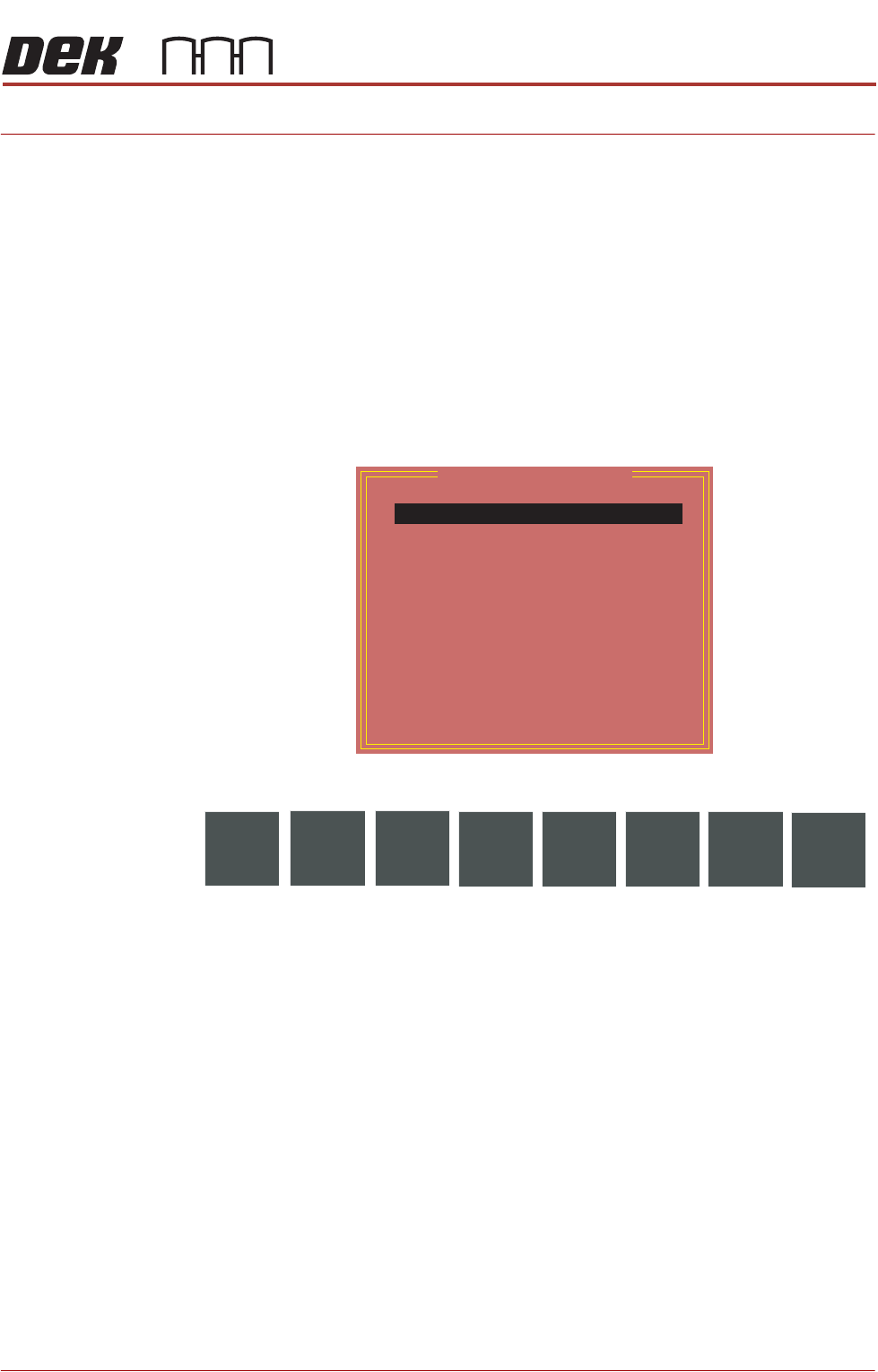
The following window is displayed:
The following icons are displayed:
Next/Previous moves the highlight bar up and down the list of diagnostic
modules.
Select Module opens a new window displaying the diagnostic functions avail-
able for the selected module.
Machine Setup is a password protected function for ASM engineers only.
Exit closes the diagnostics page, initialises the printer and returns the display
to the maintenance page.
Select Back to return to the Ready page.
NOTE
Before any diagnostic function is used in any of the modules they must be
homed first or they are not able to initiate a command.
Module Diagnostic Page
System
Print Carriage
ProFlow / Squeegee
Camera Axes
Rail System
Paste Dispense System
Screen Alignment
Screen Change
Screen Cleaner
Rising Table
MIU
Vacuum Tooling
Pass Through Rails
Select
Module
Machine
Setup
Next
Previous
Exit