88192277-01-19 - Micron Technical Reference V9 Volume 4.pdf - 第83页
STINGER CALIBRATIONS Chapter Issue 4, Nov 19 Technical Reference Manual 38.41 25. Select Dispense Sweep . Measure the Laser Of fset X and Y between the disp ensed dot and the laser beam position. Th e object must have th…

38.40 Technical Reference Manual Chapter Issue 4, Nov 19
STINGER
CALIBRATIONS
3. Select Stinger Dispenser.
4. Select Create Site. Using the options on the right hand side set the Site X
and Y coordinates for the site, Site Name, Feed (number of steps that
equate to the volume of adhesive to be dispensed), Reverse (the number of
steps to lift the dispenser after dispensing has taken place), Stinger Dis-
pense Gap (sets the gap between the dispenser nozzle and the board
surface during dispensing) and Dispense Mode (the type of dispense to be
used).
5. Select Accept.
6. Select Setup Sites.
7. Select Adjust Site, make a note of the current Dispense Mode and set the
dispense mode to Measure Only.
8. Select Accept.
9. Select Confirm.
10. Select Back three times.
11. Select Save.
12. Select Back.
13. Select Open Cover Commands. Open the printhead cover.
14. Cover the stencil sensor; close the printhead cover and press the System
button.
15. Select Back.
16. Select Load Screen. The stencil clamps actuate.
17. Select Setup Product.
18. Select the following: Fiducials, Global Settings, Alignment Mode and
change to None Vision.
19. Select Accept,
20. Select Back three times.
21. Select Setup Product.
22. Select Options.
23. Select Stinger Dispenser.
24. Select Load Board. Choose the preferred load board method, auto or
manual.
STINGER
CALIBRATIONS
Chapter Issue 4, Nov 19 Technical Reference Manual 38.41
25. Select Dispense Sweep.
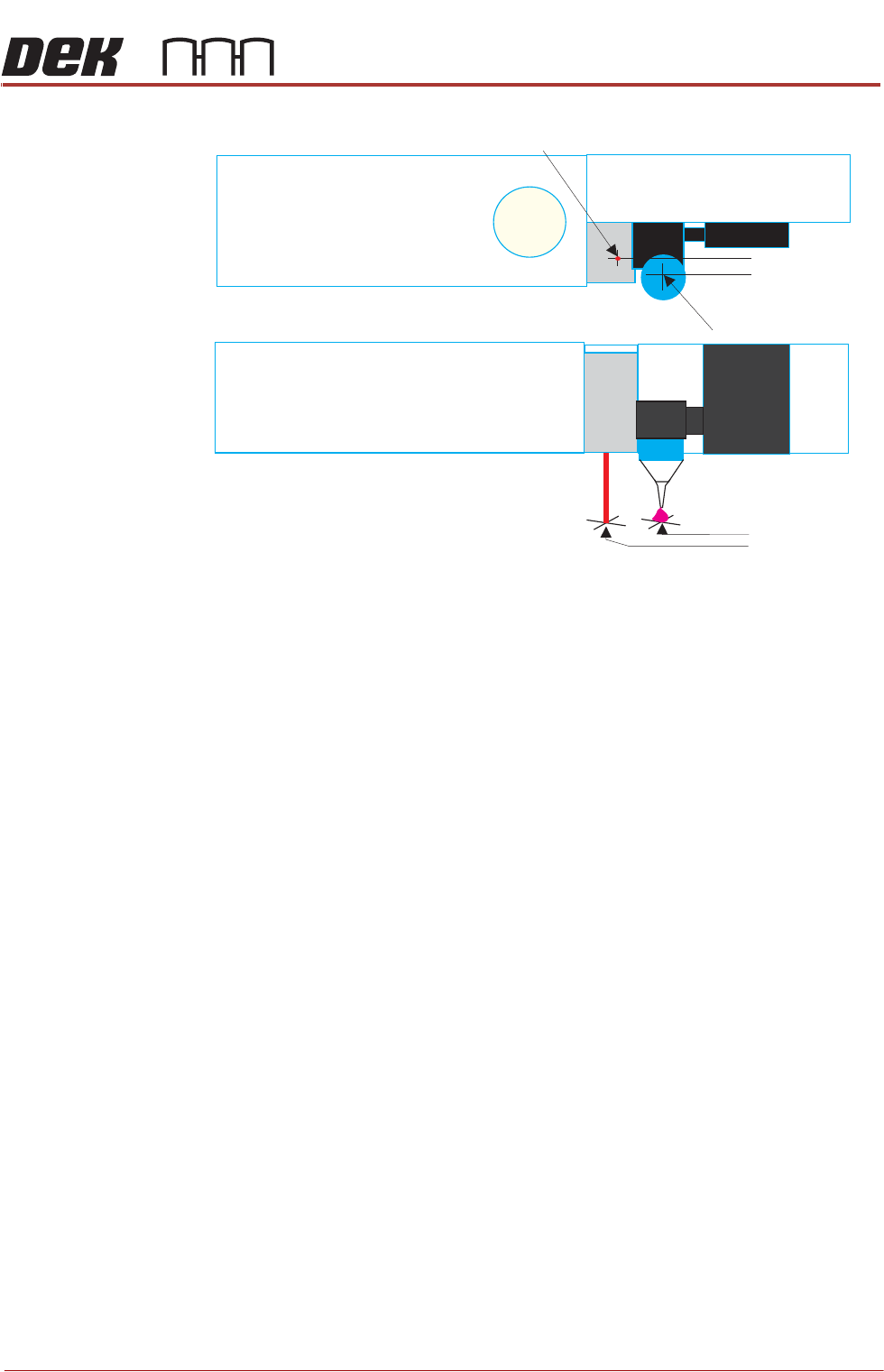
Measure the Laser Offset X and Y between the dispensed dot and the laser
beam position. The object must have the laser beam shining on the dot centre.
Edit the Laser X and Y offsets as required.
26. Select Back.
27. Select Adjust Site, set the dispense mode to its original state.
28. Select Back.
29. Select the following: Fiducials, Global Settings, Alignment Mode and
change to 2 Fiducial.
30. Select Accept.
31. Select Back.
32. Select Save.
33. Select Back.
34. Select Auto Board.
Purge Station
Location
This parameter sets the location at the front of the rising table where the purge
station is placed. At the start or end of a production run, the user may request
a purge. Purging ensures that the flow of adhesive is continuous and homoge-
neous. The purge station contains a pot that collects the purged adhesive; the
purge station can be located on the front left or front right corner of the rising
table.
Laser Centre
Nozzle Centre
Top View
Front View
X Offset
Y Offset
38.42 Technical Reference Manual Chapter Issue 4, Nov 19
STINGER
CALIBRATIONS
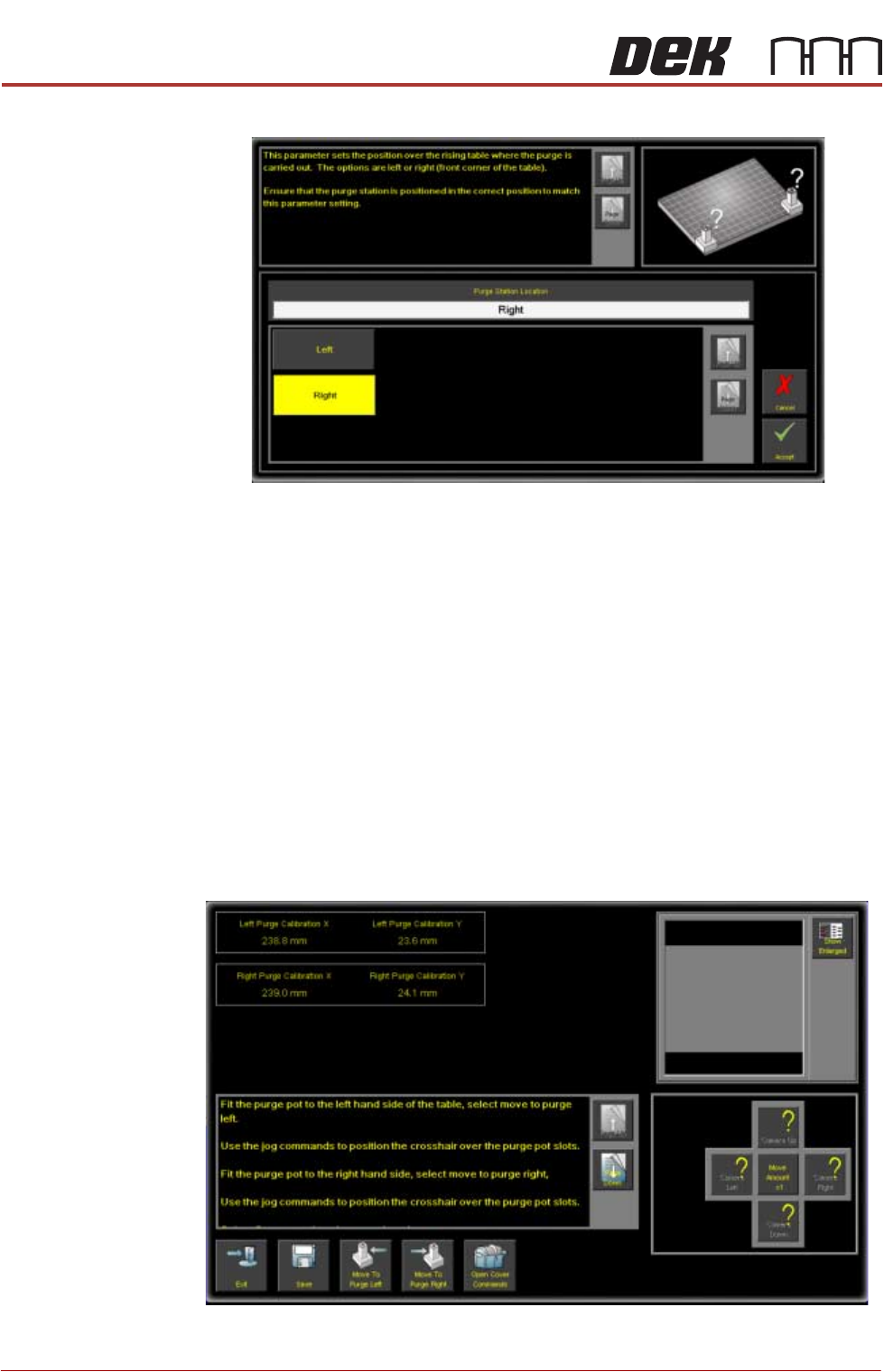
1. To set the location, select Purge Station Location.
2. Select the location where you are going to place the purge station (front Left
or Right).
NOTE
The purge station is not placed at this time. The action above is to set the
location in software.
3. Select Accept.
Calibrate Purge
Station Locations
This parameter allows the precise position of the purge station wiper target to
be programmed. Physically, its mechanical constraints and those of the table
and the transport rails determine the purge station placement. To enable the
nozzle to be precisely placed, in the wiper target, the station is placed correctly
on the rising table front edge. The target location is measured and programmed,
from the centre of the wiper target cross to the centre of the camera reference
dot on the front rail.
1. Select Calibration Purge Pot Locations.
2. Select Open Cover Commands.