88192277-01-19 - Micron Technical Reference V9 Volume 4.pdf - 第290页
TRANSPORTATION - POWER UP MACHINE POWER UP SEQUENCE 43.16 Technical Reference Manual Chapter Issue 3, Nov 19 4. Select Solvent . 5. Select Set Solv Empty . 6. Confirm by selecting Ye s . 7. Replace the empty 5 litre cont…
TRANSPORTATION - POWER UP
MACHINE POWER UP SEQUENCE
Chapter Issue 3, Nov 19 Technical Reference Manual 43.15
17. Select Accept.
NOTE
The barcode set up is shown in code format. The code format for a barcode
of length 14 starting at character 4 would be:
###PPPPPPPPPPPPPP###
18. Select Back.
19. Select Back.
20. Select Back.
21. Use the documentation supplied with the reader to setup the language,
keyboard format and barcode symbology.
Stencil Cleaner Function Check
WARNING
SOLVENT SPRAY. THE UNDER STENCIL CLEANER SPRAYS A FINE JET OF
SOLVENT SOLUTION ON TO THE CLEANER. APPROVED PROTECTIVE
CLOTHING SHOULD BE WORN.
CAUTION
RECOMMENDED SOLVENTS. ANY SOLVENTS USED MUST COMPLY WITH
LOCAL ENVIRONMENTAL GUIDELINES. ASM RECOMMEND USING SOLVENTS
THAT ARE ENVIRONMENTALLY FRIENDLY, IE CFC FREE AND WATER BASED.
SOLVENTS USED MUST HAVE FAST EVAPORATION RATES AND FLASHPOINT
SPECIFICATIONS GREATER THAN 39ºC.
CAUTION
PRINT MEDIUM AND SOLVENTS. WHEN USING OR HANDLING ANY PRINT
MEDIUM OR SOLVENT FORMULATION THE MANUFACTURERS’ SAFETY DATA
SHEETS MUST BE STRICTLY ADHERED TO.
MANDATORY
TOXIC CHEMICALS MAY BE PRESENT. SAFETY GLOVES MUST BE WORN.
MANDATORY
TOXIC CHEMICALS MAY BE PRESENT. EYE PROTECTION MUST BE WORN.
NOTE
If the Under Stencil Cleaner has not been used for lengthy periods, refer to
Technical Bulletin TB 329 to complete the cleaning regime for the spray bar.
To setup the under stencil cleaner carry out the following:
1. Ensure that the external solvent tank is fitted with an empty 5 litre container.
2. Select Maintenance.
3. Select Calibrations.
TRANSPORTATION - POWER UP
MACHINE POWER UP SEQUENCE
43.16 Technical Reference Manual Chapter Issue 3, Nov 19
4. Select Solvent.
5. Select Set Solv Empty.
6. Confirm by selecting Yes.
7. Replace the empty 5 litre container with a 5 litre container full of the solvent
to be used.
8. Select Set Solv Full.
9. Confirm by selecting Yes.
10. Select Exit.
11. Select Exit.
12. Select Back.
13. Select Open Cover Commands.
14. Open the front printhead cover.
15. Select Prime Solvent.
16. When prompted, press the two button control switches simultaneously until
the fabric is wet (this may take several attempts before solvent is sprayed
onto the fabric).
17. Select Prime Fabric.
18. When prompted, press the two button control switches simultaneously to
feed a clean area of dry fabric over the solvent dispense pipe ensuring that
the fabric feeds correctly.
19. Close the front printhead cover and press the System button.
20. Select Cancel.
ProFlow Contact
Position Setup
For machines using ProFlow only, set up the contact height position as follows:
1. Load a stencil with an off centre image.
2. Fit an empty transfer head to the ProFlow pressure mechanism. Remove
the cover.
NOTE
Ensure wipers and skis are fitted to the transfer head.
NOTE
In order to prevent the inadvertent jamming of squeegee mechanical mecha-
nisms, the following procedure must be carried out in the correct sequence.
3. Position a 0.1mm shim on the stencil under the transfer head.
4. Select Maintenance.
5. Select Calibrations.
6. Select ProFlow.
7. Select ProFlow Heights.
The following window is displayed:
ProFlow Calibrations
PFLOW CONTACT POS.
0.0
mm
TRANSPORTATION - POWER UP
MACHINE POWER UP SEQUENCE
Chapter Issue 3, Nov 19 Technical Reference Manual 43.17
The ProFlow contact position sets the height of the ProFlow printhead so
that it just touches the stencil surface.
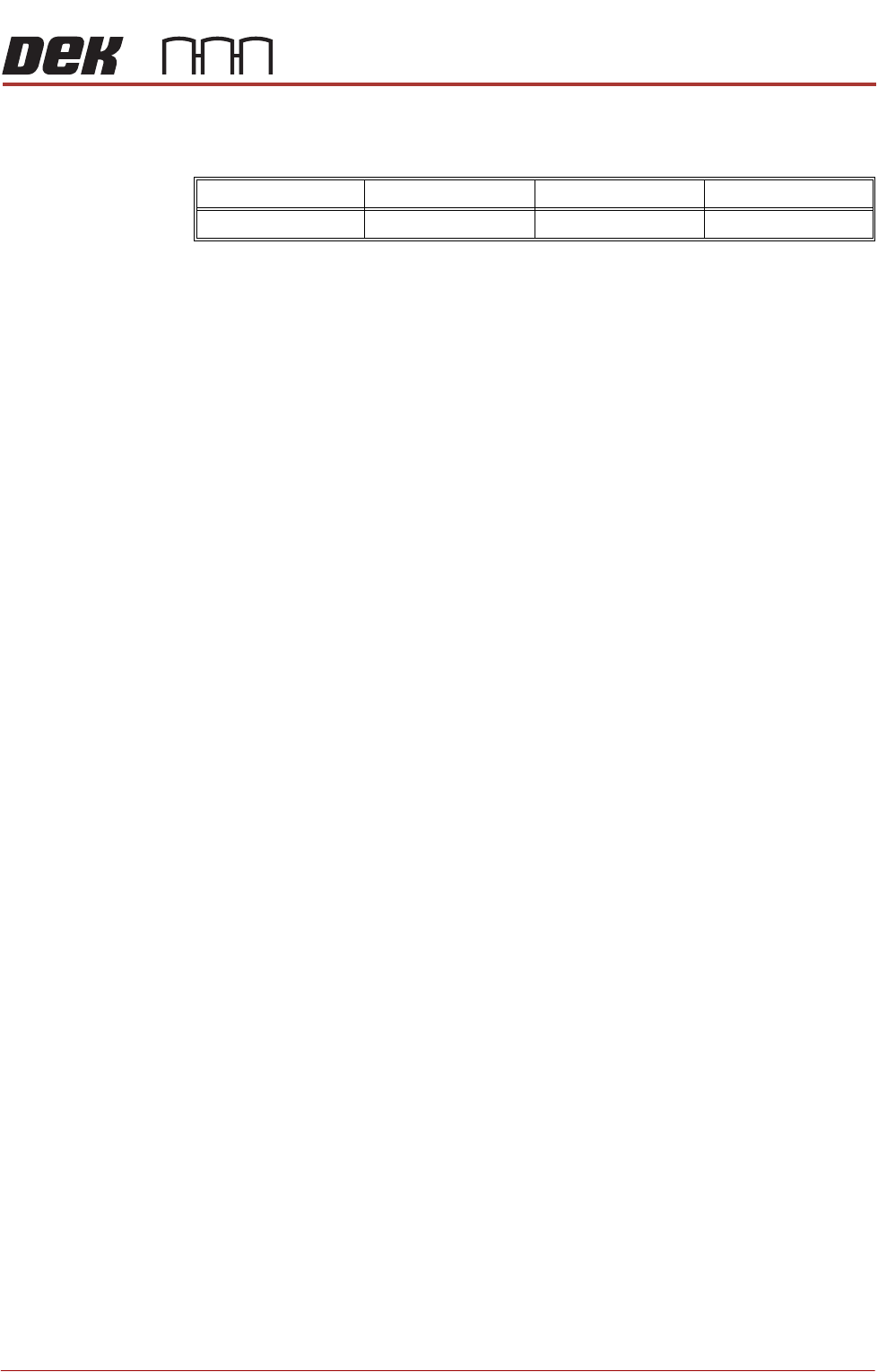
8. Using the Incr. or Decr. buttons, set the ProFlow contact position to 5.5mm.
9. Select Move to Position, the ProFlow unit is driven to the position set.
NOTE
Correct contact height is when the shim is just held between the transfer
head wipers and stencil. At this position it is not possible to slide the shim
sideways past the transfer head skis.
10. If correct contact height is achieved go to Step 14. If correct contact height
is not achieved, continue with Step 11.
11. Using the Incr. or Decr. buttons, increase or decrease the Contact Position
set height by 0.5mm (eg 5.0mm or 6.0mm).
NOTE
Normally the contact position is between 4mm and 8mm (nominally 6mm).
12. Select Move to Position, the ProFlow unit is driven to the position set.
13. Repeat Steps 11 and 12 to vary the set position until the correct contact
height is achieved.
14. Select Exit.
15. Select Exit.
16. Select Exit.
17. Select Back.
18. Open the front printhead cover and remove the shim.
19. Remove empty transfer head.
20. Close the front printhead cover.
21. Press the System button.
Minimum Maximum Increment Default
- 10mm +10mm 0.1mm 0.0mm