88192277-01-19 - Micron Technical Reference V9 Volume 4.pdf - 第42页
HERMES TESTING THE CONNECTION 37.14 Technical Reference Manual Chapter Issue 2, Nov 19 Using a Laptop If ‘Pinging’ the network fails, a laptop compu ter can be attached to the printing machine to test the network driver …
HERMES
TESTING THE CONNECTION
Chapter Issue 2, Nov 19 Technical Reference Manual 37.13
TESTING THE CONNECTION
Pinging the
Network
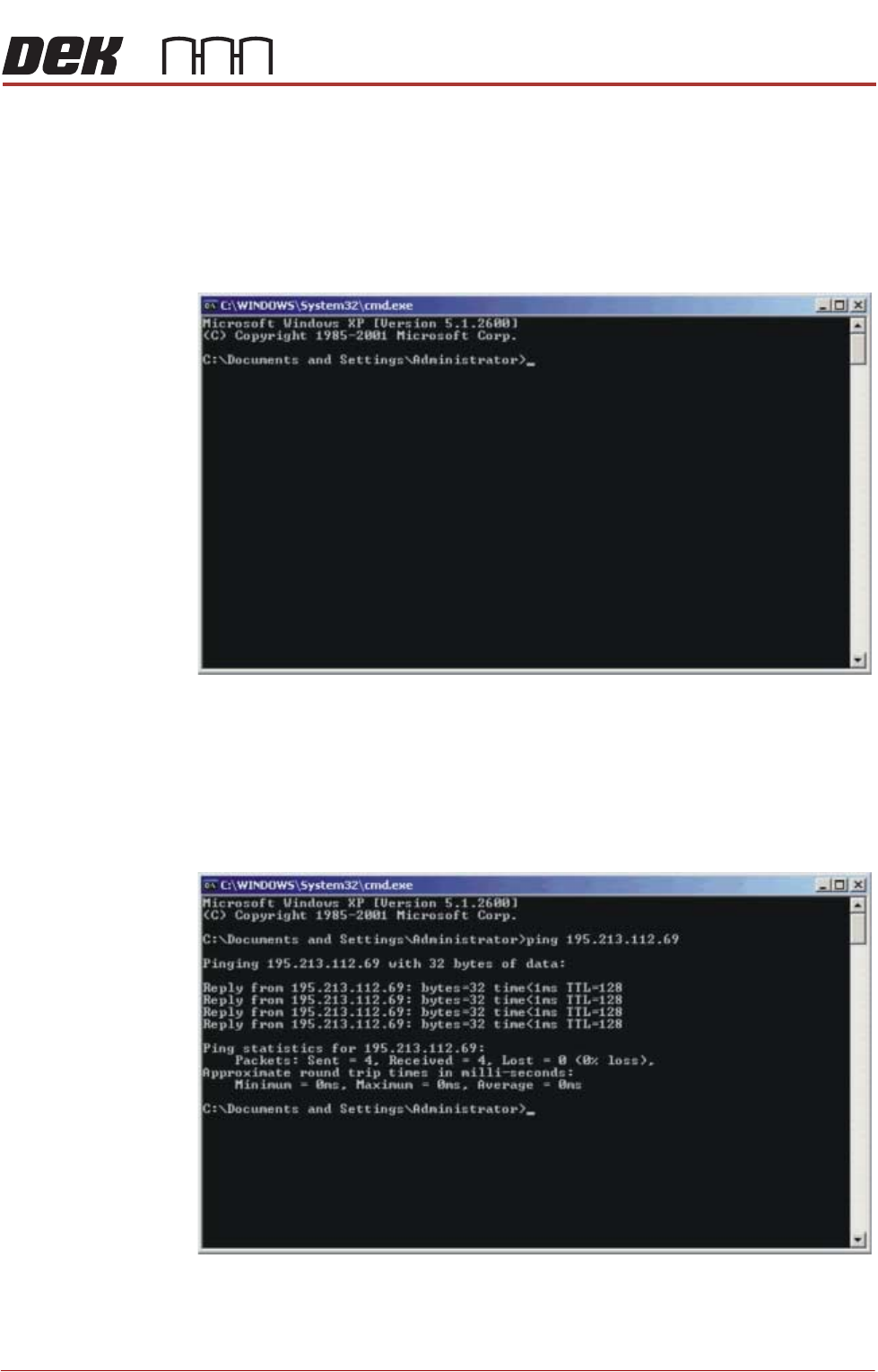
To test if the DEK printer is connected to the network, you can ‘Ping’ the network
using the following procedure:
1. From the Windows desktop, select Start - Run and enter CMD in the box
labelled ‘Open:’.
2. Select OK.
3. Type Ping <Server IP Address or Computer Name>.
NOTE
The network administrator can supply an IP Address or computer name to
ping.
4. If the ping is successful the reply shall contain information of the form: Reply
from 195.213.112.69: bytes=32 time<10ms TTL=128.
The installation of the printer to the company network has been successful.
HERMES
TESTING THE CONNECTION
37.14 Technical Reference Manual Chapter Issue 2, Nov 19
Using a Laptop If ‘Pinging’ the network fails, a laptop computer can be attached to the printing
machine to test the network driver and card is working correctly.
NOTE
Before commencing testing, make a note of the original configurations of both
the laptop and the printer so that they can be reset on completion.
1. Connect the laptop to the DEK printer using a cross-over network cable.
2. On the laptop, change the IP Address to 195.100.100.2 with a subnet mask
of 255.255.255.0.
3. Select OK and reboot the laptop.
4. On the DEK printer, change the IP Address to 195.100.100.1 with a subnet
mask of 255.255.255.0.
5. Select OK and reboot the printer.
6. From the Windows desktop, select Start - Run and enter CMD in the box
labelled ‘Open:’.
7. Select OK.
8. Type Ping 195.100.100.2.
9. If the ping is successful, the reply displays the following information: Reply
from 195.100.100.2: bytes=32 time<10ms TTL=128.
10. Disconnect the cross-over network cable and reset the printer and laptop to
their original settings.
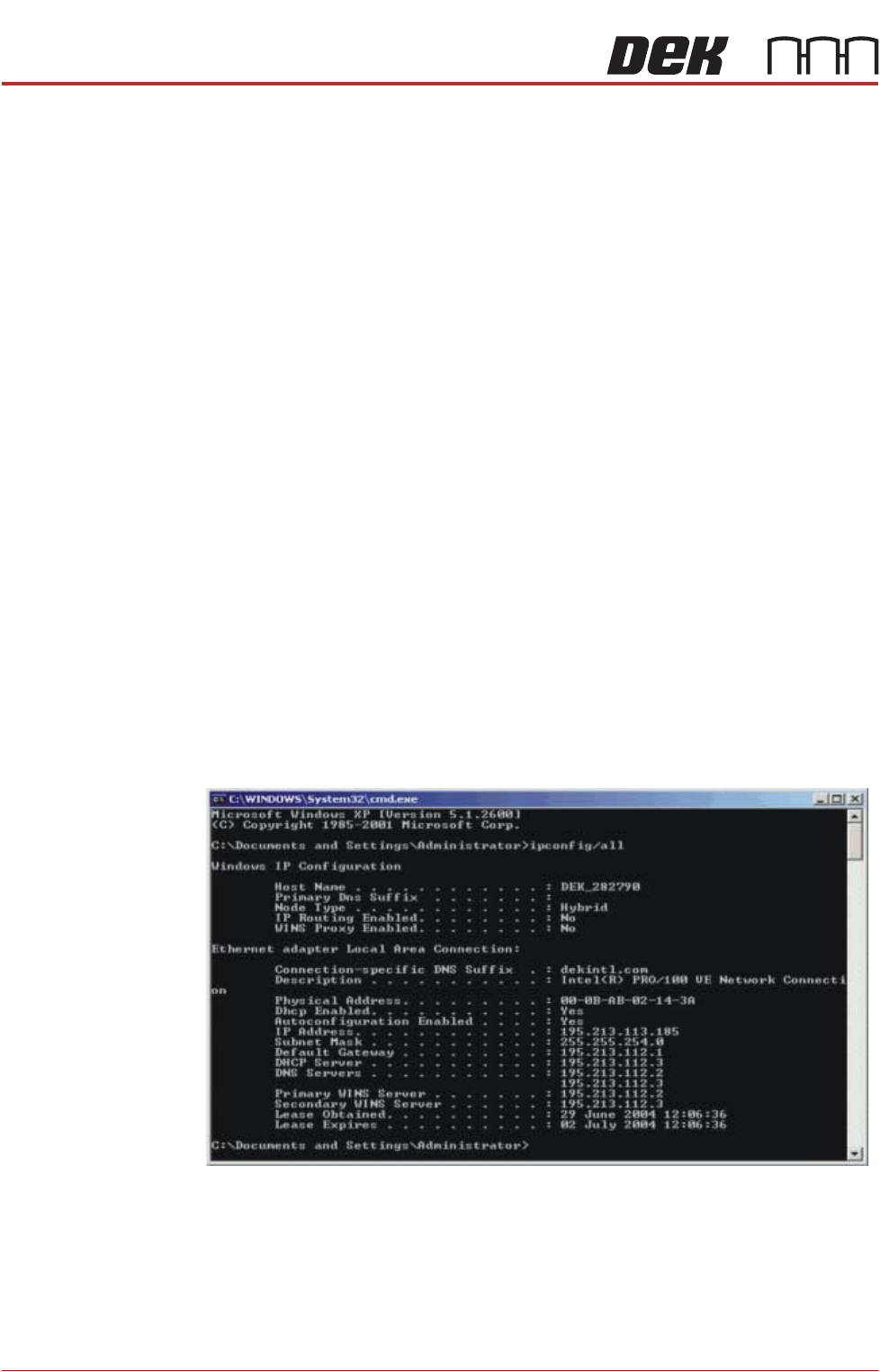
Finding an IP
Address
If the IP Address of a printer is not known (either PC or DEK Printer) these can
be obtained by opening the Command Prompt window. At the prompt type
IPCONFIG/ALL
All addresses are listed which the item is connected to including routers and
other servers.
Handshaking Whilst all inter station communication is carried out in the background, a Pre-
condition on the Print button alerts the user if the stations are not conjoined.
STINGER
OVERVIEW
Chapter Issue 4, Nov 19 Technical Reference Manual 38.1
CHAPTER 38 STINGER
OVERVIEW
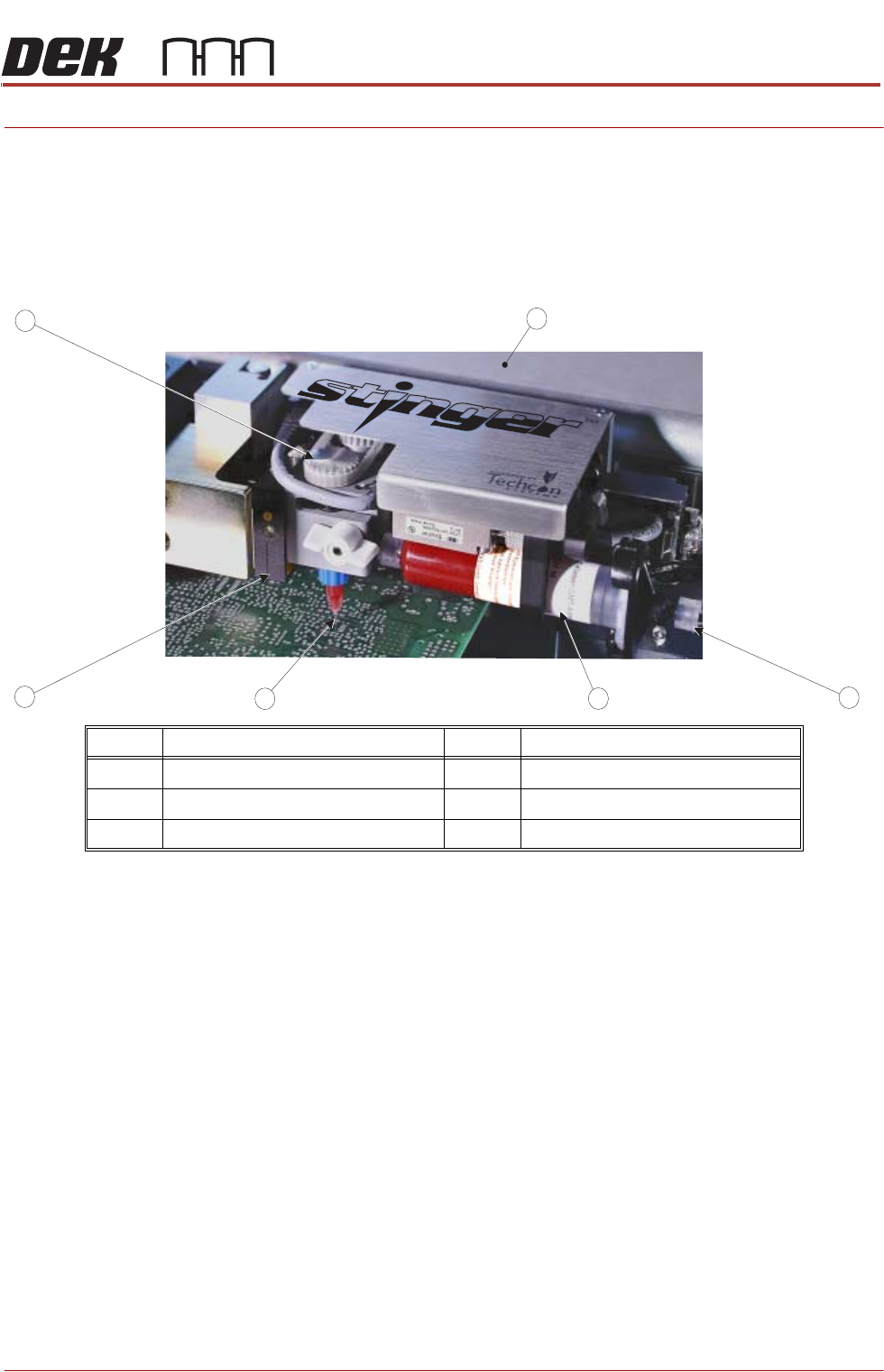
Stinger is a glue dot dispenser module attached to the camera carriage. The
dispensed adhesive is used to hold larger mass components, which may as a
result of transportation, or where under components are used, move after
placement.
After a product has been printed, Stinger dispenses adhesive in a pre-pro-
grammed pattern onto the product’s surface. A laser can be programmed to
take a measurement at various locations on the product; these measurements
are used to check that the dispense gap is maintained, even where product
warpage exists.
Operation Regulated air is supplied to the rear of the syringe, forcing an internal plunger
to compress the adhesive. The auger body fills with adhesive and the auger
valve screw (Archimedes screw) is rotated, providing a stirring motion that
‘works’ the adhesive; this action disperses any air bubbles that may be present.
N0. Description No. Description
1 Camera Carriage 4 Nozzle and Auger Valve Assembly
2 Air Input Connector 5 Laser Unit
3 10cc Syringe 6 Auger Pulley
5
2
6
1
4
3