88192277-01-19 - Micron Technical Reference V9 Volume 4.pdf - 第28页
NETWORKING TESTING THE CONNECTION 36.12 Technical Reference Manual Chapter Issue 6, Nov 19 Using a Laptop If ‘Pinging’ the network fails, a laptop compu ter can be attached to the printing machine to test the network dri…
NETWORKING
TESTING THE CONNECTION
Chapter Issue 6, Nov 19 Technical Reference Manual 36.11
TESTING THE CONNECTION
Pinging the
Network
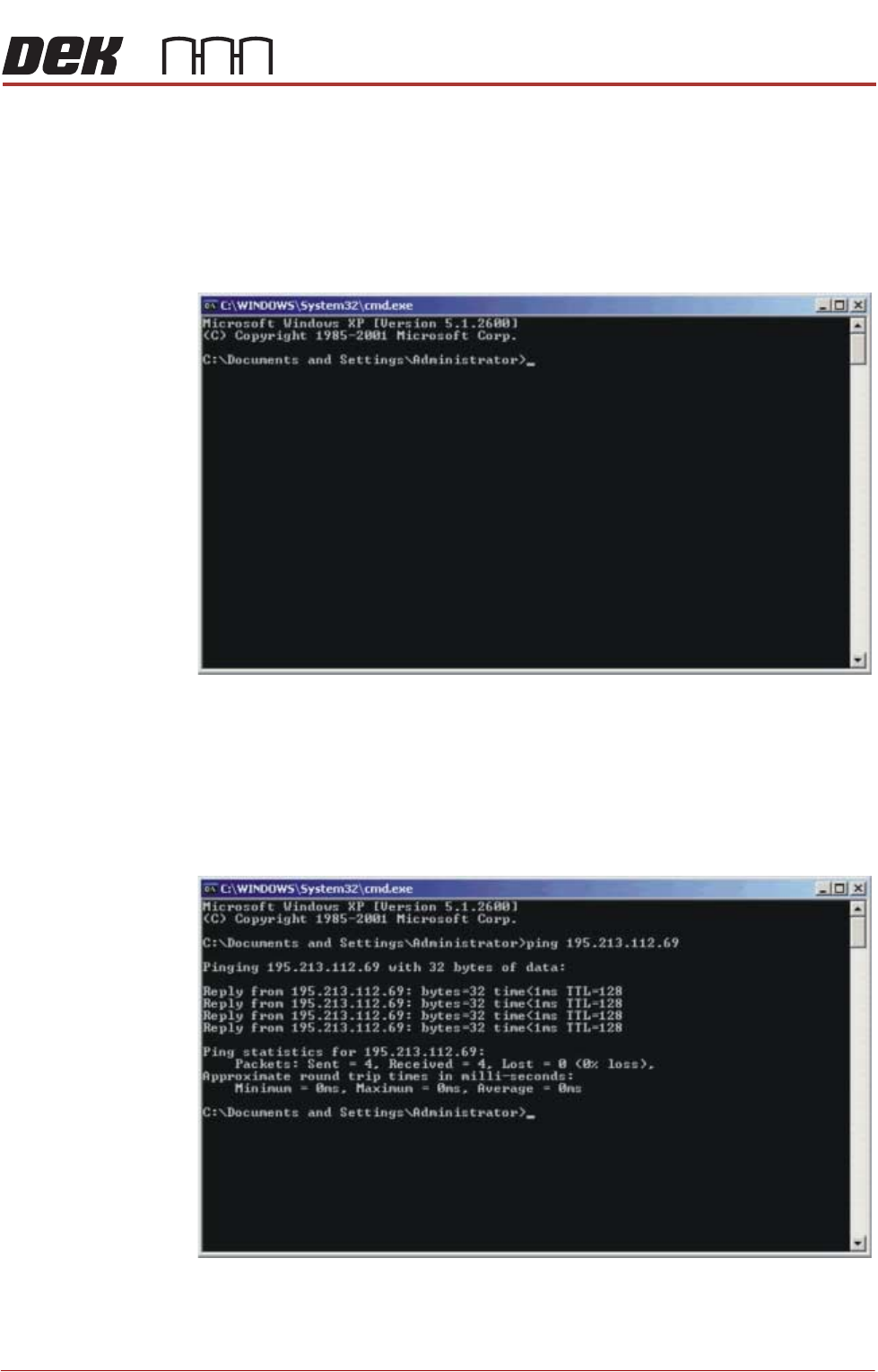
To test if the DEK printer is connected to the network, you can ‘Ping’ the network
using the following procedure:
1. From the Windows desktop, select Start - Run and enter CMD in the box
labelled ‘Open:’.
2. Select OK.
3. Type Ping <Server IP Address or Computer Name>.
NOTE
The network administrator can supply an IP Address or computer name to
ping.
4. If the ping is successful the reply shall contain information of the form: Reply
from 195.213.112.69: bytes=32 time<10ms TTL=128.
The installation of the printer to the company network has been successful.
NETWORKING
TESTING THE CONNECTION
36.12 Technical Reference Manual Chapter Issue 6, Nov 19
Using a Laptop If ‘Pinging’ the network fails, a laptop computer can be attached to the printing
machine to test the network driver and card is working correctly.
NOTE
Before commencing testing, make a note of the original configurations of both
the laptop and the printer so that they can be reset on completion.
1. Connect the laptop to the DEK printer using a cross-over network cable.
2. On the laptop, change the IP Address to 195.100.100.2 with a subnet mask
of 255.255.255.0.
3. Select OK and reboot the laptop.
4. On the DEK printer, change the IP Address to 195.100.100.1 with a subnet
mask of 255.255.255.0.
5. Select OK and reboot the printer.
6. From the Windows desktop, select Start - Run and enter CMD in the box
labelled ‘Open:’.
7. Select OK.
8. Type Ping 195.100.100.2.
9. If the ping is successful, the reply displays the following information: Reply
from 195.100.100.2: bytes=32 time<10ms TTL=128.
10. Disconnect the cross-over network cable and reset the printer and laptop to
their original settings.
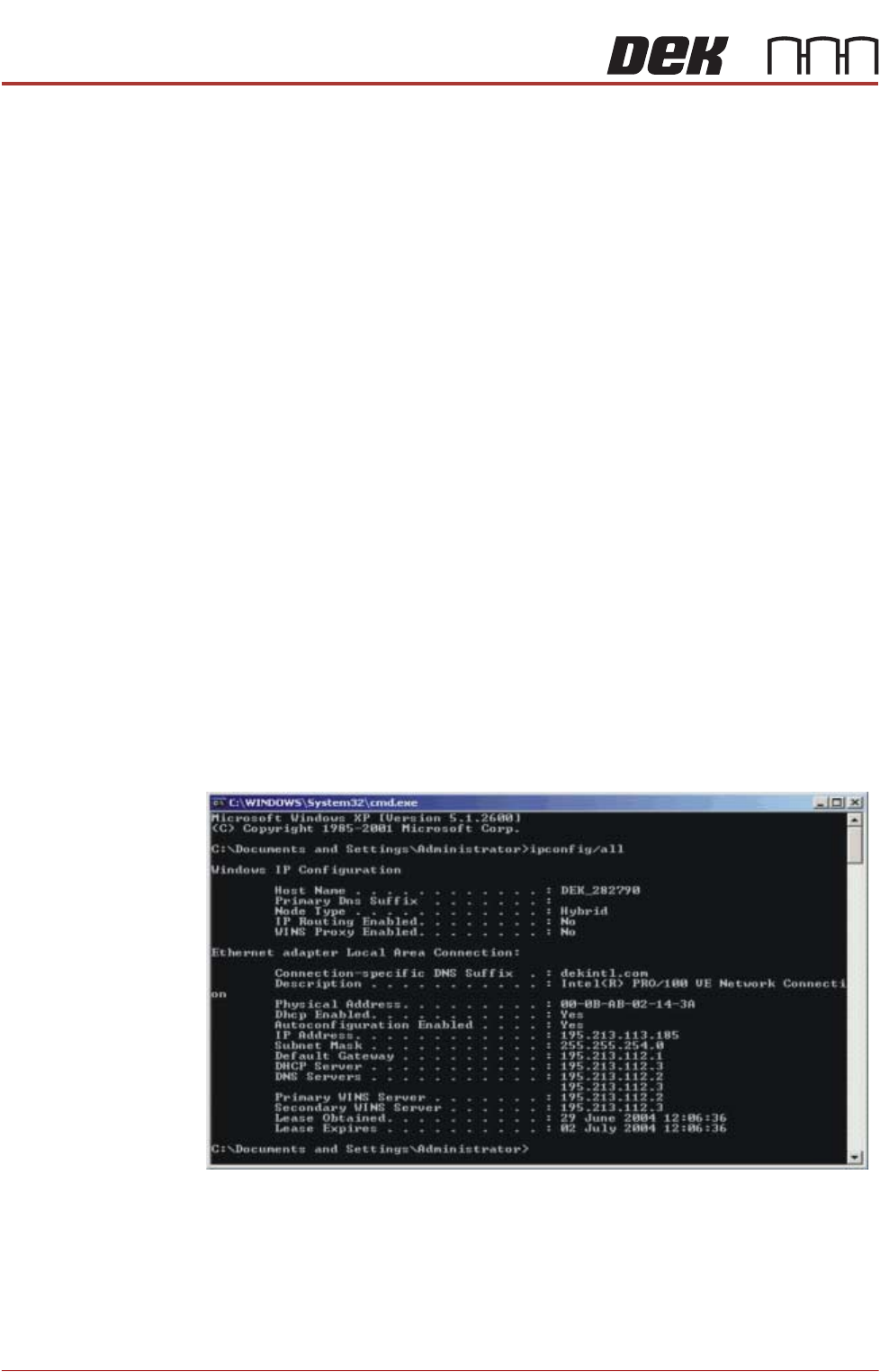
Finding an IP
Address
If the IP Address of a printer is not known (either PC or DEK Printer) these can
be obtained by opening the Command Prompt window. At the prompt type
IPCONFIG/ALL
All addresses are listed which the item is connected to including routers and
other servers.

HERMES
OVERVIEW
Chapter Issue 2, Nov 19 Technical Reference Manual 37.1
CHAPTER 37 HERMES
OVERVIEW
The Hermes Standard (Hermes) is a standard for communication between
different stations of an SMT line (printers, placement machines, conveyor
systems, automatic inspection systems, and soldering systems).
NOTE
1. This chapter is based on information contained in The Hermes Standard
version 1.0 revision 1.
2. There is also an administrator guide called The Hermes Standard 1.0
Administrator Guide / Handbuch Item Number 00198615.
This communication provides a Transmission Control Protocol / Internet Proto-
col (TCP / IP) and XML-based protocol that allows uninterrupted traceability of
boards through the entire SMT line.
The upline station, from which the data is received, must be defined in terms of
IP address or Machine identification (Host Name) and port number. If this is not
specified, the information must be entered separately.
The printer initiates communication with the immediate upline station and is
communicated to by the downline station. This can be achieved via an (Vertical)
Ethernet connection to a network (preferred) or by a (Horizontal) Ethernet
connection station to station. These stations in turn communicate with their next
upline and downline stations.
NOTE
Some stations within a SMT line could be non Hermes. In this instance all board
data is lost and new data is assigned by the next Hermes compatible station.
Refer to the FMI chapter of the manual for information relating to the connec-
tions to these stations.