88192277-01-19 - Micron Technical Reference V9 Volume 4.pdf - 第284页
TRANSPORTATION - POWER UP MACHINE POWER UP SEQUENCE 43.10 Technical Reference Manual Chapter Issue 3, Nov 19 7. Select Change time zone... . 8. Using the drop down box, select th e appropriate time zone. 9. Select OK . 1…
TRANSPORTATION - POWER UP
MACHINE POWER UP SEQUENCE
Chapter Issue 3, Nov 19 Technical Reference Manual 43.9
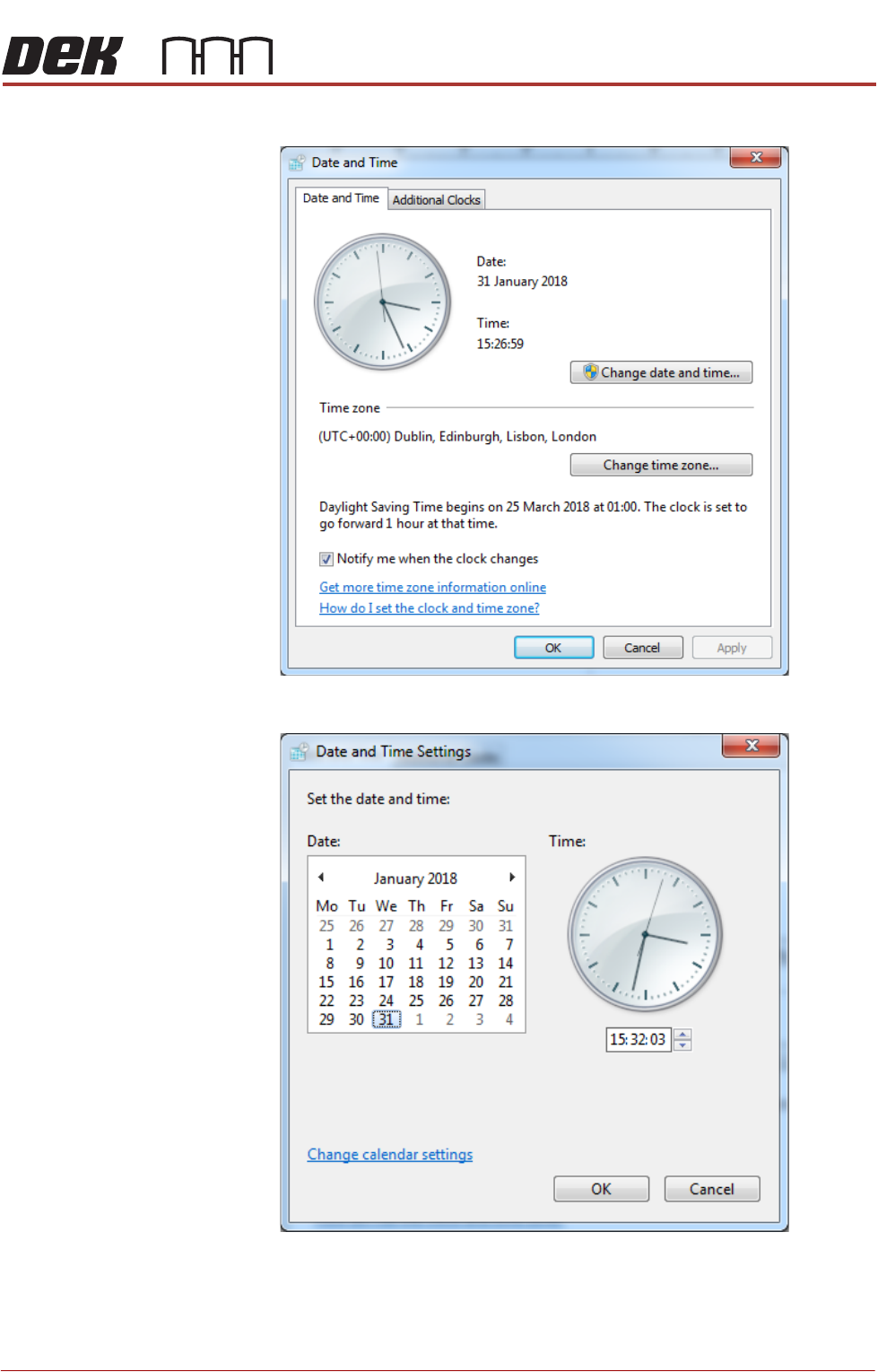
3. Select Change date and time....
4. Set the correct date on the calendar display.
5. Using the arrows set the correct time on the digital display beneath the
analogue clock.
6. Select OK.
TRANSPORTATION - POWER UP
MACHINE POWER UP SEQUENCE
43.10 Technical Reference Manual Chapter Issue 3, Nov 19
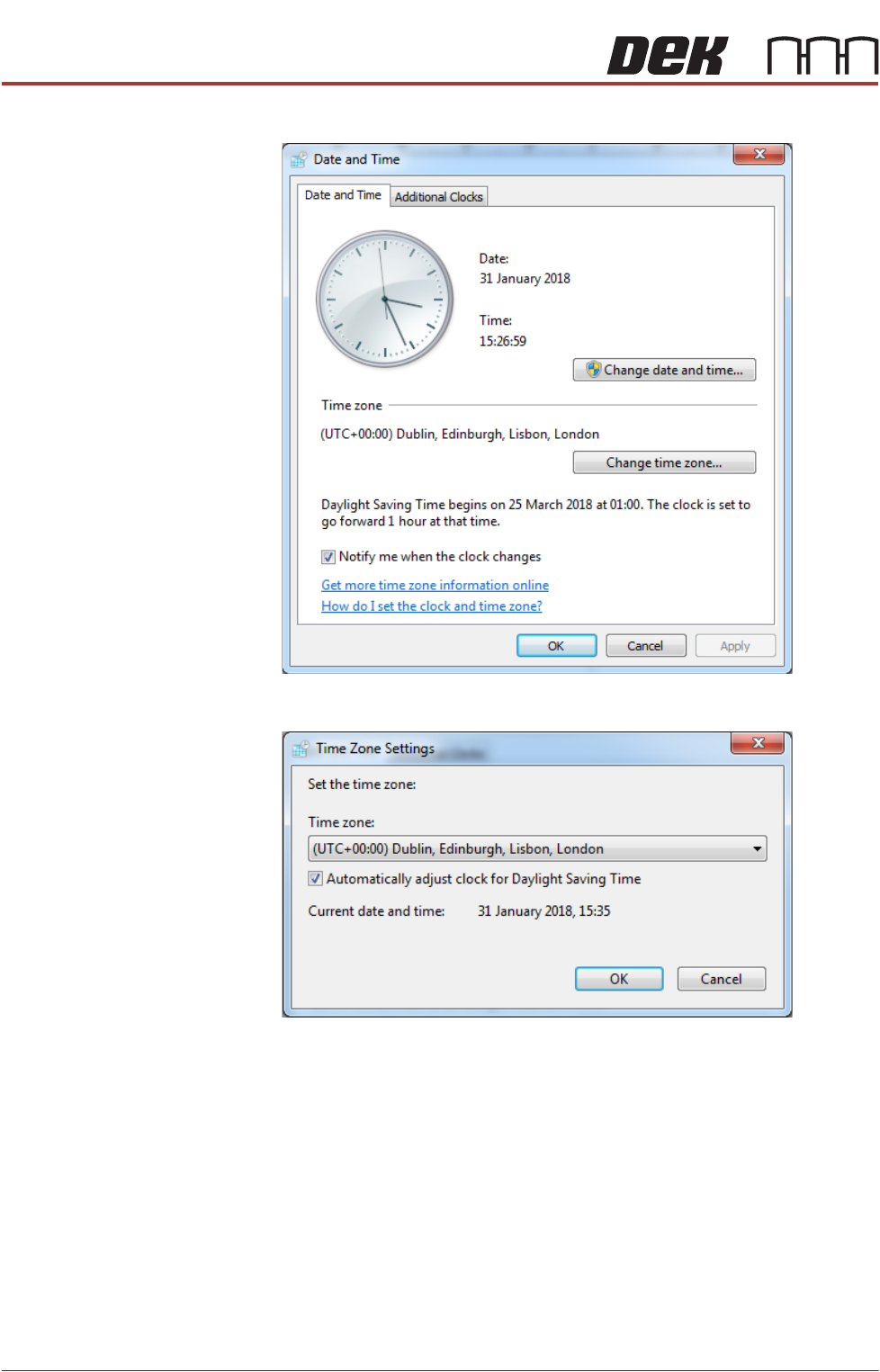
7. Select Change time zone....
8. Using the drop down box, select the appropriate time zone.
9. Select OK.
10. Select OK.
11. Select Start on the taskbar.
12. Select DEK Printer Software.
13. Press the System button.
TRANSPORTATION - POWER UP
MACHINE POWER UP SEQUENCE
Chapter Issue 3, Nov 19 Technical Reference Manual 43.11
Windows 10 To set the date and time in Windows 10 the user must be logged in as an
administrator. Login as an administrator and carry out the following procedure.
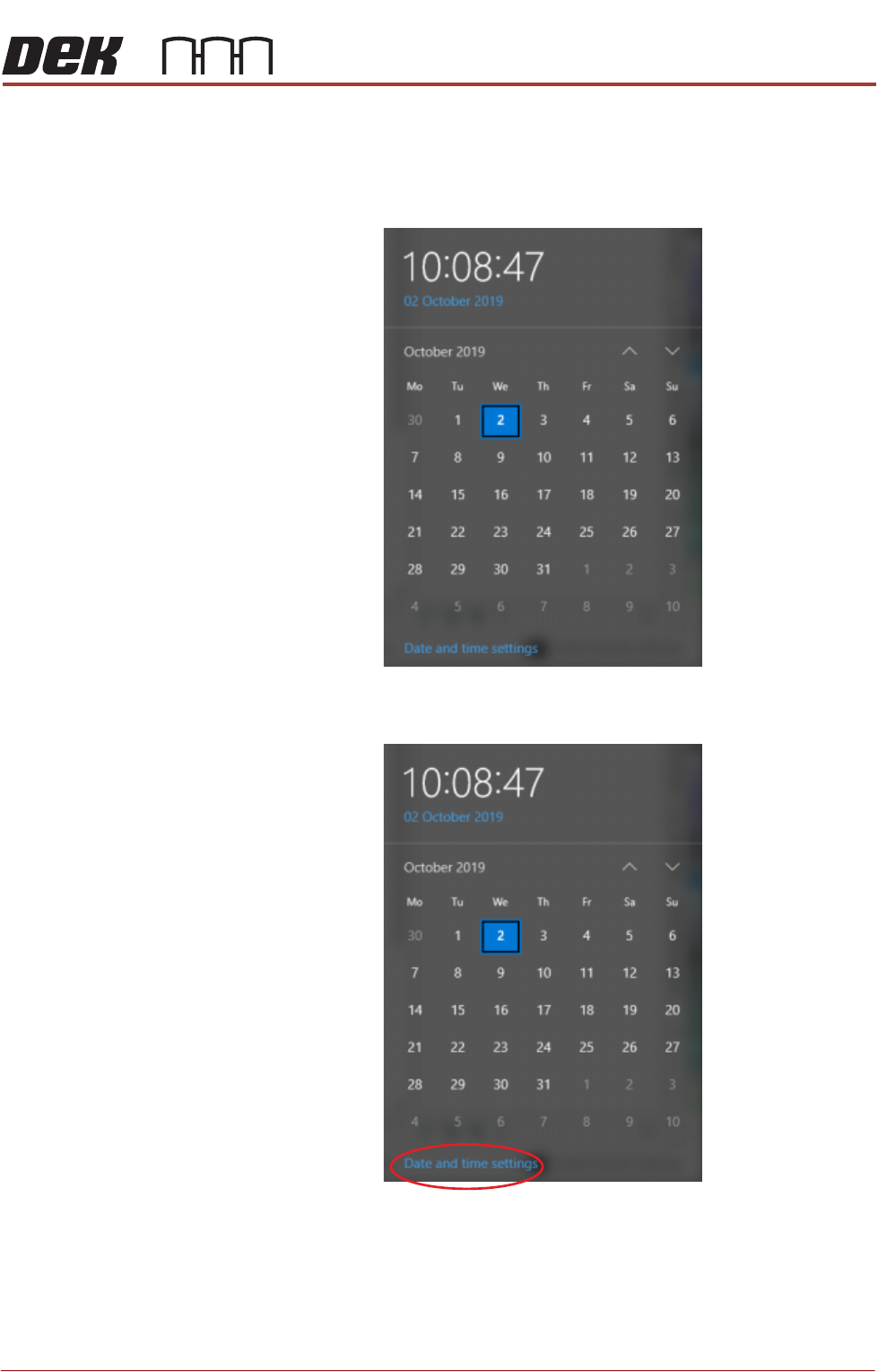
1. Select the clock displayed at the right hand side of the Windows taskbar.
The following window is displayed:
2. Select Date and time settings.