88192277-01-19 - Micron Technical Reference V9 Volume 4.pdf - 第96页
DIAGNOSTI CS PRINT CARRIAGE 39.10 Technical Reference Manual Chapter Issue 4, Aug 14 Drive Carriage to Paste Position Selecting this diagnostic function move s the prin t carriage to a position that clears the paste disp…
DIAGNOSTICS
PRINT CARRIAGE
Chapter Issue 4, Aug 14 Technical Reference Manual 39.9
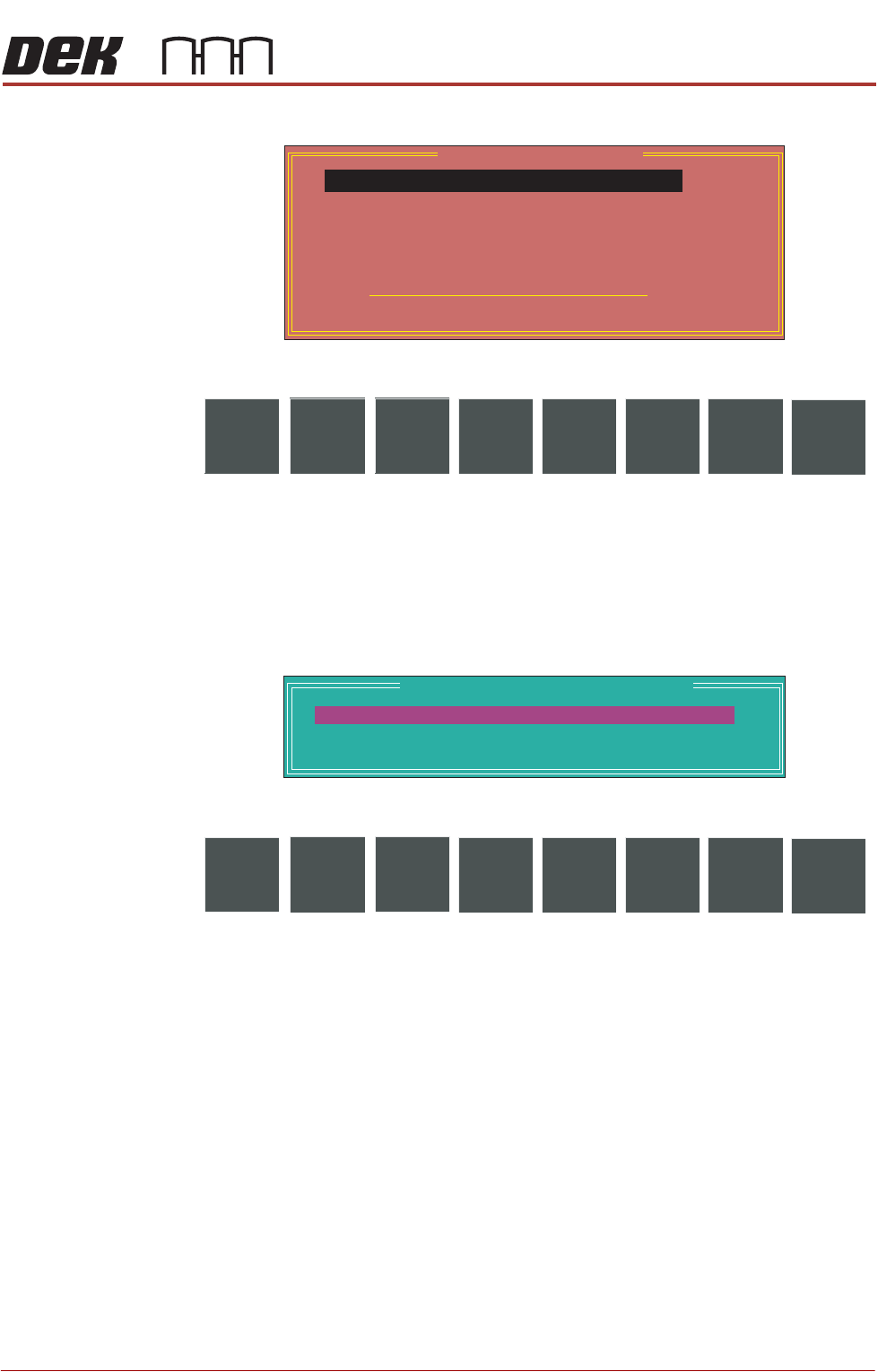
PRINT CARRIAGE Selecting this diagnostics module opens the following window:
The following icons are displayed:
Next/Previous moves the highlight bar up and down the list of selectable
diagnostic functions.
Run Diagnost activates the diagnostic function, as selected by the highlight
bar.
Exit returns operation to the module diagnostics page.
Adjust opens the following window:
The following icons are displayed:
Next/Previous moves the highlight bar up and down the list of diagnostic
parameters.
Incr./Decr. changes the value of the selected diagnostic parameter.
Exit returns operation to the print carriage diagnostics page.
NOTE
These parameters are used in diagnostics only and have no affect on the
product board file.
Home Print
Carriage
Selecting this diagnostic function homes the print carriage, as set by its home
sensor. ‘Homing Print Carriage’ is displayed in the prompt box. It is always
advisable to home the print carriage before attempting to position it.
Drive Carriage to
Front Position
Selecting this diagnostic function moves the print carriage to the front start
position of the print stroke. ‘Driving Print Carriage to Front Limit’ is displayed
in the prompt box.
Print Carriage Diagnostics
Cycle Count
Done :-
0, To go :-
50
Home Print Carriage
Drive Carriage To Front Position
Drive Carriage To Paste Position
Drive Carriage To Rear Position
Drive Carriage Using Jog Buttons
Cycle Print Carriage
Run
Diagnost
NextAdjust
Previous
Exit
Print Carriage Diagnostic Parameters
FRONT PRINT SPEED
REAR PRINT SPEED
CYCLE COUNT
25
25
50.0
mm/s
mm/s
cycles
Next Incr. Decr.
Previous
Exit

DIAGNOSTICS
PRINT CARRIAGE
39.10 Technical Reference Manual Chapter Issue 4, Aug 14
Drive Carriage to
Paste Position
Selecting this diagnostic function moves the print carriage to a position that
clears the paste dispense unit if operated. ‘Driving Print Carriage to Paste
Position’ is displayed in the prompt box.
Drive Carriage to
Rear Position
Selecting this diagnostic function moves the print carriage to the end of the print
stroke. ‘Driving Print Carriage to Rear Limit’ is displayed in the prompt box.
Drive Carriage
Using Jog Buttons
Selecting this diagnostic function allows the user to position the print carriage
anywhere between the front and rear position using the two jog buttons. ‘Use
the Left Jog Button to move Print Carriage towards front and the Right Jog
Button to move it towards the rear’ is displayed in the prompt box.
Cycle Print
Carriage
Selecting this diagnostic function starts a continuous cycle of driving the print
carriage between its front and rear limits, pausing at each end for 2 seconds.
‘Print Carriage Cycling’ is displayed in the prompt box. The cycle is terminated
if the Stop key is used or the set cycle count is reached.
Cycle Count This diagnostic function displays the amount of cycles done and the amount of
cycles to go to complete the cycle count. The cycle count may be preset 5 -
9995 cycles (default 50) by selecting Adjust.
DIAGNOSTICS
PROFLOW
Chapter Issue 4, Aug 14 Technical Reference Manual 39.11
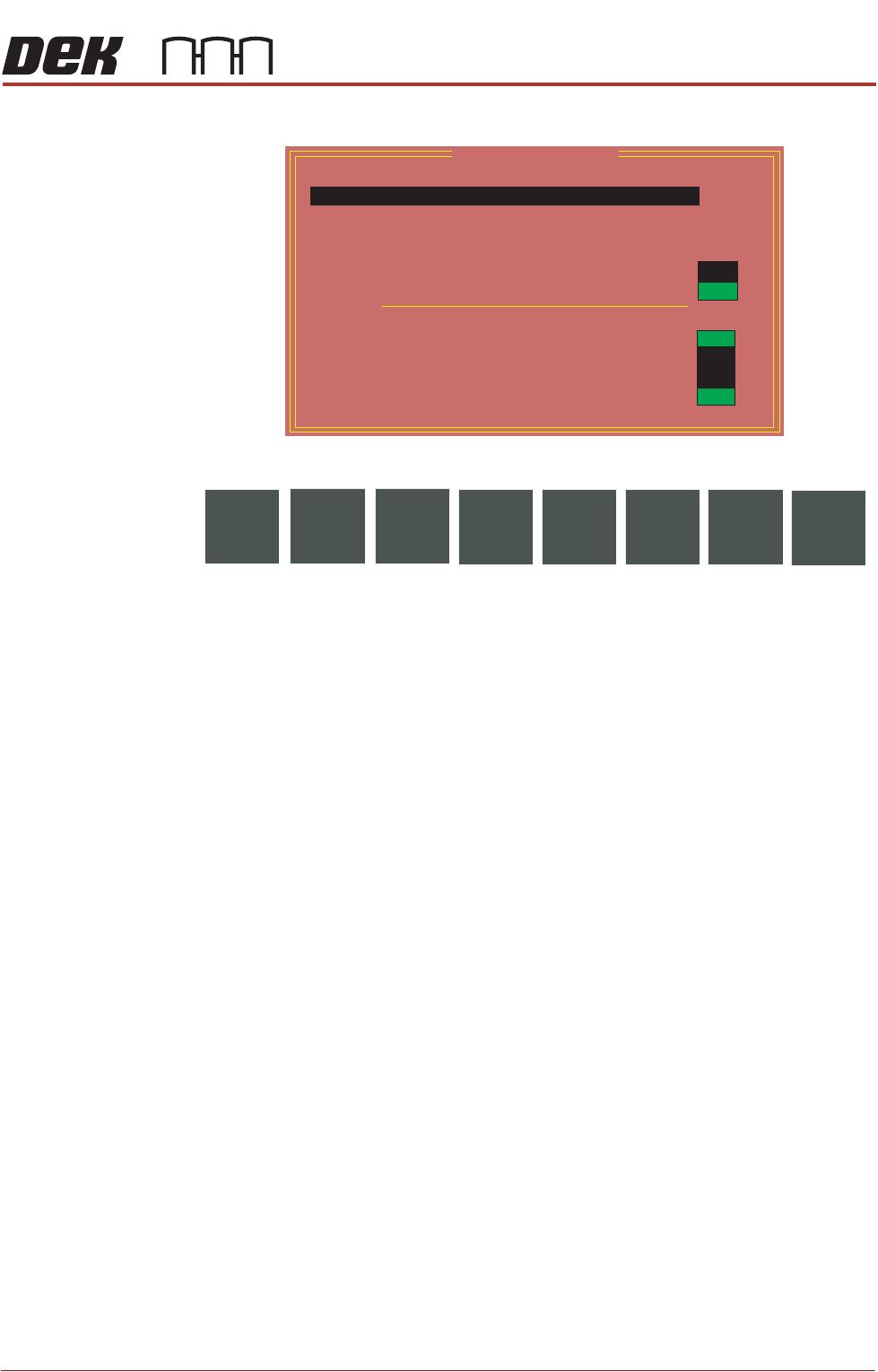
PROFLOW Selecting this diagnostics module opens the following window:
The following icons are displayed:
Next/Previous moves the highlight bar up and down the list of selectable
diagnostic functions.
Run Diagnost activates the diagnostic function, as selected by the highlight
bar.
Exit returns operation to the module diagnostics page.
Home ProFlow Selecting this diagnostic function drives the ProFlow unit up to the home
position.
Drive System to
Contact Height
Selecting this diagnostic function drives the ProFlow unit onto the stencil, (a
slight pressure seal, is made between the ProFlow transfer head and the
stencil). There is no pressure applied to the paste cassette.
Drive System to
Print Height
Selecting this diagnostic function drives the ProFlow transfer head down to
printing pressure (as setup in the Edit Data board file). There is no pressure
applied to the paste cassette at this time.
Drive System
Using Jog Buttons
Selecting this diagnostic function enables the ProFlow unit to be moved up or
down by means of the jog buttons.
Toggle Air
Pressure
Selecting this diagnostic function initiates pressure onto the paste cassette.
Before initiating pressure to the paste cassette, the transfer head must be in
contact with, and have an adequate seal with the stencil. A warning is displayed
if toggle air pressure is selected with the transfer head off the stencil.
Toggle Auto Drip
Tray
Selecting this diagnostic function alternately energizes and de-energizes the
auto drip tray, displaying On when extended and Off when retracted. Reads Not
Fitted when feature is not installed.
Pressure Reading This diagnostic function continuously displays the current pressure in kg,
exerted from the squeegee pressure load cell onto the ProFlow unit.
ProFlow Diagnostics
11.42Kg
857
Home ProFlow
Drive System to Contact Height
Drive System to Print Height
Drive System Using Jog Buttons
Toggle Air Pressure
Toggle Auto Drip Tray
Pressure Reading:
ProFlow Fitted
Paste Cassette Low
ProFlow Pressure Regulator Fitted
Auto Drip Tray Retracted
ProFlow Transfer Material Level Reading:
OFF
ON
ON
OFF
OFF
ON
Run
Diagnost
Next
Previous
Exit