88192277-01-19 - Micron Technical Reference V9 Volume 4.pdf - 第80页
38.38 Technical Reference Manual Chapter Issue 4, Nov 19 STINGER CALIBRATIONS 4. Select Load Screen . 5. Select Maintenance . 6. Select Machine Setup. 7. Select Options . Select Stinger Options the stinger options p age …

STINGER
CALIBRATIONS
Chapter Issue 4, Nov 19 Technical Reference Manual 38.37
10. Open the cover.
11. Cover the screen present sensor and select Continue. The screen clamps
actuate.
12. Select Back.
13. Select Fiducials.
14. Select Global Settings.
15. Select Alignment Mode.
16. Select Non Vision.
17. Select Accept.
18. Select Back
19. Select Back
20. Select Options.
21. Select Stinger Dispenser.
22. Select Load Board. Choose the preferred load board method, auto or
manual.
23. Select Dispense Sweep.
24. Select Back.
25. Select Open Cover Commands.
26. Open the printhead front cover.
27. Measure the Laser Offset X and Y between the dispensed dot and the laser
beam position. The object must have the laser beam shining on the dot
centre. Edit the laser X and Y offsets as required.
28. Close the printhead front cover.
29. Select Save.
30. Select Setup Sites.
31. Select Adjust Site, set the dispense mode to its original state.
32. Select Fiducials.
33. Select Confirm.
34. Select Back.
35. Select Back.
36. Select Back.
Calibrated Offsets NOTE
Program the offset tests below to perform multiple deposits on one site only, at
the centre of the calibration board. This prevents the system from depositing
and / or measuring at every programmed site, and allows the opportunity to
make accurate measurements from a single location.
1. Select Open Cover Commands and load a stencil.
2. Close the printhead cover; press the System button to restore system
power.
3. Select Back.
38.38 Technical Reference Manual Chapter Issue 4, Nov 19
STINGER
CALIBRATIONS
4. Select Load Screen.
5. Select Maintenance.
6. Select Machine Setup.
7. Select Options. Select Stinger Options the stinger options page is dis-
played.
8. Select Stinger Calibrated Offset X to set the parameter initially to 0 (zero
offset). This parameter sets a factor to compensate for the offset of the
camera and the nozzle centres in the X plane.
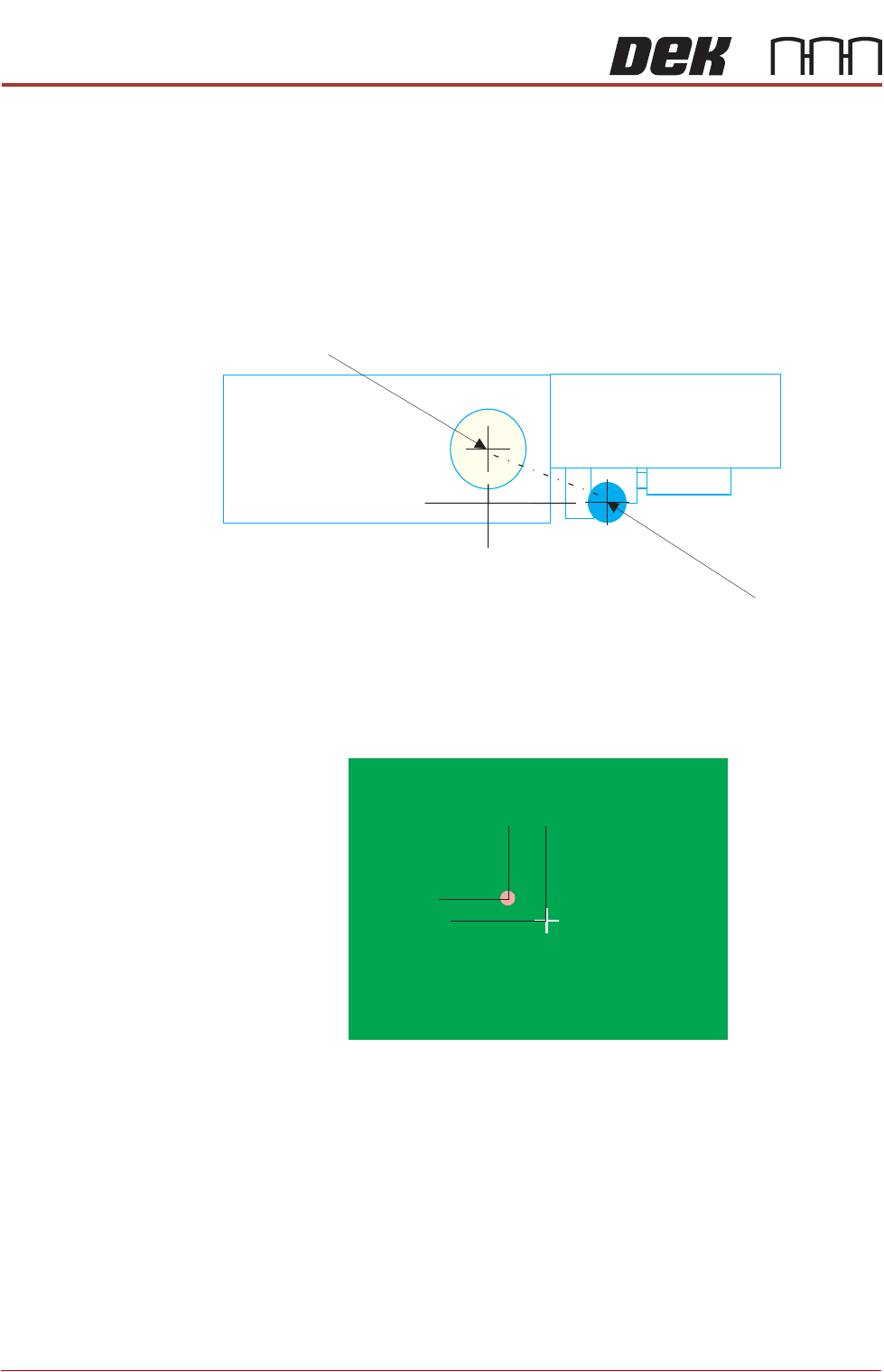
The offset can be calculated by measuring a known point on a test product or
calibration board. Accurately draw a mark at this point and set up stinger to
dispense a corresponding dot. The measured difference between the mark and
the dot in the X plane is the value to be input. This can be any value between
-5mm and +5mm.
Camera Centre
Nozzle Centre
Y Offset
1.0 mm
X Offset -1.25mm
Product Centre 110, 80
STINGER
CALIBRATIONS
Chapter Issue 4, Nov 19 Technical Reference Manual 38.39
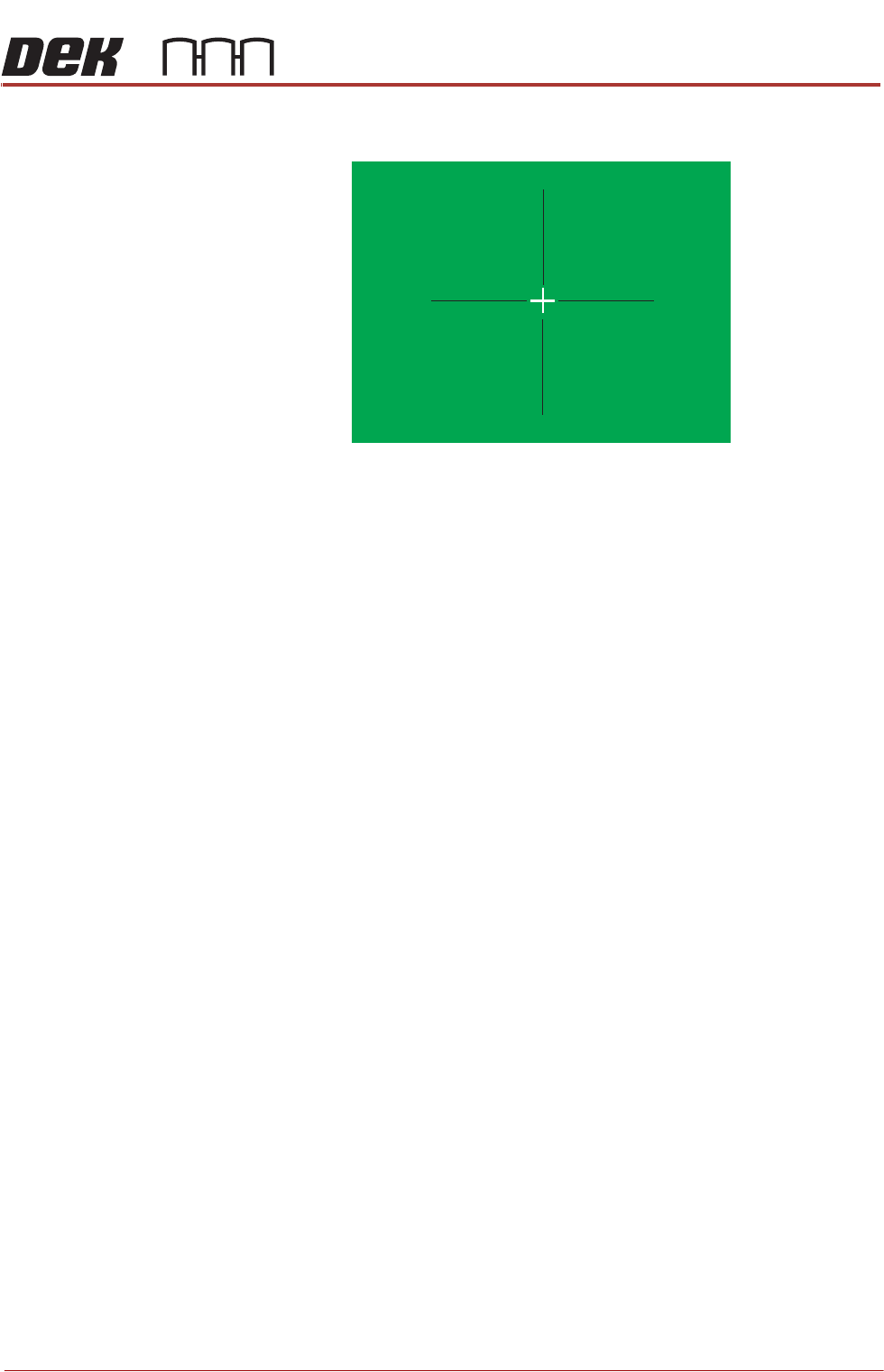
Remove the product from the printer and measure the offsets. The offset
quadrants are shown below. Amend the X and Y calibrated offset parameters.
9. Select Stinger Calibrated Offset Y to set the parameter initially to 0 (zero
offset).
10. Select Back.
11. Select Back.
12. Select Back.
13. Select Save.
14. Select Back.
15. Select Setup Product.
16. Select Options.
17. Select Stinger Dispenser.
18. Select Load Board. Choose the preferred load board method, auto or
manual.
19. Select Dispense Sweep.
The system dispenses at the programmed site. Any offset between the pro-
grammed site and the material is the equivalent offset in the Y plane. Program
the parameter to compensate for this; it can be any value between
-5mm and +5mm.
Stinger Laser
Offsets X and Y
This parameter sets a factor to compensate for any offsets of the nozzle to laser,
in the X and Y planes, at the point where the laser actually measures. This can
be any value between -5mm and +5mm. As with the calibrated offsets, a deposit
point is marked on the calibration board. The offset is set to zero and a deposit
is made; the difference between the deposit centre and the laser centre is the
amount of compensation to be set.
Set the measurement option to measure only (on a single site).
NOTE
If more than one site is to be utilised and an image is available, select Load
Image to load a GERBER image file.
1. Select Setup.
2. Select Options.
X Offset +
X Offset +
Y Offset - Y Offset -
X Offset -
X Offset -
Y Offset + Y Offset +