88192277-01-19 - Micron Technical Reference V9 Volume 4.pdf - 第23页
NETWORKING CONNECTION TO A NETW ORK SERVICE Chapter Issue 6, Nov 19 Technical Reference Manual 36.7 8 W ay RJ45 Connector Internally the LAN RJ45 connection is routed to 3SK02 (card slot ISA 3) of the PC enclosure rear p…
NETWORKING
CONNECTION TO A NETWORK SERVICE
36.6 Technical Reference Manual Chapter Issue 6, Nov 19
Hardware
Installation
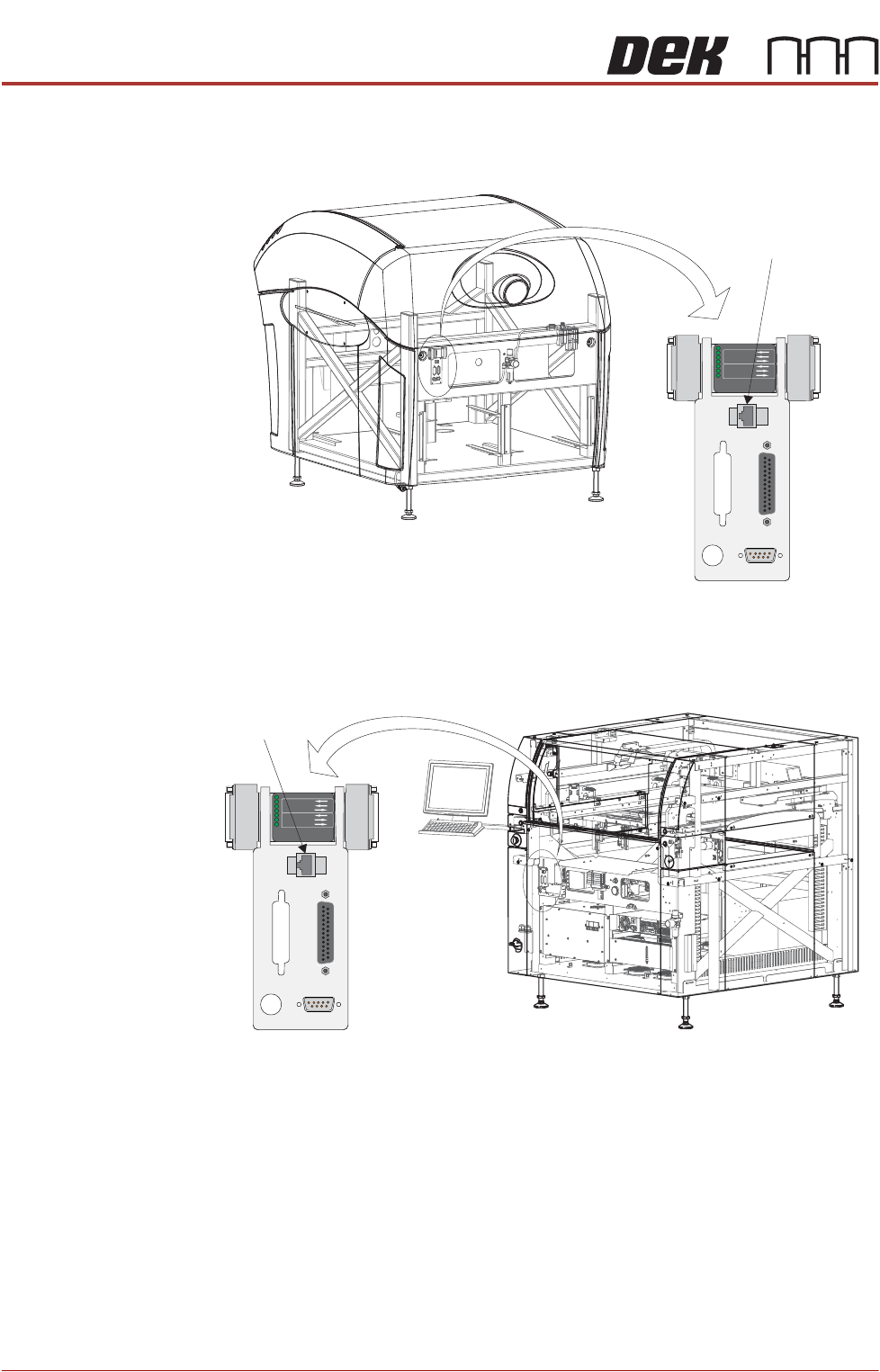
A LAN RJ45 connector is available at the external services panel, this connector
provides the interface to the customer’s network.
Figure 36-3 Type 1, 2 and 3 Covers
Figure 36-4 Type 4 Covers
POWER ON
PART No. 160740
M/C AVAILABLE
BOARD AVAILABLE
BOARD PASS
DOWNLINE
BOARD AVAILABLE
BOARD PASS
M/C AVAILABLE
UPLINE
FMI POD
View on Rear of Machine
Host Comms
LAN RJ45
POWER ON
PART No. 160740
M/C AVAILABLE
BOARD AVAILABLE
BOARD PASS
DOW
NLINE
BOARD AVAILABLE
BOARD PASS
M/C AVAILABLE
UPLINE
FMI POD
View on Front Right Quarter
Host Comms
LAN RJ45
NETWORKING
CONNECTION TO A NETWORK SERVICE
Chapter Issue 6, Nov 19 Technical Reference Manual 36.7
8 Way RJ45
Connector
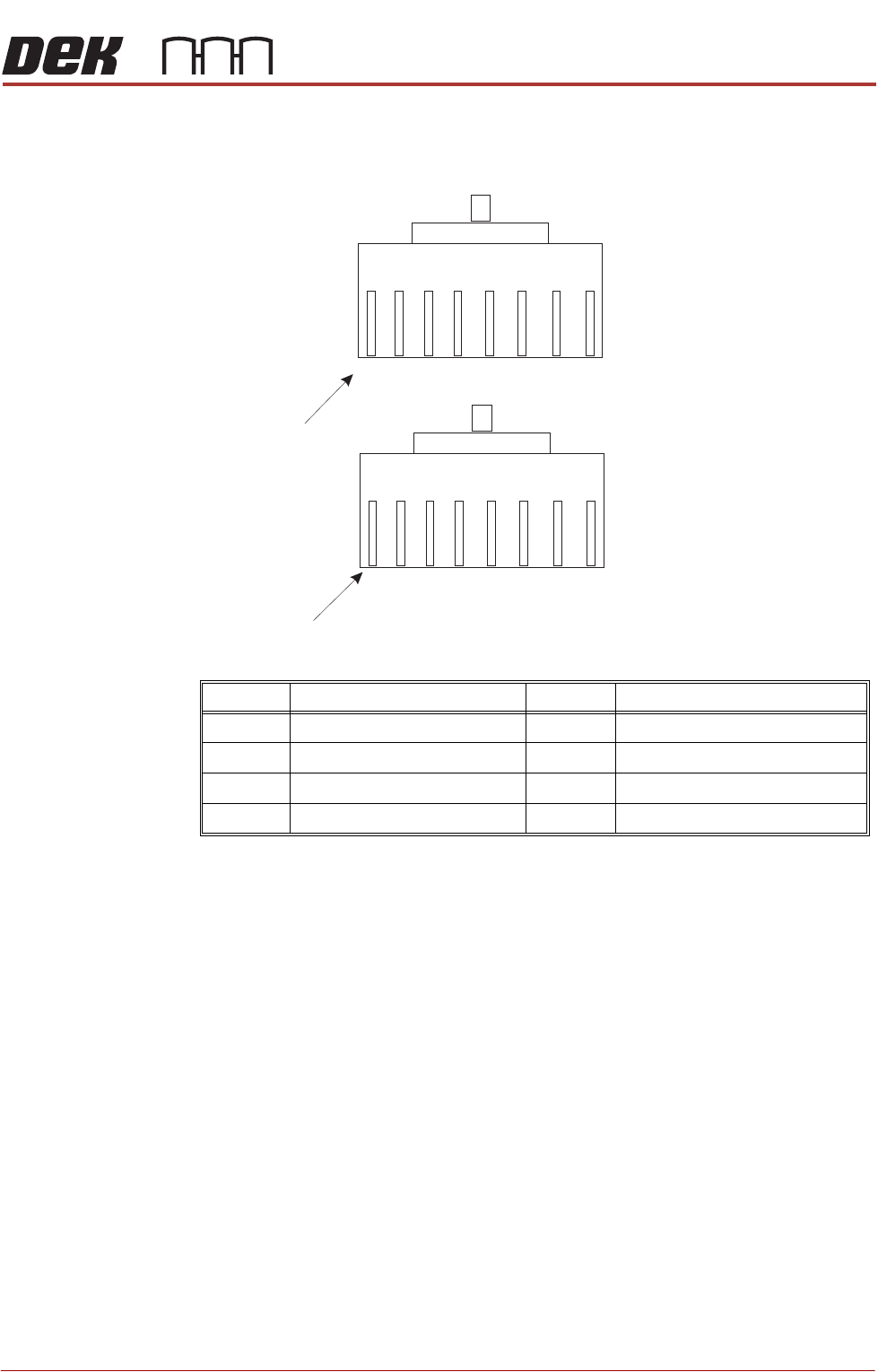
Internally the LAN RJ45 connection is routed to 3SK02 (card slot ISA 3) of the
PC enclosure rear panel. The connections (to connector A) are shown below:
NOTE
The connection above is wired as ASM would recommend. It is possible that a
customer network connection may differ from the one shown, if a problem exists
in installation the connection at the customer network end of the cable may need
to be configured accordingly.
IP Address Configuration
To set the IP Address, use the following procedure:
1. On the Windows desktop, right mouse click the My Network Places icon
and select Properties.
2. Right mouse click Local Area Connection and select Properties.
3. Highlight Internet Protocol (TCP/IP) and select the Properties button.
4. Select the Obtain an IP address automatically radio button if the server
supports this capability. Go to Step 6.
5. Select the Use the following IP address: radio button and enter the details
supplied by the network administrator.
6. Select OK - OK and close the Networks Connections window.
Pin No. Signal Pin No. Signal
1 +ve Transmit 5 Not Used
2 -ve Transmit 6 -ve Receive
3 +ve Receive 7 Not Used
4 Not Used 8 Not Used
BN
BN
W/
BN
W/
BN
O
O
W/
O
W/
O
G
G
W/
G
W/
G
BL
BL
W/
BL
Pin 1
Connector A (pin view)
Connector B (pin view)
Connection Diagram for Reverse RJ45 Cable
Pin 1
W/
BL

NETWORKING
CONNECTION TO A NETWORK SERVICE
36.8 Technical Reference Manual Chapter Issue 6, Nov 19
7. If any changes were made, the printer needs to be rebooted before the
changes take effect.
NOTE
The network administrator should be instructed to create two working
directories for the product and data fields to be stored. These directories
must have read/write capabilities.
Selecting and
Editing Comms
Protocol Options
To select a Comms Protocol option carry out the following:
1. Select Maintenance.
2. Select Machine Setup.
3. Select Network.
4. Select Comms Protocol.
5. From the Comms Protocol window, select one of the following protocol
options:
•No Comms
•GEM
• Net File
6. Select Accept.
7. If Net File has been selected, the following parameters can be accessed and
edited:
• Printer Location
• Local Copies
• Product Directory
• Data Directory
• Remote Product Path
• Remote Data Path
NOTE
The Net File option may display a further window requesting the Network
Password.
8. If GEM has been selected, the following parameters can be accessed and
edited:
• Printer Location
• Product Directory
• Data Directory
9. Select Enable Comms, once the parameters are setup for the appropriate
protocol.
10. Select Back.
11. Select Back.
12. Select Back.