88192277-01-19 - Micron Technical Reference V9 Volume 4.pdf - 第35页
HERMES CONNECTION TO A NETW ORK SERVICE Chapter Issue 2, Nov 19 Technical Reference Manual 37.7 7. If any changes were made, the printer needs to be rebooted before the changes take effect. NOTE The network administrator…
HERMES
CONNECTION TO A NETWORK SERVICE
37.6 Technical Reference Manual Chapter Issue 2, Nov 19
8 Way RJ45
Connector
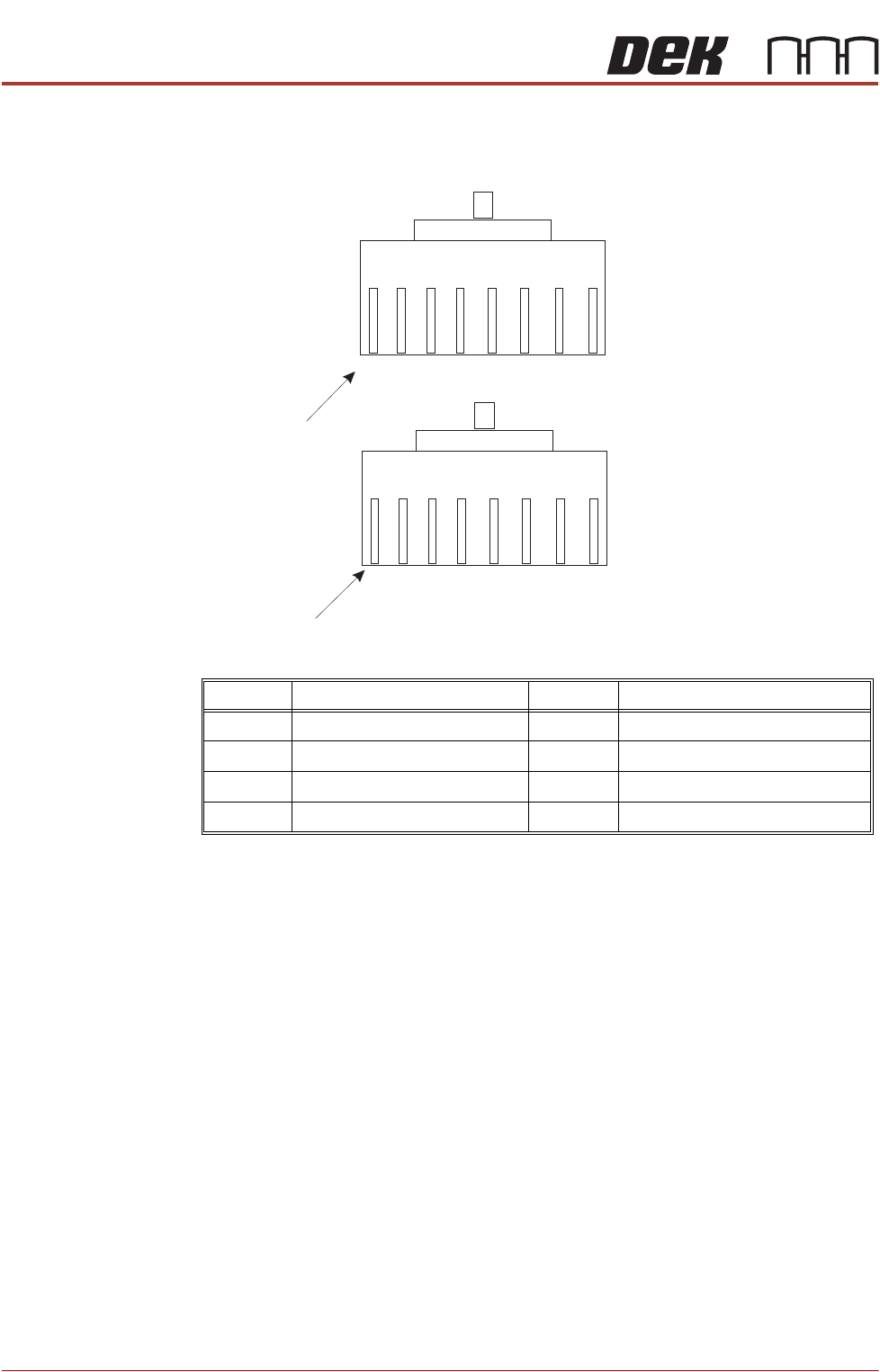
Internally the LAN RJ45 connection is routed to 3SK02 (card slot ISA 3) of the
PC enclosure rear panel. The connections (to connector A) are shown below:
NOTE
The connection above is wired as ASM would recommend. It is possible that a
customer network connection may differ from the one shown, if a problem exists
in installation the connection at the customer network end of the cable may need
to be configured accordingly.
IP Address Configuration
To set the IP Address, use the following procedure:
1. On the Windows desktop, right mouse click the My Network Places icon
and select Properties.
2. Right mouse click Local Area Connection and select Properties.
3. Highlight Internet Protocol (TCP/IP) and select the Properties button.
4. Select the Obtain an IP address automatically radio button if the server
supports this capability. Go to Step 6.
5. Select the Use the following IP address: radio button and enter the details
supplied by the network administrator.
6. Select OK - OK and close the Networks Connections window.
Pin No. Signal Pin No. Signal
1 +ve Transmit 5 Not Used
2 -ve Transmit 6 -ve Receive
3 +ve Receive 7 Not Used
4 Not Used 8 Not Used
BN
BN
W/
BN
W/
BN
O
O
W/
O
W/
O
G
G
W/
G
W/
G
BL
BL
W/
BL
Pin 1
Connector A (pin view)
Connector B (pin view)
Connection Diagram for Reverse RJ45 Cable
Pin 1
W/
BL

HERMES
CONNECTION TO A NETWORK SERVICE
Chapter Issue 2, Nov 19 Technical Reference Manual 37.7
7. If any changes were made, the printer needs to be rebooted before the
changes take effect.
NOTE
The network administrator should be instructed to create two working
directories for the product and data fields to be stored. These directories
must have read/write capabilities.

HERMES
CONNECTION TO A NETWORK SERVICE
37.8 Technical Reference Manual Chapter Issue 2, Nov 19
Quick Reference
Table
The table below is provided for an engineer who needs a quick reference to the
actions required to install a printer onto a network. The engineer may have
previously installed a printer, be re-installing a printer onto another server or be
installing several printers at once.
NOTE
The system requires that the correct enabling security key device is fitted to the
port on the rear of the printer before software applications can be installed.
At the printer use housekeeping to transfer product files (.pr1) from local disk to
the remote disk. Load a product file from the remote disk back to the printer and
check that the transaction is complete.
No. Action Required Information
1 From the Windows desktop, right click My
Computer, select - Properties - Network
Identification - Properties to register the
printer on the correct domain or workgroup
The network administrator shall supply
domain or workgroup information
2 Select the Protocols tab, select TCP/IP
protocol and the Properties button
Check that the adaptor is correct for the
connection (as fitted in the PC) There
may be more than one device fitted
3 If DHCP is specified:- Select: Obtain an IP Address from the
DHCP Server
4 If an IP Address is to be specified:- Obtain the IP Address, and the Subnet
Mask details from the system adminis-
trator
5 Tell the network administrator that you
require two working directories where the
product and data files are to be stored
Files must have full administrative rights
(read/write)
6 For GEM, set up the IP address in the SDR
driver
D:\Program Files\DEK\Machine Con-
trol\Printer\sdrconf.cfg
Set the Passive IP Address to the Print-
ers’ IP Address
7 If more than one printer is to communicate
using the GEM Host:
Set a different DEVICEID for each
printer.
8 Select Local Copies option Decide if it is desired that the printer
copies remote product files to the local
drive after loading it from the remote
product directory. If disabled, modifica-
tions to the file are not saved locally
9 Check the physical connection to the net-
work
Ethernet 10 Base T is supported by
ASM
10 Ask the network administrator if there are
any intermediate routers between the server
and the printing machine
Supply the correct IP Address, check
the IP forwarding option in Protocols
Properties, Routing
11 Using My Network Places in Windows,
check that the printer can be ‘seen’ by the
host PC
Look for a computer icon with the printer
serial number next to it - DEK_******
12 Test the network connection See section ‘Pinging the Network’