00196920-07_SIPLACE_Pro_FeatureDescription_DE_EN.pdf - 第142页
SIPLACE Pro Fe ature Des cription Ausgabe 05/2014 Edit ion 142 9.2.13.3 A utomatical Setting of Process Parameters As of this SIPLAC E Pro ver sion, va lid com ponent sh apes can be defin ed faster. If a Placem ent pro c…
SIPLACE Pro Feature Description Ausgabe 05/2014 Edition
141
9.2.13 Simplified Component Shape Editor
The Component Shape Editor has been improved.
9.2.13.1 Setting Placement Force and Travel Profiles
Placement force and travel profiles are set in the Handling tab. The corresponding setting options
have been reduced and simplified.
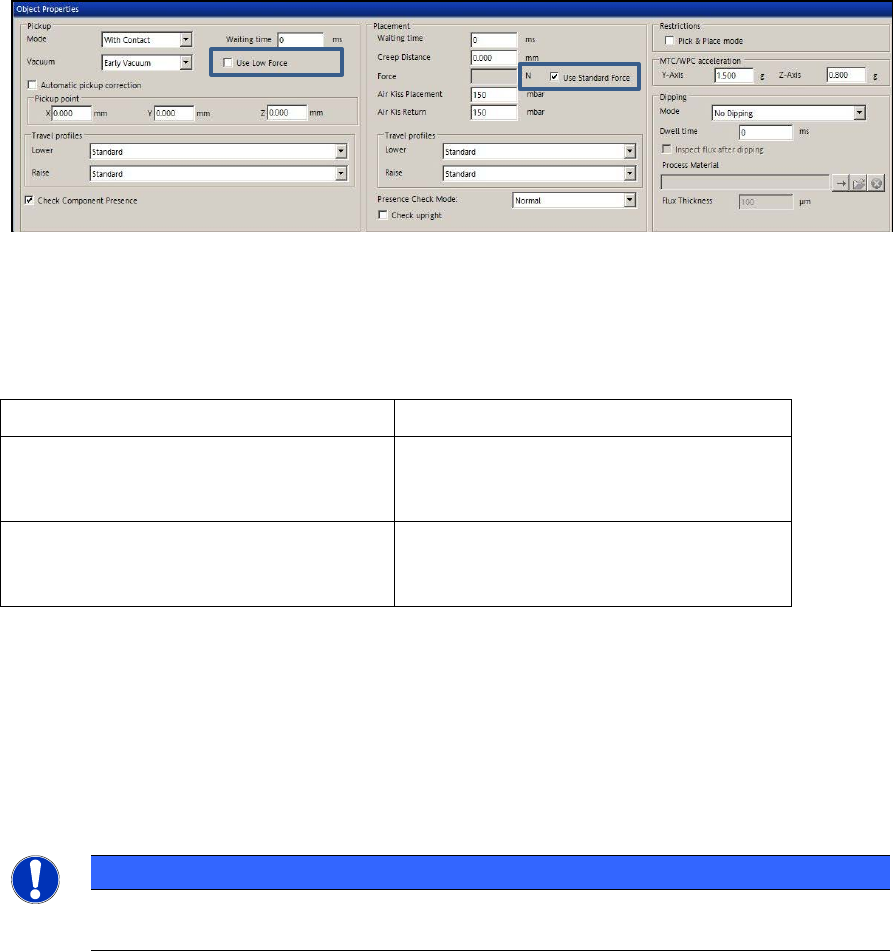
Figure 9-6: Setting placement force and travel profiles
By enabling the Use Low Force option for pickup and the Use Standard Force option for
placement, the default values are used for the placement force.
The following options can be selected for the travel profiles:
Travel profiles for pickup Travel profiles for placement
Lower: Standard
Special
Lower: Standard
Crawl
Special
Raise: Standard
Slow Start
Creep Start
Raise: Standard
Crawl
Table 9-4: Travel profile options
The assignment of the new options to the previous settings can be found in the Online Help for
SIPLACE Pro.
9.2.13.2 Detection of Upright Components
In the Handling tab of the Component Shape Editor a check for upright components can now
explicitly be activated in the Check Presence Mode by enabling the Check upright field.
NOTICE
The check for upright components is only possible in connection with a component
sensor.
SIPLACE Pro Feature Description Ausgabe 05/2014 Edition
142
9.2.13.3 Automatical Setting of Process Parameters
As of this SIPLACE Pro version, valid component shapes can be defined faster.
If a Placement process is selected for a component shape in the Component Shape Editor, the
required process parameters (such as cameras, nozzles, travel profiles and placement forces) will
be set automatically.
9.2.14 Additional Check Parameters for Components
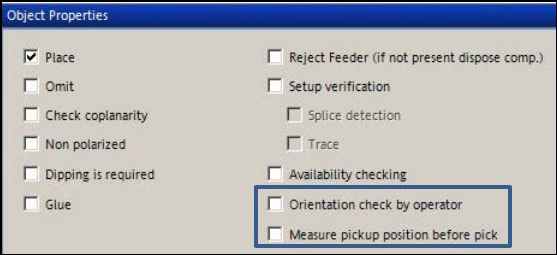
Two new options are available in the Component Editor:
– Orientation check by operator
– Measure pickup position per pick
Figure 9-7: New options in the Component Editor
9.2.14.1 Orientation check by operator
If the pickup angle was changed for components in a new tape feeder or waffle-pack tray and this
is not immediately detected, the components might be placed incorrectly. In order to avoid such
incorrect placements it is now possible to check if the orientation of a component is correct or not.
For this purpose, the affected components have to be tagged in the Component Shape Editor
and the orientation check enabled in the Component Editor.
If the check is enabled, the station stops as soon as the relevant component has to be placed and
prompts the operator to perform a check. The operator at the station may correct the angular
position in error case.
9.2.14.2 Measure pickup position before pick
For improved pickup reliability, the component top side can be measured automatically with the
PCB camera before pickup to determine the exact position of the component within the tape
pocket.
SIPLACE Pro Feature Description Ausgabe 05/2014 Edition
143
9.2.15 Fixing / Un-Fixing Objects
The Setup Editor has been enhanced so that multiple objects may be fixed or un-fixed comfortably
at the same time.
It is now even possible to select nozzles to be fixed or un-fixed in the context menu to the displayed
setup.
Additionally, you can define if the objects shall be fixed or un-fixed at the selected location, the
selected station or in the entire setup.
9.2.16 Feeder View for Line or Station
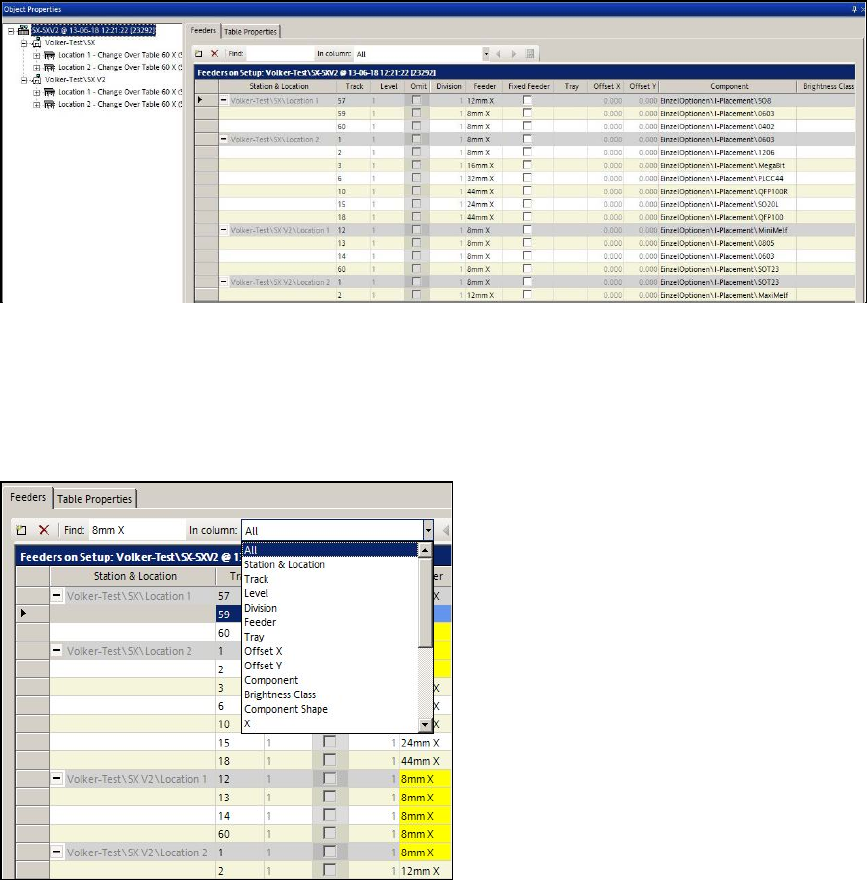
For a better overview, there is a new view in the Setup Editor in which all feeder data is listed for a
whole line or a station.
Figure 9-8: Feeder víew for line or station
By clicking on the root node in the tree view, all feeders of the whole line are displayed.
By clicking on a station in the tree view, all feeders of the whole station are displayed in a new
window.
It is possible to search in the displayed list.
Figure 9-9: Searching in Feeder view