00196920-07_SIPLACE_Pro_FeatureDescription_DE_EN.pdf - 第146页
SIPLACE Pro Fe ature Des cription Ausgabe 05/2014 Edit ion 146 9.2.19.2 Collision Che ck Potential pin collis ions w ith com ponents, conv eyor sid es or other suppor t pins can be chec ked b y click ing the Chec k butto…
SIPLACE Pro Feature Description Ausgabe 05/2014 Edition
145
9.2.19 Smart Pin Support – Enhancements in SIPLACE Pro
The enhancements in SIPLACE Pro for Smart Pin Support are briefly described in the following
sections. Detailed information can be found in the User Manual Smart Pin Support, item no.
[00197001-xx].
9.2.19.1 Linking of Multiple Boards
If different boards are used to define top side and bottom side of the board, these boards may now
be linked to each other provided that no board bottom side is defined for the currently selected
board.
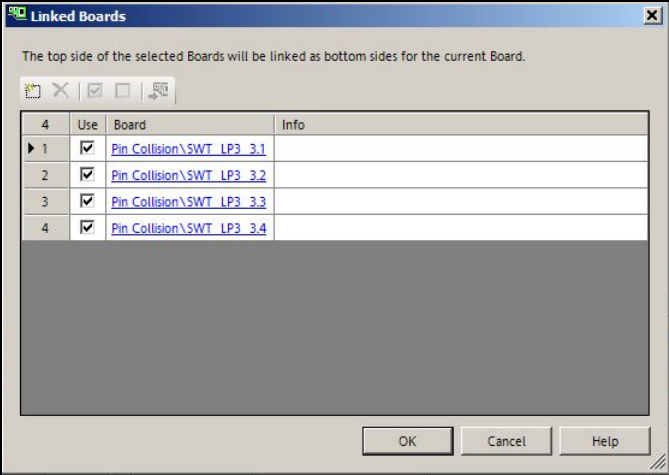
By clicking on the Link Board Side Data button in the Board Editor, the following dialog opens in
which one or multiple boards may be selected or added to be displayed as board bottom side.
Figure 9-11: Linking boards
The board top side of the selected board will be displayed as board bottom side of the current
board in the 3D view.
The board top side of the linked board will be displayed as board bottom side in the 2D view by
clicking on the "Show bottom side" icon.
Single, linked boards can be hidden in the graphical view. For this, the checkmark has to be
removed from the Use field in the dialog box.
It is not possible to switch to the board bottom side if linked boards are selected.
SIPLACE Pro Feature Description Ausgabe 05/2014 Edition
146
9.2.19.2 Collision Check
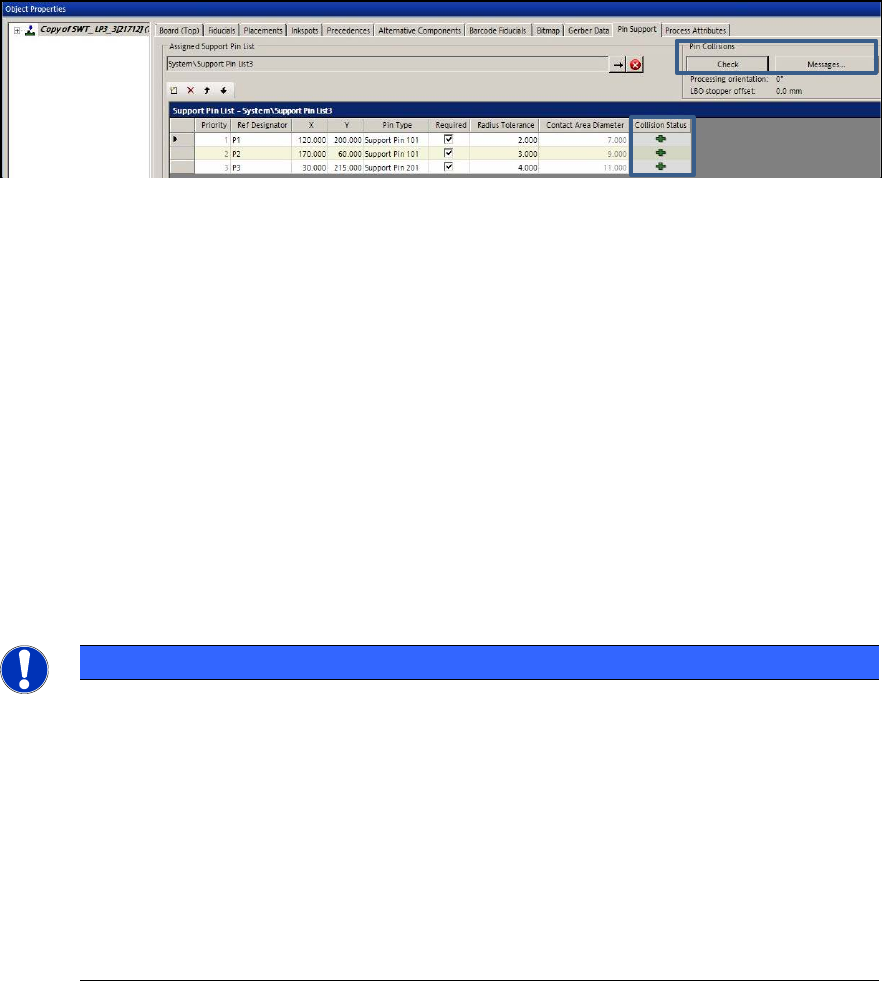
Potential pin collisions with components, conveyor sides or other support pins can be checked by
clicking the Check button in the Pin Support tab of the Board Editor.
Figure 9-12: Collision check
By clicking the Messages … button, explanatory information to all collision events is displayed.
The collision check checks the selected board and all boards with the checkmark "Use" in the
dialog.
Changes are not valid until the board has been closed and reopened.
9.2.20 Multiple LDU-X Modules on One Table
LDU-X = Linear Dipping Unit X.
LDU-X feeders with different process material can be distributed on the line. Multiple LDU-X
modules can be placed on one table. For this, they have to be set up as fixed feeders on the table.
SIPLACE Pro controls that the entire dipping area can be reached and does not allow any LDU-X
position outside of the head travel range.
There is always a link between a dip medium and an LDU feeder.
NOTICE
Previously, modules that did not transport any components but performed other actions
with the picked-up components were referred to as tape feeder modules or tape feeders.
Such modules are now classified into the new "Processing Feeder Type" feeder type
category.
The following modules belong to this feeder type category:
– Dip modules
– LDU-X modules
– Reject feeders
– Glue Feeder modules
SIPLACE Pro Feature Description Ausgabe 05/2014 Edition
147
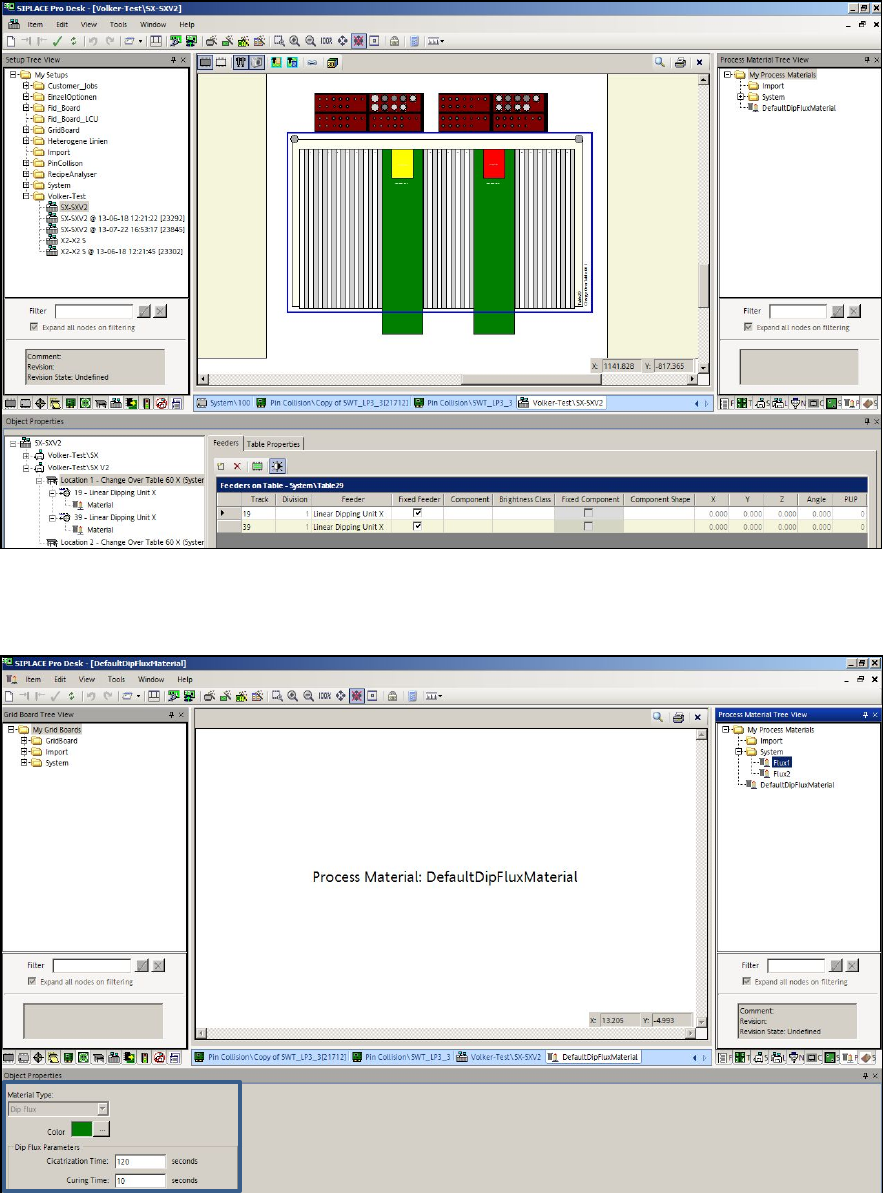
In the Feeders tab of the Table Editor, new LDU-X modules are placed on the table, a process
material assigned and the flux thickness entered.
Figure 9-13: Table Editor – Adding LDU-X modules
The component shape must be linked to the corresponding process material and the appropriate
Cicatrization time and Curing time have to be defined.
Figure 9-14: Defining process material