00196920-07_SIPLACE_Pro_FeatureDescription_DE_EN.pdf - 第66页
SIPLACE Pro Fe ature Des cription Ausgabe 05/2014 Edit ion 66 5.14 Ne w Placem ent Mode "V irt ual I - Placement" SIPLACE Pro 7.0 a llows f or m achines with tw o placem ent areas (e.g. SI PLACE X 4) in the Con…
SIPLACE Pro Feature Description Ausgabe 05/2014 Edition
65
5.9 Reworked Recipe Analyzer Tool (Option)
The Recipe Analyzer was reworked. A separate license is required in order to use this function. It
is now possible to effectively display all placement positions with reduced accelerations. The
Recipe Analyzer tool provides the new Accelerations tab for that.
Using this function, customers can now clean up their data from reductions in order to keep only
the necessary reductions within the data.
For detailed information please refer to the online help in SIPLACE Pro Desk.
5.10 Displaying Reduced Accelerations in the Optimization Results
The Optimization Results – Recipe dialogue of the Job Editor shows the number of components
that are placed with reduced speed. Thus it is possible to recognize immediately if the optimization
result has been influenced by reduced accelerations and how many components will be placed with
reduced accelerations.
5.11 Alternative Camera Position for X4i Possible
The camera in SIPLACE X4i machines can be installed in a different position at the factory. This
option allows for the conveyor width 268 in the placement mode "Alternating".
In the station editor you define if the SIPLACE X4i is equipped with this option. In the Default-
Station Configuration list select the Revision2 (HCU/GCU) option.
5.12 PCB Bypass at the Station
With this new function it is possible to have PCBs bypass a specific station in the line (e.g. for
maintenance purposes at this station). If this function is activated in the setup editor this station is
only used as a PCB conveyor. In the graphical display of the station (Desk and LCGUI) a yellow
arrow is shown.
5.13 Placement Head Bypass
During optimization or the feasibility test it is not possible to assign placements to a placement
head.
If this function is activated in the setup editor, the location with the corresponding placement head
is marked yellow in the graphical display (Desk and LCGUI).
SIPLACE Pro Feature Description Ausgabe 05/2014 Edition
66
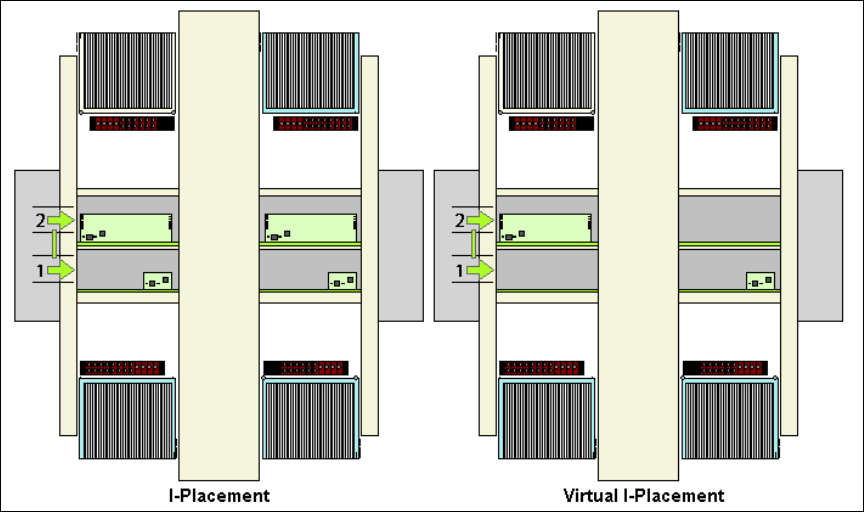
5.14 New Placement Mode "Virtual I-Placement"
SIPLACE Pro 7.0 allows for machines with two placement areas (e.g. SIPLACE X4) in the
Conveyor mode: Dual Asynchronous to produce PCBs in the respective conveyor track
independently of each other. This can be necessary, e.g., if in the front part of an X4i line machines
are operated in the I-Placement mode and if there is an X4 machine at the end of the line, that
does not support I-Placement. In this case right and left conveyor track can be separated by
means of Virtual I-Placement.
function can be activated in the setup editor (V IPlacement Right or V IPlacement Left).
5.15 SIPLACE Vision Compatibility Check for Fiducials
SIPLACE Pro 7.0 enables the SIPLACE Vision compatibility check for all fiducial types.
SIPLACE Pro checks which vision system is at least necessary in order to measure a fiducial
teached at the station. The following functions were added with SIPLACE Vision version 41x.
● Placing if there is no inkdot (inverse inkdot)
● Brightness check within circles
These functions can only be used if all stations in the line use the station software from 703.xx
onward. This function is not downward compatible with older SIPLACE Vision versions.
You can disable these data in SIPLACE Pro via the Delete SIPLACE Vision Data button.
SIPLACE Pro Feature Description Ausgabe 05/2014 Edition
67
5.16 Improving the Usability of SIPLACE Pro Desk
5.16.1 Deleting Unused Tables When Deleting a Setup
If a setup is deleted, it is now possible to delete tables, that are not used any longer, as well.
5.16.2 Deactivating the Renaming of Objects in the Tree View Via "Double-Click"
If you double-click on an object in the tree view the "Renaming" function is enabled. In order to
prevent objects from being unintentionally renamed during a double-click action (e.g. during
drag&drop actions), you can disable this function. Renaming objects, however, is possible via the
context menu in the respective tree view. You can enable or disable the function Enable Double
Click Renaming in Identity Tree under Tools => Settings => Options.
5.16.3 Zooming the Graphical Display In and Out Using the Mouse Wheel
You can zoom the graphical display of the respective editor in and out using the mouse wheel.
Place the cursor in the graphical display of the editor and move the mouse wheel forward and
backward. The display is zoomed in or out correspondingly.