00196920-07_SIPLACE_Pro_FeatureDescription_DE_EN.pdf - 第166页
SIPLACE Pro Fe ature Des cription Ausgabe 05/2014 Edit ion 166 The X and Y map of fsets can be set f or a grid p anel in the Grid P anel Typ e tab o f the Grid Board Editor : Figure 9- 37 : Setting map offsets for grid p…
SIPLACE Pro Feature Description Ausgabe 05/2014 Edition
165
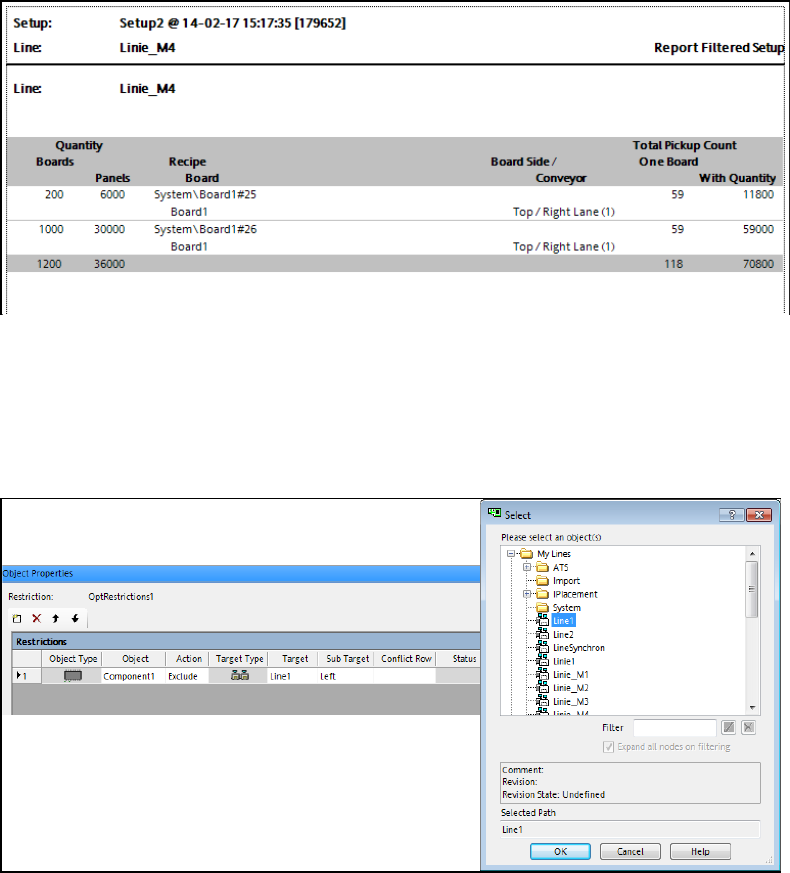
Example: Report – Filtered Setup
Figure 9-35: Report – Filtered Setup
9.3.14 Restriction Rules for Separate Lines
Additionally to station types and stations, separate lines can now be selected as target for
restriction rules in the Restriction Editor.
Figure 9-36: Restriction rules for line
9.3.15 Grid Board – Map Offset for Grid Panel Type
The grid panel type on the grid board is always centered and has its zero point in the middle.The
grid panel type also contains fiducials that are aligned with this center point. The entire grid panel
type may be placed anywhere on the grid board, but if it is moved the fiducial positions will change,
too.
Therefore, a new offset has been introduced as of this SIPLACE Pro version with which the entire
grid panel package can be moved within the coordinate system without affecting the fiducials.
Primarily, this is required in the production process if only half of the grid panel package fits at the
left or right edges of the grid board. In this case the user can move the entire grid panel until it fits
completely at one edge of the grid board.
SIPLACE Pro Feature Description Ausgabe 05/2014 Edition
166
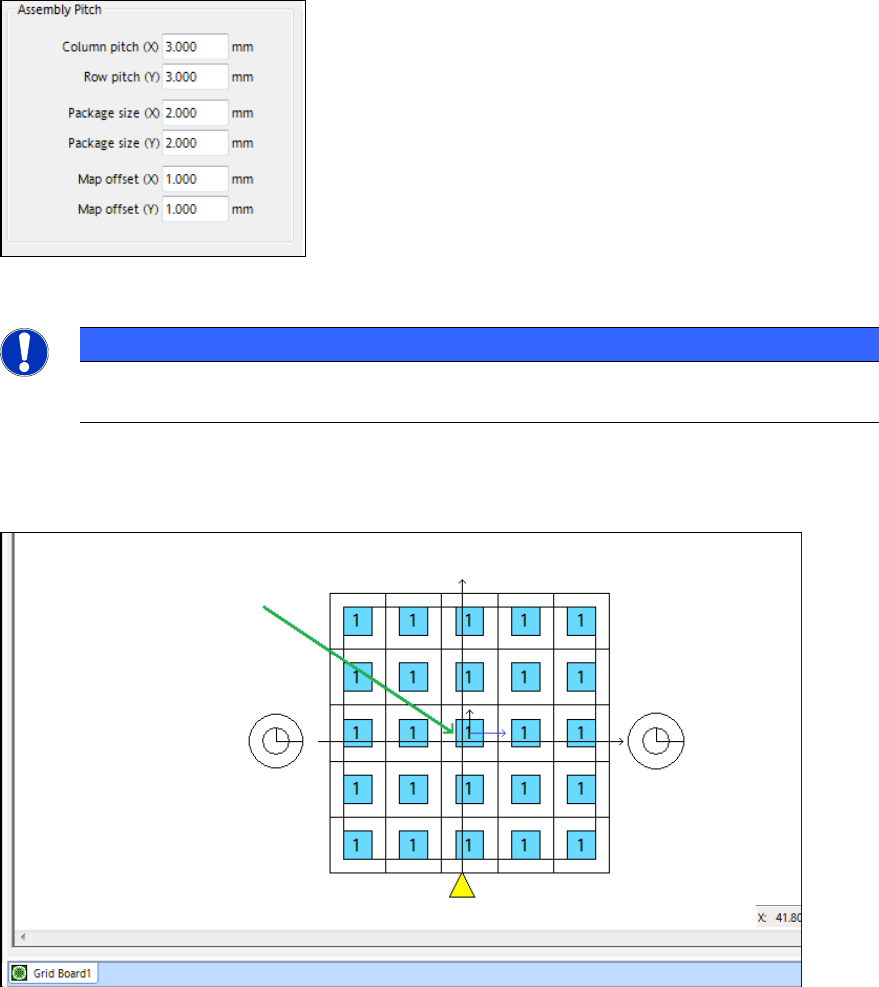
The X and Y map offsets can be set for a grid panel in the Grid Panel Type tab of the Grid Board
Editor:
Figure 9-37: Setting map offsets for grid panel packages
NOTICE
The Outline offset is unaccounted for now and has been removed from the Grid Panel
Type tab.
The middle of the grid panel is identified by small X- and Y-arrows if the map offset is nonzero.
Thus, it is visible that the grid panel is not centered within the coordinate system.
Figure 9-38: Drawing of grid panel package
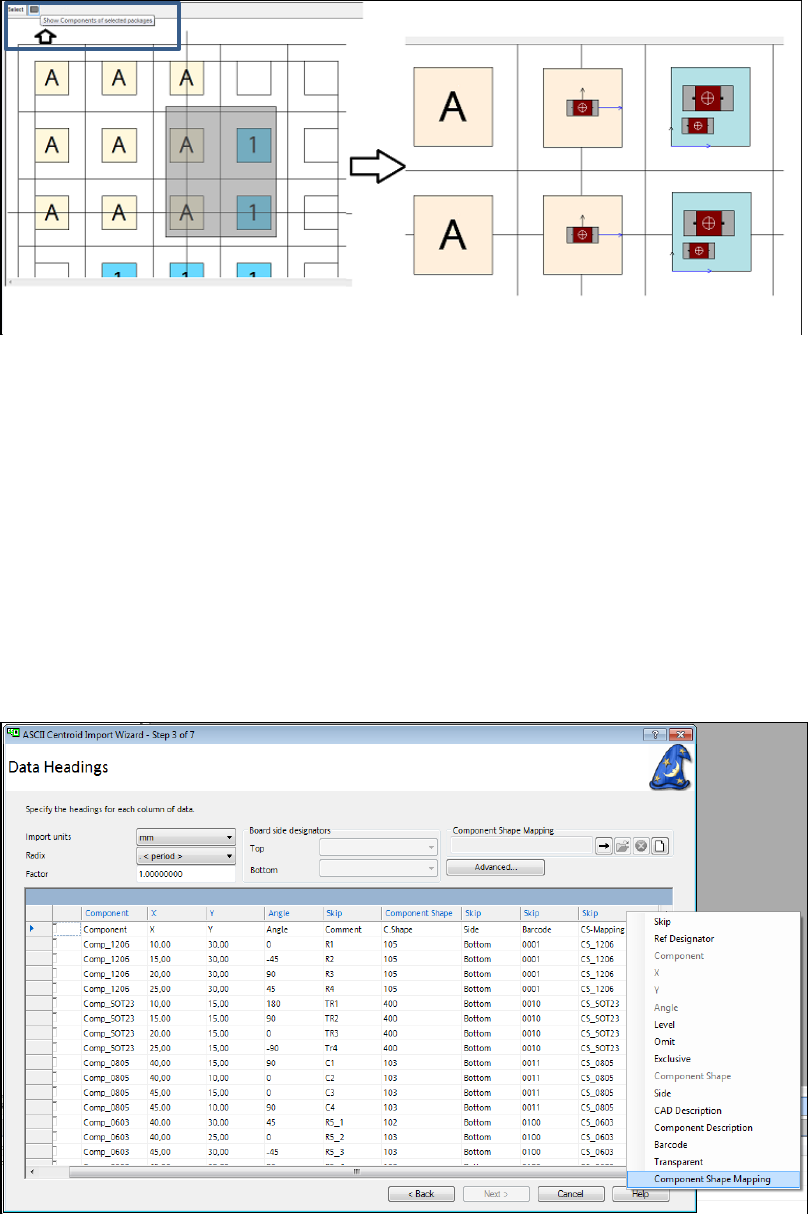
Additionally, the components of the selected grid panel packages can be displayed via the new
Show components of selected packages button.
The number of displayed components might be reduced so that the machine speed will not slow
down.
SIPLACE Pro Feature Description Ausgabe 05/2014 Edition
167
Figure 9-39: Displaying components of the grid panel package
9.3.16 ASCII Import – Assigning Component Shape with Mapping Rule List
The ASCII Import Wizard has been enhanced and now offers a method to assign component
placements to available component shapes by defining flexible mapping rule lists.
The already available method of previous SIPLACE Pro versions with which this assignment can
be performed directly via the matching text in the ASCII file may still be used.
The two methods work independently from each other but may be used together. In this case, the
data in the Component Shape column will be used to select the target component shape. The
mapping rule list will only be used for rows in which the component shape field is empty.
With the new mapping method it has to be defined in the Data Headings dialog box, which column
in the ASCII file contains the data to be analyzed for the component shape mapping.
Figure 9-40: Defining column for component shape mapping
By clicking with the right mouse button on the concerned column heading, a contect menu opens in
which Component Shape Mapping can be defined for this column.
Thereafter, the buttons for Component Shape Mapping are enabled in the upper right edge of the
window. Here, available mapping rule lists can be imported, edited or deleted and new mapping
rule lists created.