00196920-07_SIPLACE_Pro_FeatureDescription_DE_EN.pdf - 第169页
SIPLACE Pro Fe ature Des cription Ausgabe 05/2014 Edit ion 169 9.3.17 Importing Components from BO M File into Placement Lists In a so - cal led BOM file ( B ill o f M aterial) it is d efined w hich com ponents s hall be…
SIPLACE Pro Feature Description Ausgabe 05/2014 Edition
168
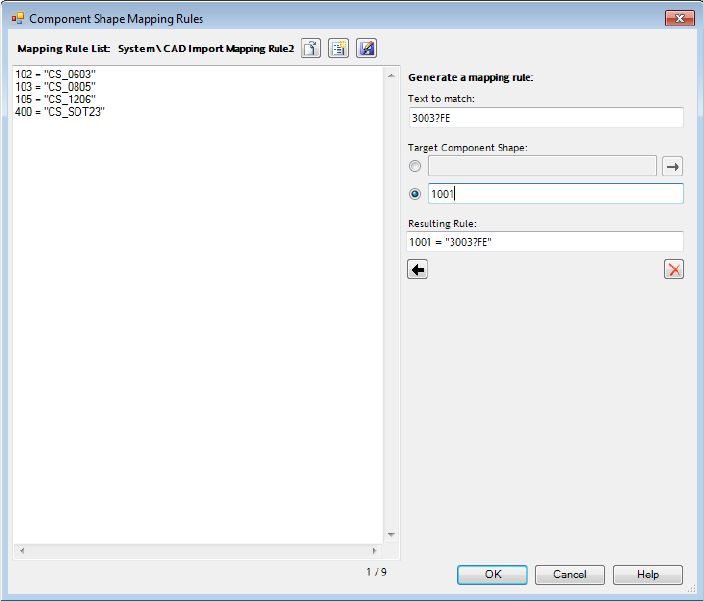
The mapping rule lists are created and edited in the Component Shape Mapping Rules dialog
box.
Figure 9-41: Mapping rule list
Each row in the mapping rule list describes a component shape mapping rule. Exact matches as
well as wildcard characters and regular expressions can be used in the descriptions.
The list text in the left part of the dialog box can be edited directly and so rules from external source
files can be inserted in the list by using copy&paste. Additionally, new mapping rules can be
generated in the upper right part of the dialog box.
After all mandatory columns have been configured (i.e., reference designator, component, X, Y and
angle) and the mapping rule list has been assigned, source and target directories have to be
defined in which the system shall search for matches.
If no component shape column has been defined or no data can be found in the component shape
column, the ASCII Import Wizard will use any matches found in the component shape mapping
column. If no matches should be found there, the ASCII Import Wizard will create a new
component shape and give it a name that reflects the content in the component shape mapping
column. Thus, the user does not have to search for the positions in the placement list to which the
component shape shall be referenced.
The results of the component shape mapping are displayed in the Summary dialog box.
SIPLACE Pro Feature Description Ausgabe 05/2014 Edition
169
9.3.17 Importing Components from BOM File into Placement Lists
In a so-called BOM file (Bill of Material) it is defined which components shall be placed on which
placement positions. Frequently, the BOM file is administered by an ERP system (Enterprise
Resource Planning) from which it can be exported as a text file.
With the new BOM Merger tool a BOM text file can be imported by SIPLACE Pro and the
contained part numbers (= components) inserted or exchanged in available placement lists.
Prerequisites
– At least one placement list containing component placement positions must have been defined
for the board in the board description.
– The user must have the corresponding authorizations (reading boards, reading and editing
placement lists, reading and creating components).
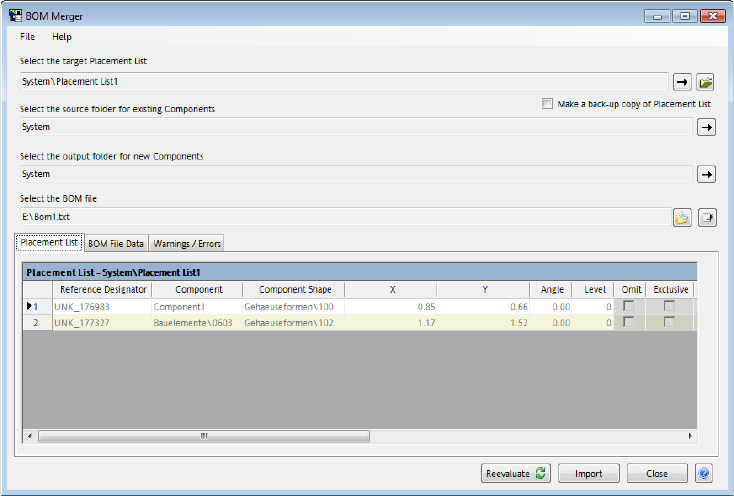
The BOM Merger can be started in SIPLACE Pro Desk under Tools – Import – BOM Merger.
Figure 9-42: BOM Merger
The following information has to be entered in the BOM Merger:
– Target placement list in which the new data shall be entered.
– Source folder in which the BOM Merger shall search for available components.
– Output folder in which the BOM Merger reads components or creates new components.
– BOM file containing the data.
The component names will be exchanged for all placement positions in the BOM file for which
matching reference designators are found in the placement list.
If the component is available in the component source folder, only a link is added between
placement position and component. If the component is not available in the component source
folder, a new component will be created in the component target folder and a link will be added
between the placement position and the new component. A matching component shape has to be
assigned manually for the new component (outside of the BOM Merger).
SIPLACE Pro Feature Description Ausgabe 05/2014 Edition
170
If several components are listed for one reference designator in the BOM file, the first component
will be added to the placement list. Additional components will be added as alternative components
in the order they are listed in the BOM file.
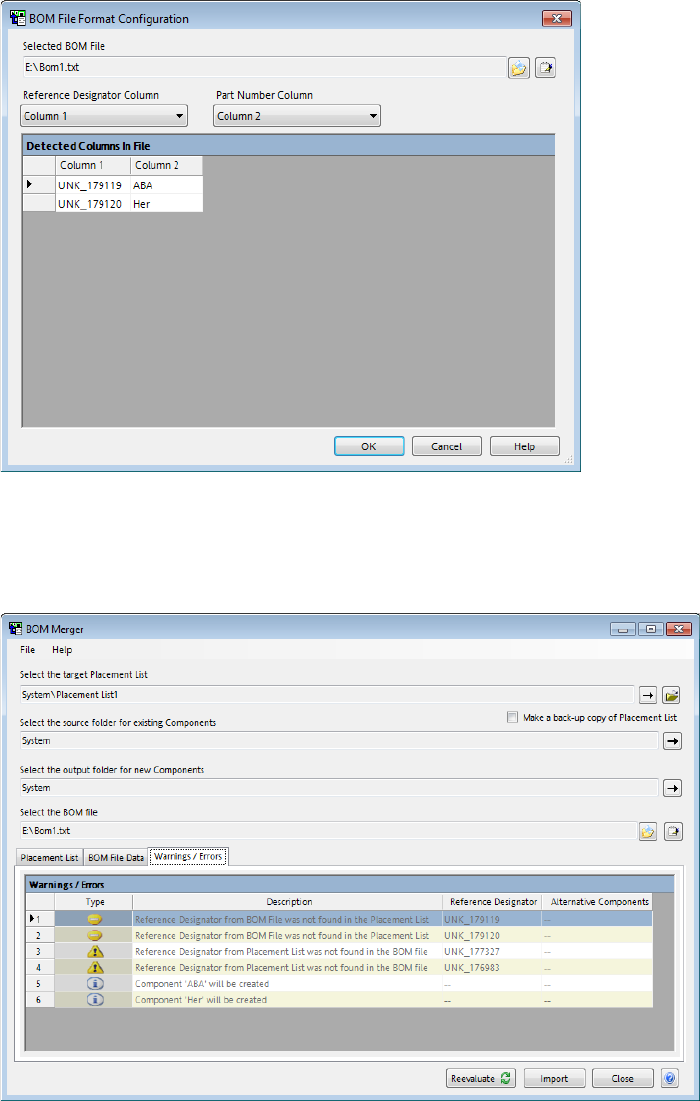
The following dialog box will be displayed when the BOM file is opened:
Figure 9-43: Configuring the BOM file
The columns that contain the reference designators and the part numbers have to be set and
confirmed in the corresponding select lists.
Error messages and warnings are listed in the Warnings / Errors tab.
Figure 9-44: Error messages and warnings
An error message will be displayed if a reference designator is defined several times or if a
component placement position is specified in the BOM file that cannot be found in the placement
list. The BOM file must then be corrected (via the Notepad button) before the BOM Merger can
continue working.