00196920-07_SIPLACE_Pro_FeatureDescription_DE_EN.pdf - 第85页
SIPLACE Pro Fe ature Des cription Ausgabe 05/2014 Edit ion 85 7.4.4 Setups h a ve fewer empty tracks W hen configuring a s etup in the past, indivi dual em pty track s could occ ur bet ween conf igured feeders or em pty …
SIPLACE Pro Feature Description Ausgabe 05/2014 Edition
84
7.3.15 Nozzle Report
Using the Nozzle reports, it is possible to create a documentation of a single nozzle and a list of
nozzles.
In the list of several nozzles up to ten attributes can be selected. The nozzle attributes to be shown
can be changed in the report details.
The report can be started via the context menu in the structure view.
7.3.16 Warnings as Errors
All warning messages of the Optimizer can be upgraded to an error or downgraded to a warning
again.
7.4 New functions (V9.3)
7.4.1 SIPLACE Pro LED Pairing
SIPLACE Pro LED Pairing supports the programming process when using LEDs in electronic
assemblies. The LEDs to be used can often have different brightness classes. To achieve
homogenous brightness, these differences need to be compensated by fitting adjusted series
resistors in the circuits. On the software side, the compatible types need to be defined in the board
and optimized setup.
The LED Pairing tool supports description of these types in three individual steps:
1. Import and assignment of LED matrix files (LRX files), each placement list can have an LED
matrix file assigned to it.
2. Prepare: generate and optimize the job, recipe and setup templates, based on previously
optimized reference jobs and the assigned LED matrix file.
3. Produce: select the available LED brightness classes on the basis of the LED matrix file, then
automatic generate the recipes and setups used for production, on the basis of a recipe
template (for recipe changeover) or a real recipe (for new definition after change to another
LED brightness class).
The SIPLACE Pro LED Pairing tool is a licensed Windows application, which can also be started
from SIPLACE Pro Desk.
The LED matrix file format is described in the Online Help.
7.4.2 Improved sequence of nozzles on the head
The "Random Setup" feature (available since SIPLACE Pro 9.2) enables you to configure
components on another track of the same table or on another table in the line.
During the integrity check, SIPLACE Pro 9.3 optimizes the sequence of nozzles on the head. The
aim is to minimize the travel distances in accordance with the actual setup. This procedure also
has a beneficial effect on conventional optimization.
7.4.3 Improved user guidance for EDM Difference Editor
The comparison of two component shapes with line-specific Vision data in the SIPLACE EDM
Difference Editor has been improved. When applying modified data from the clearing pool to the
master data bank, any differences are now shown more clearly.
SIPLACE Pro Feature Description Ausgabe 05/2014 Edition
85
7.4.4 Setups have fewer empty tracks
When configuring a setup in the past, individual empty tracks could occur between configured
feeders or empty garages (e.g. when using 2x8 mm X feeders) sometimes arose. The Optimizer
has added an extra calculation step to ensure that significantly fewer empty tracks or garages
occur.
7.4.5 Nozzle usage shown for cluster jobs
After successful optimization of cluster jobs, which have been calculated with SiCluster
Professional, the nozzles needed for production can be shown.
This view can be accessed via the Nozzle Usage tab in the Statistics dialog of the
Run & Results tab.
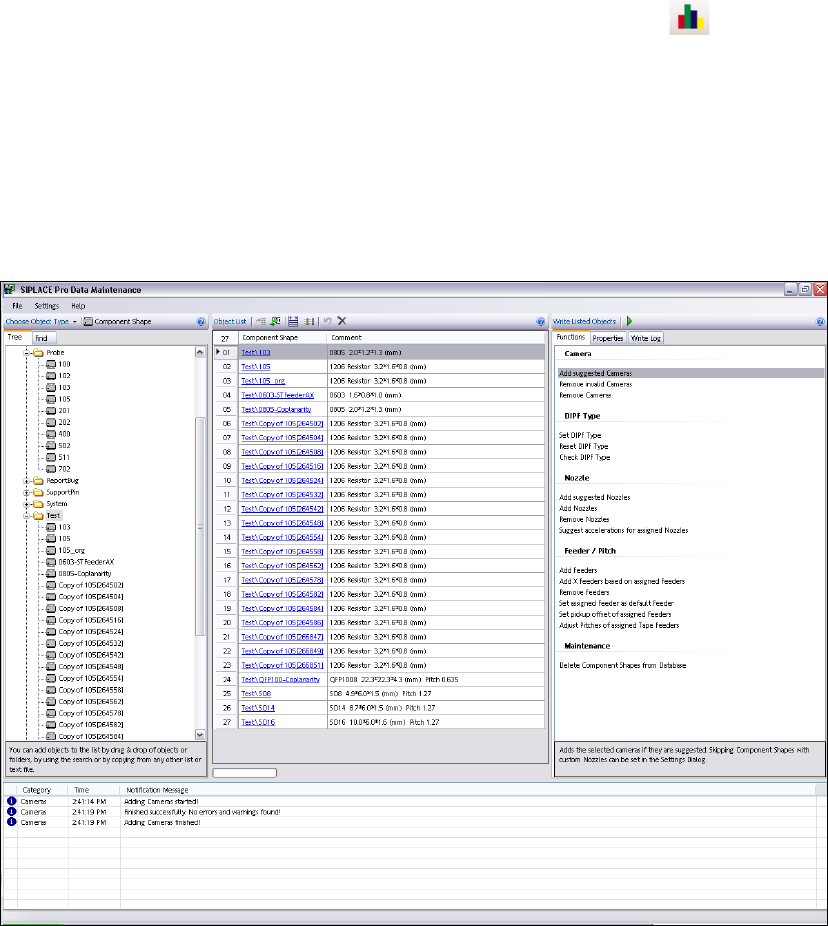
7.4.6 Data Maintenance Tool
The upgrade tool for component shapes and fiducials has been revised and renamed to Data
Maintenance Tool. It now offers a state-of-the-art, intuitive user interface.
Component shapes, components, fiducials, setups and trays can be processed with this tool. The
interface now enables you to locate, display and modify objects based on specific criteria.
For details, refer to the Online Help.

SIPLACE Pro Feature Description Ausgabe 05/2014 Edition
86
7.4.7 Multiple trays per level for MTC
When creating new setups for the matrix tray feeder (MTC), multiple trays per level were possible
as a default. The checkbox "Support Multiple Trays Per Level" in the Setup Editor was always
enabled as a default. In future, this checkbox is disabled as a default, to reduce any negative
influence on the production process. This setting will only affect new setups.
7.4.8 Setup names
The way in which setup names for jobs or SiCluster jobs are formed can be individually set. The
names are either derived from the name of the initial setup or from the name of the job/cluster job.
This setting is offered in a new tab in the optimizer parameters dialog.
7.4.9 Multiple selection in the optimizer toolkit tables
Entries and settings now affect all selected lines. This makes work with recurring entries easier.
The cells, lines or columns can be selected with the standard Windows functions (mouse and Ctrl
key).
7.4.10 Flexible feeder type use of 8 mm X and 2x8 mm X
From SIPLACE Pro 9.3 onwards, the station allows you to use similar feeder types without the
need to modify the setup accordingly in the programming system. For example, it supports not only
the
2x8 mm X feeder but also the 8 mm X feeder.
NOTICE
In this case, you can only accept the modified feeder pitch and the angle in the SIPLACE
Pro database when uploading feeder data.
Other feeder data, such as offsets, pickup position (PuP) and feeder speed can only be
accepted if the setup concerned is described as it has been actually configured.
7.4.11 More than 255 fiducials
More than 255 different fiducials can now be described in SIPLACE Pro, although machines with
station SW versions 505 (and earlier) only support fiducials with numbers less than 256.
Fiducials which are not within the number range 1-255 are only supported by machines with
SIPLACE Vision systems i.e. all machines with station SW 60x and higher.
7.4.12 Operating modes I-Placement and board barcode
The placement mode I-Placement (or virtual I-Placement) can now also be used in board barcode
mode.
7.4.13 Select target folder for sub-objects when copying
When copying, e.g. a setup, the target folder can be selected for the tables to be copied. This also
applies to a component and the component shape to be copied plus to a board and the placement
lists to be copied.