00196920-07_SIPLACE_Pro_FeatureDescription_DE_EN.pdf - 第152页
SIPLACE Pro Fe ature Des cription Ausgabe 05/2014 Edit ion 152 9.2.26 Virtual Ink Spot Hand ling As of this SIPLAC E Pro ver sion, virt ual ink spots can be det ected v ia an exter nal Manuf acturi ng Execution System (M…
SIPLACE Pro Feature Description Ausgabe 05/2014 Edition
151
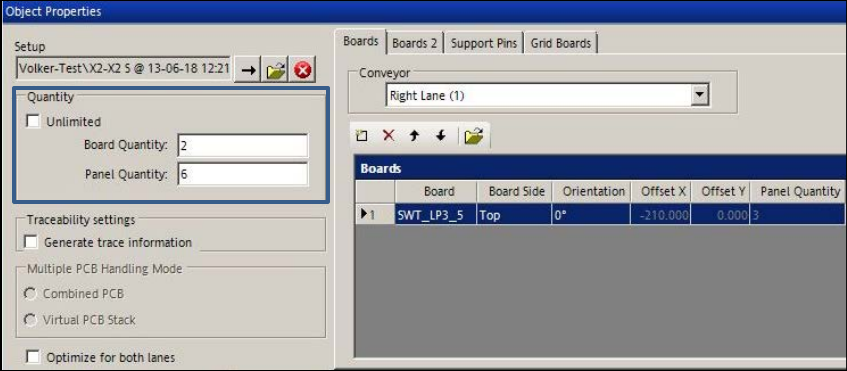
The selected panels of a board are counted in the Recipe Editor.
Figure 9-19: Recipe Editor – Counting boards / panels
The Quantity box contains two available options: Unlimited or Board Quantity / Panel Quantity.
If Board Quantity has been selected, the number of boards can be entered. Hereupon, the
number of panels is calculated and vice versa.
The number of boards can be defined for each recipe in the Production Schedule on the Line
Control GUI.
If the columns shall be displayed for this function, the appropriate setting can be made under
Settings – Application – Columns on the Line Control GUI.
SIPLACE Pro Feature Description Ausgabe 05/2014 Edition
152
9.2.26 Virtual Ink Spot Handling
As of this SIPLACE Pro version, virtual ink spots can be detected via an external Manufacturing
Execution System (MES) and the SIPLACE Board Gate Keeper (BGK) and released for the
stations in the line with the feature Whisper Down the Line (WDTL). Thus, the ink spots don't
have to be read by the PCB camera at each station.
The MES receives the ink spot information. The BGK inquires the ink spot information from the
MES and behaves like a preceding station to the first station in the line. The PCB barcode and the
ink spot information are transmitted via WDTL by the BGK to the first station. Thereafter, the ink
spot information is transferred via WDTL from the first station to the succeeding stations.
Prerequisites
– Station software version => 707.0
– The "Whispering Down the Line" license is required for each station in the line.
– The Whisper Down the Line option must be enabled for all stations.
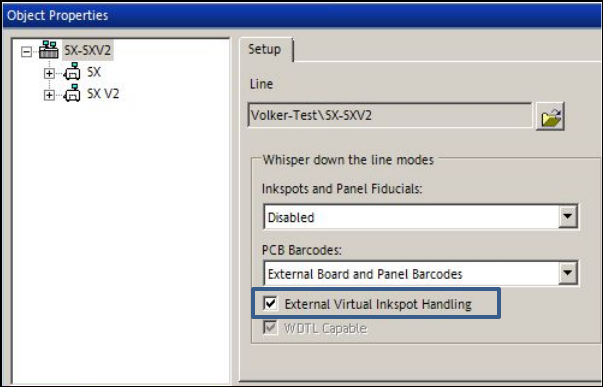
The External Virtual Inkspot Handling feature must be enabled in the Setup Editor in SIPLACE
Pro.
Figure 9-20: Virtual Inkspot Handling
Additionally, the PCB Barcodes drop-down list has been enhanced and contains the following
available options:
– Deactivated
Default, function disabled.
– PCB Barcodes (Boards and Panels)
With this (old) setting, the PCB and panel barcodes are transferred by the first station in the line
via WDTL to the succeding stations.
– External Board Barcode
With this new setting, the PCB barcode is transmitted by the BGK to the first station in the line
via WDTL. If panel barcodes are defined on the board, these will be read by the PCB camera at
the first station and then transferred to the succeeding stations via WDTL.
– External Board and Panel Barcodes
With this new setting, the PCB and panel barcodes are transmitted by the BGK to the first
station in the line via WDTL and then transferred to the succeeding stations via WDTL.
SIPLACE Pro Feature Description Ausgabe 05/2014 Edition
153
If External virtual inkspot Handling is enabled a corresponding icon is displayed in the setup and
recipe view.
If External Board Barcode or External Board and Panel are selected, a barcode icon is
displayed in the setup and recipe view.
9.2.27 Improved Modification Generator
The evaluation by the Modification Generator will be displayed as a changeover instruction via the
Report – Changeover instruction dialog box. This evaluation can be printed.
The different evaluation sections, with regard to the contents, can now be enabled, disabled and
then printed via detailed options.
9.2.28 New Pin Types: THT Round Pin and THT Square Pin
Two new pin types have been introduced to place THT components (Through Hole Technology):
THT round pin and THT square pin. In the Component Shape Editor the height of the
components has to be described as follows:
– Height = pin length + base unit height
– A creeping distance with height = pin length has to be defined in the Handling tab.
Thus, an inspection with correct focussing can be performed in SIPLACE Vision.
9.2.29 Nozzle Start Angle for Asymmetrical Nozzles in four 90° Steps
As of this SIPLACE Pro version, the nozzle start angle for asymmetrical nozzles can be defined in
four 90° steps (0, 90, 180 and 270 degrees) in the Component Shape Editor. SIPLACE Line
Control sends the set nozzle start angle to the station.
Precondition: Station software V6x or V7x.
The station software versions 40x and 50x only support the nozzle direction (horizontal = 0°,
vertical = 90°). Angle entries will be adjusted by SIPLACE Line Control for these station types as
follows:
0° = 0°
90 = 90°
180° = 0°
270° = 90°