00196920-07_SIPLACE_Pro_FeatureDescription_DE_EN.pdf - 第28页
SIPLACE Pro Fe ature Des cription Ausgabe 05/2014 Edit ion 28 ● Sock et ● SOJ ● SOXX A com ponent that has been setup not cor rectl y (wrong pickup ang le) can be placed ho wever du e to differ ent angle m easurem ents (…
SIPLACE Pro Feature Description Ausgabe 05/2014 Edition
27
2.7 Features of the Component Shape Editor (V4.1)
2.7.1 SIPLACE Vision System Compatibility Check
In the component shape editor the SIPLACE vision compatibility checks with which SIPLACE vision
system the properties of the component shape could be produced.
Component shapes (CS) can contain different options. These options refer to different software
versions of the vision system SIPLACE vision. If there are compatibility problems of CS and vision
system the optimizer messages dialog of the optimizer displays a warning/information.
For example a CS consists of a camera that can not measure this CS. The optimization is
successful and the optimizer messages dialog displays the warning/information that this CS can
not be measured with the selected camera.
2.7.2 Copy & Paste Lead Groups in the Component Shape Editor
In the component shape editor you can simply copy and paste lead groups via the context menu. A
new tab is displayed. The newly added lead group is shown in the center of the graphical view.
2.7.3 Search function for Component Shapes
Component shapes can be filtered for certain criteria (like type, body size, lead type, lead size,
pich). You can start the search function via the context menu in the tree view for component
shapes for via Tools - > Find Component Shapes.
2.7.4 Component Orientation Correction in the Component Shape Editor
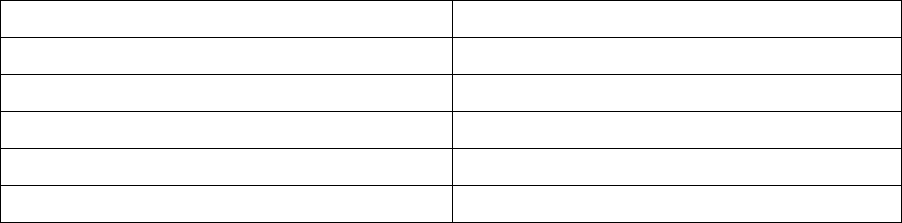
The vision system can measure components from different angles by entering symmetries in the
component shape editor (Tab: ICOS Lead Group).
Number of Symmetries Angle
0 axis No symmetry
2 – 2 axes 0°, 90
4 – 4 axes 0°, 90°, 180°, 270°
6 – 6 axes 0°, 60°, 120°, 180°, 240°, 300°
8 – 8 axes 0°, 45°, 90°, 135°, 180°, 225°, 270°, 315°
Following component shapes have at least 1 symmetry:
● Nonstandard
● BGA
● CCGA
● Connectors
● DPACK
● PLCC
● QFP
● Shield
SIPLACE Pro Feature Description Ausgabe 05/2014 Edition
28
● Socket
● SOJ
● SOXX
A component that has been setup not correctly (wrong pickup angle) can be placed however due to
different angle measurements (SOT in 0° position). Precondition is that you enter the number of
symmetries correctly in the component shape editor.
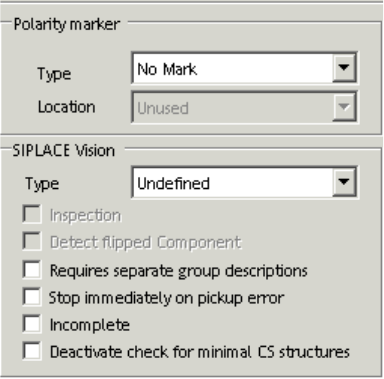
2.7.5 Deactivate check for minimal component shape structures
It is possible to deactivate the check for minimal component shape structures (Component Shape
Editor: Deactivate for minimal CS structures). This check allows to measure small component
shapes like 0201 by cameras that are not appropriate according to their specification.
Note: If you deactivate the check for minimal component shape structures you can influence the
placement quality and the placement accuracy.
2.7.6 Incomplete component shape description with SIPLACE vision system V33
The vision system V33 allows an incomplete description of a component shape. You only have to
mark the check box "Incomplete" in the component shape editor. But you have to make sure, that
you enter the basic body size dimensions (W, L, H) in the component shape editor so that the
component could be picked up. You can complete the description of the component shape
afterwards at the station using the Fiducial Teaching Wizard. By default all component shapes are
described completely in SIPLACE Pro Desk.

SIPLACE Pro Feature Description Ausgabe 05/2014 Edition
29
2.8 Features of the Difference Editor (V4.1)
2.8.1 Comparison of Boards in the Difference Editor
In the board editor, cluster have now unique names automatically given by the system. This allows
the Difference Editor Wizard to compare panels and cluster (= multi panels) due to unique names.
2.8.2 Improved Comparison of Component Shapes in the Difference Editor
In the component shape editor, lead groups have now unique names. These are default names
automatically given by SIPLACE Pro. This allows the Difference Editor Wizard to compare different
lead groups due to unique names.
2.9 Optimizer Features (V4.1)
2.9.1 Multi Job Optimization (SIPLACE Optimizer GUI 4.1)
The SIPLACE Pro Multi Job Optimization is integrated in a new application programm that can be
started via Start -> Programs -> SIPLACE Pro -> Optimizer GUI 4.1.
The Multi Job Optimization optimizes serveral jobs one after the other.
In the SIPLACE Pro Optimizer you can start the Multi Job Optimization and the Cluster Job Wizard
at the same time. SiCluster needs to be licensed.
NOTICE
The Multi Job Optimization allows to change values for all selected jobs. The Optimizer
GUI is not provided with an undo function. New optimized setups are overwritten in the
database (for Optimizer Level 3 only!)
2.10 Features of the Query Tool (V4.1)
2.10.1 New Search Function for Components in the Query Tool
In the SIPLACE query tool you can search for "Components with location". Result of this query is a
list of required components and setup information like setup name, station name, table location,
feeder track and feeder pocket or tower (for carrier).