00196920-07_SIPLACE_Pro_FeatureDescription_DE_EN.pdf - 第25页
SIPLACE Pro Fe ature Des cription Ausgabe 05/2014 Edit ion 25 2.4.3 Different Options for c losing open objects Use the co ntext m enu - on the on th e tabs rig ht below the gra phical ed itor - t o close ope n objects .…
SIPLACE Pro Feature Description Ausgabe 05/2014 Edition
24
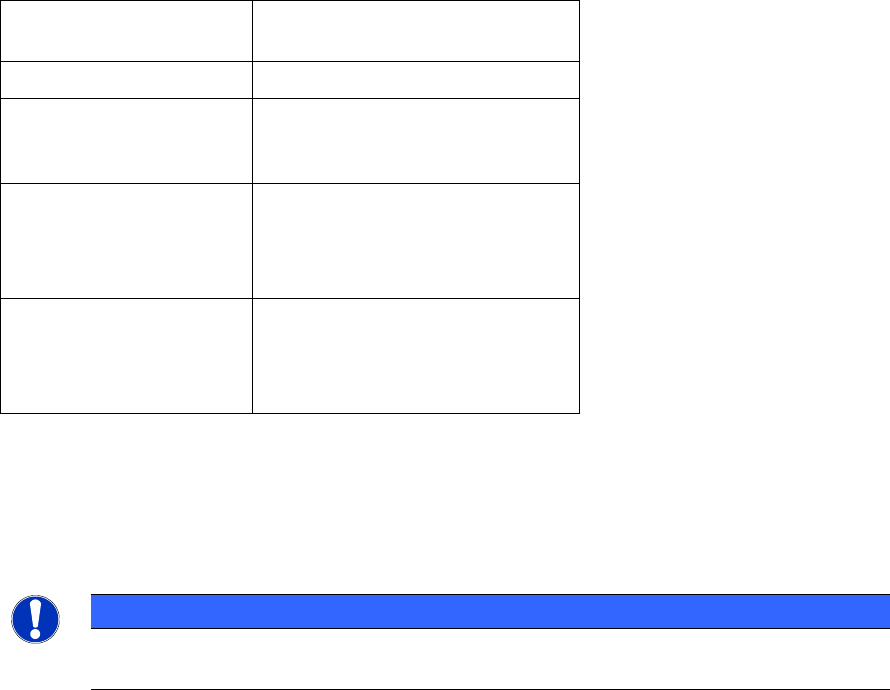
2.3.9 New categorization for different setup verification systems
SIPLACE Pro 4.1 changes the activation of setup verification systems with component barcode.
The existing 3 old barcode scanners (Siemens, SIPLACE Mobile Verifier (SMV) and SIPLACE
Setup Center) are allocated to the new setup verification systems as follows:
Setup verification
systems
Existing setup verification
systems
internal (unforced) Siemens hand-held scanner
external (unforced)
SIPLACE Setup Center without
communication to the machine
(= unforced setup verification)
external (without CLI
component level
indicator)
SIPLACE Setup Center without
component level indicator means
without quantity barcodes but with
splice sensor)
external (forced with CLI
component level
indicator)
SMV (SIPLACE Mobile Verifier)
SIPLACE Setup Center
The option setup verification is licensed for following systems:
● external (forced without component level indicator CLI)
● external (forced with component level indicator CLI)
Please consider following restriction for the setup verification system:
NOTICE
The Optimizer supports only lines that have the same setup verification system ("internal
unforced" or "external unforced" or "external forced").
2.4 General Improvements in SIPLACE Pro Desk (V4.1)
2.4.1 Multi-selection in graphical editor
Multi-selection in grids (i.e. placement list, fiducial list) could be also displayed in the graphical
editor.
2.4.2 Change parameters of multiple selected rows in grids
In the lists of different editors (placement list editor, board editor, setup editor, restriction editor and
line editor) you could change selected value(s) for multiple selected rows in grids at one time.
Selected values are changed via context menu "change value(s) for selected items" of multiple
selected rows.
SIPLACE Pro Feature Description Ausgabe 05/2014 Edition
25
2.4.3 Different Options for closing open objects
Use the context menu - on the on the tabs right below the graphical editor - to close open objects.
Following options are available for closing open objects:
● Close
● Close All
● Close All But This
2.4.4 Customizing SIPLACE Pro Desk
User with administrator rights could add or remove the tree control view in the SIPLACE Pro Desk
for following objects (Tools -> Customize)
● Table
● Stations
● Nozzles
● Feeders
It is a precondition that the security is on (Tools -> Settings -> Global Settings).
2.5 Features of the Board Editor (V4.1)
2.5.1 Highlight all components or component shapes of the same type
In the board editor and the placement list editor you could select and mark via the context menu
following objects of the same type
– Highlight all components of the same type (=name)
– Highlight all component shapes of the same type (= name)
You can select the objects in the graphical editor and in the grids.
NOTICE
For panels and cluster (consisting of several identical panels) all selected objects are
highlighted. For copied panels the selection is not highlighted on the copied panels.
2.5.2 Add or remove a coordination system for panel(s)
In the drawing of the board editor you can add or remove a coordination system via the icon
(show orientation lines).
2.5.3 Add or remove inkspots
In the drawing of the board editor you can add or remove inkspots via the icon (show inkspots).
2.5.4 Reference of inkspots related to the board origin or the panel origin possible
In the board editor you can relate inkspots of individual panels to the panel origin or the board
origin. This is only possible for panels on the first level.

SIPLACE Pro Feature Description Ausgabe 05/2014 Edition
26
2.5.5 Graphical transparency for components on panels and sub-panels
In the board editor you can set the transparency level for each panel or sub-panel. This helps to
make components on different layers visible.
You can make individual components transparent in the drawing of the board editor in order to
highlight components that lie on top of each other.
2.5.6 Highlight inkspots
In the board editor you can highlight inkspots via the button "Highlight". This helps to make the
inkspot on individual panels or the global inkspot on the board easily visible.
2.5.7 Hide or show component pickup position in the drawing
In the drawing of the board editor you can hide or show component pickup positions via the icon
(show component pickup point).
2.5.8 Rotate selected components +/- 90° via mouse click
In placement lists of the board editor you can rotate selected components (single and multi-
selection) by +/- 90° via the context menu.
2.6 Features of the Setup Editor (V4.1)
2.6.1 Clipboard for Setup Objects
You can copy objects – like feeders, nozzle magazines, nozzle changer and tables – from the
setup editor to a clipboard and if necessary to a different setup.
In addition, you can copy or store lead groups from the component shape editor in the clipboard.
2.6.2 Swap Magazines within a nozzle changer
In the setup editor you can switch individual magazines within a nozzle changer via the icon
(Swap Magazines) without configuring them again.
2.6.3 Tabular view for individual nozzle magazines
In the setup editor you can display the nozzle changer in a tabular view listing the magazine(s) and
the individual pocket(s).