00196920-07_SIPLACE_Pro_FeatureDescription_DE_EN.pdf - 第159页
SIPLACE Pro Fe ature Des cription Ausgabe 05/2014 Edit ion 159 Thus, the force 0,00 0 N is ent ered in th e Edit tab and the Creep distanc e fiel d is disab led. A value may be ent ered for Spring comp ression . Figure 9…
SIPLACE Pro Feature Description Ausgabe 05/2014 Edition
158
9.3.3 WPC5/WPC6 on SIPLACE X-Serie S
SIPLACE Pro supports the option to put a WPC5/WPC6 with the new WPC 40 X X-table on the
X2 S, X3 S and X4 S placement machines. However, the hardware will not be released for series
production in this version.
The WPC5/WPC6 and the WPC 40 X table occupy the tracks 11 – 40. Other modules, such as
X-feeders / processing feeders may be set up on the tracks 1 – 10.
The WPC 40 X can be selected and configured for location 2 in the Setup Editor. A single
WPC5/WPC6 cannot be configured without the X-table. An XFCU must have been installed.
The Twin Head and CPP placement heads and the new CPP 20xx28xx 4, CPP 20xx 4 and
TwinFlexible nozzle changers are supported for this option.
SIPLACE Smart Pin Support supports the option on the X3 S and X4 S placement machines.
9.3.4 SIPLACE X4i S micron – Enhancements
CPP placement head and SIPLACE JTF-M feeder
As of this SIPLACE Pro version, the CPP placement head and the SIPLACE JTF-M feeder are
supported on the SIPLACE X4i S micron placement machine.
Placement process for component type 03015
When placing components of the 03015 type, the user is guided through a similar placement
process as for the 01005 component type on the SIPLACE X4i S micron placement machine.
If the 03015 placement process is selected in the Component Shape Editor, the required process
parameters such as cameras, nozzles, travel profiles and placement forces will be set
automatically.
9.3.5 Placement Process for Springs
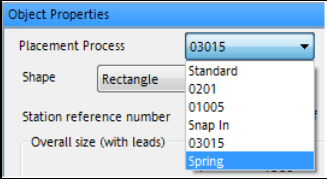
The new Spring placement process can be selected in the Component Shape Editor.
Figure 9-27: Selecting Spring placement process
SIPLACE Pro Feature Description Ausgabe 05/2014 Edition
159
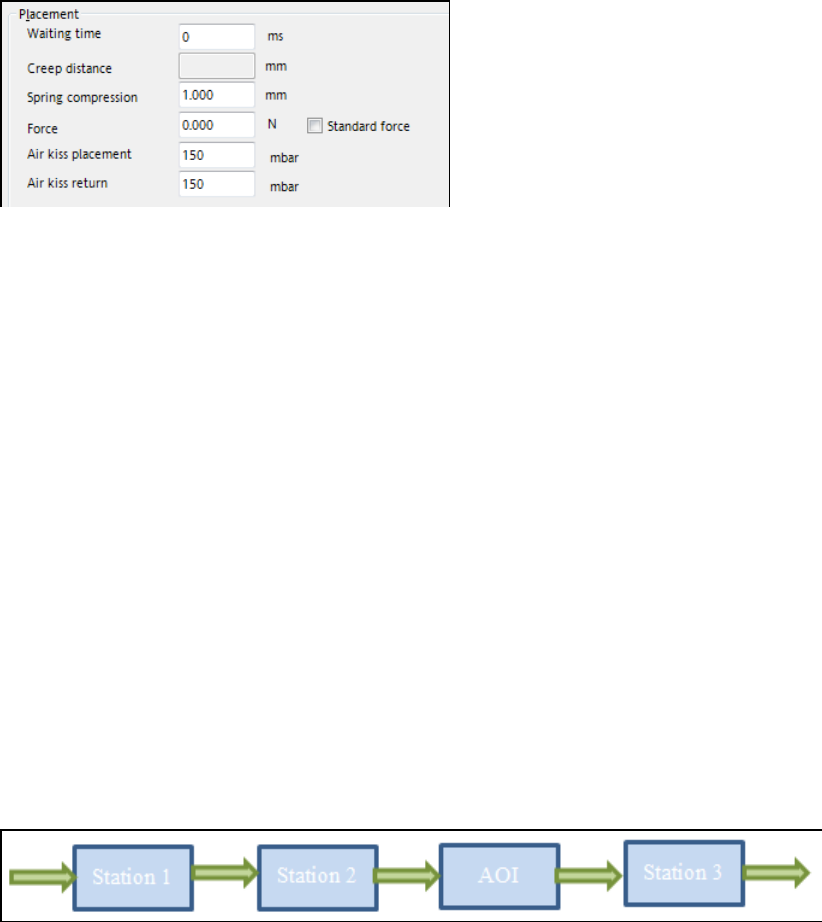
Thus, the force 0,000 N is entered in the Edit tab and the Creep distance field is disabled. A value
may be entered for Spring compression.
Figure 9-28: Entering spring compression
This process is valid together with the station software as of the 707.x version and for the
C&P20 A, C&P20 M, C&P20 P and CPP placement heads.
9.3.6 Multiple Measurements with CPP Placement Head
Multiple measurements can be performed with the CPP placement head via the stationary camera
in Pick&Place mode. Thus, the component range has been extended.
9.3.7 Reading Barcodes on All Stations in the Line
The measuring steps to read the PCB barcodes with the PCB camera are always sent to all
stations in the line although some stations would already receive the barcodes through WDTL or by
reading them with an external barcode reader.
Additionally, the simulation has been optimized for the following special case:
Example
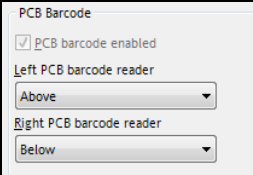
The line consists of three stations with an AOI system (Automatic Optical Inspection) in front of
station 3. The board has only one PCB barcode on the top side but panel barcodes / placement
positions on both sides. At the stations 1 and 3, external barcode readers are installed that can
only read from the bottom.
Figure 9-29: Example: stations in the line
The placement of the board bottom side is simulated as follows:
– The PCB barcode on the board top side is read by the external barcode reader in station 1.
– The panel barcodes are read by the PCB camera in PA1.
– All barcodes are passed over to station 2 through WDTL.
– At station 3 the PCB barcode is read by the external barcode reader and the panel barcodes
are passed over through WDTL.
For placement of the board top side it has to be considered that an external barcode reader is
installed at station 3 which can only read from the bottom. Thus, it cannot be used for placing the
board top side.
SIPLACE Pro Feature Description Ausgabe 05/2014 Edition
160
In this case, the following option has to be set in the Line Editor:
Figure 9-30: Setting in the Line Editor
The placement of the board top side will then be simulated as follows:
– The PCB barcode on the board top side is read by the PCB camera in PA1 of station 1.
– Additionally, the panel barcodes are read by the PCB camera in PA1.
– All barcodes are passed over to station 2 through WDTL.
– At station 3 the PCB barcode is read by the PCB camera in PA1.
If a station software version <= 706 runs on station 3, all panel barcodes are read in PA1, too.
If a station software version as of 707 runs on station 3, the panel barcodes will be passed over
by station 2 through WDTL.
9.3.8 SIPLACE LED Pairing – Enhancements
The following sections give an overview of enhanced features in SIPLACE LED Pairing.
Detailed information about the single features can be found in the SIPLACE LED Pairing User
Guide.
9.3.8.1 Wildcard Character '*' as Reference Designator
The '*' wildcard character can be used as reference designator in the LED matrix file.
9.3.8.2 Creating a Partial Setup
Multiple recipes can be selected in the Production view, whereupon SIPLACE LED Pairing
generates one download recipe for each selected recipe. If the selected recipes have the same
recipe template, SIPLACE LED Pairing will create one common setup for the download recipes.
Optionally, a partial setup may be created out of it via a new button. All components that are not
required in the download recipes will then be removed from the setup together with their feeders.
9.3.8.3 Controlled Transfer of Changes from Copied Placement Lists
SIPLACE LED Pairing creates copies of the placement lists. If errors are detected in the data
during placement, the user usually corrects them only in the copy.
In order to transfer such changes controlled to the original placement lists, it is now possible to start
the Difference Editor in SIPLACE LED Pairing via a new button in the Production view.
The relevant placement lists are displayed for comparison and the correction can be performed in
the Difference Editor.