00196920-07_SIPLACE_Pro_FeatureDescription_DE_EN.pdf - 第167页
SIPLACE Pro Fe ature Des cription Ausgabe 05/2014 Edit ion 167 Figure 9- 39 : D isp layi ng components of the grid panel package 9.3.16 A SCII Import – Assigning Component Shape with Mapping Rule List The ASCII Impor t W…
SIPLACE Pro Feature Description Ausgabe 05/2014 Edition
166
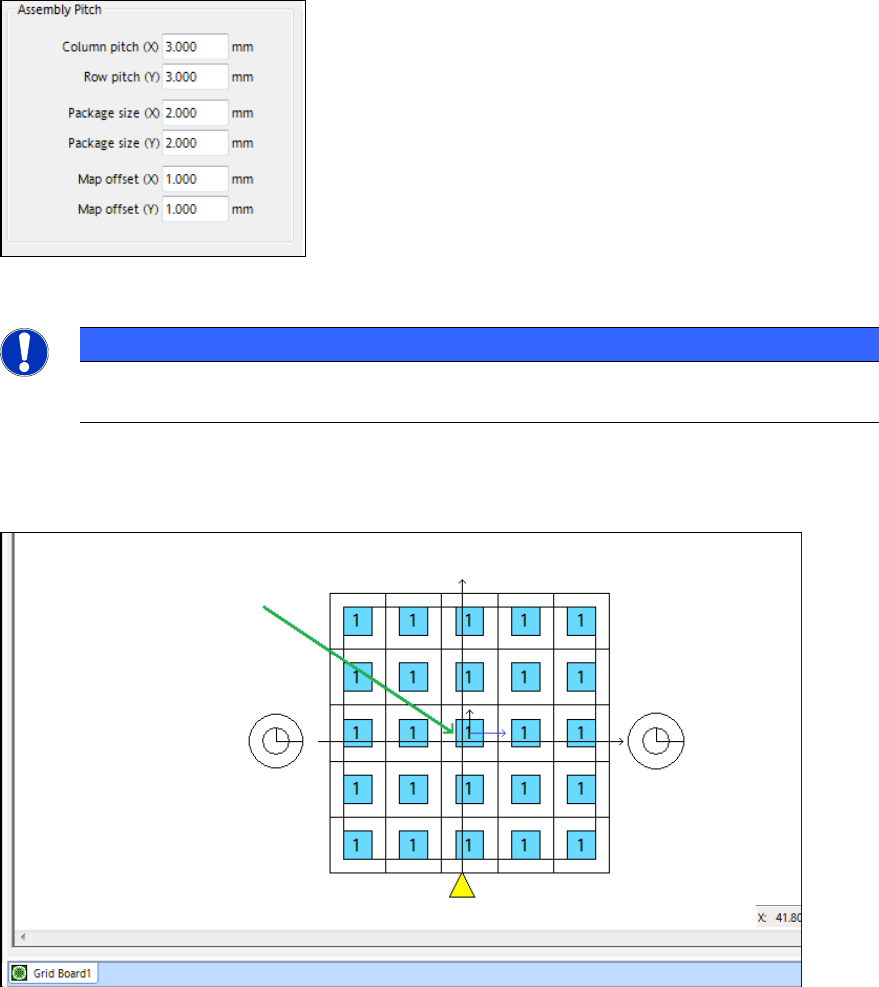
The X and Y map offsets can be set for a grid panel in the Grid Panel Type tab of the Grid Board
Editor:
Figure 9-37: Setting map offsets for grid panel packages
NOTICE
The Outline offset is unaccounted for now and has been removed from the Grid Panel
Type tab.
The middle of the grid panel is identified by small X- and Y-arrows if the map offset is nonzero.
Thus, it is visible that the grid panel is not centered within the coordinate system.
Figure 9-38: Drawing of grid panel package
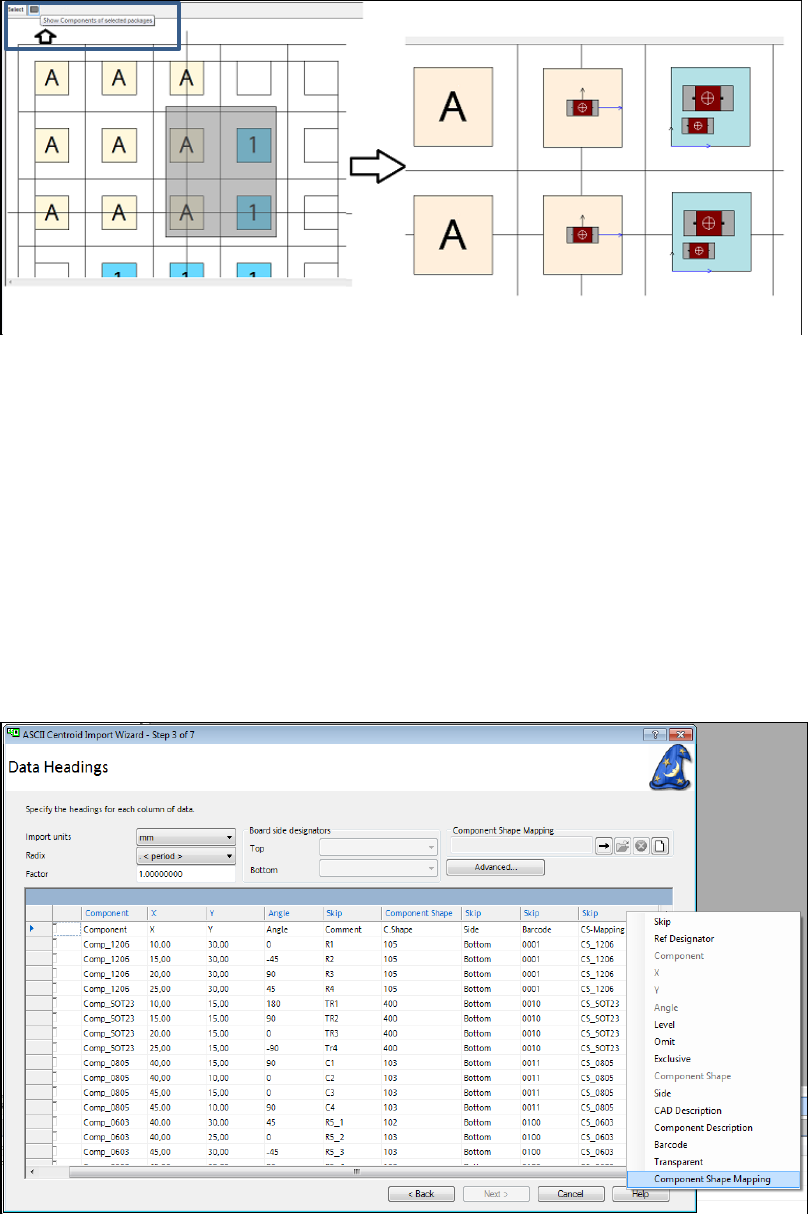
Additionally, the components of the selected grid panel packages can be displayed via the new
Show components of selected packages button.
The number of displayed components might be reduced so that the machine speed will not slow
down.
SIPLACE Pro Feature Description Ausgabe 05/2014 Edition
167
Figure 9-39: Displaying components of the grid panel package
9.3.16 ASCII Import – Assigning Component Shape with Mapping Rule List
The ASCII Import Wizard has been enhanced and now offers a method to assign component
placements to available component shapes by defining flexible mapping rule lists.
The already available method of previous SIPLACE Pro versions with which this assignment can
be performed directly via the matching text in the ASCII file may still be used.
The two methods work independently from each other but may be used together. In this case, the
data in the Component Shape column will be used to select the target component shape. The
mapping rule list will only be used for rows in which the component shape field is empty.
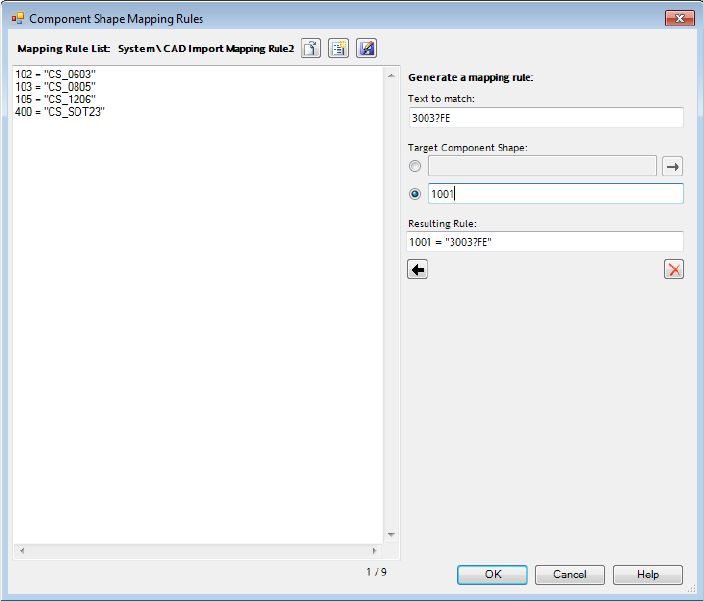
With the new mapping method it has to be defined in the Data Headings dialog box, which column
in the ASCII file contains the data to be analyzed for the component shape mapping.
Figure 9-40: Defining column for component shape mapping
By clicking with the right mouse button on the concerned column heading, a contect menu opens in
which Component Shape Mapping can be defined for this column.
Thereafter, the buttons for Component Shape Mapping are enabled in the upper right edge of the
window. Here, available mapping rule lists can be imported, edited or deleted and new mapping
rule lists created.
SIPLACE Pro Feature Description Ausgabe 05/2014 Edition
168
The mapping rule lists are created and edited in the Component Shape Mapping Rules dialog
box.
Figure 9-41: Mapping rule list
Each row in the mapping rule list describes a component shape mapping rule. Exact matches as
well as wildcard characters and regular expressions can be used in the descriptions.
The list text in the left part of the dialog box can be edited directly and so rules from external source
files can be inserted in the list by using copy&paste. Additionally, new mapping rules can be
generated in the upper right part of the dialog box.
After all mandatory columns have been configured (i.e., reference designator, component, X, Y and
angle) and the mapping rule list has been assigned, source and target directories have to be
defined in which the system shall search for matches.
If no component shape column has been defined or no data can be found in the component shape
column, the ASCII Import Wizard will use any matches found in the component shape mapping
column. If no matches should be found there, the ASCII Import Wizard will create a new
component shape and give it a name that reflects the content in the component shape mapping
column. Thus, the user does not have to search for the positions in the placement list to which the
component shape shall be referenced.
The results of the component shape mapping are displayed in the Summary dialog box.