S 20 Series Maintenance I.pdf - 第170页
2000 年 6 月版 S 2 0 系列维修培训指南 I 4 通信 8 4.2. 1 .2 4.2. 1 .2 4.2. 1 .2 4.2. 1 .2 在 DOS 盘上备份 MA 数据 在 DOS 盘上备份 MA 数据 在 DOS 盘上备份 MA 数据 在 DOS 盘上备份 MA 数据 为在 DOS 盘上 备份 MA 数据 请按下列步骤进行 ! 把键盘连接器插到 MC 上 并把显示 切换卡切换到 'MC M44'; …

S 20 系列维修培训指南 I 2000 年 6 月版
4 通信
7
4.2
4.24.2
4.2 数据备份
数据备份数据备份
数据备份
4.2.1 站计算机的数据备份及
站计算机的数据备份及 站计算机的数据备份及
站计算机的数据备份及 403.xx 软件
软件软件
软件
4.2.1.1
4.2.1.14.2.1.1
4.2.1.1使用
使用使用
使用 FTP
FTPFTP
FTP 通过 LAN 来备份
通过 LAN 来备份通过 LAN 来备份
通过 LAN 来备份
1. 在 Data Manager( 数据管理器 ) 中
双击
'Master Data * Stationen ( 主数据 * 站 ) 站名 ( 如
Sipl_S20_1)
点击
'Services * Directory * Create
( 服务 * 目录 * 建立 ) 命名新的目录
Backup-mm-dd
( 此名字应包括备份的月和日 ) 对每个站都重复此过程 结束后退出
Data Manager
数据管理器
2. 打开 UNIX 窗口 ( 屏幕底部的黑色部分
按下鼠标左边按钮 在
New window
处松开 )
3. aut9xxx:/u/P_lr> cd /u/SDH/SMT/Data/Stammdaten/Stationen<enter> 此时
输入 l 在命令
提示符下列出在
stationen
目录下的站计算机 ..<enter>
4. aut9xxx:/u/SDH/SMT/Data/Stammdaten/Stationen> cd 'station name'/Backup_mm_dd
<enter> ( 例如 cd Sipl_S20_1/Backup_mm_dd)
5. aut9xxx:/u/SDH/ SMT/Data/Stammdaten/Stationen/" 站名 "/Backup_mm_dd>
ftp<enter>
6. ftp> open 139.10.xxx.xxx<enter>
7. 连接到 139.10.xxx.xxx
RMOS FTP server (RMOS Vx.x) ready
Name(mcxxx_xx:plr): ftp<enter>
8. 新人登录成功
( 无目录
用 home = 'C:\TMP` 登录 )
远程系统类型为 Siemens
ftp> cd D:\DAT<enter>
CWD successfull
ftp> mget *.MA<enter>
9. 系统提示回答 Yes/no 以获取文件
按 enter 键则选择 yes 输入 N 并按 enter 为 No
10. 至此 *.MA 文件已传送完成
在命令提示符下输入 bye 退出文件传输程序
11. 在命令提示符下输入 exit 并按 enter 键
退出 Unix 窗口
注意
对于线上的其余站
重复 3-10 步骤
如果要将机器数据恢复至机器控 制器
可使用上述同样的过程 但要在第 10 个步骤用 mput
*.MA 代替

2000 年 6 月版 S 20 系列维修培训指南 I
4 通信
8
4.2.1.2
4.2.1.24.2.1.2
4.2.1.2 在 DOS 盘上备份 MA 数据
在 DOS 盘上备份 MA 数据在 DOS 盘上备份 MA 数据
在 DOS 盘上备份 MA 数据
为在 DOS 盘上备份 MA 数据 请按下列步骤进行
!
把键盘连接器插到 MC 上 并把显示切换卡切换到 'MC M44';
!
将 DOS 启动盘插入 MC 的驱动器 a 中 启动机器
!
输入 d:\dat 进入 d:\dat
!
把 DOS 格式化软盘插入 MC 的驱动器 a 中
!
输入 copy *.ma a:
将 ma 数据备份至磁盘上
取出磁盘
4.2.1.3
4.2.1.34.2.1.3
4.2.1.3 用文件管理器备份 MA 数据
用文件管理器备份 MA 数据用文件管理器备份 MA 数据
用文件管理器备份 MA 数据
1. 通过显示切换卡把监视器切换到 MC44 上
2. 把键盘切换到 MC44 它位于站计算机的侧面 有黄色条带标记
3. 按 F4.
4. 输入 sc
调用文件管理器
5. 按 Caps Lock 键
激活键盘
6. 按 Ctrl D 切换到 D 驱器
7. 移到 DAT 目录
按下 Enter
8. 用光标键移动光标至右方的 一个 .MA 文件
文件文件
文件
9. 按 C 键进行备份
10.输入 *.MA
11. I 插入空白的 DOS 盘到 MC44 中
12.输入 A: 作为备份目标
将光标移至 A: 并按 Enter 键
此时你可查看到已复制的文件
4.2.1.4
4.2.1.44.2.1.4
4.2.1.4 通过 SITEST 备份 MA 数据
通过 SITEST 备份 MA 数据通过 SITEST 备份 MA 数据
通过 SITEST 备份 MA 数据
参见本章 4.2.3.2. 中介绍的方法
S 20 系列维修培训指南 I 2000 年 6 月版
4 通信
9
4.2.2 用
用用
用 404.xx 从站计算机进行数据备份
从站计算机进行数据备份从站计算机进行数据备份
从站计算机进行数据备份
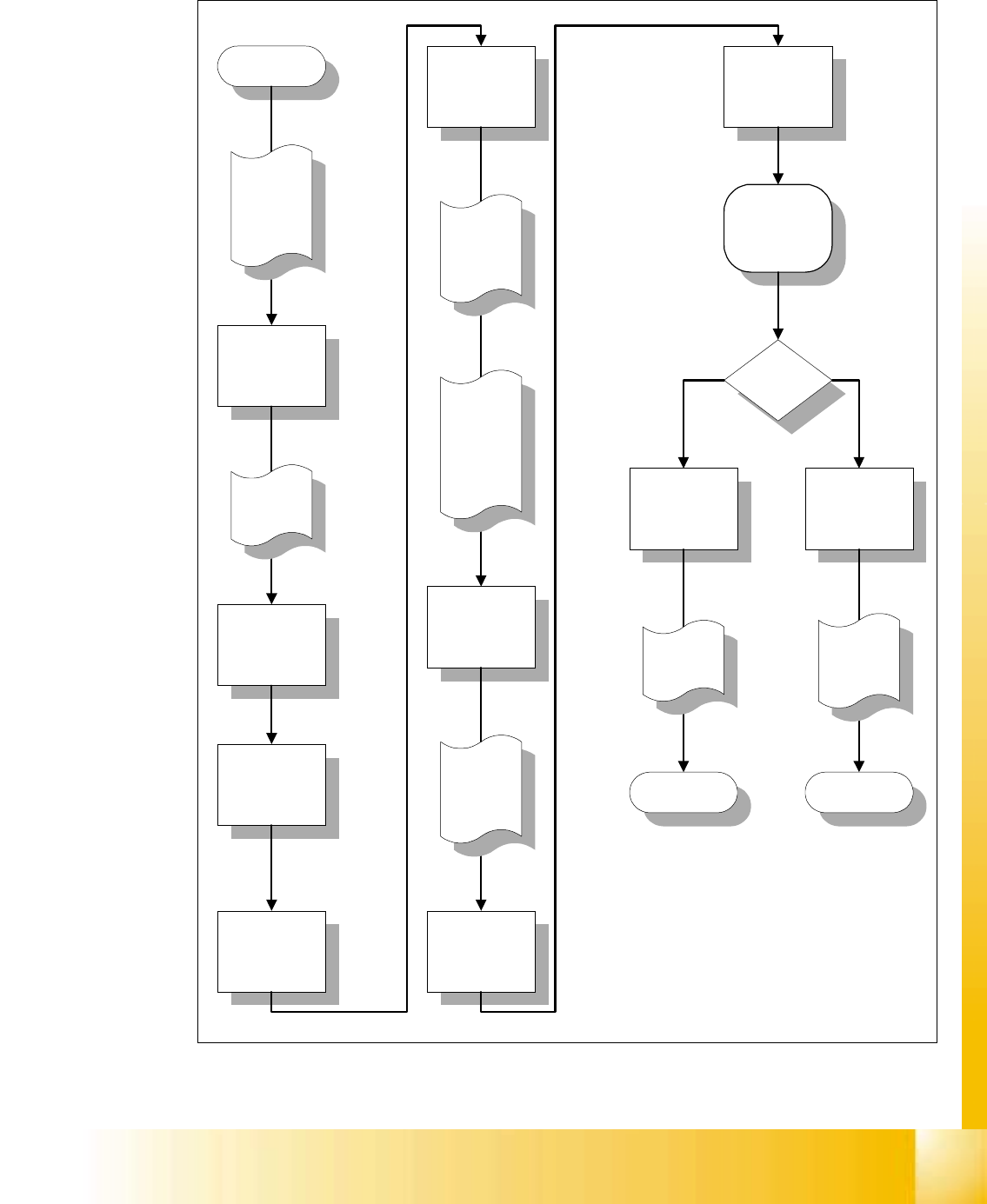
Fig. 4.2 - 1 从站计算机进行数据备份
Select
"From Floppy to
Hard Disk"
Select
"From Hard Disk
to Floppy"
Press the
"Sitest"
Icon
Press the
"Stop
Processing PCB"
icon
Start
Place a
floppy disk in
drive A of the
Station
Computer
Processing is
now
suspended
The Station
Computer is
now in
"Sitest
Mode"
Data is
restored to
the Station
Computer
Data is
written to the
floppy
Select the
"Settings"
pull down menu
Select the
"Service"
option
Select the
"Copy Machine
Data"
option
Press the
"OK"
button
Select the
"Options"
pull down menu
Select the
"Access Level"
option
StopStop
Backup or
Restore?
The
"Copy Machine
Data"
window is now
displayed on the
monitor
Enter the
password and
push the
"OK" button
if prompted.
The Station
Computer is
now in
"Service
Mode" and
allows access
to extra
functions