Smart Gui - Algorithm Training Material_rev1.pdf - 第177页
Copyright © ViT rox All Rights Reserved . Steps for Diff Joint Learning Setup 177 Step 1: ● Look for good sample & Select save image mode Step 2: ● Drag and resize the box size & search box size ● Box Size: Inter…

Copyright © ViTrox All Rights Reserved.
176
U-Type Diff Joint Algorithm
Identify surface defects on component using certain parameter and
through learning good components
Copyright © ViTrox All Rights Reserved.
Steps for Diff Joint Learning Setup
177
Step 1:
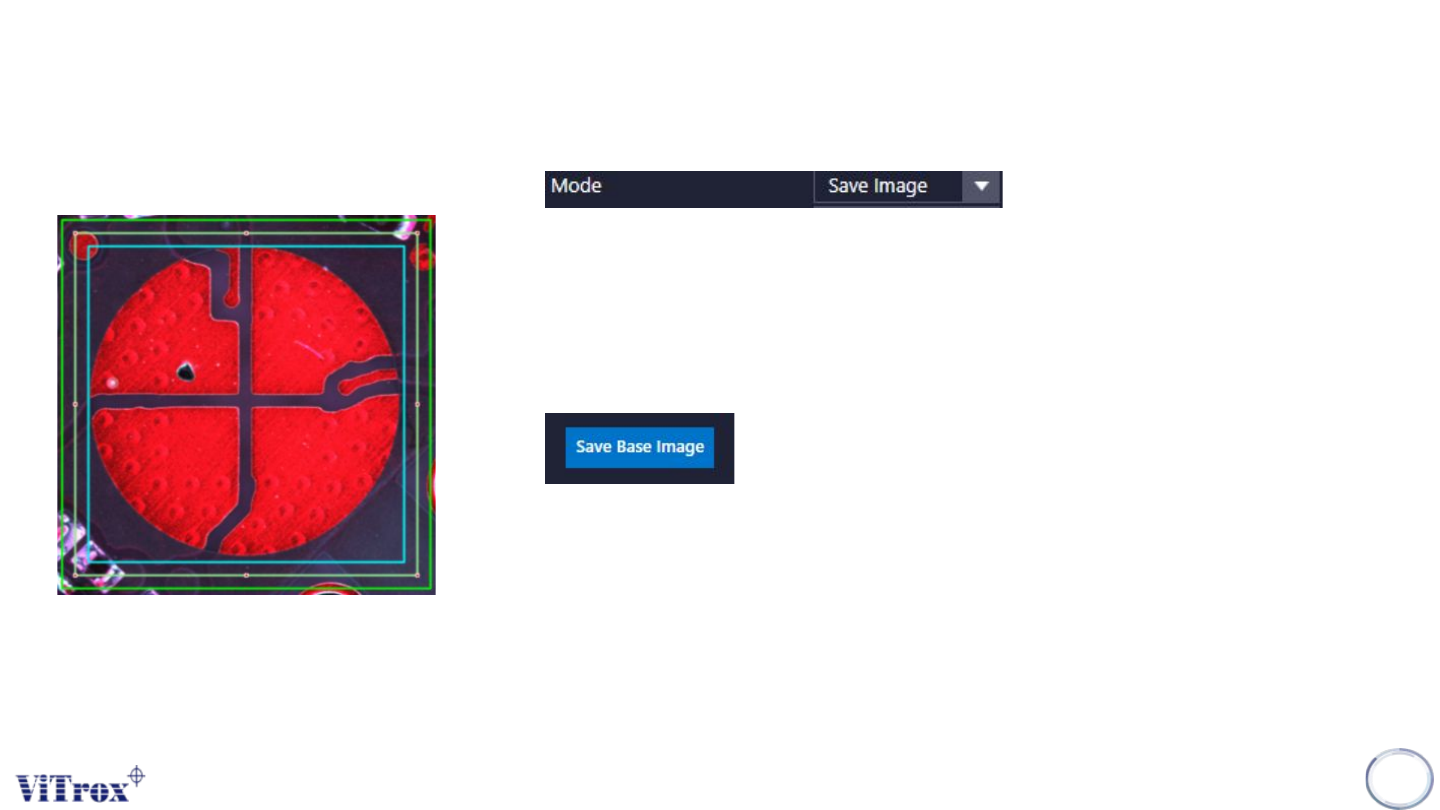
● Look for good sample & Select save image mode
Step 2:
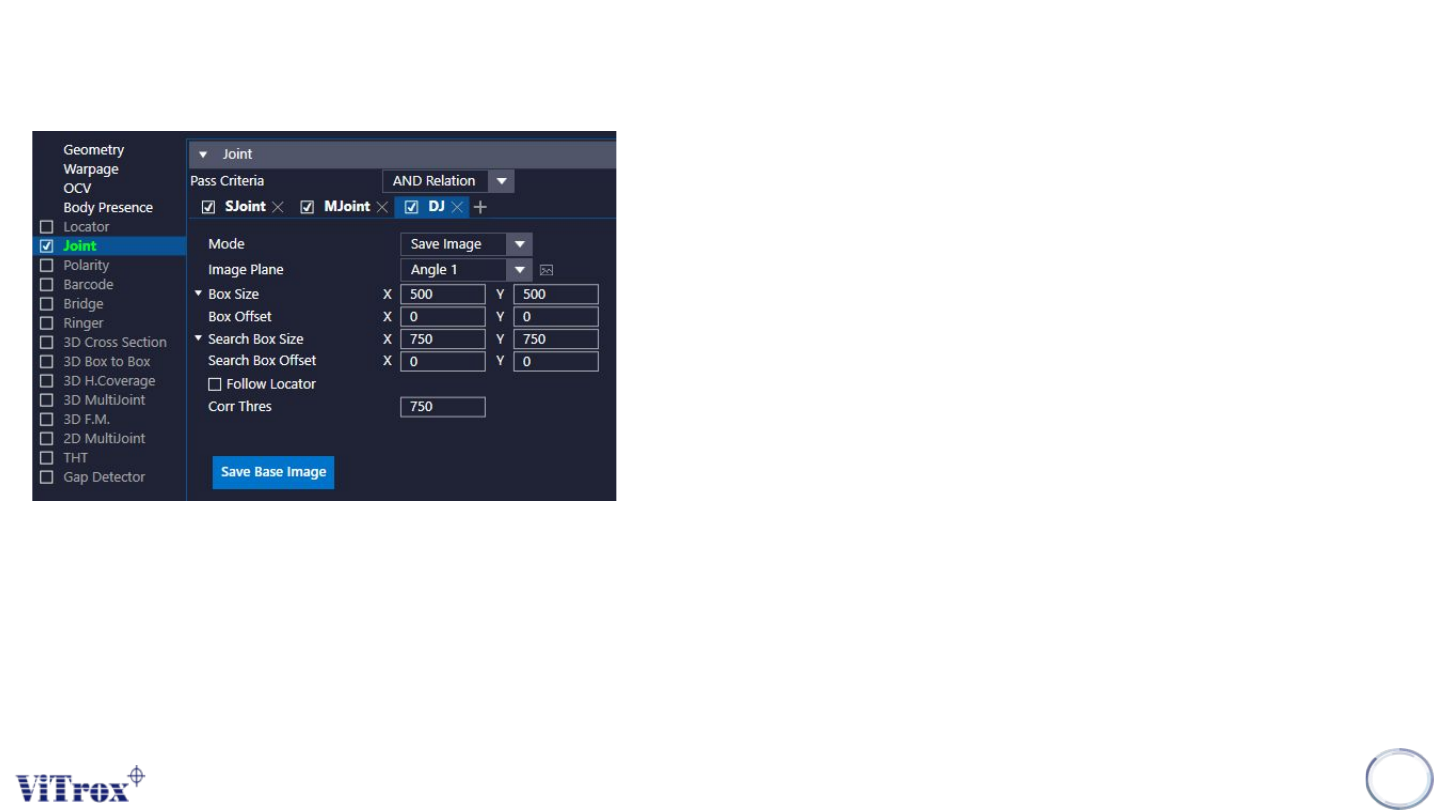
● Drag and resize the box size & search box size
● Box Size: Interested region to save the base image.
● Search Box Size: Region to search the base image.
Step 3:
● Click on “Save Base Image”
Step 4:
● Press inspect button at 'Save Image' mode.
● This action is to save the good image of the component.
● A score will appear near the component. The score is indicate correlation
score.
Step 5:
● Do the save image step (Step 4) by at least 6 good components.
● After the last component is saved, change 'Save Image' mode to
'Inspect:xx' mode.
● This is to prevent if we accidently save defect component image.
Copyright © ViTrox All Rights Reserved.
U-type Joint - Diff Joint
178
1. Mode
a. Save Image
● Save Image is for saving good component image for the
machine to do differentiate between good and defect
component.
b. Inspect: Box
● Inspect: Box is inspection mode based on auto partitioned joint
box tunable size in microns.
c. Inspect: Dot
● Inspect: Dot is inspection mode based on defect dot size and
count.
d. Inspect: 3D
● Inspect: 3D is inspection mode similar to Inspect: Dot with
height range capability
● The Image Plane have to select “3D image”.
e. Inspect: Bounding Box
● Use similarity score (Correlation score) to define pass or fail.