Smart Gui - Algorithm Training Material_rev1.pdf - 第307页
Copyright © ViT rox All Rights Reserved . GrayScale Editor - Setup 307 1. User may click on the icon that shown below to enter the Grayscale Editor . ● This icon usually available at the place that use to setup the grays…
Copyright © ViTrox All Rights Reserved.
GrayScale Editor
306
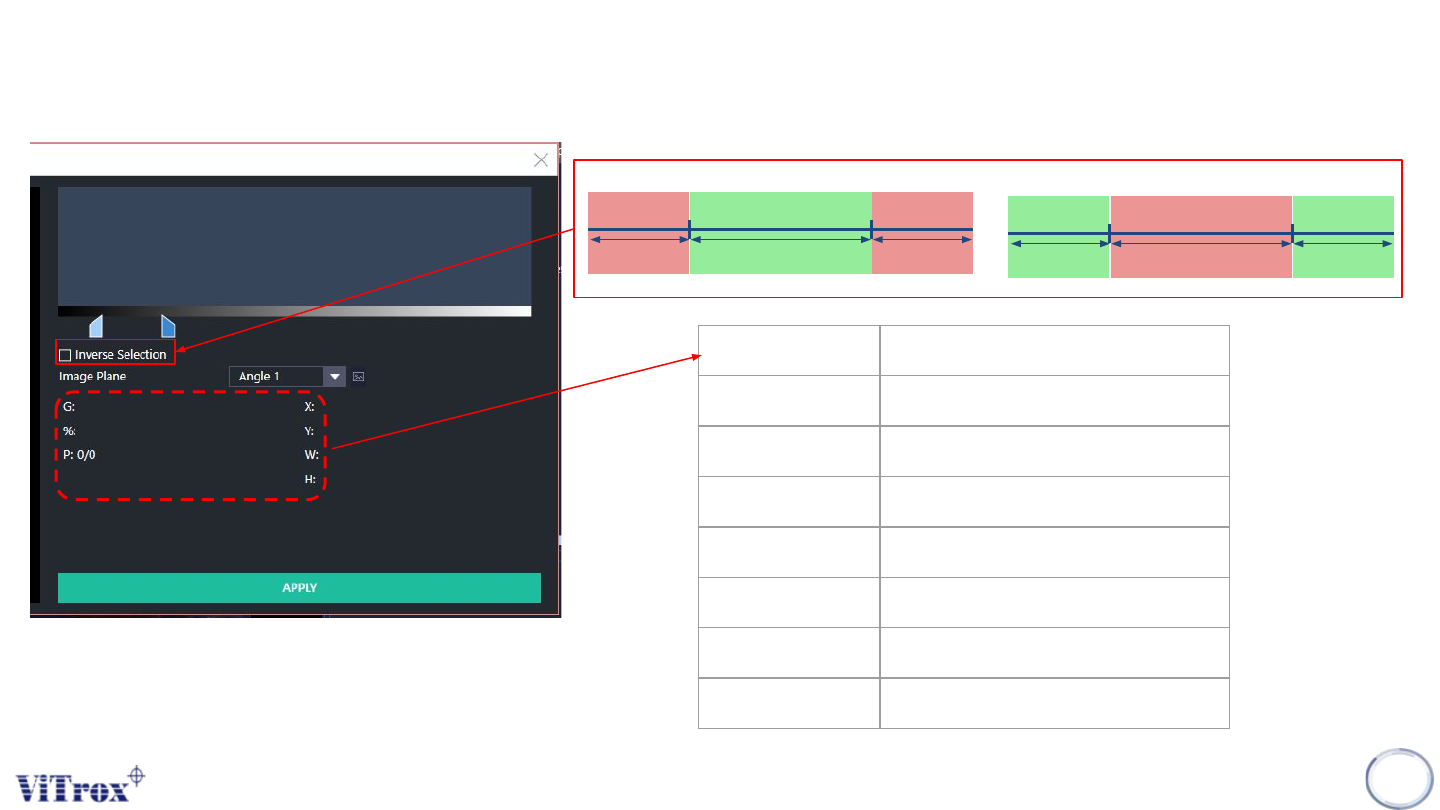
Parameter Description
G Selected Grey Scale Range
% Coverage (%)
P Coverage (Area Cover / Total Area)
X X Location
Y Y Location
W Width of ROI
H Length of ROI
Lower Limit
Upper Limit
Pass
Fail Fail
Untick Inverse Selection
Lower Limit
Upper Limit
Pass
Fail Pass
Tick Inverse Selection
Copyright © ViTrox All Rights Reserved.
GrayScale Editor - Setup
307
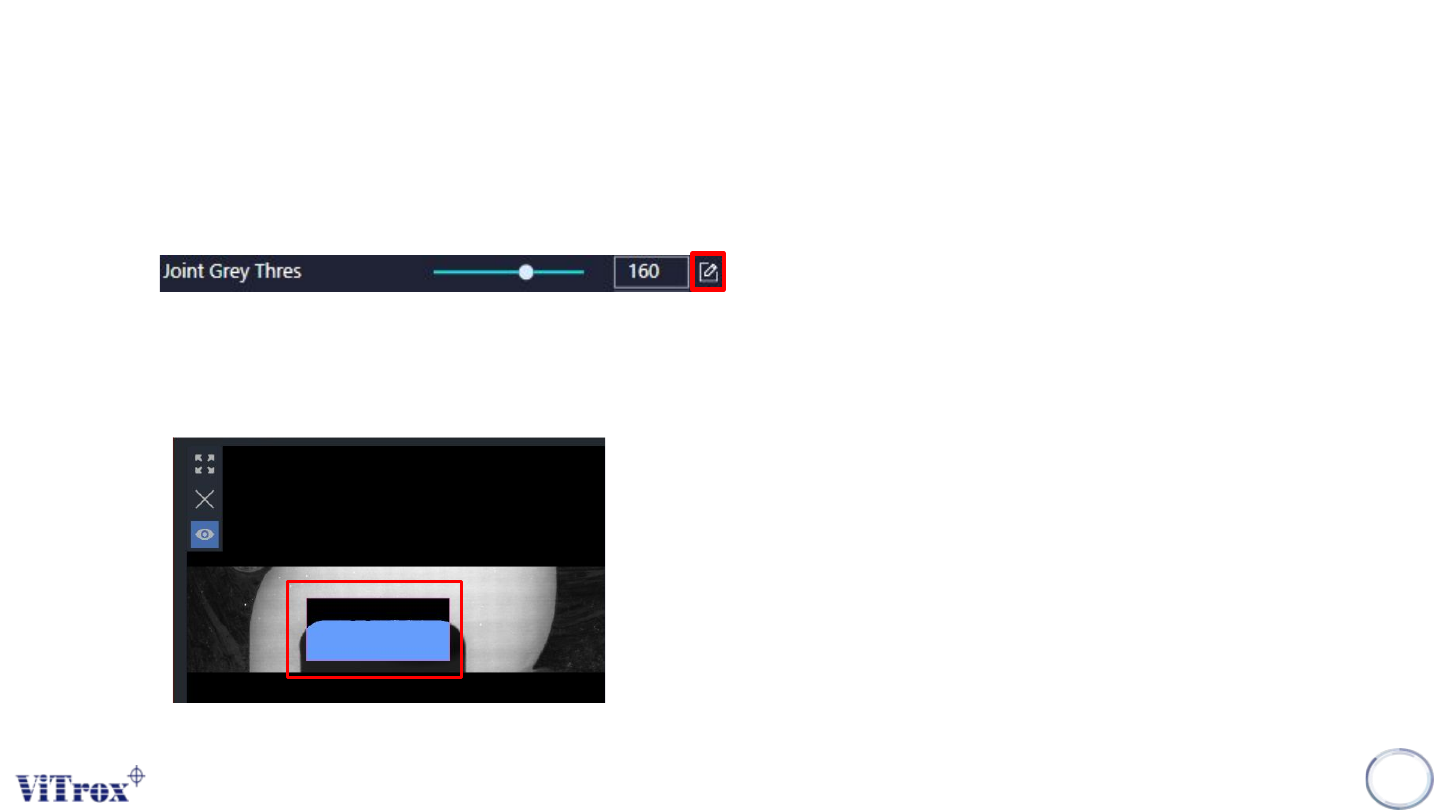
1. User may click on the icon that shown below to enter the Grayscale Editor.
● This icon usually available at the place that use to setup the grayscale value.
2. Drag the size of ROI on the Component Image Display
● The region that highlighted in blue is the region selected.
Copyright © ViTrox All Rights Reserved.
GrayScale Editor - Setup
308
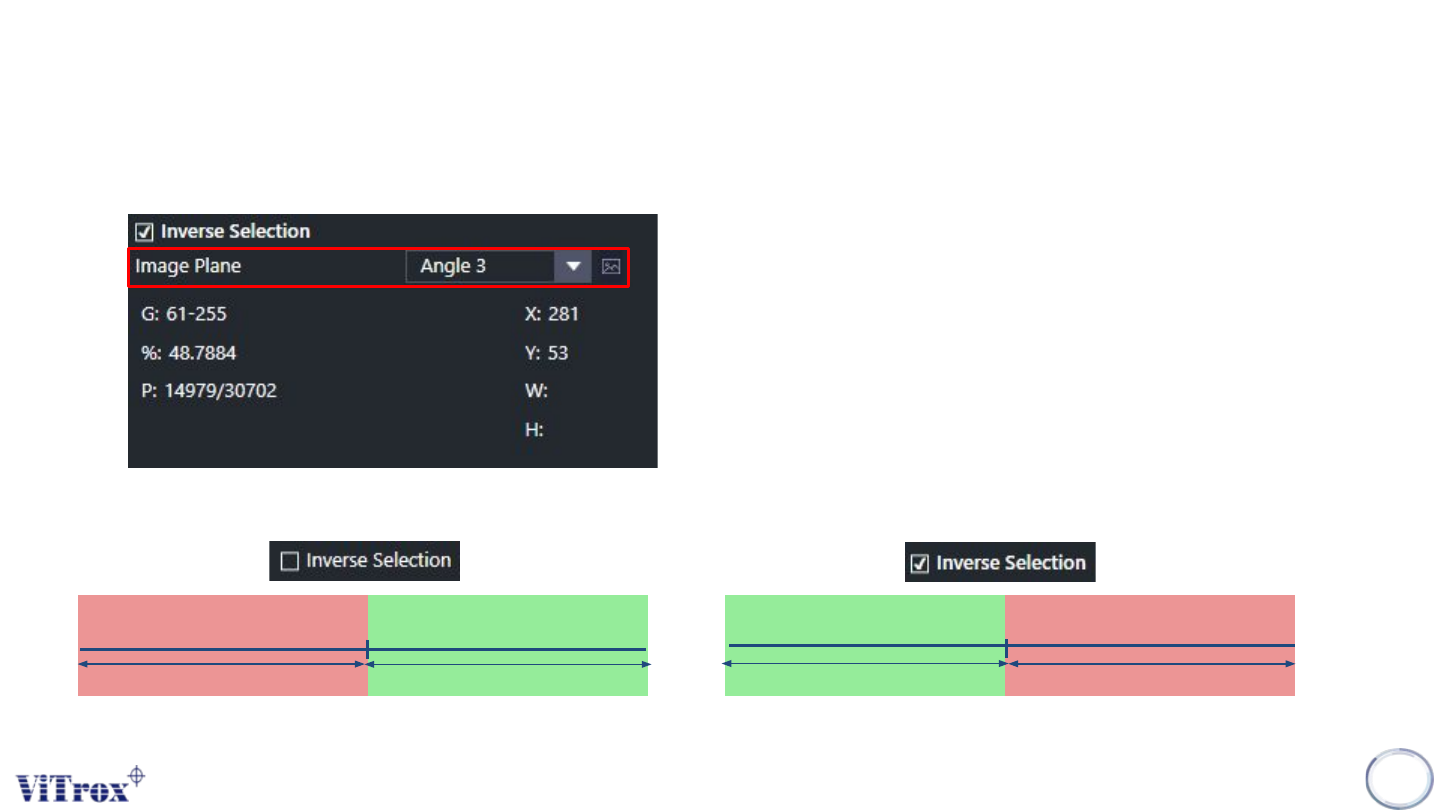
1. Select the Image Plane Angle that having the best contrast.
2. Tick Inverse selection to inverse the logic.
Grayscale Thres
Pass
Fail
Grayscale Thres
Pass
Fail