Smart Gui - Algorithm Training Material_rev1.pdf - 第273页
Copyright © ViT rox All Rights Reserved . OCV Inspection 273 Threshold Background (Become 0) Character (Become 255) Threshold Character (Become 0) Background (Become 255) Dark Threshold Bright Threshold 4. Drag to adjust…
Copyright © ViTrox All Rights Reserved.
OCV Inspection
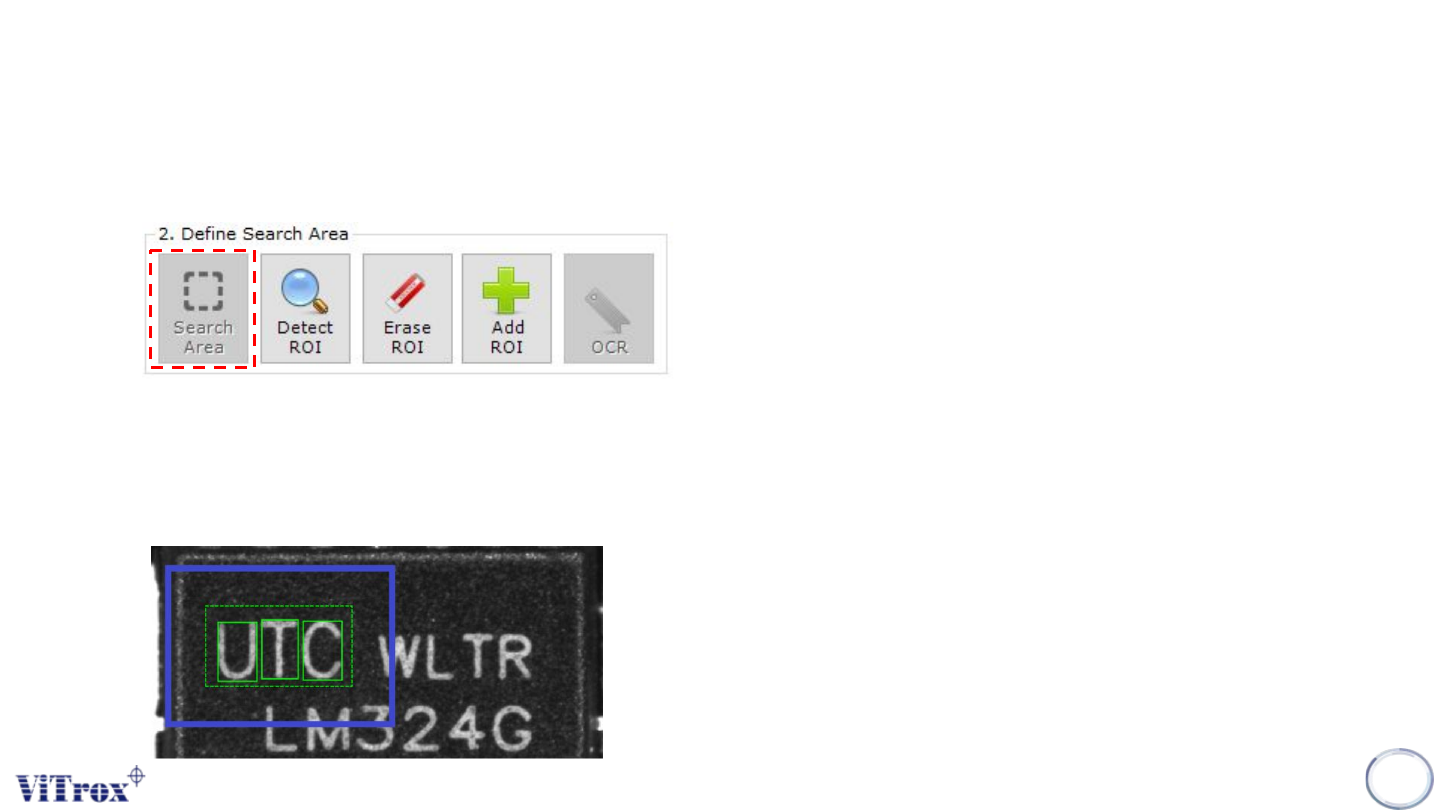
3. Drag and cover the labelling in the image that wish to be inspect. Multiple ROIs on every
character will automatically created in the selected region.
2. Click on the “Search Area” button will always selected and it will be grey out.
★ Search Area: Define the search area
★ Detect ROI: Detect ROI which have highest contrast between
marking & background.
★ Erase ROI: Manually erase the unwanted ROI
★ Add ROI: Manually add ROI
★ OCR (Optical Character Recognition): Recognize printed
character on marking on the component and convert into
character instead of marking
Copyright © ViTrox All Rights Reserved.
OCV Inspection
273
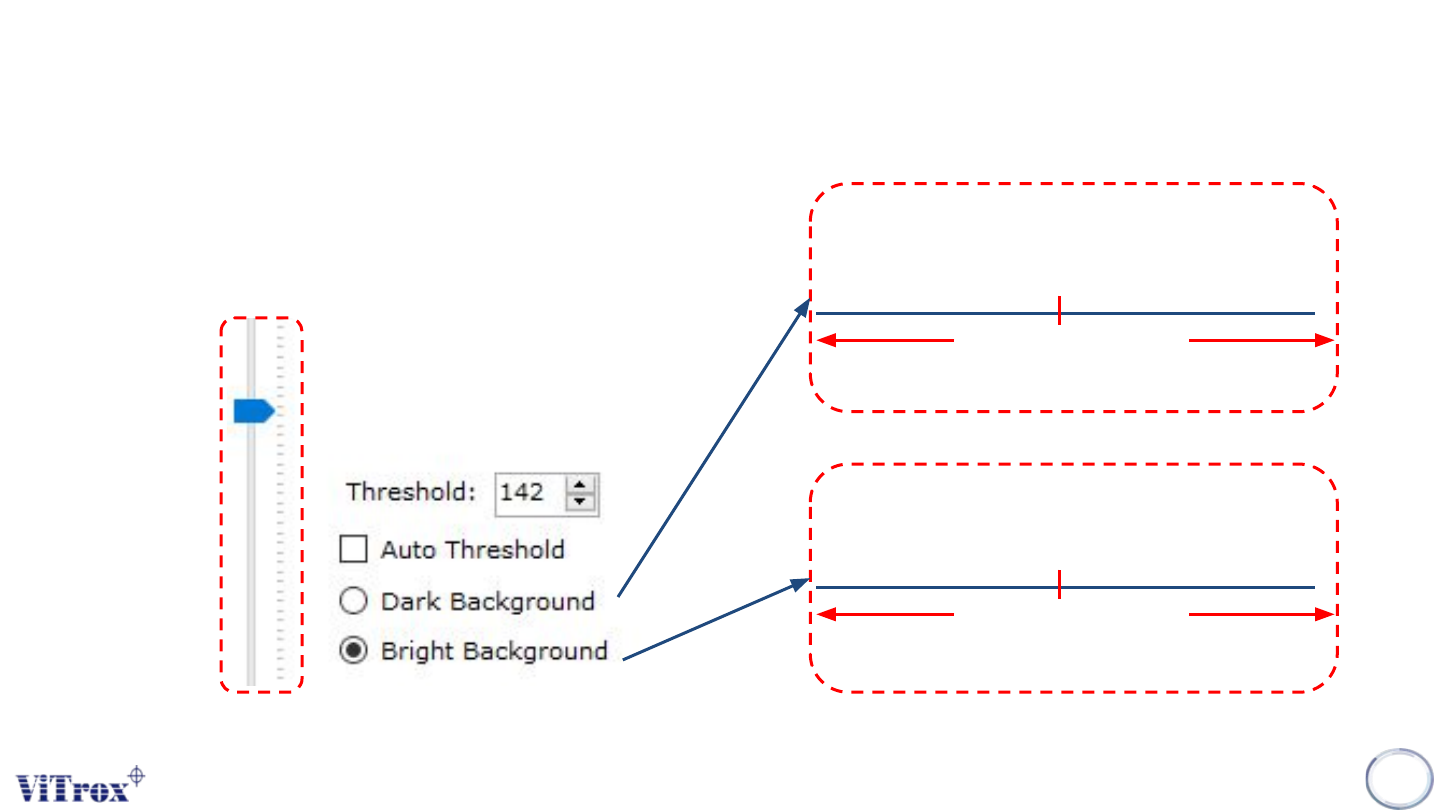
Threshold
Background
(Become 0)
Character
(Become 255)
Threshold
Character
(Become 0)
Background
(Become 255)
Dark Threshold
Bright Threshold
4. Drag to adjust the grayscale threshold.
• All the grayscale below the threshold set will
become 0 and all the grayscale above the threshold
set will become 255.
Copyright © ViTrox All Rights Reserved.
OCV Inspection
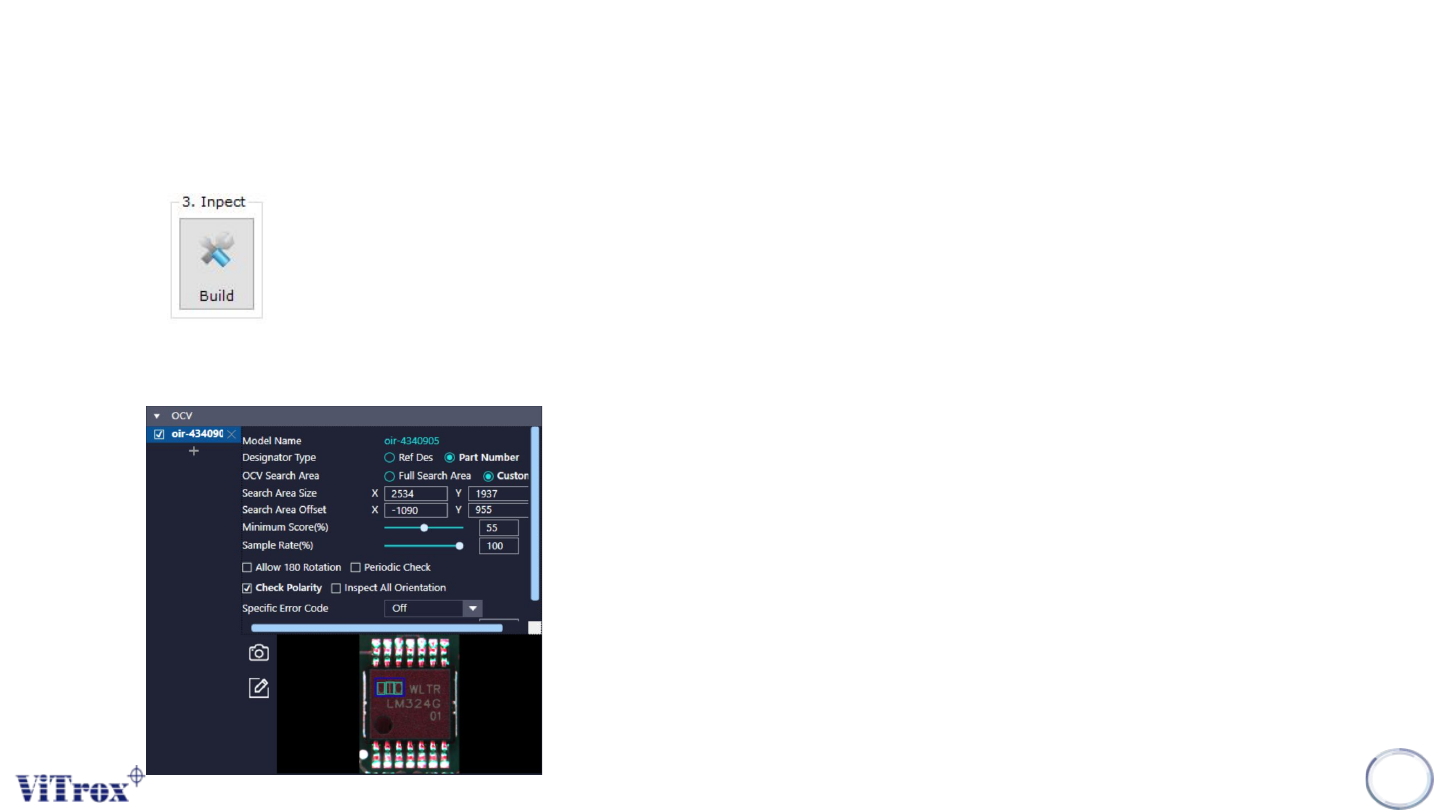
5. Build icon as below is used save the template after all settings is done.
274
6. After built Some of the OCV settings need to be adjust based on requirement. (Refer next page)