Smart Gui - Algorithm Training Material_rev1.pdf - 第315页
Copyright © ViT rox All Rights Reserved . 315 8. Right Click on the fiducial and set this point as “Fiducial X”. 9. Make sure the fiducial score higher than the Presence Threshold set. Normally the presence threshold sho…
Copyright © ViTrox All Rights Reserved.
314
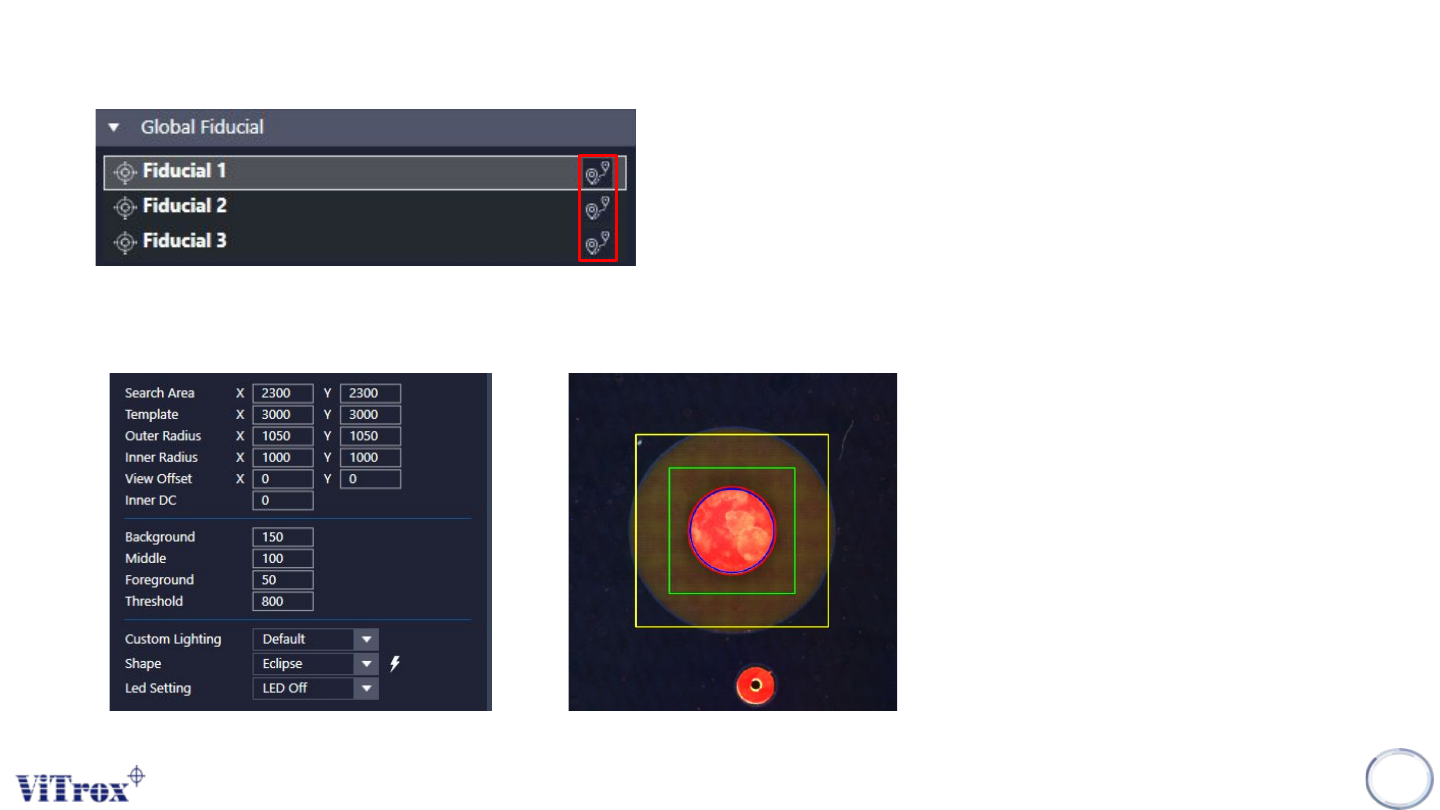
6. User may press the icons shows below to move the vision system to the estimated location of the
fiducials.
7. Adjust for the fiducial parameters to ensure the shape, size and greyscale of the fiducials are correct.
(Refer fiducial editor setup)
Copyright © ViTrox All Rights Reserved.
315
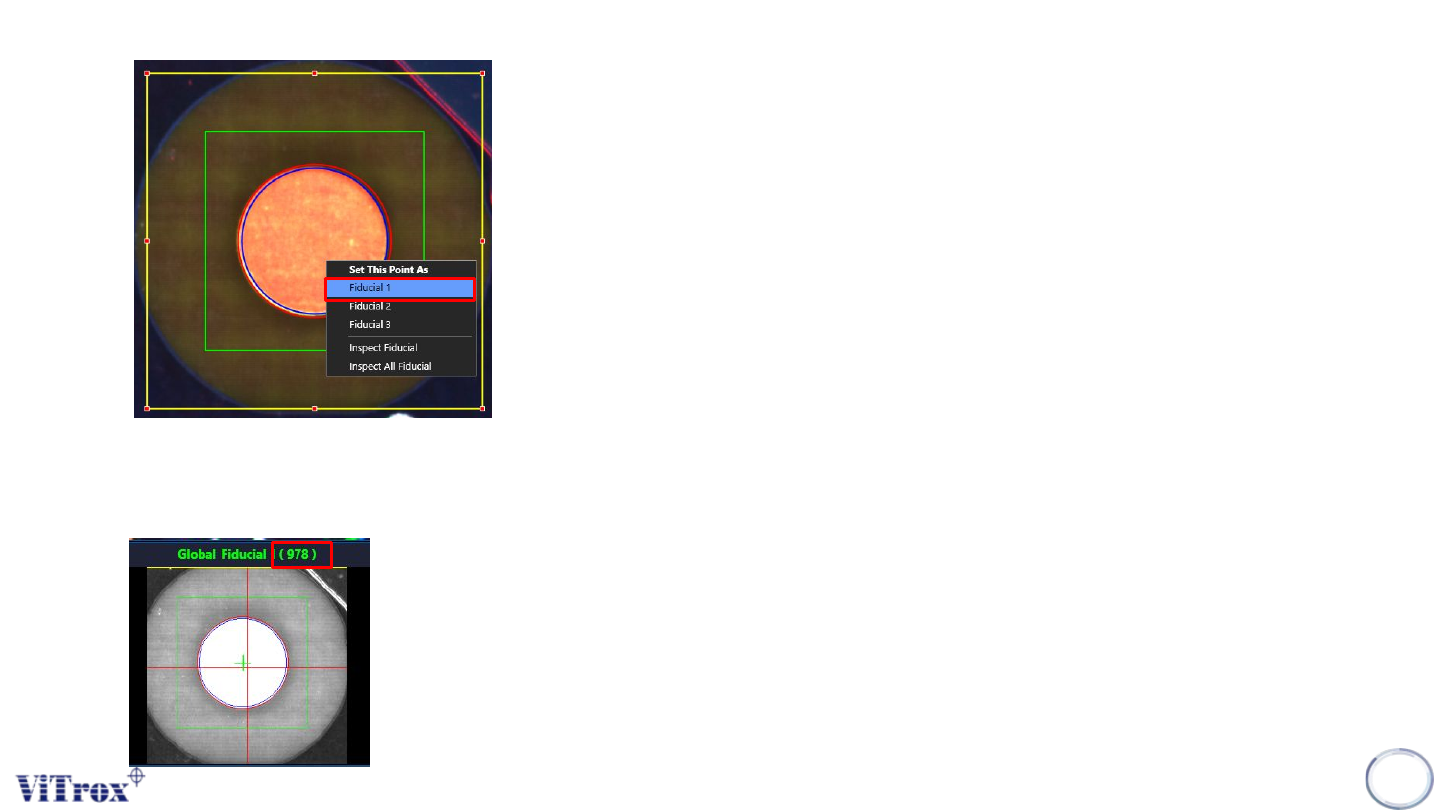
8. Right Click on the fiducial and set this point as “Fiducial X”.
9. Make sure the fiducial score higher than the Presence Threshold set. Normally the presence
threshold should set higher than 700. Retune the fiducials parameter if the score lower than the
threshold.
Copyright © ViTrox All Rights Reserved.
316
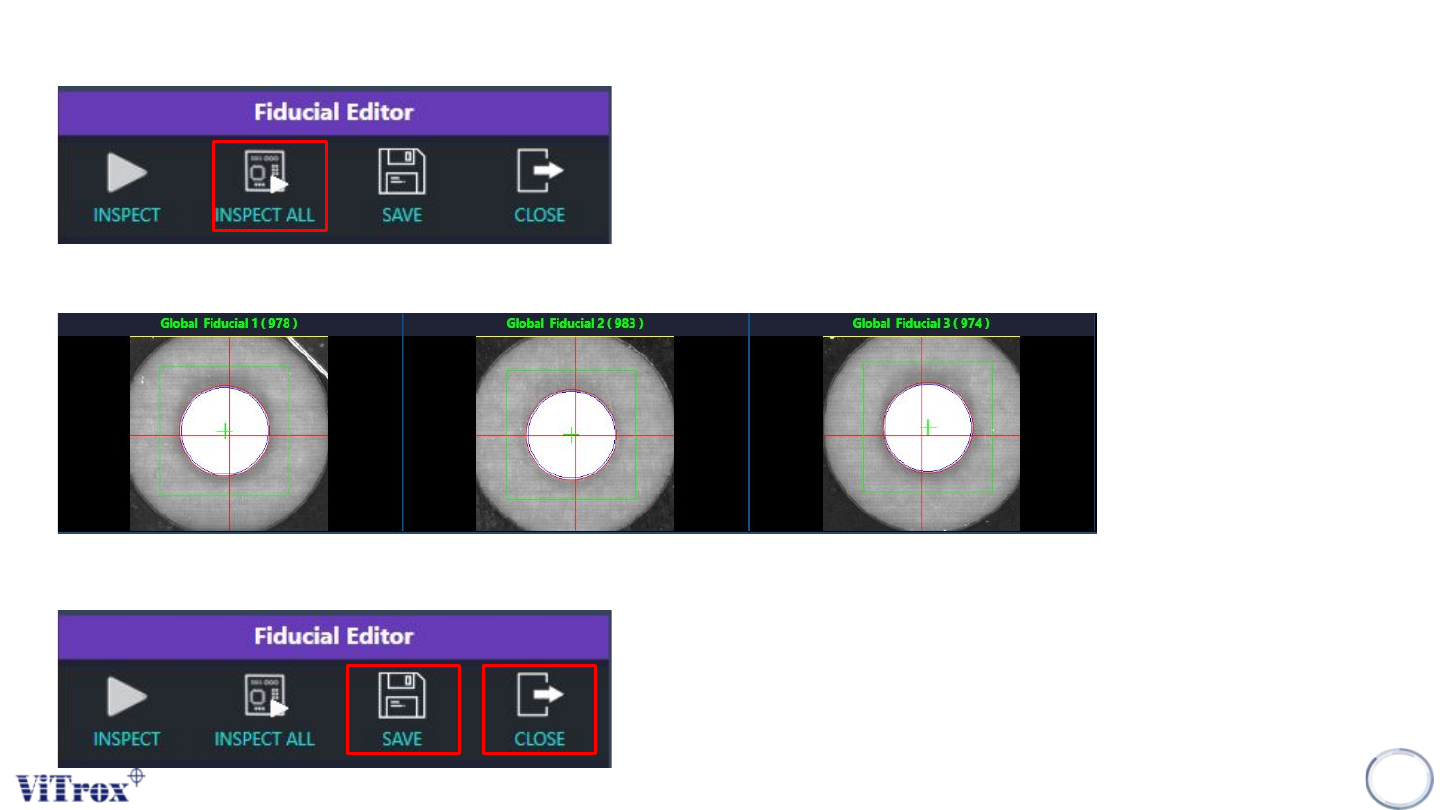
10. Next, press the “Inspect All Icon” to inspect all the fiducials.
11. Make sure all the fiducial scores is higher than the presence threshold set.
12. Lastly, press the “Save” icon to save the settings for the fiducials and press the “Close” icon.