Smart Gui - Algorithm Training Material_rev1.pdf - 第9页
Copyright © ViT rox All Rights Reserved . CR T ype Algorithm - Locator 9 1. Skew ● T ick this to include skew inspection 2. Offset Thres ● T o preset the allowed value for offset. The pink colour box below shows the acce…
Copyright © ViTrox All Rights Reserved.
CR Type Algorithm - Locator
8
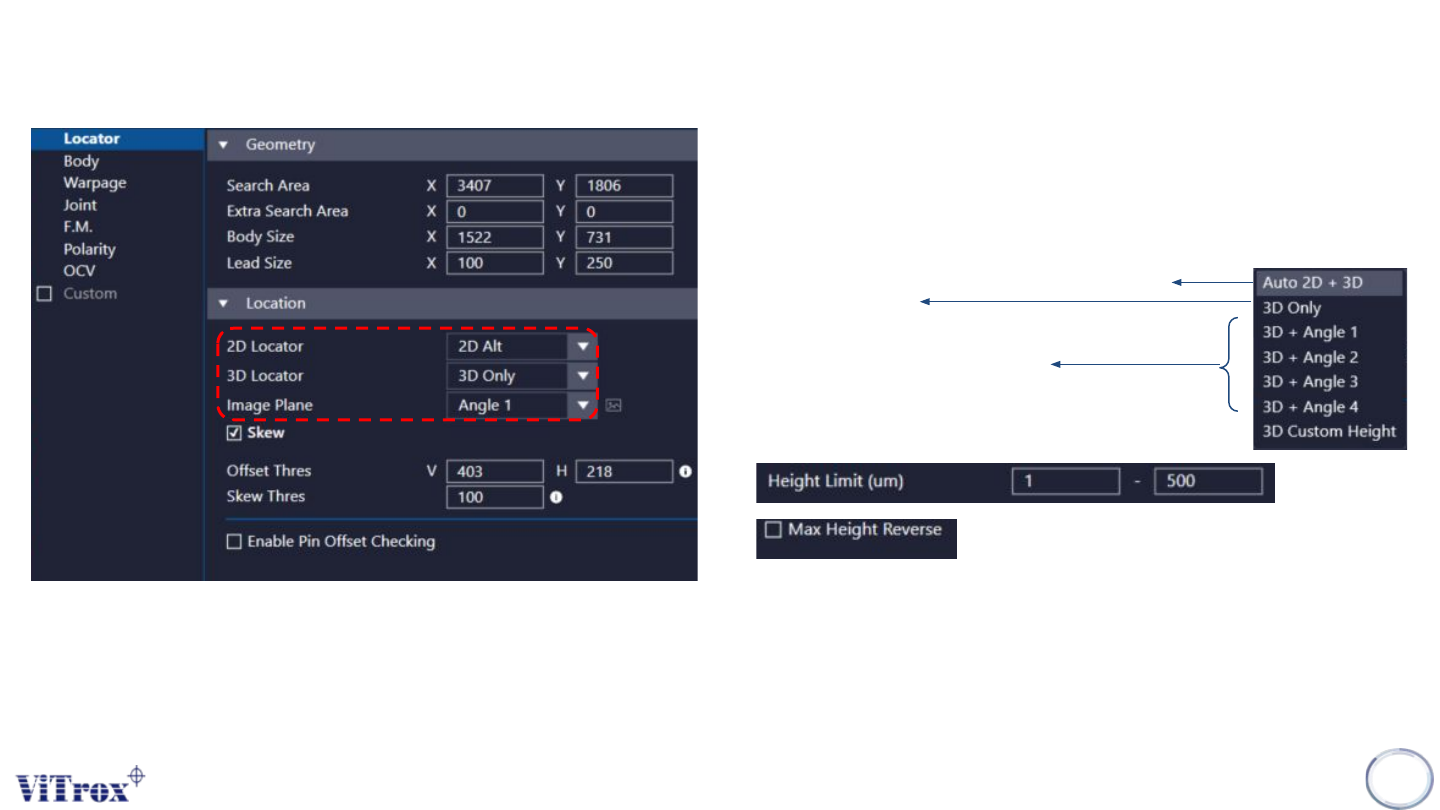
1. 2D Locator
● Only use 3D to locate the component location.
● Only use 2D to locate the component location.
● Select this to enable 2D + 3D Locator
● 3D as priority, 2D to support
3. Image Plane
● These are the types of 2D Lighting. Select the one
with having highest contrast among interested
inspection region and the background.
2. 3D Locator
● Auto select 2D or 3D (Whichever is better)
● Only use 3D
● Only use 3D, The height range can be preset as
below.
Max Height Reverse means Change the max
height to min height.
Copyright © ViTrox All Rights Reserved.
CR Type Algorithm - Locator
9
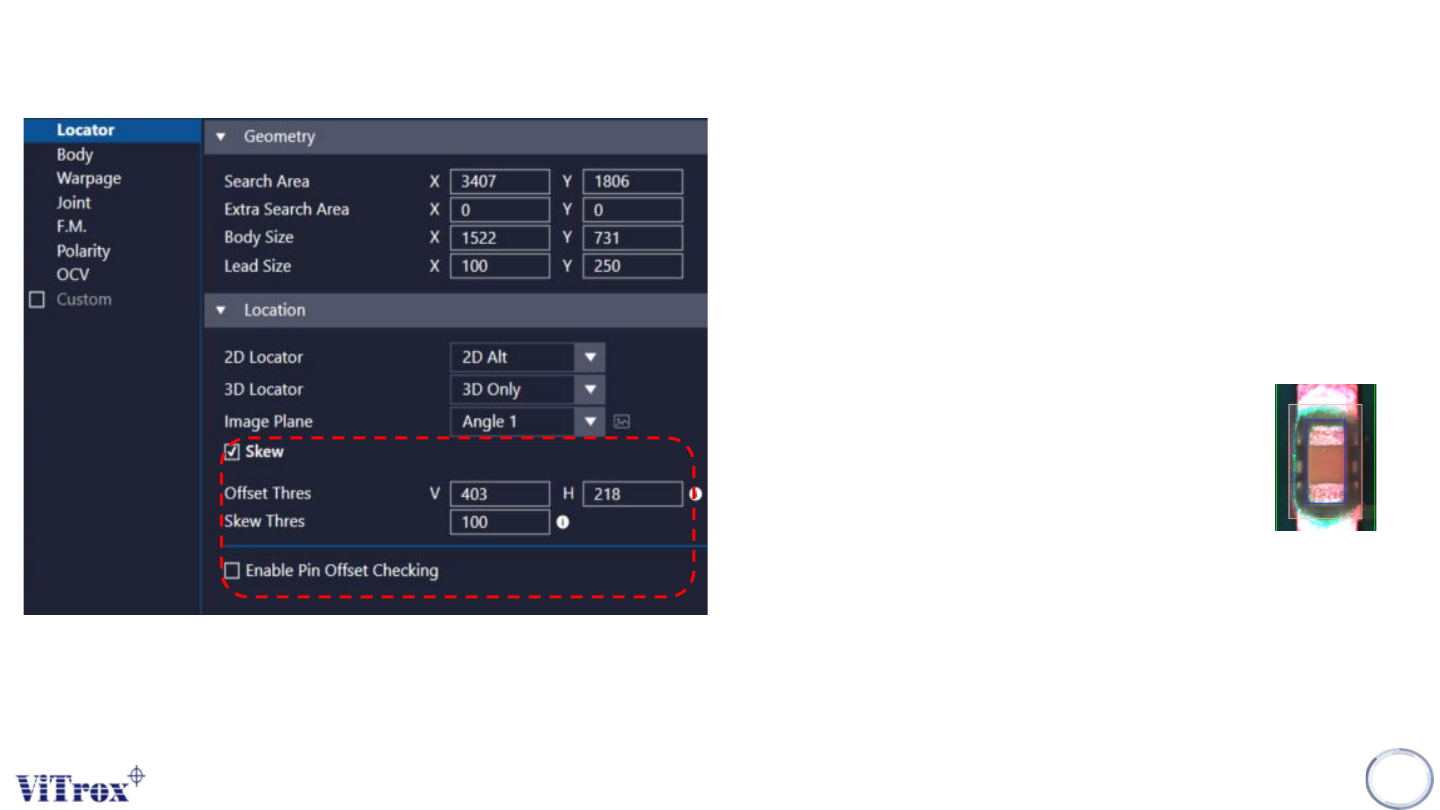
1. Skew
● Tick this to include skew inspection
2. Offset Thres
● To preset the allowed value for offset. The pink
colour box below shows the acceptable offset
area. User may drag to adjust the box size.
3. Offset Box
● If the component out of this area will fail
the inspection result.
4. Skew Thres
● To set the skew threshold in degree.
● Will fail the inspection when:
measured skew value > Skew Thres
● 1 = 0.1 deg
Copyright © ViTrox All Rights Reserved.
CR Type Algorithm - Locator
10
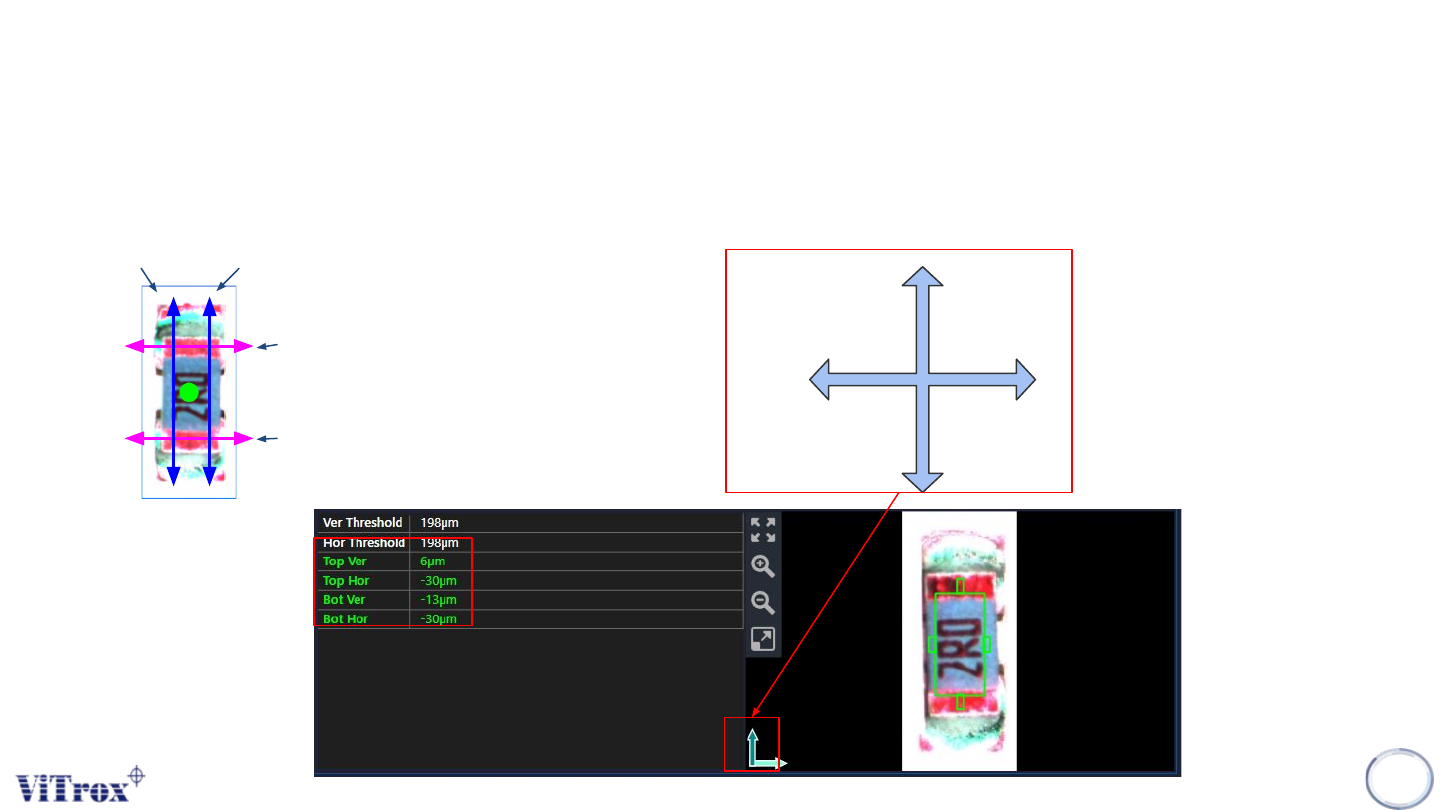
5. Enable Pin Offset Checking
● Tick this to inspect the pin offset
● The offset detection divided to 2 parts (Top & Bot) for each directions.
Vertical (+ve)
Horizontal
(+ve)
Top Ver
Bot Ver
Top Hor
Bot Hor
Refer to this icon to know the
direction. Direction may change
based on the rotation in plx file
(location file).