Smart Gui - Algorithm Training Material_rev1.pdf - 第274页
Copyright © ViT rox All Rights Reserved . OCV Inspection 5. Build icon as below is used save the template after all settings is done. 274 6. After built Some of the OCV settings need to be adjust based on requirement. (R…
Copyright © ViTrox All Rights Reserved.
OCV Inspection
273
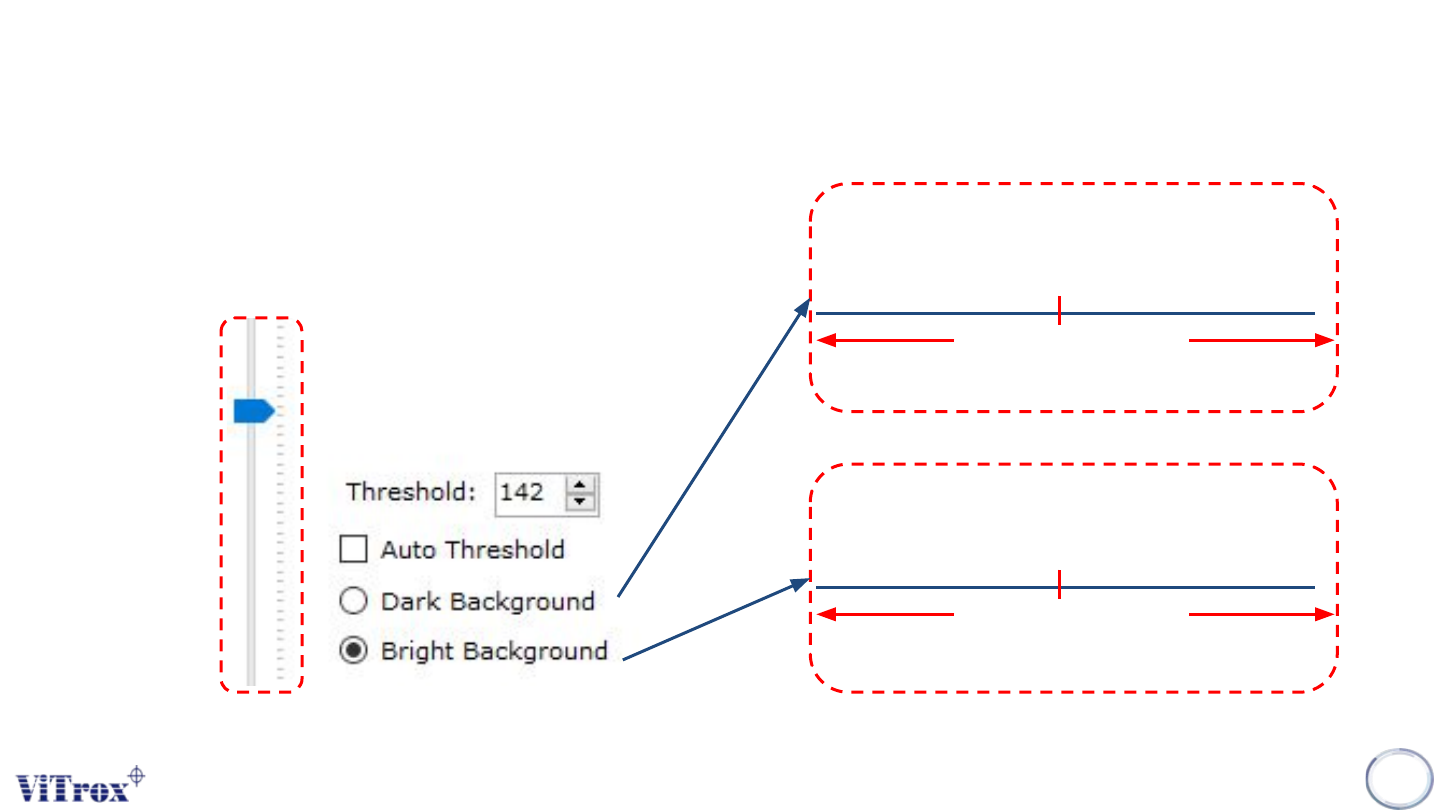
Threshold
Background
(Become 0)
Character
(Become 255)
Threshold
Character
(Become 0)
Background
(Become 255)
Dark Threshold
Bright Threshold
4. Drag to adjust the grayscale threshold.
• All the grayscale below the threshold set will
become 0 and all the grayscale above the threshold
set will become 255.
Copyright © ViTrox All Rights Reserved.
OCV Inspection
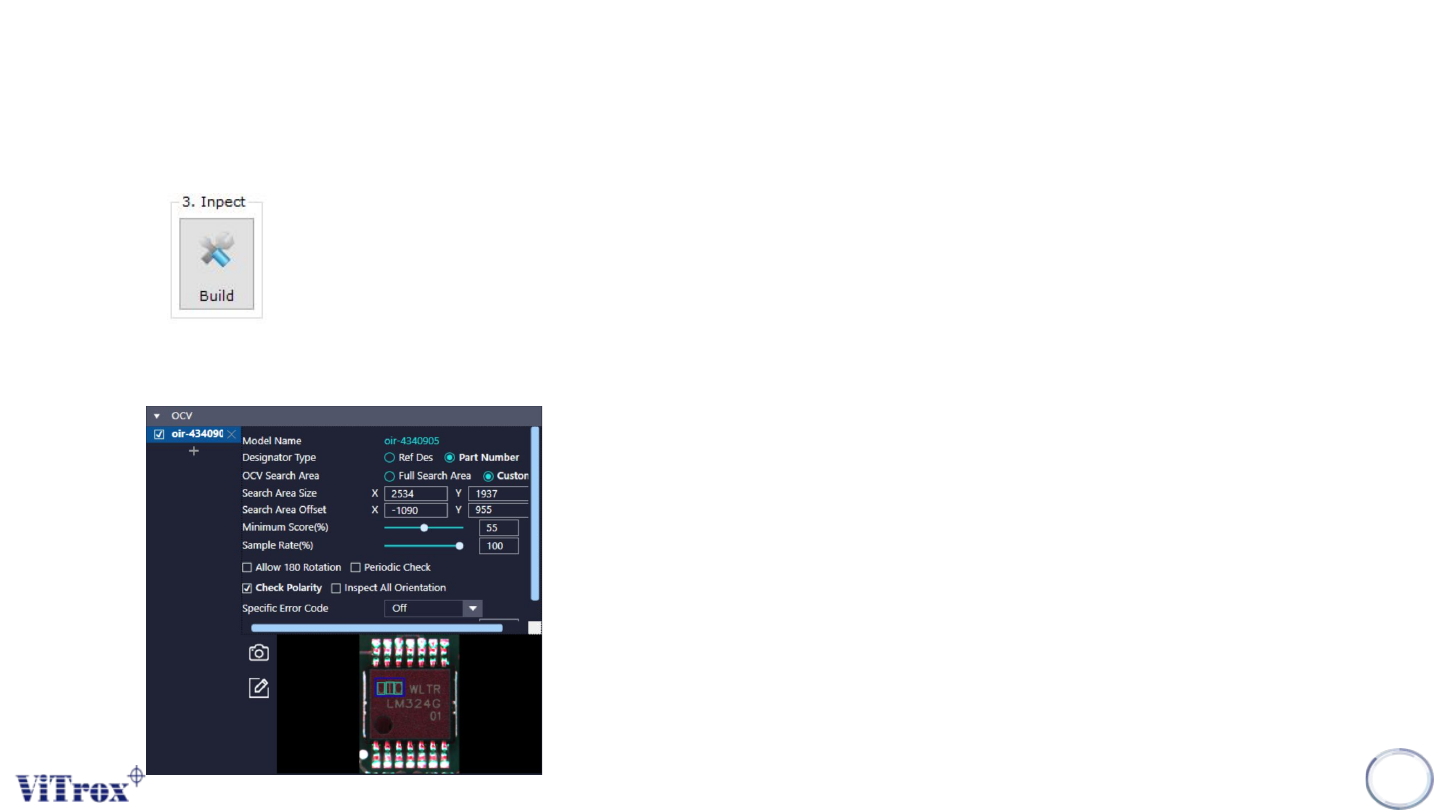
5. Build icon as below is used save the template after all settings is done.
274
6. After built Some of the OCV settings need to be adjust based on requirement. (Refer next page)
Copyright © ViTrox All Rights Reserved.
OCV Inspection
275
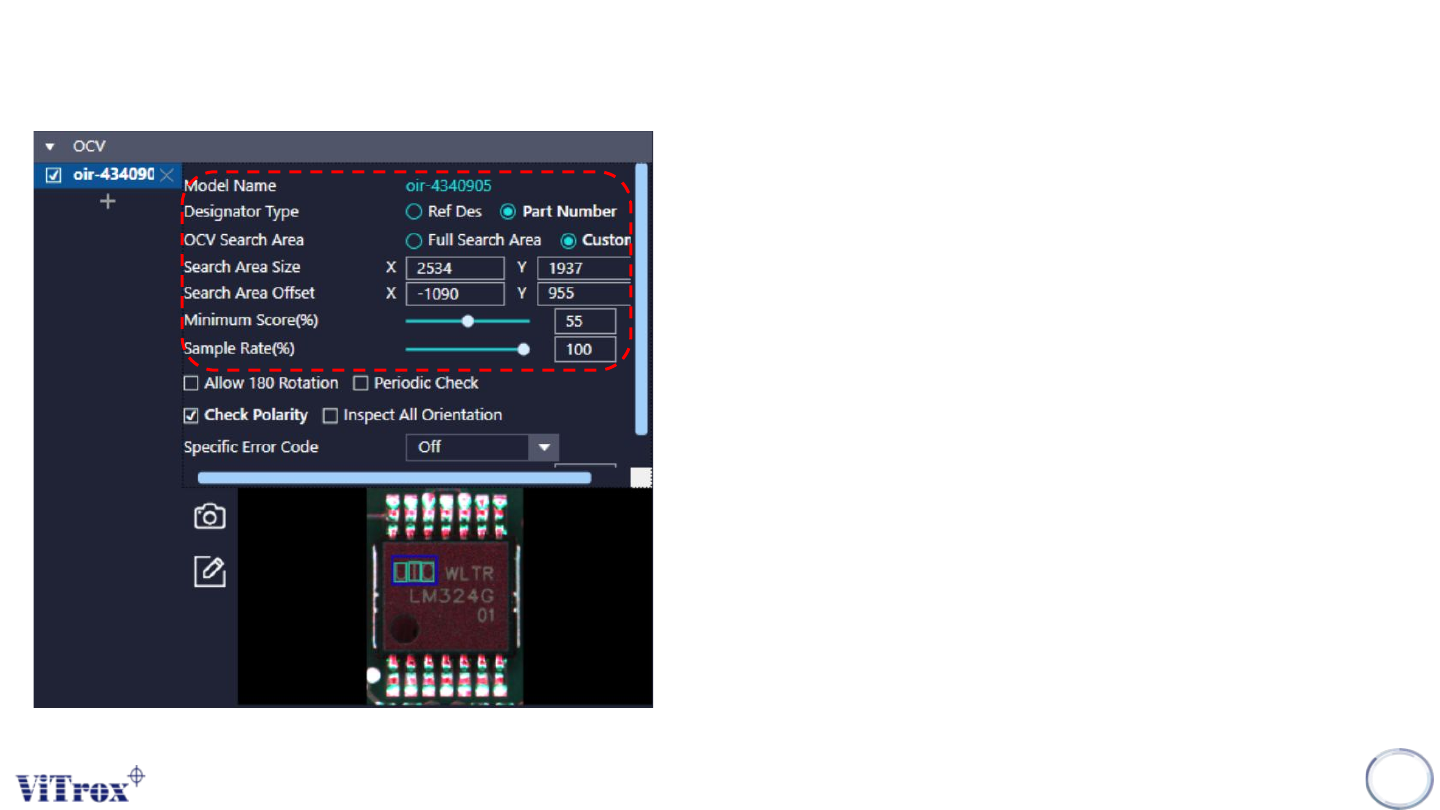
1. Model Name
● Shows the model name for the OCV template.
2. Designator Type
● Assign the OCV template by either Ref Des or Part number.
3. OCV Search Area
● Two mode: Full search area & Custom
● Full search area is used to match the OCV in full template
● Custom is used to match the OCV in custom location. (default)
4. Search Area Size & Search Area Offset
● To adjust the size and offset for custom search area.
5. Minimum Score (%)
● The minimum score to pass the OCV for every ROI.
6. Sample Rate (%)
● Run the OCV in sampling mode