Smart Gui - Algorithm Training Material_rev1.pdf - 第49页
Copyright © ViT rox All Rights Reserved . B-type Algorithm - Locator (Location) 49 a. Advanced Offset ● T ick this to enable advanced of fset. ● T o enable the two direction (+ve or -ve) offset threshold setting b. V ert…
Copyright © ViTrox All Rights Reserved.
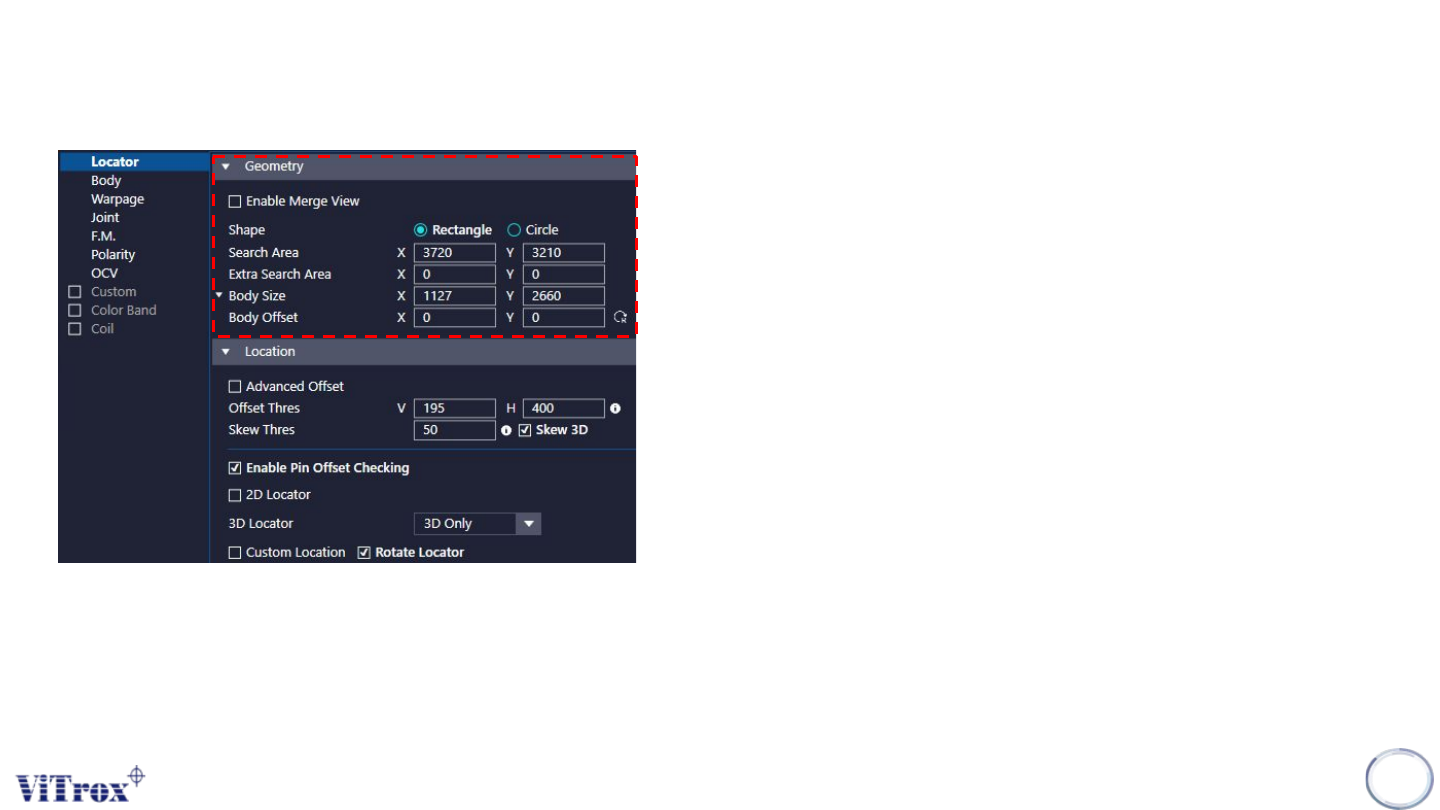
B-type Algorithm - Locator (Geometry)
48
a. Enable Merge View
● Tick this to enable the merge view feature.
b. Shape
● To select the body shape of the component.
● Rectangle or Circle.
c. Search Area
● To adjust the size of search area.
d. Extra Search Area
● Extra Search Area is used to force a component towards the
center of the field of view. (Units:micron)
● The Search area extra specifies are area around a
components search are which cannot be allowed to fall at the
edge of the field of view. This could be used for components
which appear different at the edge of the field of view, e.g. tall
components.
● It has a maximum value of 20000. A typical value is 15000.
e. Body Size & Body Offset
● To adjust the size of body inspection box and the offset of
body inspection box.
Copyright © ViTrox All Rights Reserved.
B-type Algorithm - Locator (Location)
49
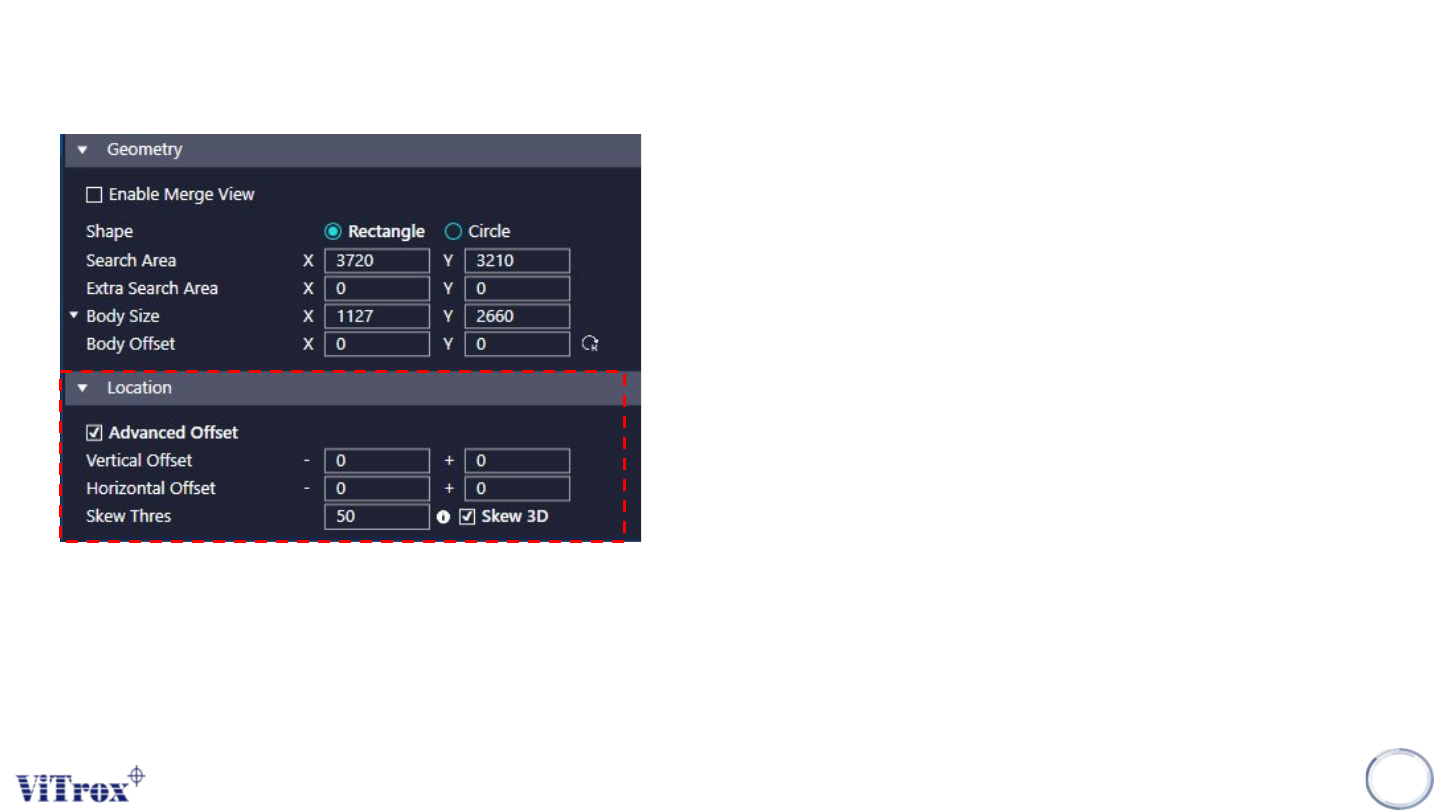
a. Advanced Offset
● Tick this to enable advanced offset.
● To enable the two direction (+ve or -ve) offset threshold
setting
b. Vertical offset & Horizontal offset
● To set the offset threshold setting.
c. Skew Thres
● 10 = 1 degree
d. Skew 3D
● To enable 3D to locate skew.
Copyright © ViTrox All Rights Reserved.
B-type Algorithm - Locator (Location)
50
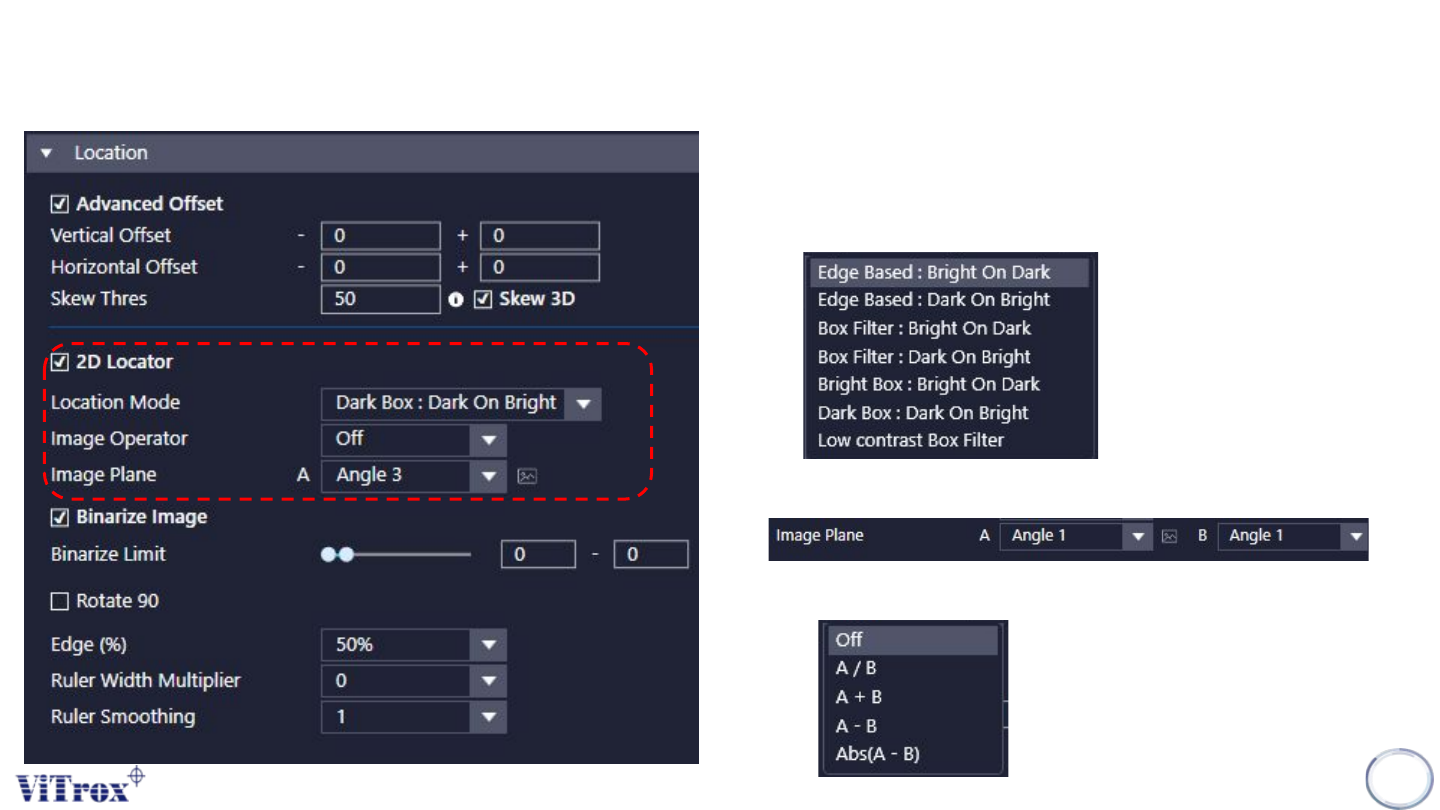
e. 2D Locator
● Tick this to enable 2D to locate component.
f. Location mode.
● Several locate mode that used to locate the component.
g. Image Operator
● Select this to process 2 image plane to 1 Image plane.
● There are 4 mode as below.