Smart Gui - Algorithm Training Material_rev1.pdf - 第306页
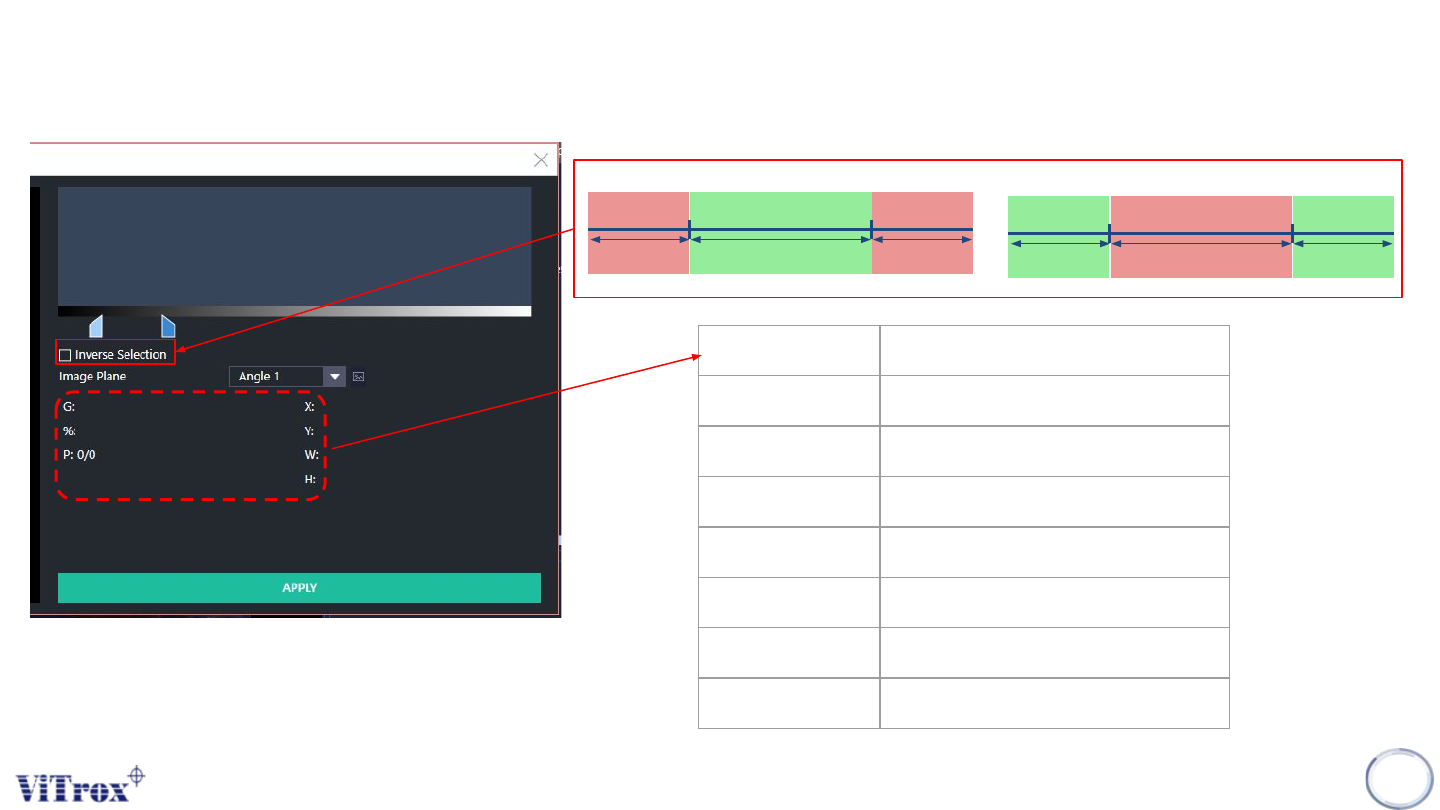
Copyright © ViT rox All Rights Reserved . GrayScale Editor 306 Parameter Description G Selected Grey Scale Range % Coverage (%) P Coverage (Area Cover / T otal Area) X X Location Y Y Location W Width of ROI H Length of R…
Copyright © ViTrox All Rights Reserved.
GrayScale Editor
305
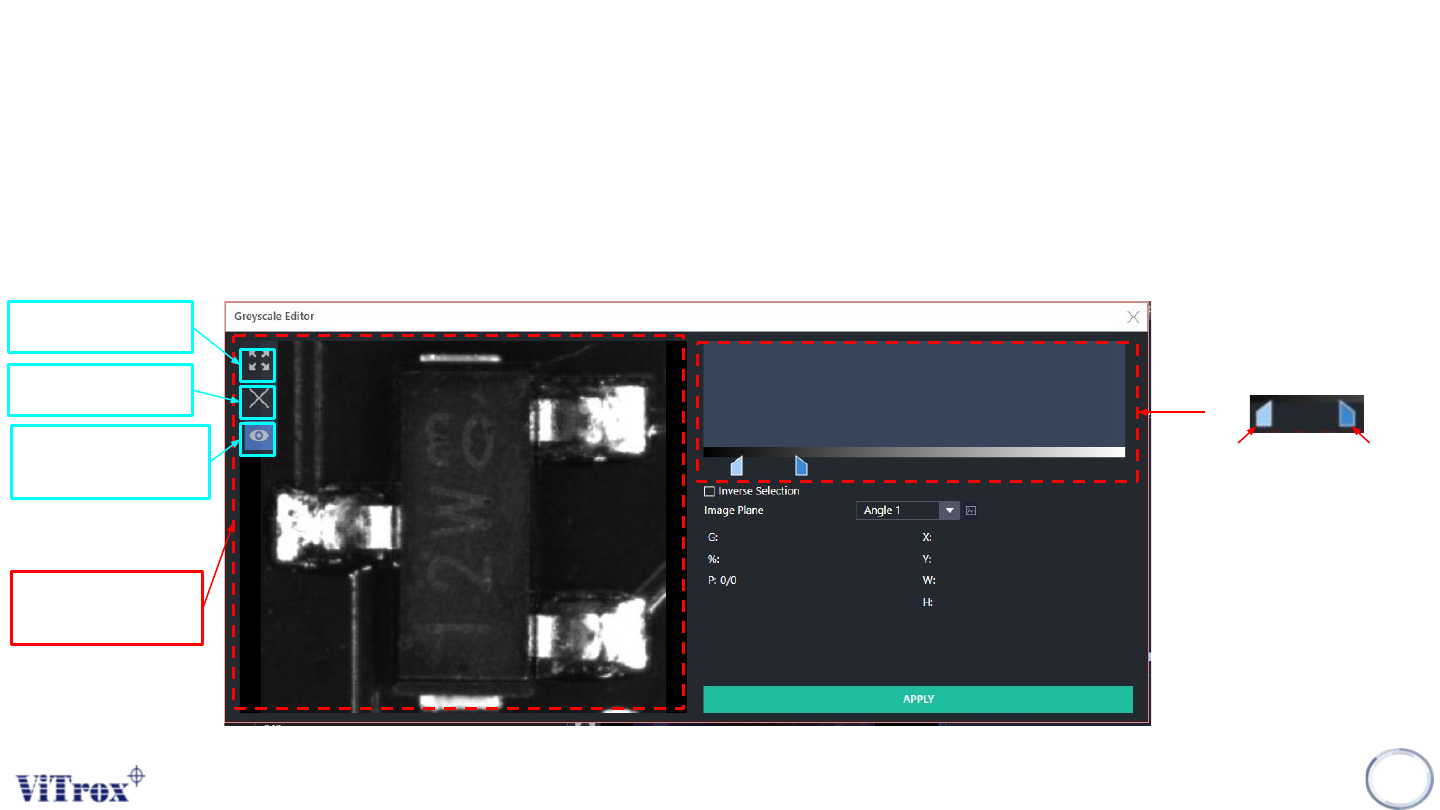
Fit to Screen
Remove ROI
Toggle Inspection
Output
Component Image
Display
Select the range for Grey
Scale
Lower Limit
Upper Limit
1. Use to set the grayscale threshold.
2. User can know the grey scale values consists in the ROI that drawn on the Component Image Display.
Copyright © ViTrox All Rights Reserved.
GrayScale Editor
306
Parameter Description
G Selected Grey Scale Range
% Coverage (%)
P Coverage (Area Cover / Total Area)
X X Location
Y Y Location
W Width of ROI
H Length of ROI
Lower Limit
Upper Limit
Pass
Fail Fail
Untick Inverse Selection
Lower Limit
Upper Limit
Pass
Fail Pass
Tick Inverse Selection
Copyright © ViTrox All Rights Reserved.
GrayScale Editor - Setup
307
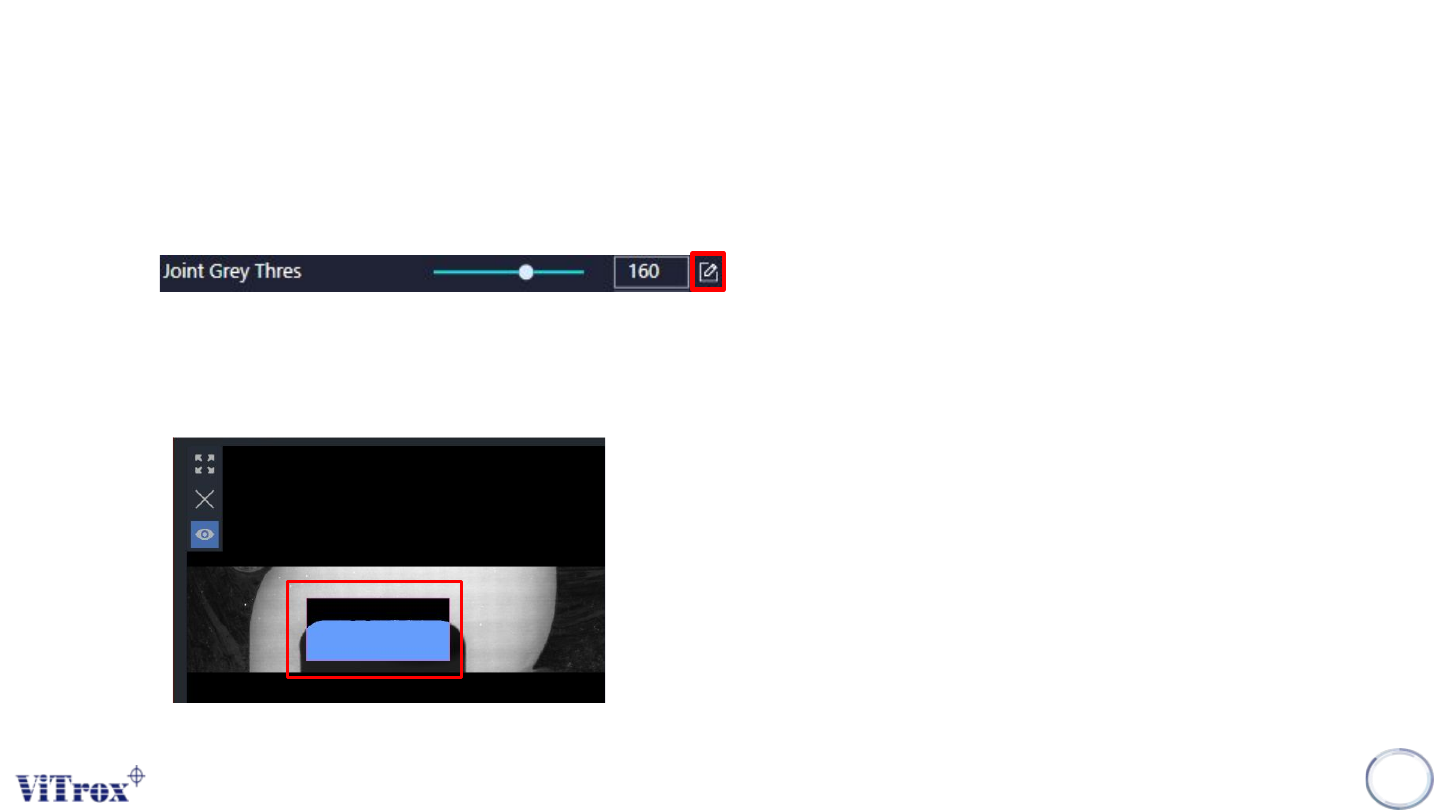
1. User may click on the icon that shown below to enter the Grayscale Editor.
● This icon usually available at the place that use to setup the grayscale value.
2. Drag the size of ROI on the Component Image Display
● The region that highlighted in blue is the region selected.