Smart Gui - Algorithm Training Material_rev1.pdf - 第304页
Copyright © ViT rox All Rights Reserved . Grayscale Editor Grayscale E dit or help users in setting the threshold that relat ed to graysc ale. User can find this icon beside the threshold set ting that related t o graysc…

Copyright © ViTrox All Rights Reserved.
Steps for Fiducial Setup
9. Background refers to the average grayscale level in between " Template" and Outer Radius. Normally this
area should be dark and thus it should be set between 50-100.
10. Middle refers to the average grayscale level in between "Outer Radius" and "inner Radius". Normally this
area should consist of dark and bright area and thus it should be set in between 100-200.
11. Foreground refers to the average grayscale level inside the "Inner Radius". In case if "Inner DC" is used,
then foreground refers to the average grayscale level in between the inner radius and inner DC. Normally
this area is bright, thus it should be set in between 200-250.
12. Inspect and observe the value obtained in Current Inspection Value. The above parameter should be set
appropriately in order to get the highest score for "Current Inspection Value".
13. Current Inspection Value, ensure that an appropriate Presence Threshold is set. Presence threshold
should not be set too loose (typically 700).
14. Custom Lighting custom_#no.txt stores the lighting setting information. User may change the lighting
configuration in the file.
15. Alternate fiducial can be set when necessary (eg. When there is different fiducial sizes or shapes)
303

Copyright © ViTrox All Rights Reserved.
Grayscale Editor
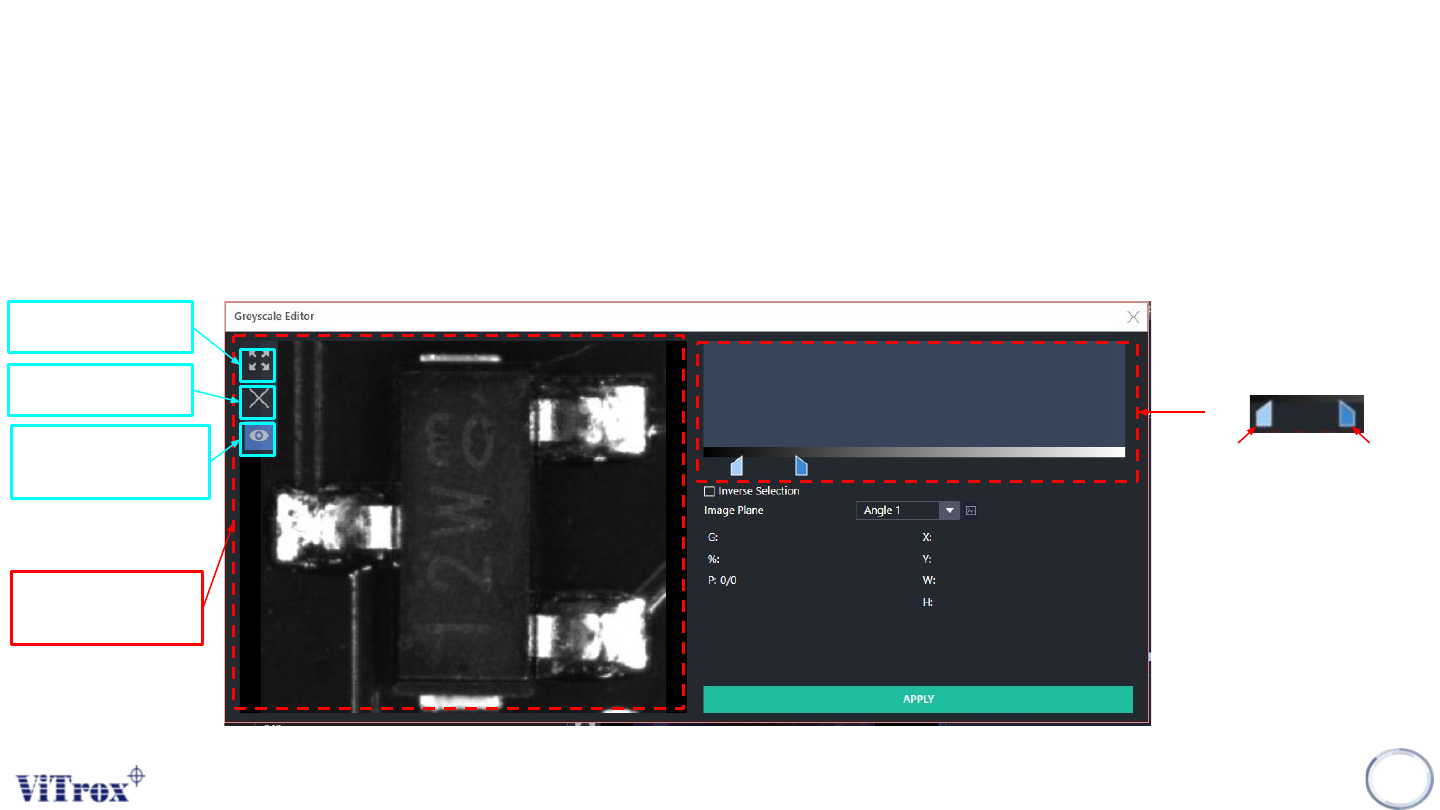
Grayscale Editor help users in setting the threshold that related to grayscale. User can find
this icon beside the threshold setting that related to grayscale.
304
Copyright © ViTrox All Rights Reserved.
GrayScale Editor
305
Fit to Screen
Remove ROI
Toggle Inspection
Output
Component Image
Display
Select the range for Grey
Scale
Lower Limit
Upper Limit
1. Use to set the grayscale threshold.
2. User can know the grey scale values consists in the ROI that drawn on the Component Image Display.