00198661-02_UM_SX12-V3_EN.pdf - 第237页
Instruction manual SIPLACE SX1/SX2 Edition V2 and V3 5 Tasks at the placement machine From software version SC.713.1 Edition 12/2020 5.3 Switching on t he SIPLACE line 237 5.3 Switching on the SIPLACE line 5.3.1 St artin…

5 Tasks at the placement machine Instruction manual SIPLACE SX1/SX2 Edition V2 and V3
5.2 Controls and displays From software version SC.713.1 Edition 12/2020
236
Keyboard (for the SIPLACE SX1/SX2 V2) 5
The keyboard is located beneath the monitor.
5
Indicator lamp with audio signal 5
The sequence of colors for the indicator lamps can be configured:
– Two-color: white - green.
– Three-color: red - yellow - green
These lamps are used to signal operating statuses and malfunctions of the placement machine.
See also
Section 5.7 on page 254.
CAUTION
Risk of hitting monitor and keyboard!
When working on the component trolley, there is a risk that you could hit yourself on the
monitor and keyboard.
Turn the monitor and keyboard all the way to the side.
Make sure that your head is not underneath the monitor and keyboard.

Instruction manual SIPLACE SX1/SX2 Edition V2 and V3 5 Tasks at the placement machine
From software version SC.713.1 Edition 12/2020 5.3 Switching on the SIPLACE line
237
5.3 Switching on the SIPLACE line
5.3.1 Starting the SIPLACE Pro Line Control GUI program
Start the program on the line computer SIPLACE Pro Line Control GUI
via the Windows Start menu
Start --> Programs --> SIPLACE Pro --> LCGUI
or
with the icon on your desktop.
Enter your user data.
The system connects to the SIPLACE Pro server and opens the user interface.
5.3.2 What to consider before switching on the stations
5
Check whether the stations are connected to the power and compressed air supplies.
Perform a sight check of the stations. Make sure that there are no obstacles in the travel
range of the gantries.
Make sure that the Z axes of all heads are in their uppermost end positions.
With waffle pack changer option: Switch the waffle pack changer on before you switch the
placement machine on.
5.3.3 Switching on the station and starting the station software user interface
5
Switch the station on at the main power switch.
After switching on, check whether the manometers show the required operating pressure.
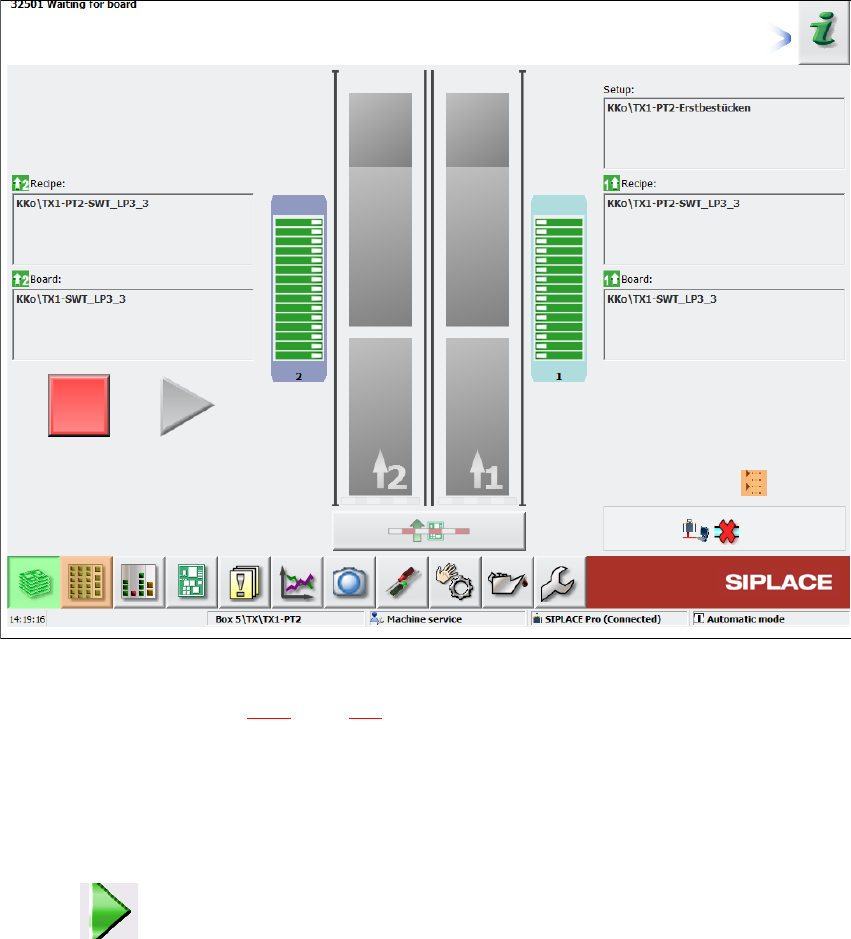
The station computer software is loaded and the "Production" view of the station software is
shown for the "Production" operator level (see following diagram).
CAUTION
Before you switch on the stations, please perform the following steps.
CAUTION
Communication problems when switching on the station!
Early switching on of station can lead to communication problems.
Only switch the station on if the monitor of the SIPLACE Pro computer shows the
"Desktop",
5 Tasks at the placement machine Instruction manual SIPLACE SX1/SX2 Edition V2 and V3
5.3 Switching on the SIPLACE line From software version SC.713.1 Edition 12/2020
238
5
Fig. 5.3 - 1 "Production" view after loading the station software (example)
The status field (see section 5.5.1, page 243) shows the current status of the station and the action
to be performed.
Press the start button when you see the request "Press Start button".
The start button is located on the input side and output side of the station.
A reference run will be performed. After completion of this reference run, the station is ready
for operation.
The icon will be shown in the working area of the user interface (enabled).