00198661-02_UM_SX12-V3_EN.pdf - 第250页
5 Tasks at the placement machine Instruction manual SIPLACE SX1/ SX2 Edition V2 and V3 5.6 Alert information and online help From software version SC.7 13.1 Edition 12/2020 250 5.6 Alert information and online help If al…
Instruction manual SIPLACE SX1/SX2 Edition V2 and V3 5 Tasks at the placement machine
From software version SC.713.1 Edition 12/2020 5.5 The user interface
249
5.5.6 Application-oriented operation via color-coding markings
Icons, buttons and views can be highlighted in color. These color-coded highlights give you a clear
overview of when operator action is required or when warnings have been issued.
The station software uses the following color coded highlights:
5
Color State Meaning
Red Alert Operator action required.
Only available in the "Feeder module, components and noz-
zles" view.
Orange Warning Operator notification is present.
Immediate operator action is not required.
Only available in the "Feeder module, components and noz-
zles" view.
Green In progress Icon or button has placement machine under control and the
state is OK.
Only available in the "Production", "Feeder modules, compo-
nents and nozzles", "Boards", "Check sensors and functions"
and "Service" views.
5 Tasks at the placement machine Instruction manual SIPLACE SX1/SX2 Edition V2 and V3
5.6 Alert information and online help From software version SC.713.1 Edition 12/2020
250
5.6 Alert information and online help
If alerts occur during placement machine operations, the alert message in the status field of the
user interface will be shown in red. The icon for
alert information will be active.
The button highlighted in red in the toolbar indicates that operator action is required.
5
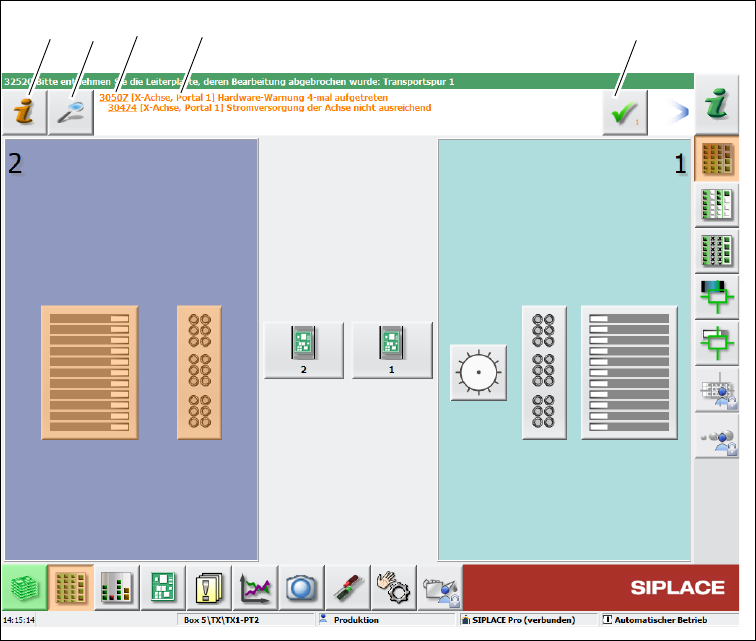
Fig. 5.6 - 1 View with alarm notification (example)
Legend for fig. 5.6 - 1
(1) "Alert information" icon: for opening the help function for the current alert
(2) "Details" icon: for opening detailed information (e.g. error source, time of occurrence)
(3) Alert number
(4) Alert message: brief information about the alert
(5) "Acknowledge alert" icon: for deleting the alert display
(1)
(2) (3)
(4)
(5)
Instruction manual SIPLACE SX1/SX2 Edition V2 and V3 5 Tasks at the placement machine
From software version SC.713.1 Edition 12/2020 5.6 Alert information and online help
251
5.6.1 Viewing information about the current alert
To view information about the current alert, click on the icon to start the help system for the
station computer. The main window of the
help system will open with alert information. The infor-
mation refers to the alert currently shown and from which the help function was started.
Once an alert has been resolved and the solution has been automatically determined by the place-
ment machine, this alert will be automatically removed from the status field.
If the solution is not recognized automatically, the alert can also be manually deleted from the sta-
tus field.
To do this, click on the icon; the alert message will no longer be shown in the status field.