00198661-02_UM_SX12-V3_EN.pdf - 第245页
Instruction manual SIPLACE SX1/SX2 Edition V2 and V3 5 Tasks at the placement machine From software version SC.713.1 Edition 12/2020 5.5 The user inter face 245 5.5.4 Operating the st ation sof t ware in the views Most v…
5 Tasks at the placement machine Instruction manual SIPLACE SX1/SX2 Edition V2 and V3
5.5 The user interface From software version SC.713.1 Edition 12/2020
244
The buttons vary according to your individual configuration and the operator level set. Some views
are only available in higher operator levels.
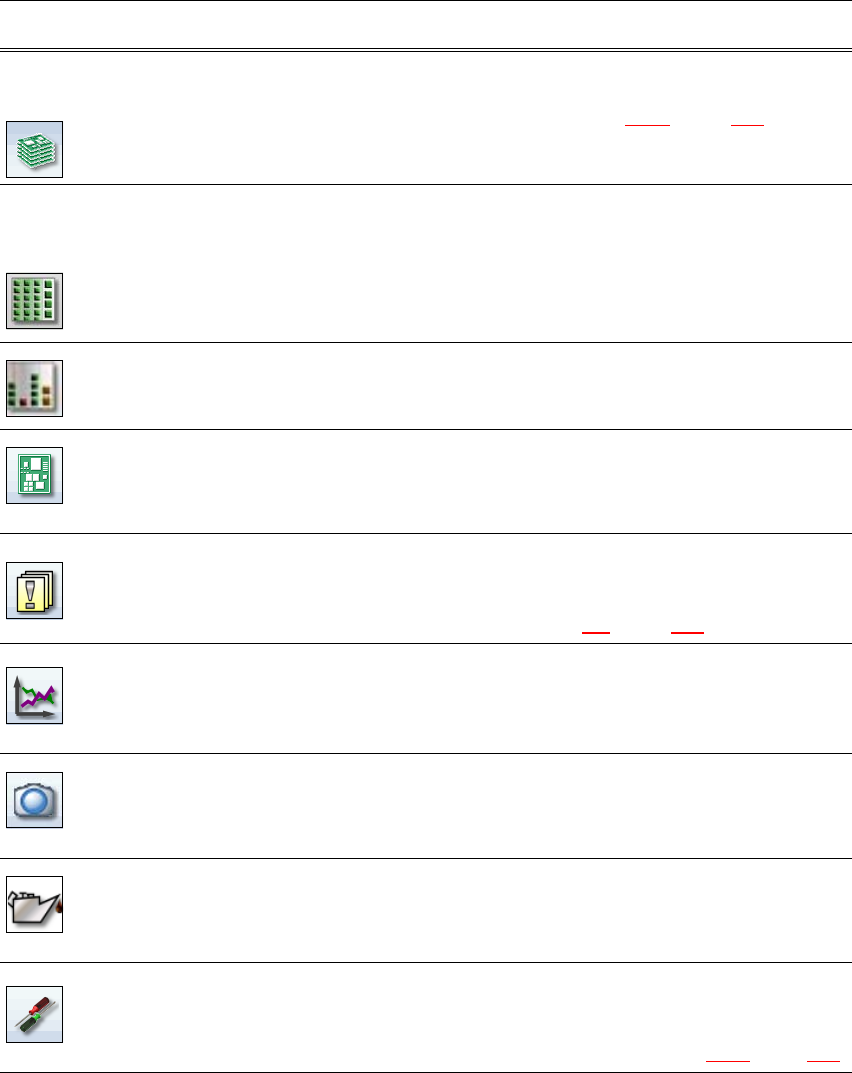
The following table briefly describes the buttons and main functions.
5
Icon View Description
Production
(main view)
Shows the machine status for the most frequently performed tasks
during production.
Shows the operating states, see section 5.5.2
, page 243.
Shows locations, name of setup, name of recipe, configuration
changes and additional options.
Feeder modules,
components and
nozzles
The setup can be individually opened for each of the 4 locations.
Allows you to check and configure feeder modules, components
and nozzles.
Allows you to teach component shapes and component pocket
shapes.
Shows the component level indicator.
Filling level view During placement, the operator is shown at all times when the
individual feeders will run empty and need to be filled up again.
PCBs Shows the boards and placement positions list.
Allows you to check and configure boards and components.
Allows you to teach fiducials.
Notifications Shows notifications about current and previous events. The notifi-
cations vary according to their type. Individual tables can be viewed
for track errors, conveyor errors, machine errors, general errors and
linked error messages (see section 5.6
, page 250).
Statistics Shows the statistics for performance, quality and rejected material.
Shows the machine and board performance.
Starts the OIS (Operator Information System), for more information
refer to the OIS documentation.
Live image during
placement
Shows the individual live camera images.
Only available from operator level "Advanced Production" :
Allows you to view and save the Vision dump.
Maintenance sta-
tus
Contains information about the maintenance status for the place-
ment machine.
Refer to the maintenance guide for further information.
Settings Contains all the settings and options.
Allows you to set the operator level and the user interface language.
Allows you to display and edit the machine settings, user settings,
machine options and software options, see section 5.5.5
, page 248.
Instruction manual SIPLACE SX1/SX2 Edition V2 and V3 5 Tasks at the placement machine
From software version SC.713.1 Edition 12/2020 5.5 The user interface
245
5.5.4 Operating the station software in the views
Most views which can be accessed via the toolbar (see section 5.5.3, page 243) have an addi-
tional vertical toolbar with subviews and functions, on the right-hand side of the user interface.
5
Example: View: "Feeder modules, components and nozzles"
Click on "Feeder modules, components and nozzles" in the toolbar .
The following view will open:
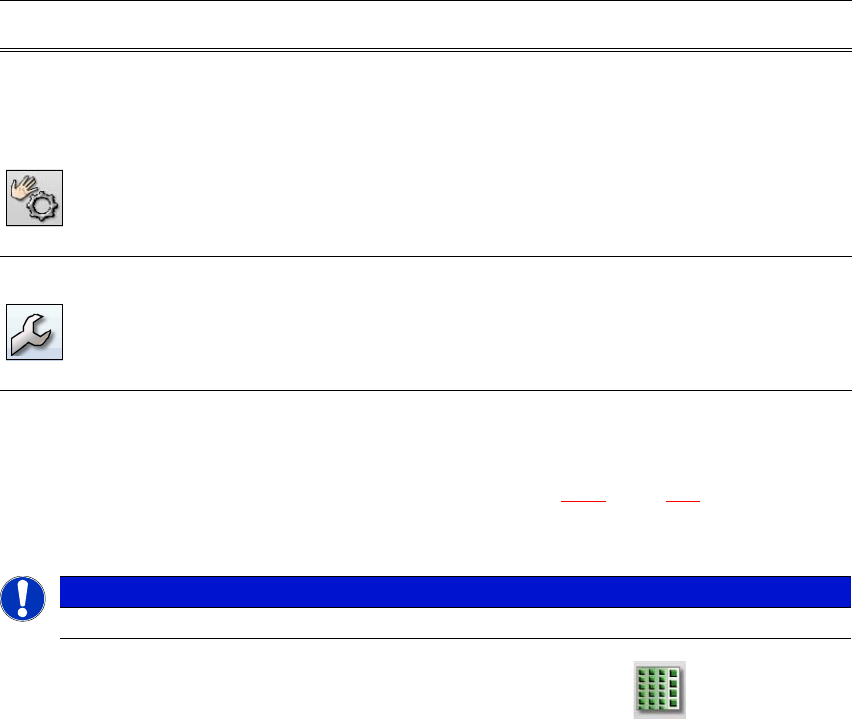
Check sensors
and functions
Contains information and functions for tests and diagnoses.
Allows you to set the function of the start button for the placement
machine.
Only available from operator level "Advanced Production" :
Allows you to test the complete reference run and C&P20 head
functions.
Single functions and continuous runs. Each gantry is addressed
individually.
Service Service tools.
Only available from operator level "Service (customer)".
Allows you to set up and calibrate the SIPLACE placement ma-
chines, download embedded software versions, calibrate and con-
figure the entire machine.
Icon View Description
PLEASE NOTE
For a detailed description of the individual functions refer to the Online Help.
5 Tasks at the placement machine Instruction manual SIPLACE SX1/SX2 Edition V2 and V3
5.5 The user interface From software version SC.713.1 Edition 12/2020
246
5
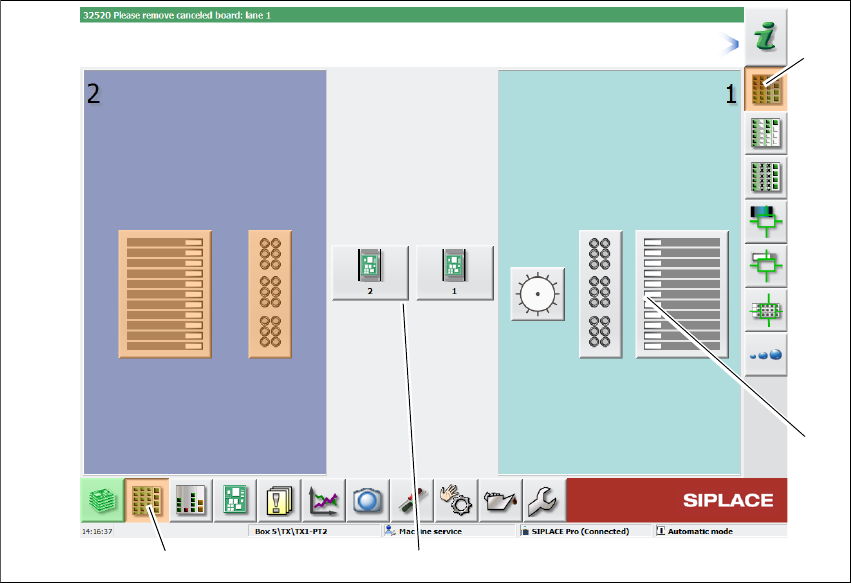
Fig. 5.5 - 3 User interface in the "Feeder modules, components and nozzles" view (example of SIPLACE SX2
shown)
Legend
(1) Toolbar ("Feeder modules, components and nozzles" button)
(2) Vertical toolbar in "Feeder modules, components and nozzles" view
(3) Processing area with 2 gantries
(4) Button for nozzle change at gantry 2
Click, for example, on the WPC for gantry 1 (button 4), to check the configuration.
(1)
(2)
(3)
(4)