00198661-02_UM_SX12-V3_EN.pdf - 第242页
5 Tasks at the placement machine Instruction manual SIPLACE SX1/ SX2 Edition V2 and V3 5.5 The user interface From software version SC.713.1 Edition 12/ 2020 242 5.5 The user interface The user interface is div ided into…
Instruction manual SIPLACE SX1/SX2 Edition V2 and V3 5 Tasks at the placement machine
From software version SC.713.1 Edition 12/2020 5.4 Switching off the SIPLACE line
241
5.4 Switching off the SIPLACE line
5
5.4.1 Switching off the stations
To switch off the stations, proceed as follows:
End all placement procedures, so that there are no more boards in the placement machine.
Check whether the Z axes of all placement heads are in their uppermost end positions.
Check whether there are still components on the placement heads and remove these.
Close the station computer software in the view
Settings --> Machine Settings --> Shut Down Machine...
Once the computer has been shut down, switch off the station at the main switch.
5.4.2 Exiting SIPLACE Pro (Windows)
In the SIPLACE Pro menu, select Object --> Close.
Close all other programs on the computer.
Select Shut down from the Windows Start menu.
CAUTION
Before you switch off the line, observe the following procedures.
5 Tasks at the placement machine Instruction manual SIPLACE SX1/SX2 Edition V2 and V3
5.5 The user interface From software version SC.713.1 Edition 12/2020
242
5.5 The user interface
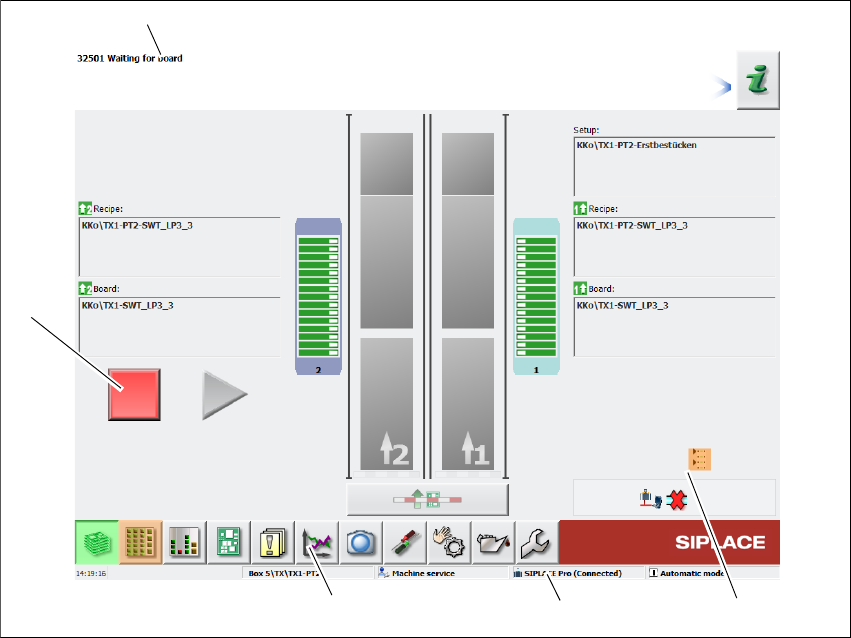
The user interface is divided into the following areas.
The user interface with the "Production" view for the SX placement machine is shown as an ex-
ample.
Fig. 5.5 - 1 User interface components in the "Production" (example of SIPLACE SX shown) view
Legend
(1) Status field (status and error display)
(2) Processing area / display area
(3) Toolbar
(4) Information line
(5) View of changed configurations and additional options e.g. barcode mode
(1)
(2)
(3)
(4)
(5)
Instruction manual SIPLACE SX1/SX2 Edition V2 and V3 5 Tasks at the placement machine
From software version SC.713.1 Edition 12/2020 5.5 The user interface
243
5.5.1 Status field
The status field shows the current machine status, the error which occurred most recently and the
action to be performed.
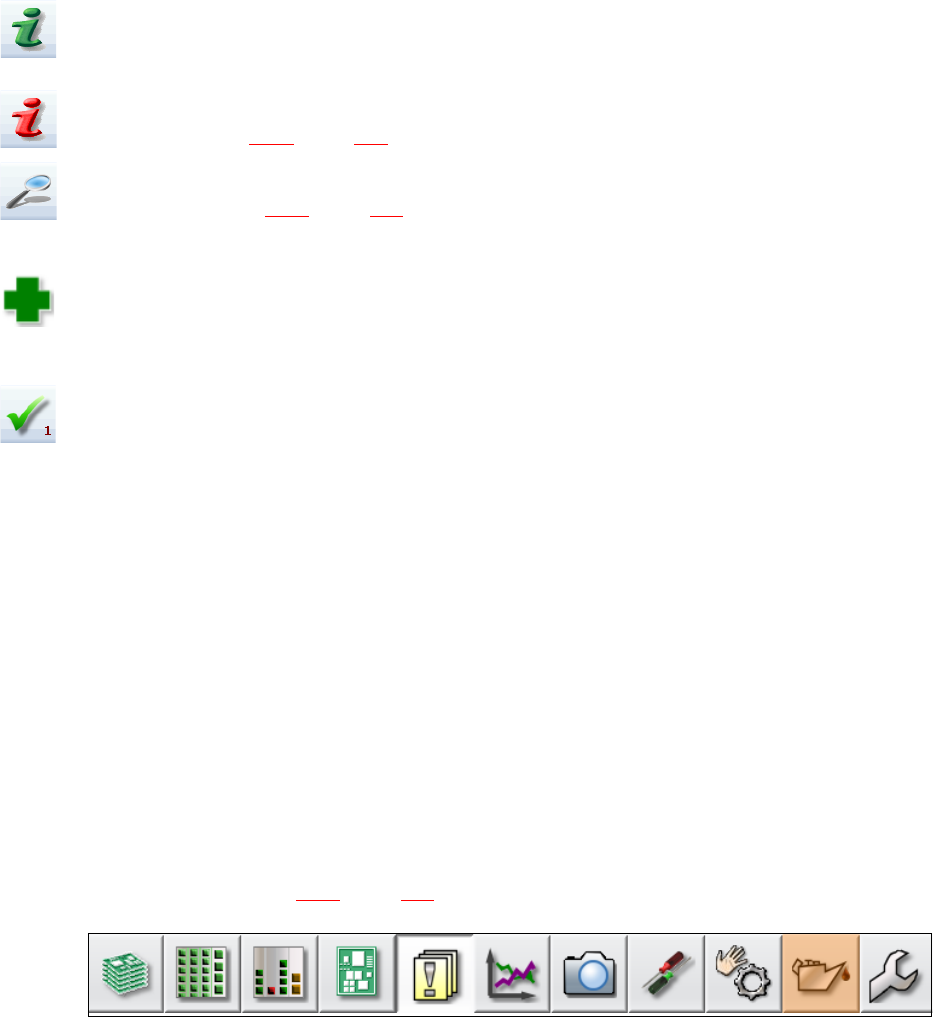
The right-hand side of the status field shows the status with the following icons:
(Green) Starts the context-sensitive Online Help function for the current view. All operating con-
trols for the current view are explained
(Red) Starts the help system, showing the possible causes of the current errors and suitable solu-
tions (see section 5.6.1
, page 251).
Opens a dialog box in which the error source, error message text and the error date with time are
shown (see section 5.6.1
, page 251). The help function for the current error can also be opened
from here.
Opens a detailed view for the current error. Troubleshooting measures can be directly opened
from this view (only shown for certain error messages).
Deletes the error currently shown from the status field.
5.5.2 Display and processing area
This area shows the buttons for setting/deleting functions, general information about the board,
setup, recipes and other information.
Animated and color-coded items helps explain processes or states (e.g. editing, empty location
etc.).
For an overview of all buttons and information, refer to the Online Help.
5.5.3 Toolbar
The toolbar contains buttons for the main station software functions.
These enable you to switch the user interface over to other views and to use the functions avail-
able there (see section 5.5.5
, page 248).
5
Fig. 5.5 - 2 Toolbar