2OM-1104-001.pdf - 第104页
*3 Submenu Bar This bar is treated as part of the "SYSTEM" window and has the buttons to select the submenus. When a button is selected, the corresponding initial tab sheet ap- pears. The "SYSTEM" win…
1. Scope of Menus for System Setting
1.1 Composition of Menus for System Setting
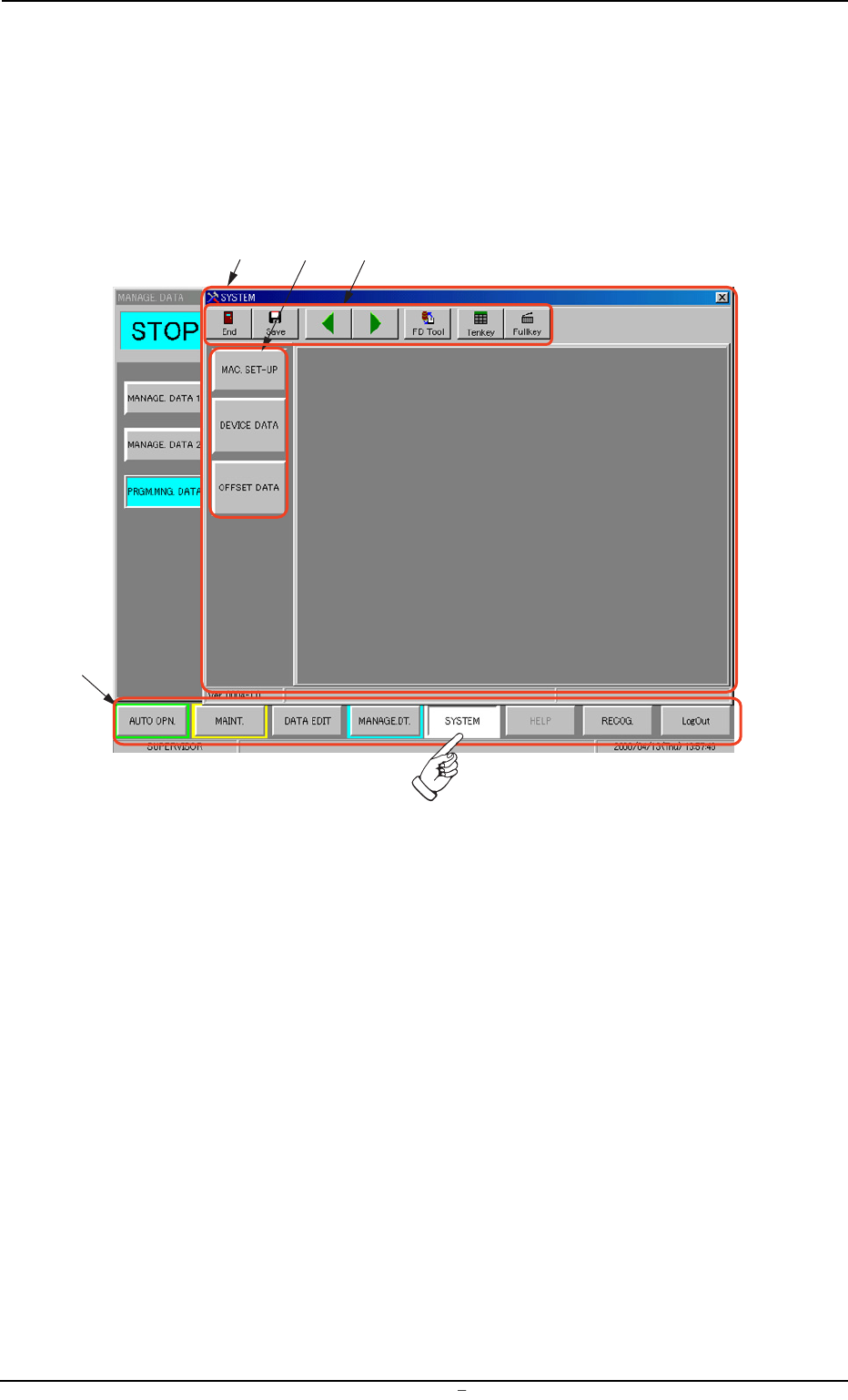
When the [SYSTEM] button on the main menu bar is pressed, the "SYS-
TEM" window opens. This window has a submenu bar.
Fig. 3D1 "SYSTEM" Menu
• Window Composition
*1 Main Menu Bar
This bar is provided commonly for all operation windows. The but-
tons on the bar are used to select the main menus.
*2 "SYSTEM" Window
All the tab sheets are laid on top of each other so that the tab of
each is visible.
1. Scope of Menus for System Setting
0009-002 Chapter 1 4 2 AFU01EDTP
*1
*3
*4
*2
*3 Submenu Bar
This bar is treated as part of the "SYSTEM" window and has the
buttons to select the submenus.
When a button is selected, the corresponding initial tab sheet ap-
pears.
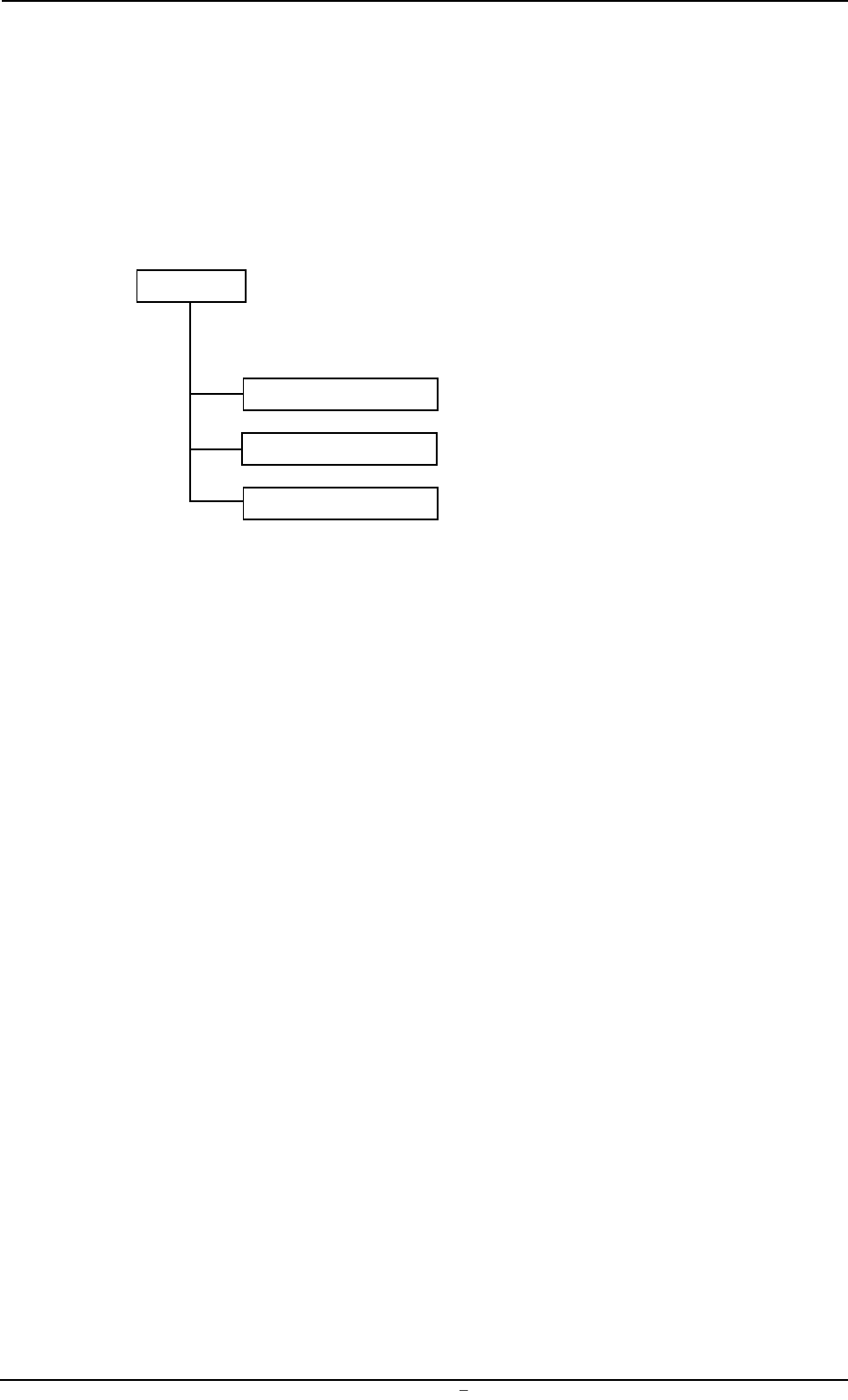
The "SYSTEM" window is provided with the following 3 submenu but-
tons.
SYSTEM
Submenus Reference Item Nos.
MAC. SET-UP 2.
DEVICE DATA 3.
OFFSET DATA 4.
Fig. 3D2
0009-002 Chapter 1 4 3 AFU01EDTP
1. Scope of Menus for System Setting
*4 Toolbar
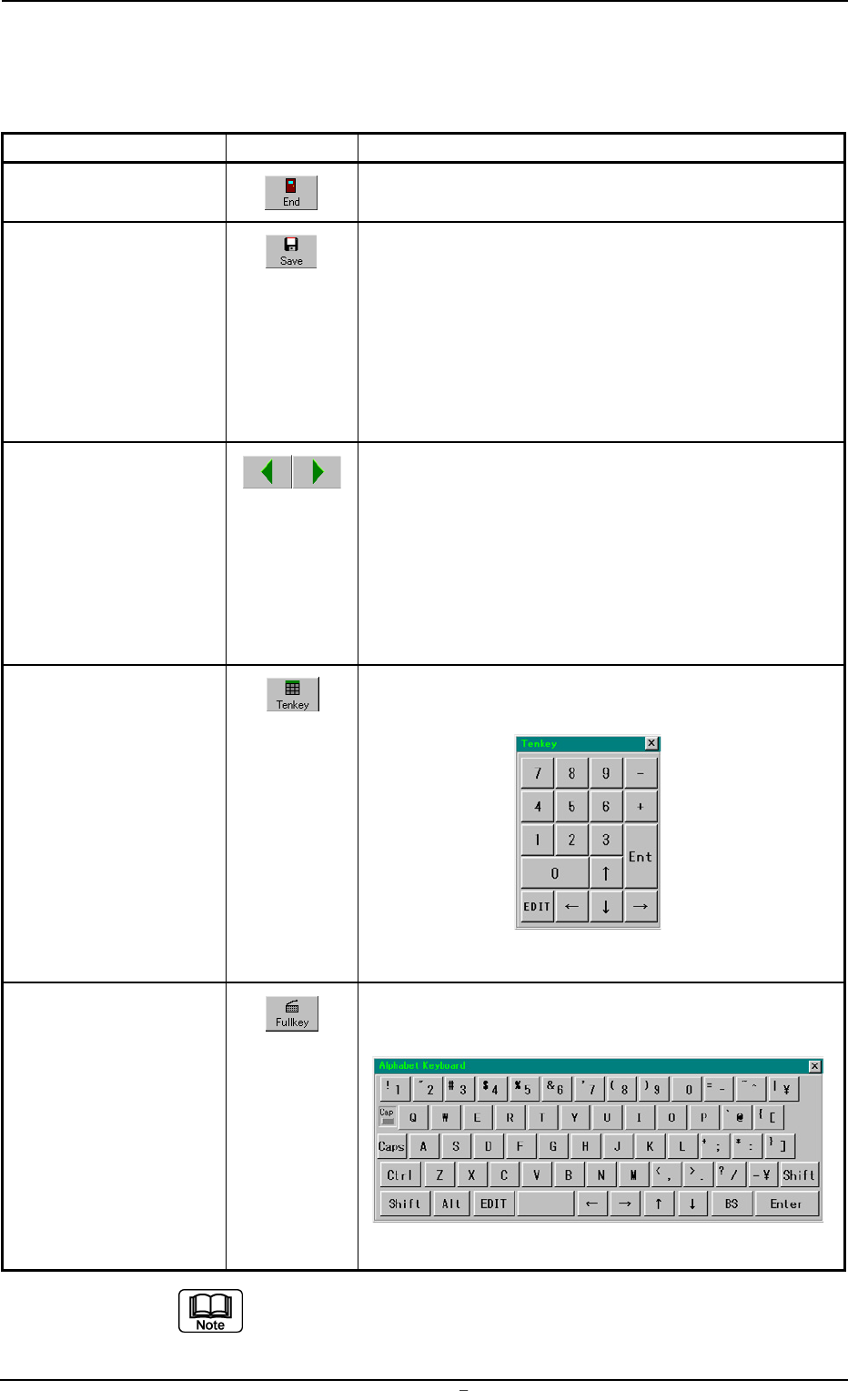
A collection of command buttons are arranged on the tool bar, mak-
ing the common tools for all the tab sheets easily accessible.
Table 3D1
Command Buttons Icons Functions
[End] Button This button closes the "SYSTEM" window.
[Save] Button This button saves the contents of the tab sheets on
the hard disk of the machine.
Note: If the [Save] button is not pressed, the set-
tings are not saved on the hard disk of the
machine.
When a tab sheet is provided with a [SET] but-
ton, be sure to press the [Save] button after
the [SET] button.
Item Selection These buttons can be used to select an item on a tab
Buttons sheet.
Every time the right arrow button is pressed, an item
is selected from down to up or right to left. The left
arrow button works in reverse order.
Note: Pressing the [Ent] key on the ten-key window
also selects an item from down to up or right
to left (or vice versa).
[Tenkey] Button This button makes the ten-key window appear, mak-
ing it possible to enter numerical values.
Fig. 3D3
[Fullkey] Button This button makes the virtual keyboard appear, mak-
ing it possible to enter alphanumerics.
Fig. 3D4
The ten-key window and virtual keyboard cannot be made
visible at the same time.
0004-001 Chapter 1 4 4 AFU01EDTP
1. Scope of Menus for System Setting