2OM-1104-001.pdf - 第110页
Operation Procedure (1) Make the virtual keyboard or the tenkey window appear . (2) Use the virtual keyboard or the tenkey window to enter alpha- numeric characters (up to 8 characters) as a password and press the *3 [SE…
• Sheet Composition
*1 Security Level Selection Buttons
These buttons can be used to allocate the security levels to the
operators of the machine.
Supervisor Person who has managerial responsibility for the
machine
Operator #1 Person who is given access to a wide range of avail-
able areas
Operator #2 Person who is given access to a certain range of
available areas
When a button is pressed, the background color turns into the frame
one (red, green, or yellow).
A password can be set only for the supervisor.
(a) It is advisable that a password be set as a means of secu-
rity for the supervisor.
Otherwise, a third party has authorization to operate the
machine and an accident or a breakdown may result.
(b) Be sure to make the "LOG IN" window appear after the
end of machine operations.
Otherwise, an operator with less authorization or a third
party can operate the machine and an accident or a break-
down may result.
(c) When the supervisor has forgotten his/her password, the
functions on the "Password In" and "Available Area" tab
sheets become unavailable.
In that case, it is required to clear all memory and set the
system again from the beginning.
Keep the password confidential.
*2 "Password" Text Box
The entered password is displayed in this text box.
*3 [SET] Button
The entered password is stored in memory of the machine.
*4 [Password Clear] Button
The entered password can be cleared.
0004-001 Chapter 1 4 7 AFU01EDTP
2.1
"
Password
"
Tab

Operation Procedure
(1) Make the virtual keyboard or the tenkey window appear.
(2) Use the virtual keyboard or the tenkey window to enter alpha-
numeric characters (up to 8 characters) as a password and
press the *3 [SET] button.
(3) The "REENTER PASSWORD" dialog box pops out. Enter the
password again.
When the first and second passwords are identical, the "LOG
IN" window appears.
Otherwise, the "ENTER PASSWORD" dialog box pops out.
Enter the correct password again.
(a) When a wrong password is entered, press the *4
[Password Clear] button and enter the correct one from
the beginning. Or, use the [BS] (backspace) key, the
[←] key, or the [→] key to correct the entry.
(b) When no password is entered and the *3 [SET] but-
ton is pressed or a button or a tab is selected to open
another window or sheet, another window or sheet
does not open because the system recognizes that
no password is entered. The "Password" tab sheet
remains active.
0106-003 Chapter 1 4 8 AFU01EDTP
2.1
"
Password
"
Tab
2.1.2 "Available Area" Tab
• Sheet Layout
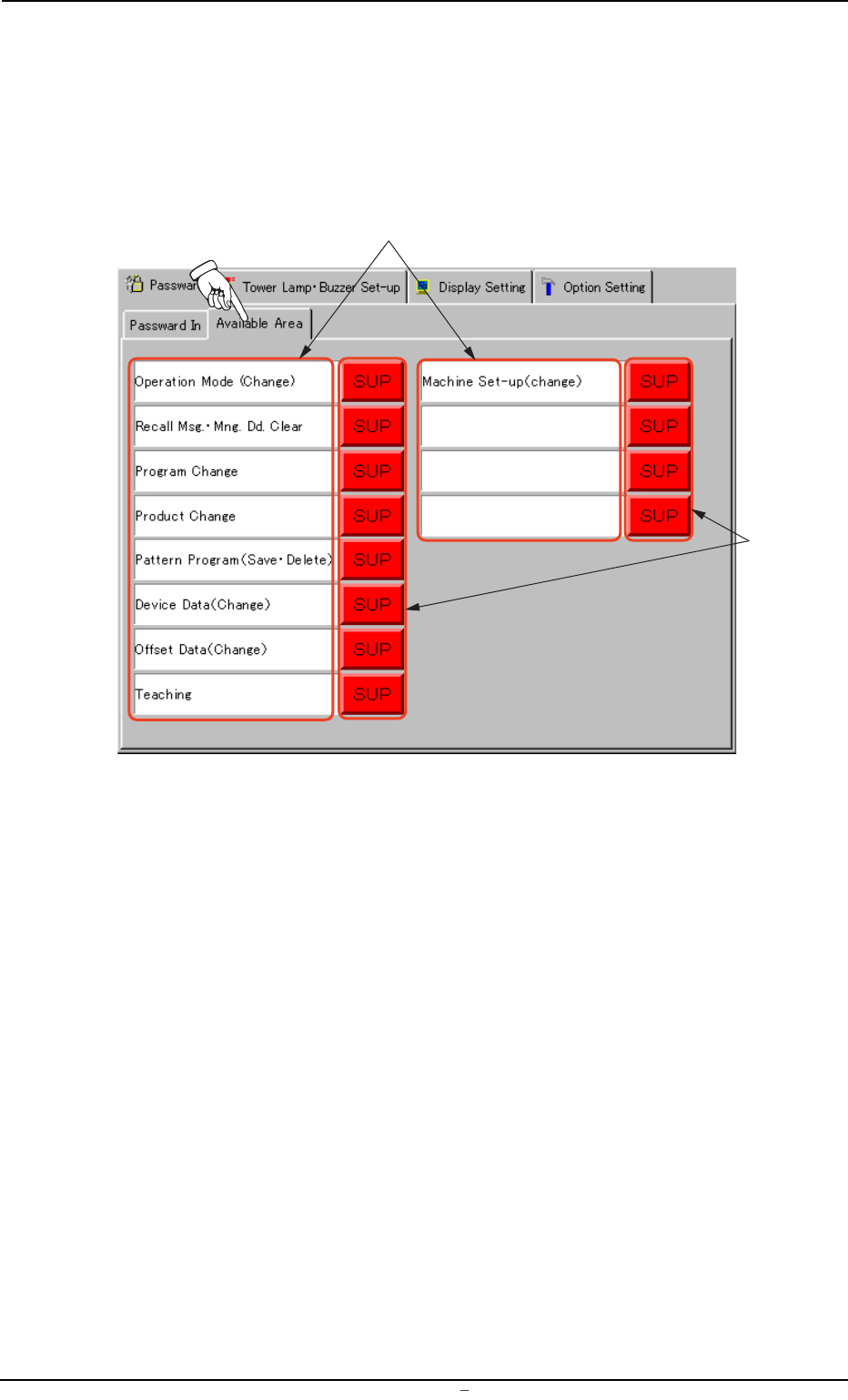
When the "Available Area" tab is pressed in the "Password" tab sheet,
the following tab sheet appears.
Fig. 3D7 "Available Area" Tab Sheet
• Sheet Composition
*1 Function Names
Some function names are displayed, indicating that they can be
set or changed by the authorized operator.
*2 Authorization Buttons
These buttons are used to assign security levels to the correspond-
ing functions.
Every time a button is pressed, the label changes in the order of
[SUP] → [OP1] → [OP2]. The background color also changes in
the order of "Red" → "Green" → "Yellow".
Each label has the following meanings.
[SUP]: Operations available to the supervisor (log-in authoriza-
tion)
[OP1]: Operations available to both supervisor and operator #1
[OP2]: Operations available to the supervisor, operator #1, and
operator #2
*1
*2
0106-002 Chapter 1 4 9 AFU01EDTP
2.1
"
Password
"
Tab