2OM-1104-001.pdf - 第46页
2. "Pattern Program" Edit Window 2.1 Navigations in "Pattern Program" Edit Window 2.1.1 Opening the "Pattern Program" Edit Window This session describes how to open the "Pattern Program…
(5) Option Mode
1 (For.), 2 (Back), 3 (For.), 4 (Back)
Select a wiping mode based on the number of each screen move-
ment.
NO WIPE
The underside of the screen is not wiped
DRY
Solvent is not discharged and the underside of the
screen is wiped with cleaning paper. (Dry Paper)
WET The underside of the screen is woped with cleaning
paper while solvent is being discharged. ( Wet Pa-
per)
VAC.+DRY
The undersideof the screen is wiped with dry paper
while the solder paste on the underside is being
sucked.
VAC.+WET : The underside of the screen is wiped with wet pa-
per while the solder paste on the underside is be-
ing sucked.
(6) Cleaning Speed [mm/sec]
Set the speed at which the screen should be moved for automatic
cleaning of the underside.
Unit: mm/sec
Data Input Range: 10 to 100
(7) Paper Feed Pitch [mm]
Set the pitch at which the cleaning paper should be fed for clean-
ing of the underside.
Unit: mm
Data Input Range: 0 to 45
(8) Solv. Dispense Time [sec]
Set the solvent dispensing time (the time during which the under-
side of the screen should be wiped with cleaning paper while sol-
vent is being discharged) for wet-type cleaning.
Unit: seconds
Data Input Range: 0.1 to 2.0
Paper Feed Pitch [mm]
20
Fig.3B68
0106-003 Chapter 1 2 22 AFU01EDTP
1.2 Operation Data
Solv. Dispense Time [sec]
1.0
Fig.3B69
Cleaning Speed [mm/sec]
050
Fig.3B67
1 (For.)
2 (Back)
VAC.+DRY
VAC.+DRY
3 (For.)
NO WIPE
Fig.3B66
4 (Back)
NO WIPE
2. "Pattern Program" Edit Window
2.1 Navigations in "Pattern Program" Edit Window
2.1.1 Opening the "Pattern Program" Edit Window
This session describes how to open the "Pattern Program" edit window.
The "Pattern Program" edit window can also be opened by se-
lecting the [RECOVERY] submenu in the [Auto Operation]
menu.
• Operation Procedure
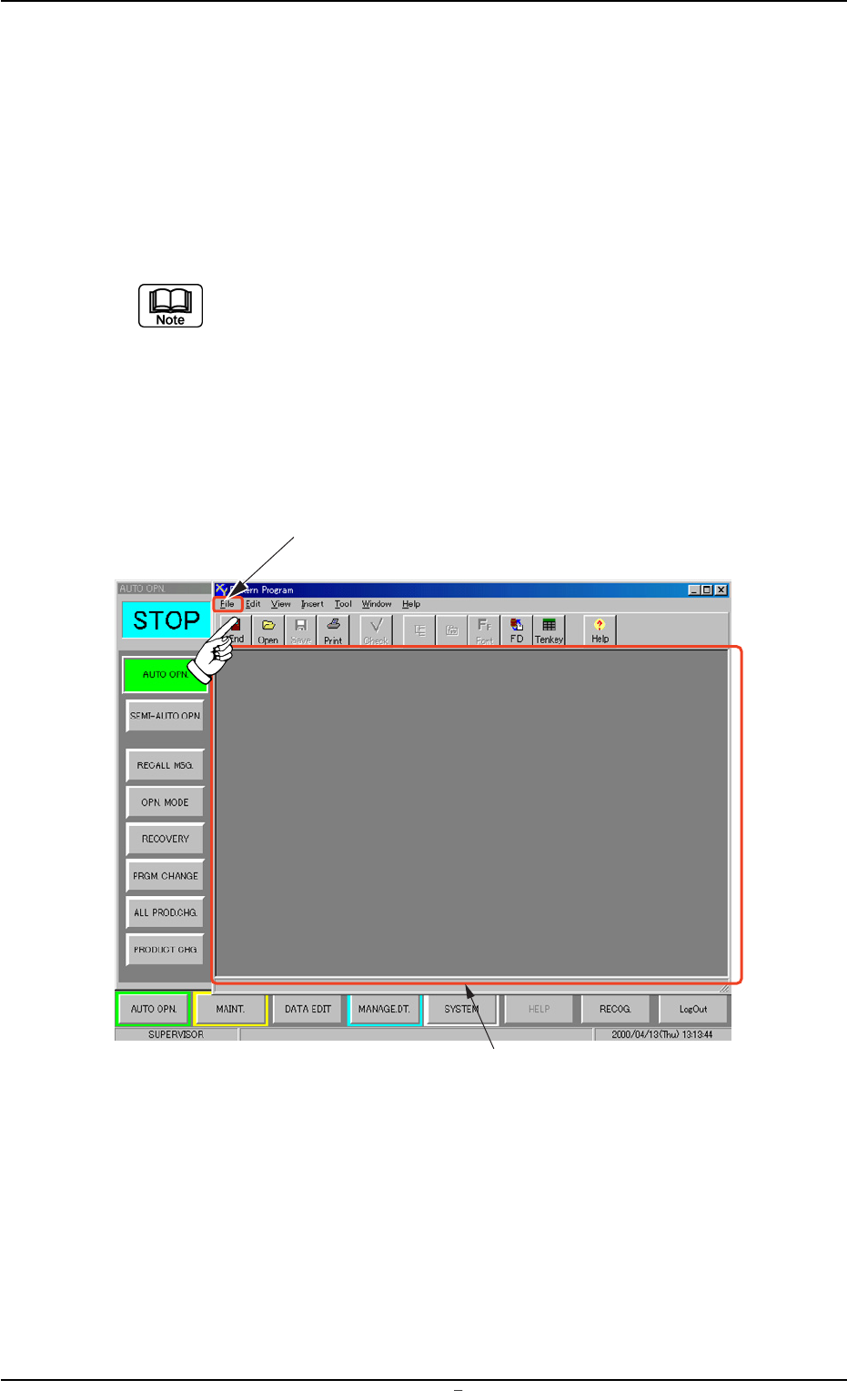
(1) Press the [DATA EDIT] button on the main menu bar. The follow-
ing initial "Pattern Program" window opens.
Fig. 3B73 Initial "Pattern Program" Window
"File" Menu
Initial "Pattern Program" Window
2. “Pattern Program” Edit Window
0106-002 Chapter 1 2 23 AFU01EDTP
(2) Press "File" on the menu bar. The pull-down menu opens. Select
"New Prgm." or "Open..." from the pull-down menu.
New Prgm. : Select this to newly create a pattern program.
Open... : Select this to edit (correct or modify) a saved pat-
tern program.
(3) Depending on a selected menu, the following windows, etc., will
open.
• When "New Prgm." menu is selected, a "Pattern Program" edit
window opens, displaying the default values.
See Fig. 3B76.
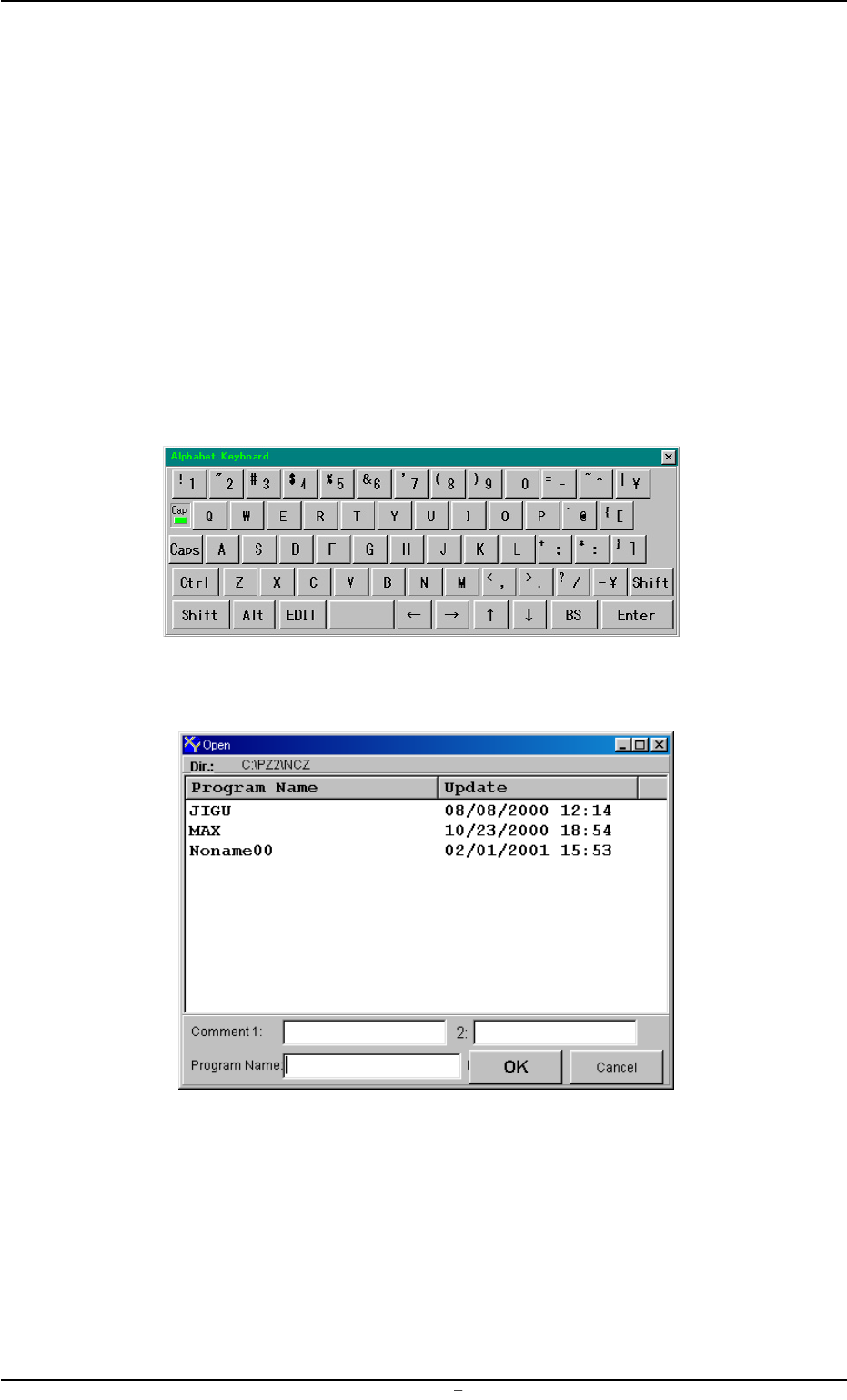
• When "Open..." menu is selected, a "Virtual Keyboard" (Fig. 3B74)
and "Open" window (Fig. 3B75) open.
Fig. 3B74 Virtual Keyboard
Fig. 3B75 "Open" Window
2.1 Navigations in “Pattern Program” Edit Window
0106-002 Chapter 1 2 24 AFU01EDTP