2OM-1104-001.pdf - 第107页
T able 3D2-1 T abs Description Display Setting When no operation on the touch screen is needed for a long period of time, the monitor protection function can be activated to avoid burning the screen. Option Setting When …
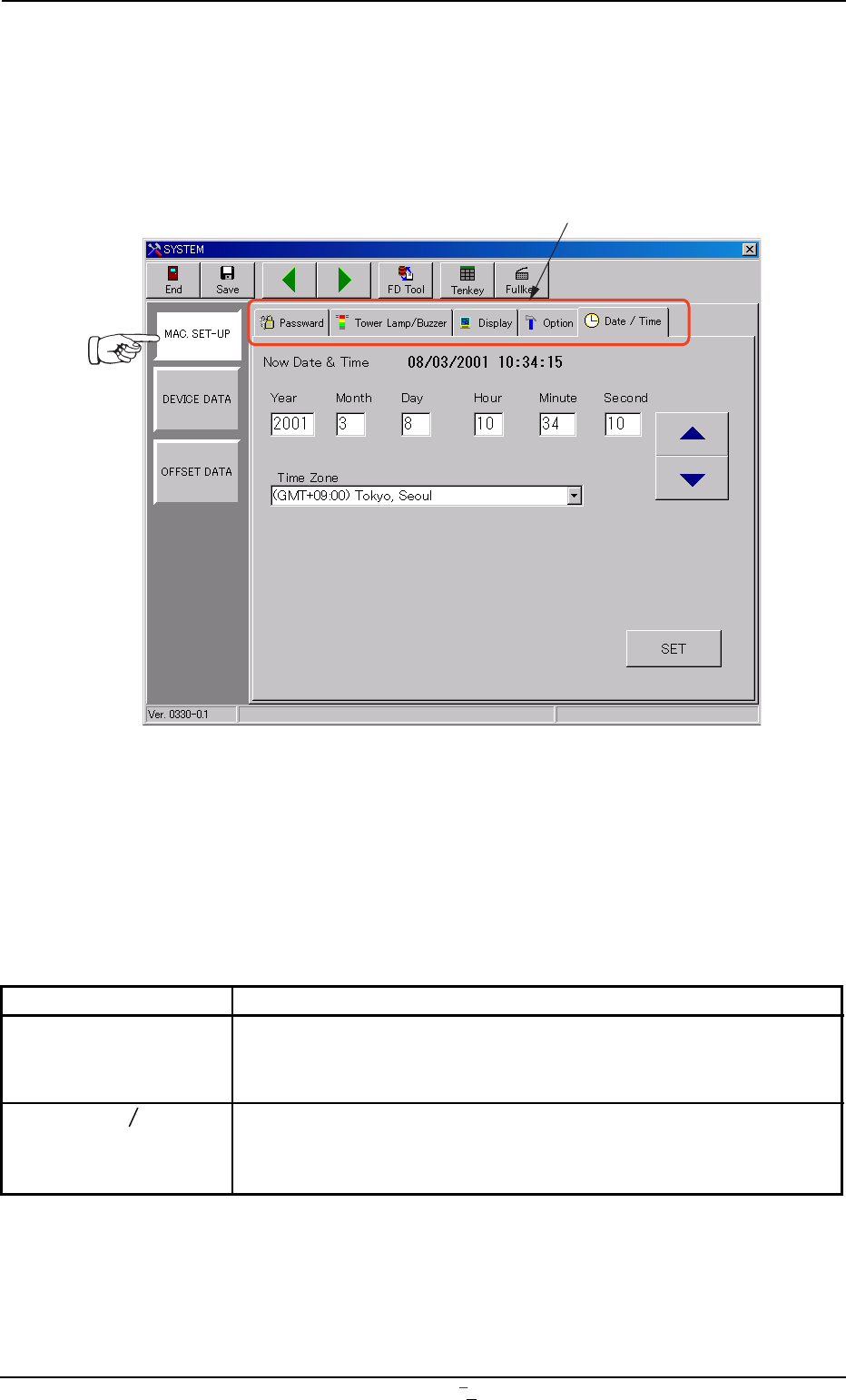
2. "MAC. SET-UP" Submenu
• Window Layout
When the [MAC. SET-UP] button is pressed in the "SYSTEM" submenu
bar, the following window appears.
Fig. 3D5 "MAC. SET-UP" Window (Submenu)
• Window Composition
*1 Tabs
The "MAC. SET-UP" window (submenu) is provided with 5 tab
sheets.
Every time a tab is pressed, the corresponding tab sheet appears.
Table 3D2
Tabs Description
Password Three kinds of passwords and an effective range of each password
can be set for the operators in charge. (Security Levels: "Supervi-
sor", "Operator #1", and "Operator #2")
Tower Lamp
This tab sheet enables the operator to allocate the colors (red,
Buzzer yellow, and green) of the tower lights and set alarm modes accord-
ing to the machine status.
*1
0106-003 Chapter 1 4 5 AFU01EDTP
2.
"
MAC. SET-UP
"
Submenu

Table 3D2-1
Tabs Description
Display Setting When no operation on the touch screen is needed for a long period
of time, the monitor protection function can be activated to avoid
burning the screen.
Option Setting When the external keyboard (option) is used, this tab sheet can be
used to change the configuration of the system.
Date/Time The corresponding tab sheet enables the operator to set the cur-
rent date and time.
2.
"
MAC. SET-UP
"
Submenu
0106-001 Chapter 1 4 5-1 AFU01EDTP
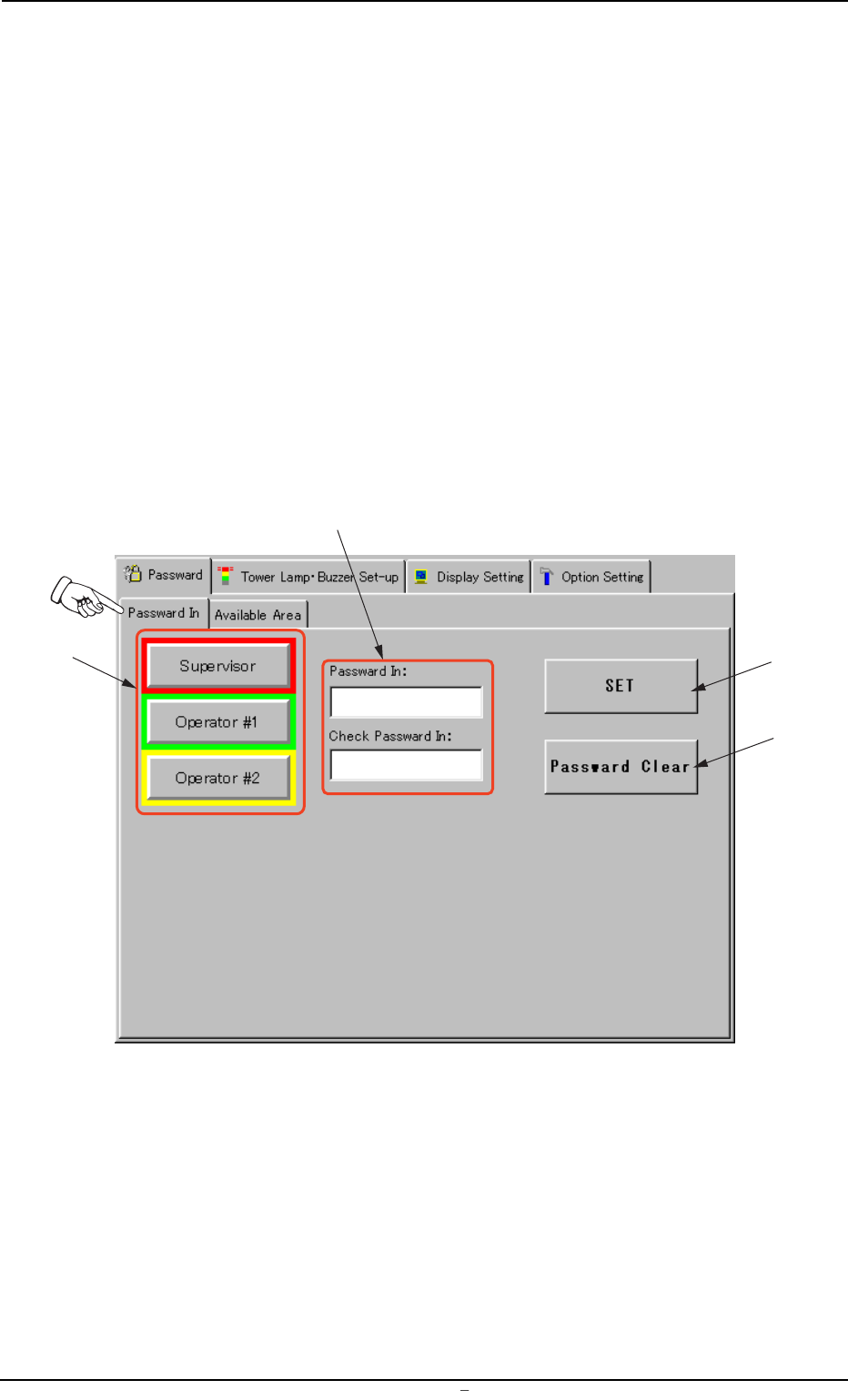
2.1 "Password" Tab
Passwords can be set as a means of security for different operators of
the machine. Depending on the set passwords, different authorization
(permission and privilege) is given to each operator such that only ap-
proved operators can gain access to certain functions of the machine.
The "Password" tab sheet is composed of two tab sheets - "Password
In" and "Available Area".
2.1.1 "Password" Tab
• Sheet Layout
When the [MAC. SET-UP] button is pressed in the "SYSTEM" submenu
bar, the following tab sheet appears.
Fig. 3D6 "Password" Tab Sheet
*2
*1
*3
*4
0009-002 Chapter 1 4 6 AFU01EDTP
2.1
"
Password
"
Tab