2OM-1104-001.pdf - 第47页
(2) Press "File" on the menu bar . The pull-down menu opens. Select "New Prgm." or "Open..." from the pull-down menu. New Prgm. : Select this to newly create a pattern program. Open... : Sel…
2. "Pattern Program" Edit Window
2.1 Navigations in "Pattern Program" Edit Window
2.1.1 Opening the "Pattern Program" Edit Window
This session describes how to open the "Pattern Program" edit window.
The "Pattern Program" edit window can also be opened by se-
lecting the [RECOVERY] submenu in the [Auto Operation]
menu.
• Operation Procedure
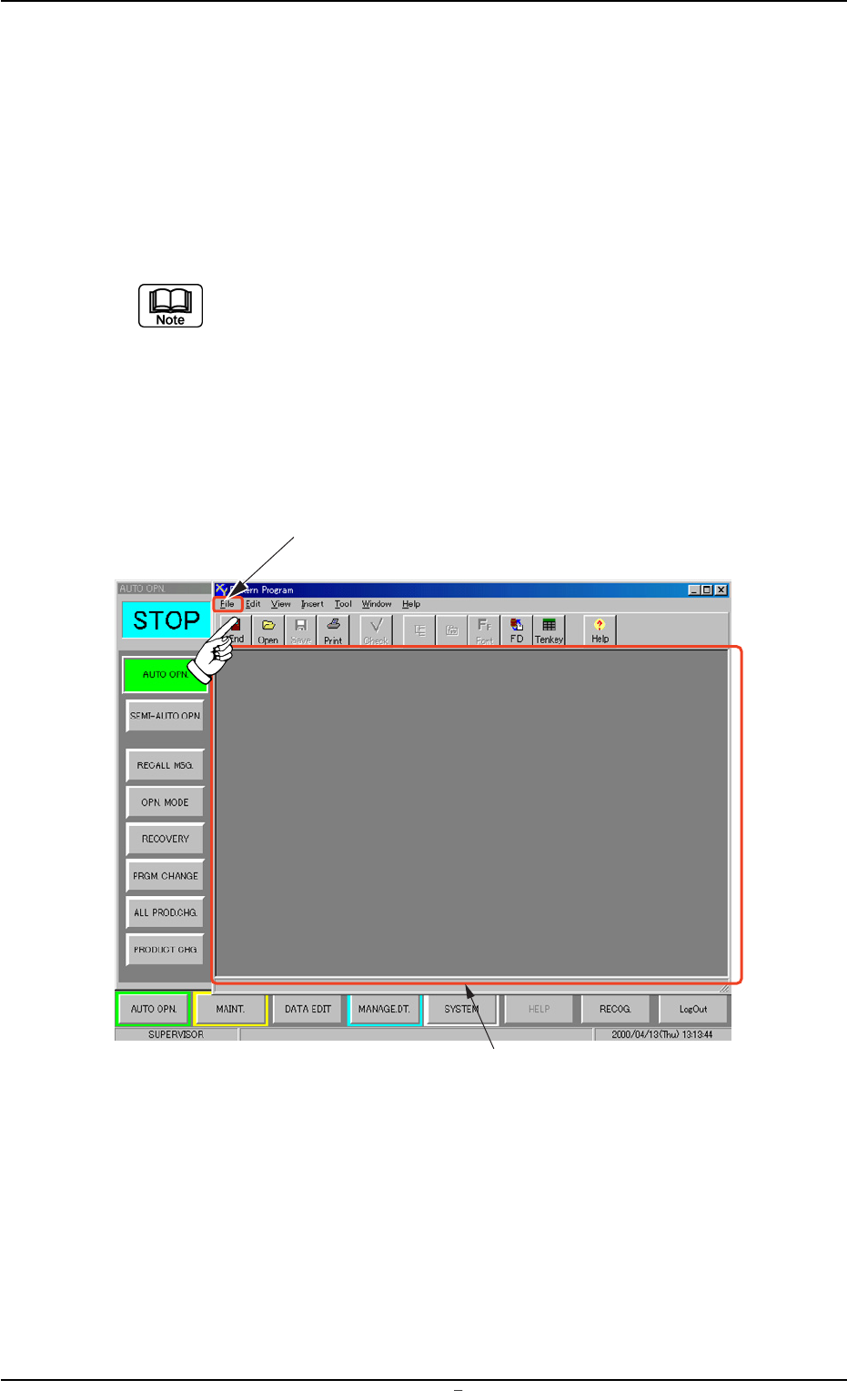
(1) Press the [DATA EDIT] button on the main menu bar. The follow-
ing initial "Pattern Program" window opens.
Fig. 3B73 Initial "Pattern Program" Window
"File" Menu
Initial "Pattern Program" Window
2. “Pattern Program” Edit Window
0106-002 Chapter 1 2 23 AFU01EDTP
(2) Press "File" on the menu bar. The pull-down menu opens. Select
"New Prgm." or "Open..." from the pull-down menu.
New Prgm. : Select this to newly create a pattern program.
Open... : Select this to edit (correct or modify) a saved pat-
tern program.
(3) Depending on a selected menu, the following windows, etc., will
open.
• When "New Prgm." menu is selected, a "Pattern Program" edit
window opens, displaying the default values.
See Fig. 3B76.
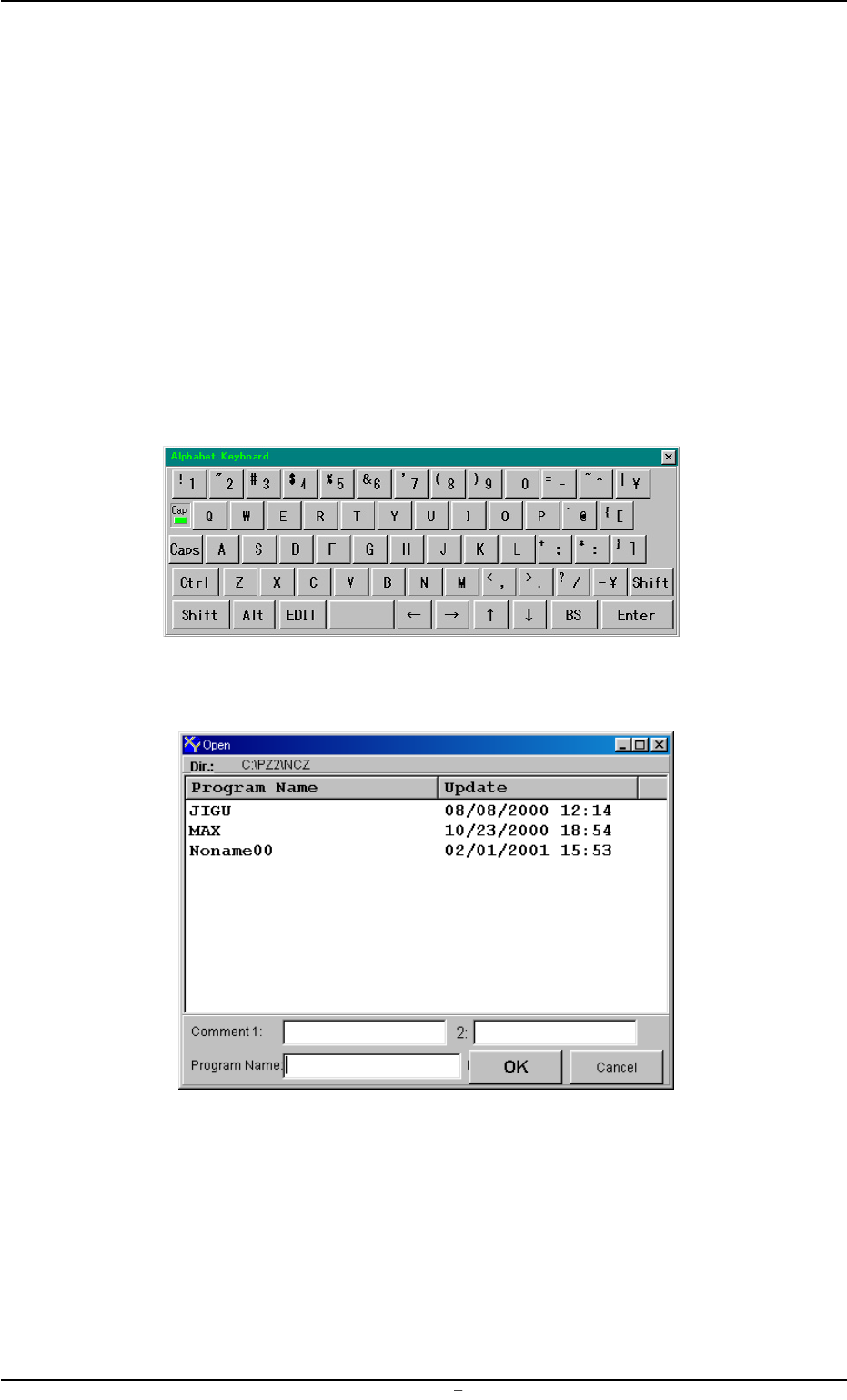
• When "Open..." menu is selected, a "Virtual Keyboard" (Fig. 3B74)
and "Open" window (Fig. 3B75) open.
Fig. 3B74 Virtual Keyboard
Fig. 3B75 "Open" Window
2.1 Navigations in “Pattern Program” Edit Window
0106-002 Chapter 1 2 24 AFU01EDTP
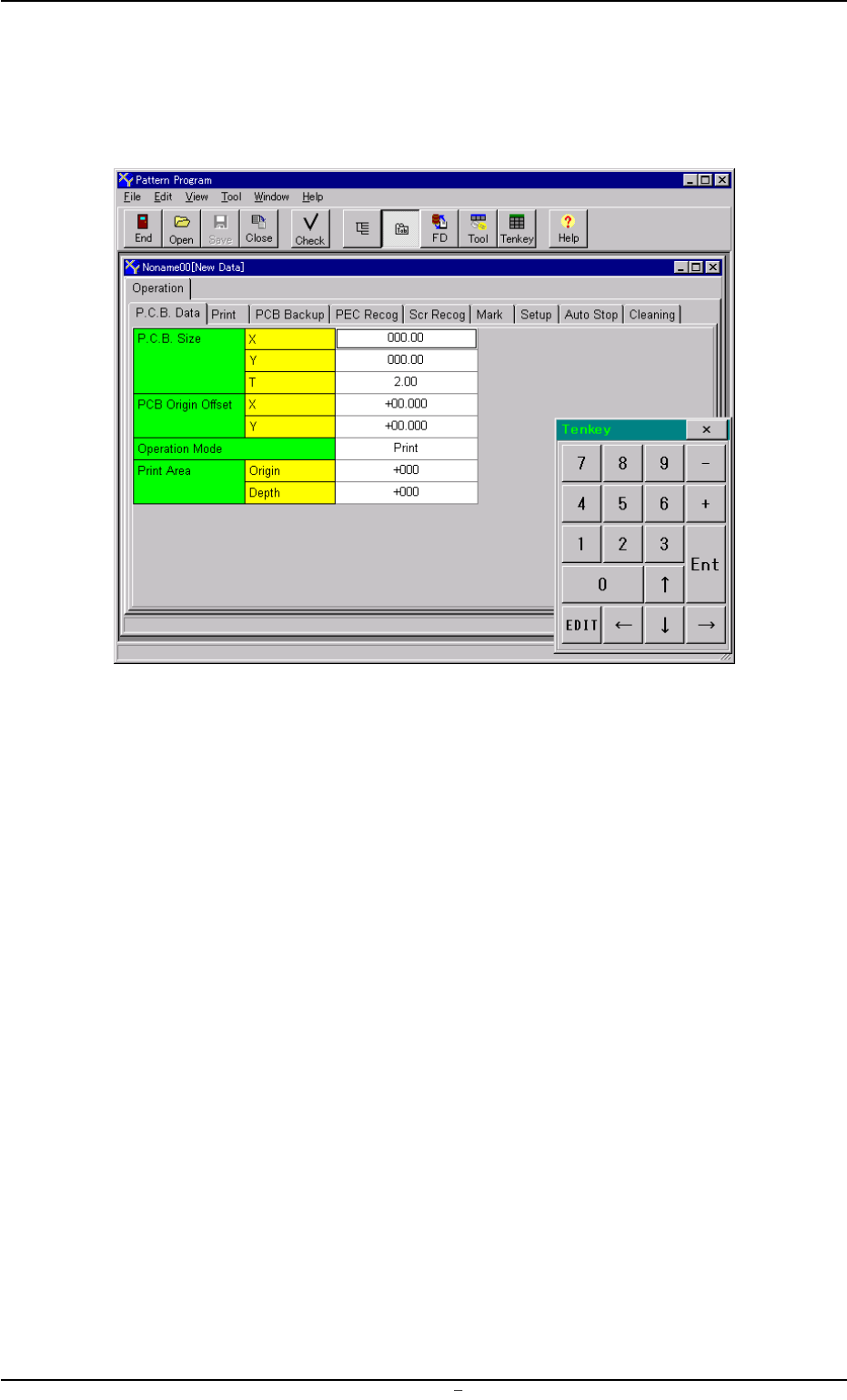
(4) Select the desired program name from the list box in the "Open"
window or enter the name of the program to be opened in the text
box, using the virtual keyboard and press the [OK] button. The
following "Pattern Program" edit window opens.
Fig. 3B76 "Pattern Program" Edit Window
0106-002 Chapter 1 2 25 AFU01EDTP
2.1 Navigations in “Pattern Program” Edit Window