CAN Bus Workshop_Version 03__06-2008_EN.pdf - 第104页
1 Caccia Student Guide CACCIA Manual Issue 04/2007 EN 12 – Use extend ed CAN IDs This option has been introduced due to an address extension . 1 Enable this option if you have inst alled one of the following CAN cards: 1…
CACCIA Manual 1 Caccia Student Guide
Issue 04/2007 EN
11
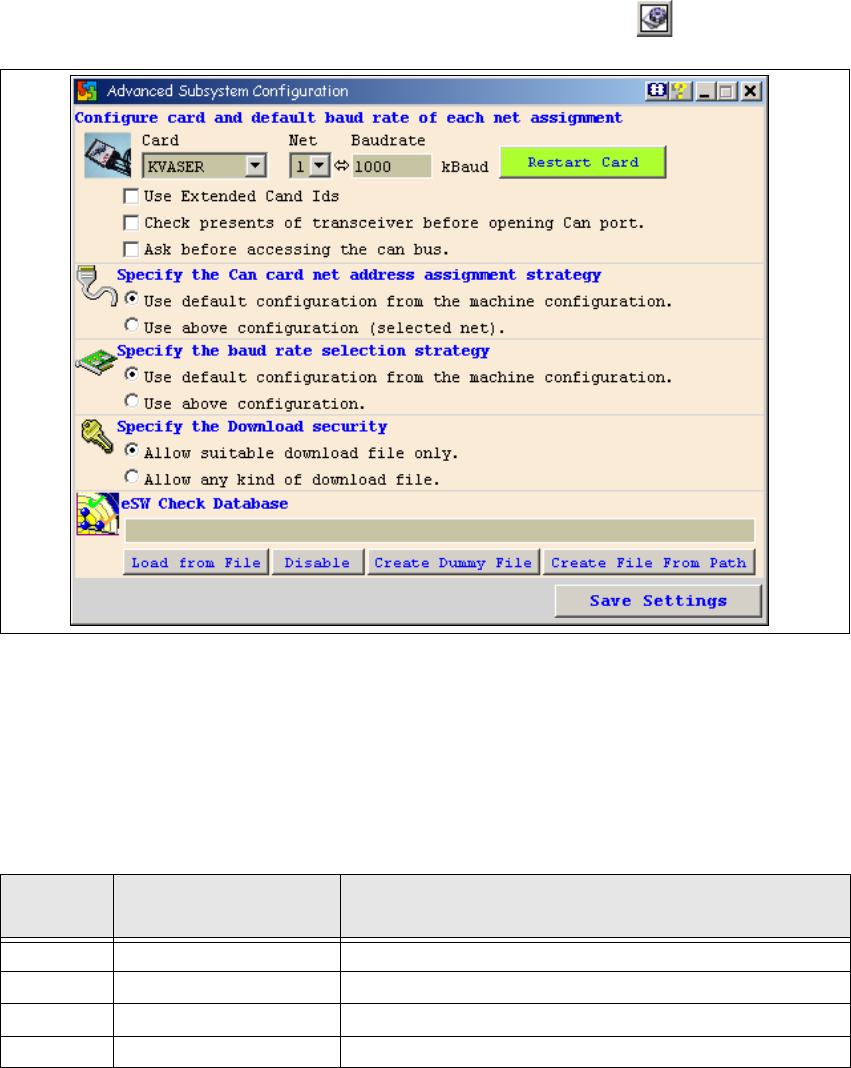
1.1.4 Change Properties - Advanced Subsystem Configuration
→ Open the Advanced Subsystem Configuration dialog box with the button:
1
Fig. 1 - 6 Advanced subsystem configuration dialog box
CAN card configuration and default baud rate setting: 1
–CAN card:
Select the CAN card which is installed on the system concerned. 1
– Net, baud:
1
1
– Restart card
Restarts the selected CAN card. 1
Net
Baud
1 Kbaud = 1 Kbit/s
Machine(s)
1, 2 1000 Kbaud For X2/X3/X4 and HF/HF3 machines.
1 500 Kbaud For HS 50/ HS 60 machines
2 125 Kbaud For HS 50/ HS 60 machines
1 1000 Kbaud S27HM

1 Caccia Student Guide CACCIA Manual
Issue 04/2007 EN
12
– Use extended CAN IDs
This option has been introduced due to an address extension. 1
Enable this option if you have installed one of the following CAN cards: 1
– CANAS
– CANBLUE
–CANDY
The drivers for these CAN cards need to be informed that they are to operate in extended CAN
mode. This information is required at program start. 1
– Check presence of transceiver
If this option is disabled, Caccia can be used "offline" for training purposes. 1
Note
This option only works with KVASER and CANcardXL cards 1
– Assignment: CAN Card - Net
– Recommended setting: Use default configuration from the machine configuration.
– Specify baudrate selection
– Recommended setting: Use default configuration from the machine configuration.
– Specify the download security
– Recommended setting: Allow suitable download file only.
1
Embedded Software Check (eSW) Check DataBase
The eSW Check compares the SW versions of the individual CAN subsystems with the latest SW
version. This functions allows you to detect differences in the software versions used by the CAN
subsystems. 1
Before you can use the eSW Check Database option, the following preparations need to be per-
formed: 1
→ Copy the firmware files (FW files) from the C:\SRProgramme\CANFw folder of the current sta-
tion software release. Specify a suitable folder on the service laptop as the target for these files
(e.g. C:\FW_Vergleich).
→ Click on the Create File from Path button. A dialog box for searching a folder will open. Select
the folder chosen on the service laptop as the target for the FW files (e.g. C:\FW_Vergleich)
and click on OK.

CACCIA Manual 1 Caccia Student Guide
Issue 04/2007 EN
13
→ A "comparison file" will be generated.
Note
We recommend that you include the Caccia version number in the file names, for subsequent ref-
erence (e.g. C:\FW_14_0_88_Vergleich). 1
When the firmware check is performed (eSW) for the CAN subsystems, all versions will be com-
pared to the contents of this reference file, (Siehe “Opening the Subsystem Control Center with
(eSW) Firmware Check” auf Seite 17). 1