CAN Bus Workshop_Version 03__06-2008_EN.pdf - 第106页
1 Caccia Student Guide CACCIA Manual Issue 04/2007 EN 14 1.2 Basic Functions 1.2.1 Opening the Subsystem Contro l Center → Click on the button to open the Subsyste m Control Center dial og box: 1 Fig. 1 - 7 S ubsystem Co…

CACCIA Manual 1 Caccia Student Guide
Issue 04/2007 EN
13
→ A "comparison file" will be generated.
Note
We recommend that you include the Caccia version number in the file names, for subsequent ref-
erence (e.g. C:\FW_14_0_88_Vergleich). 1
When the firmware check is performed (eSW) for the CAN subsystems, all versions will be com-
pared to the contents of this reference file, (Siehe “Opening the Subsystem Control Center with
(eSW) Firmware Check” auf Seite 17). 1
1 Caccia Student Guide CACCIA Manual
Issue 04/2007 EN
14
1.2 Basic Functions
1.2.1 Opening the Subsystem Control Center
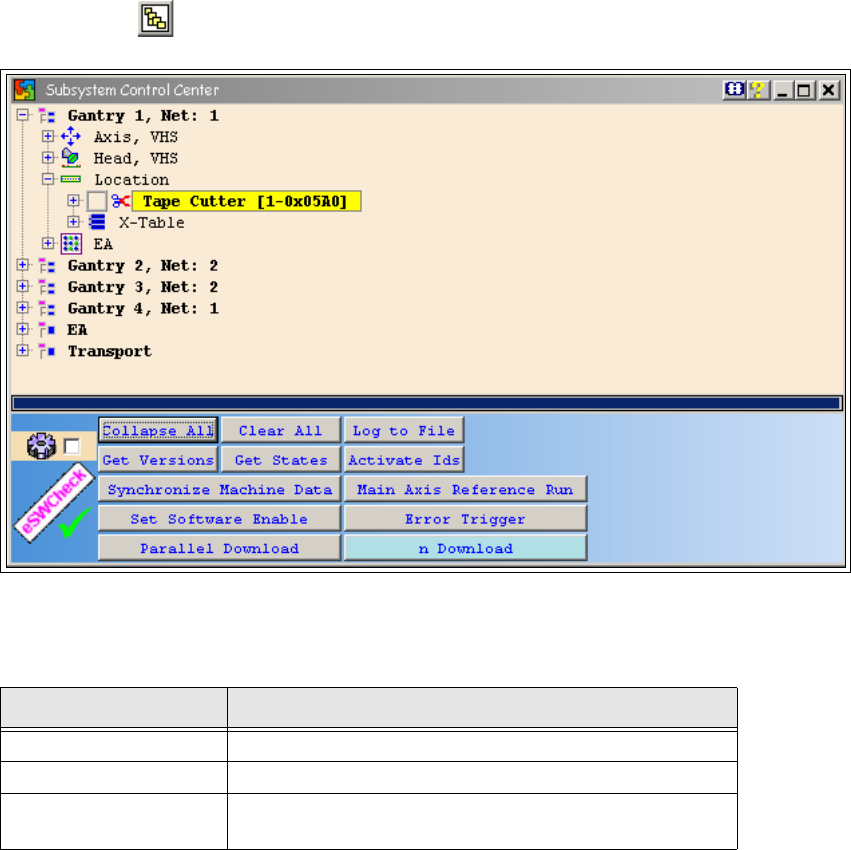
→ Click on the button to open the Subsystem Control Center dialog box:
1
Fig. 1 - 7 Subsystem Control Center dialog box
1
1
Button Description / Action
Collapse All Closes the open tree structure completely.
Clear All Disables the subsystems currently active.
Log to File
Saves the structure of the configured machine, including
all subsystems, as a text file.

CACCIA Manual 1 Caccia Student Guide
Issue 04/2007 EN
15
Tab. 1 - 2 Subsystem Control Center dialog box buttons
Get Versions
Starts a version information query for all subsystems.
The subsystems found will be opened.
– Green: At least one BIOS message has been sent.
– Red: No subsystem message or an error has oc-
curred The errors are listed in a separate window.
Any subsystems which have not been applied in X-
Series feeders will be marked red.
If the tree structure does not open when you click on the
Get Version button, the error lies in the connection, in
the machine configuration or in a version of Caccia
which is too old (lower than 14.0.75). 1
Another possible error source is when the MC has not
yet been booted. In this case, you need to assign the
IDs for the individual nodes. Simply click on the Acti-
vate IDs button and this will be performed automatically.1
Get States
Reports the state of each subsystem,
(make sure you click on Get Versions beforehand.).
Activate IDs
Assigns a CAN ID for each subsystem, if the machine
controller has not been started.
n Download
Starts a multiple download to the subsystems. The se-
lected subsystems need to be compatible, otherwise an
error message will be issued.
Synchronize Machine
Data
Enables the developer to perform machine data or MA
database downloads at the station.
Main Axis Reference
Run
Enables the developer to perform multiple gantry axis
reference runs.
Set Software Enable Enables the software release.
Error Trigger
Enables you to trigger the MC error messages (certain
HW requirements necessary). 1
Button Description / Action