CAN Bus Workshop_Version 03__06-2008_EN.pdf - 第109页
CACCIA Manual 1 Caccia Student Guide Issue 04/2007 EN 17 When you st art the machine controller (M C), the in dividual CAN subsystems are auto matically as- signed machine type-specific CAN addresses or CA N IDs. These a…
1 Caccia Student Guide CACCIA Manual
Issue 04/2007 EN
16
1.2.2 CAN IDs
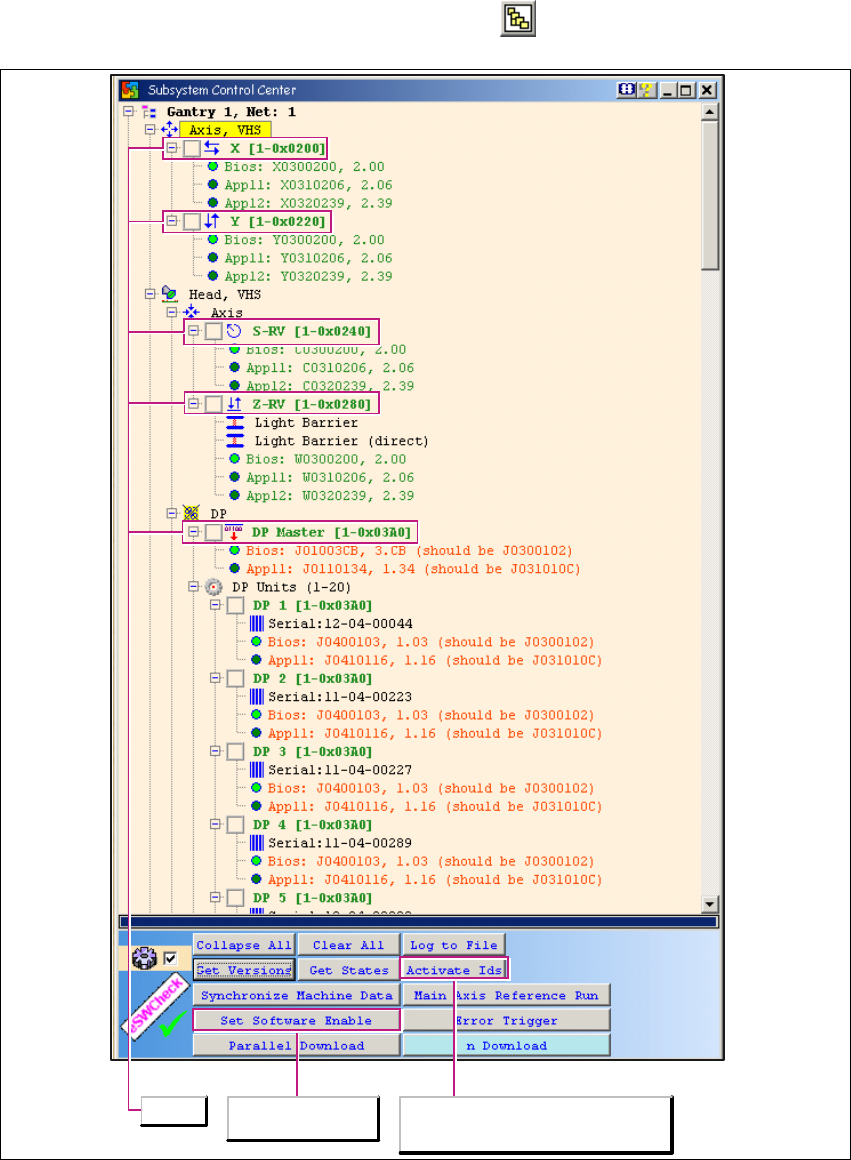
The CAN IDs can be viewed in the Subsystem Control Center. 1
→ To start the Subsystem Control Center, click on the button:
1
Fig. 1 - 8 Subsystem Control Center: CAN IDs
CAN IDs
Enables the software.
If the MC is unable to start or if it is blocked
by an empty diskette, Caccia can perform a
machine type-specific CAN ID assignment
CACCIA Manual 1 Caccia Student Guide
Issue 04/2007 EN
17
When you start the machine controller (MC), the individual CAN subsystems are automatically as-
signed machine type-specific CAN addresses or CAN IDs. These are required for requests, down-
loads or function calls. 1
If the MC is unable to start or if it is blocked by an empty diskette, Caccia can perform a machine
type-specific CAN ID assignment with the Activate Ids button. 1
– Once this has been completed, you can perform downloads.
– To execute other functions, you will need the correct CAN ID and CAN BUS command.
– A few functions also require the software release signal and pressing of the machine START
button.
1.2.3 Opening the Subsystem Control Center with (eSW) Firmware Check
Note
The requirements for using the eSWCheck Database option are explained in Section „Embedded
Software Check (eSW) Check DataBase“ auf Seite 12. 1
→ Click on the button to open the Subsystem Control Center dialog box:
The general operation of the Subsystem Control Center is described in Chapter 1.2.3 „Ope-
ning the Subsystem Control Center with (eSW) Firmware Check“ auf Seite 17. 1
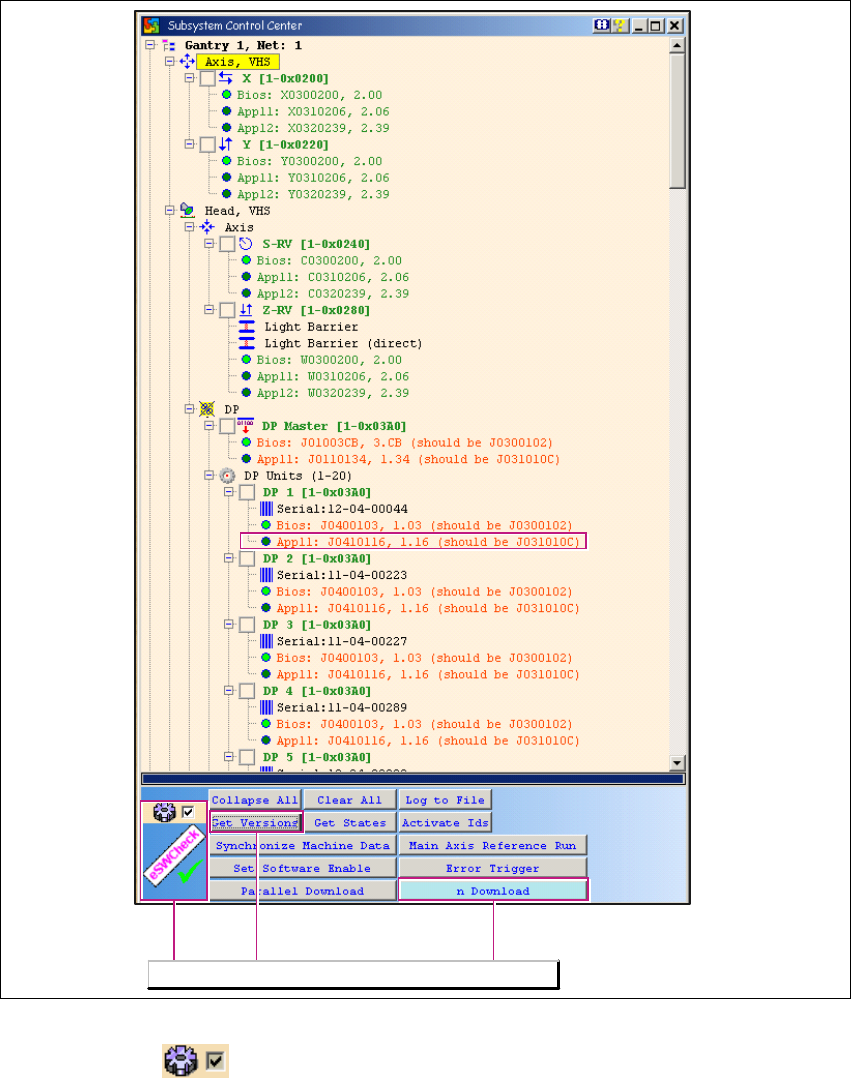
The eSW Firmware Check functions are available when the eSWCheck icon is shown and the
tick has been set. 1
1 Caccia Student Guide CACCIA Manual
Issue 04/2007 EN
18
1
Fig. 1 - 9 Subsystem Control Center dialog box
– If the tick is set , you will only see responding subsystems with - a minimum of - loaded
BIOS versions. In this case, the eSW Check can be performed by clicking on the Get Versions
button. The different eSW versions will be shown behind the respective CAN subsystem. If
there is no difference between the software versions, the tree structure will remain closed and
the CAN subsystem will be marked green.
– The eSW Check is only performed for CAN subsystems which are connected to the CAN Bus.
The eSW Check functions will be available.