CAN Bus Workshop_Version 03__06-2008_EN.pdf - 第151页
CACCIA Manual 1 Caccia Student Guide Issue 04/2007 EN 59 Fig. 1 - 36 Download- sequence After the activati on of the bu tton Write Con- fig the buttons should be active as sh own in the adjoined screenshot. → Erase the f…
1 Caccia Student Guide CACCIA Manual
Issue 04/2007 EN
58
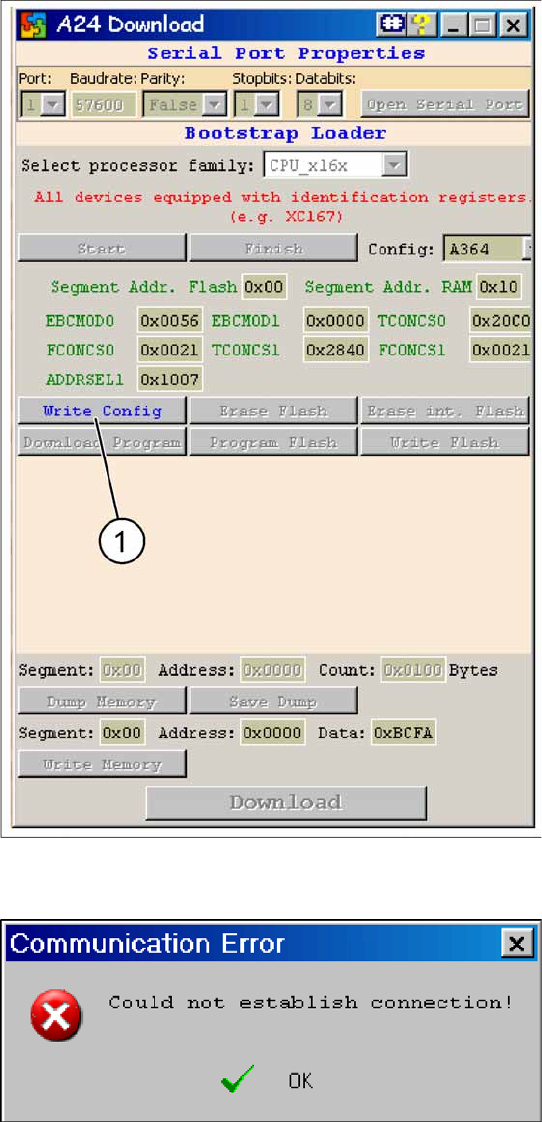
Fig. 1 - 34 A24 download dialog: Connection to axis card is OK
In case of a succesful connection the
adjoined window is displayed.
→ Click on button
Write Config
(1).
Fig. 1 - 35 Error message during establishing V24 connection
In case of a connection failure the adjoined
error message is shown.
→ In this case repeat the sequence descri-
bed above.
→ Close the window and reopen it.
→ Press reset switch on the adapter card.
→ Cick in CACCIA on the button
Open Se-
rial Port
and subsequently on the button
Start
.

CACCIA Manual 1 Caccia Student Guide
Issue 04/2007 EN
59
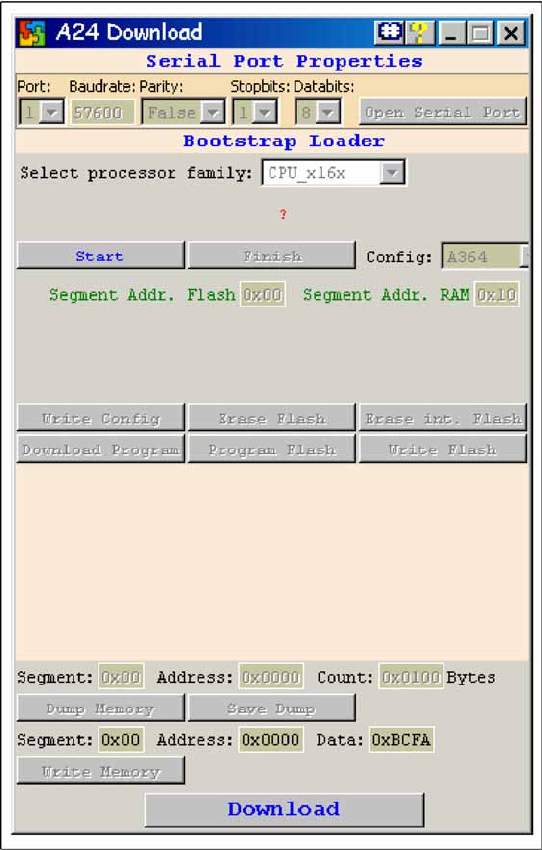
Fig. 1 - 36 Download-sequence
After the activation of the button
Write Con-
fig
the buttons should be active as shown in
the adjoined screenshot.
→ Erase the flash memory by pressing on
the buttons
Erase Flash
(1) (approx.
15 sec.) and
Erase int. Flash
(2) (ap-
prox. 2 sec.).
After this the flash is erased completely
and the BIOS can be downloaded again.
→ Click on the button
Download
Program
(3).
An Explorer dialog opens where the cor-
rect BIOS must be selected and opened.
→ Click on the button
Program Flash
(4)
(approx. 3 sec.).
→ Finally click on the button
Finish
(5).
1 Caccia Student Guide CACCIA Manual
Issue 04/2007 EN
60
1
Fig. 1 - 37 Download successfully completed
→ In case of a successful download the ad-
joined window is shown. Only in case of a
download failure the error message ap-
pears.
→ Switch OFF the bootstrap switch and
press the reset switch The green LED (be-
low left) on the axis card should flash now.
The BIOS download is completed.
The application 1 and 2 can be loaded via
CACCIA or SITEST by standard procedure.